1
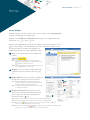
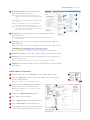
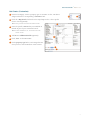
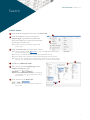
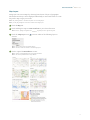
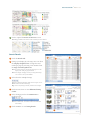
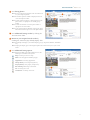
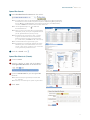
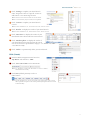
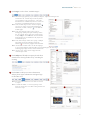
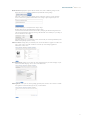
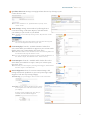
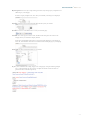
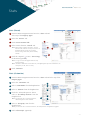
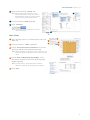
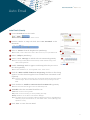
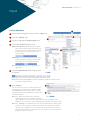
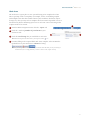
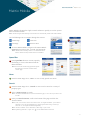
Quick Start Guide Matrix™ 6.3 3 Click, “Settings” to update your Saved Search name, assign the search to a specific contact or add/remove it as a Home Page favorite. 4 3 Note: saved search can also be turned into an Auto Email. Note: a criteria summary may be viewed, but not updated. 4 Click, “Criteria” to update your Saved Search criteria. Note: for more information, see, “Criteria Search” in the, “Search” section. 5 Click, “Results” to display the results of your Saved Search. Note: for more information, see, “Search Results” in the, “Search” section. 5 6 Click, “Date Since” to display the results of your Saved Search since the last time the search was run. 7 Click, “Market Update” to display the results of your Saved Search since the last time the search was run or between a specified date range (i.e. 7/1/2004+, 7/1/20127/31/2012 or 0-60). 8 7 Click, “Delete” to permanently delete your Saved Search. CMA (Create) 1 From the Matrix navigation menu, hover the, “My Matrix” tab and select, “CMA”. 2 Click, “Start a New CMA” on the Button Bar. 1 Note: see, “My Matrix > CMA” in the “Button Bar” section for a full list st of Button Bar functionality. 3 Click Start (default position) to select a CMA Contact. 3 Note: from the dropdown list, you may also change your CMA property type as well as add an optional description in the textbox provided (description will not be visible on the final CMA). 17