1
Modules
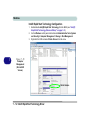
25. Press <Esc> to exit the menu.
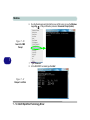
26. Press <F4> and <Yes> to “Save Changes and Reset”, however ensure that the
two conditions in the bulleted points below are met before doing so.
• Make sure the Windows 8 OS DVD is in the DVD drive. and as the computer
starts up it will automatically boot from the Windows 8 OS DVD (you will be
prompted to press a key to boot from the DVD).
• Make sure your USB Flash drive or external USB hard disk is attached to one of
the USB ports on the computer.
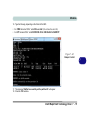
27. Press <F7> as the computer starts up to bring up the boot device menu.
28. Select the DVD drive containing the Windows 8 OS DVD and press <Enter>.
29. Press a key at system startup to begin installing Windows from your Microsoft
Windows 8 disc.
30. Click Next > Install Now to continue installing the operating system as normal
(see your Windows documentation if you need help on installing the Windows
OS).
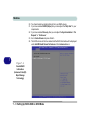
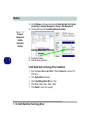
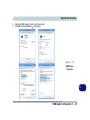
31. A prompt will appear to ask you to Load Driver.
32. Click Browse and browse to the location you copied the files to on your USB Flash
drive or external USB hard disk (X: denotes your USB Flash drive or external USB
hard disk):
• X:\f6flpy-x86 (for Windows 8 32bit)
• X:\f6flpy-x64 (for Windows 8 64bit)
33. Click Next.
34. Follow the on-screen instructions to install the Windows 8 operating system.
Setting Up SATA RAID or AHCI Mode 7 - 9
7