1
User’s
Manual
MobileCorder MV100/MV200
Communication Interface
IM MV100-17E
*MV10017E04*
Yokogawa Electric Corporation
IM MV100-17E
4th Edition
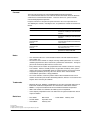
Forward
Thank you for purchasing the YOKOGAWA MobileCorder MV100/MV200.
This Communication Interface User’s Manual contains information about the Ethernet/
serial interface communication functions. To ensure correct use, please read this
manual thoroughly before operation.
Keep this manual in a safe place for quick reference in the event a question arises.
The following five manuals, including this one, are provided as manuals for the MV100/
MV200.
Manual Name
Manual No.
Description
MV100 User’s Manual
IM MV100-01E
Explains all functions and procedures of
the MV100 excluding the communication
functions.
MV200 User’s Manual
IM MV200-01E
Explains all functions and procedures of
the MV200 excluding the communication
functions.
MV100/MV200
Communication
Interface
IM MV100-17E
This manual. Explains the
communication functions of the Ethernet/
serial interface.
Fieldbus
Communication
Interface
IM 04L02A01-18E
Explains the communication functions
of the FOUNDATION Fieldbus interface.
For models with /CF1.
DAQSTANDARD
IM 04L02A01-61E
Describes the functions and operating
procedures of DAQSTANDARD.
Notes
• This manual describes the communication function of the MV100/MV200 with the
style number “S4.”
• The contents of this manual are subject to change without prior notice as a result of
continuing improvements to the instrument’s performance and functions. The figures
given in this manual may differ from the actual screen.
• Every effort has been made in the preparation of this manual to ensure the accuracy
of its contents. However, should you have any questions or find any errors, please
contact your nearest YOKOGAWA dealer as listed on the back cover of this manual.
• Copying or reproducing all or any part of the contents of this manual without
YOKOGAWA’s permission is strictly prohibited.
• The TCP/IP software used in this product and the documentation for that TCP/IP
software are based in part on BSD Networking Software, Release 1 licensed from The
Regents of the University of California.
Trademarks
• Microsoft, MS-DOS, Windows, and Windows NT are either registered trademarks or
trademarks of Microsoft Corporation in the United States and/or other countries.
• Modbus is a registered trademark of AEG Schneider Automation Incorporated.
• Adobe and Acrobat are trademarks of Adobe Systems incorporated.
• Other company and product names are trademarks or registered trademarks of their
respective holders.
Revisions
• First edition:
• Second edition:
• Third edition:
March 2000
September 2000
February 2001
• Fouth edition: February 2002
Disk No. RE25
4th Edition: February 2002(YK)
All Rights Reserved, Copyright © 2000 Yokogawa Electric Corporation
IM MV100-17E
i
How to Use this Manual
Structure of the Manual
The structure of this User’s Manual is as follows.
Chapter 1
Overview of the Communication Functions
Describes the relationship between the communication functions and the interface and
provides an outline of the communication functions.
Chapter 2
Using the Ethernet Interface
Describes the specifications and setup procedures of the Ethernet interface. Describes the
FTP client function, Web server function, and e-mail transmission function. Also describes
how to display the log screen.
Chapter 3
Using the Serial Interface (Option)
Describes the functions, specifications, and setup procedures of the serial interface (option).
Two types of serial interfaces, RS-232 and RS-422A/485 are available.
Chapter 4
Using the Modbus Protocol
Describes the specifications and setup procedures of the Modbus protocol and the status
indication screen of the Modbus master.
Chapter 5
Commands
Describes each command that can be used.
Chapter 6
Response
Describes the data format of the panel setup information and measured/computed data that
are output from this instrument.
Chapter 7
Status Report
Describes the status information.
Appendix
Provides an ASCII character code table, the flow of operation when outputting data from MV, a
list of error messages, and the login process.
Index
Provides an index.
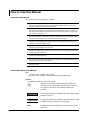
Conventions Used in this Manual
Unit
• k Denotes 1000. Example: 5 kg, 100 kHz
• K Denotes 1024. Example: 720 KB (Storage capacity of floppy disks)
Symbols
The following symbols are used in this manual.
Affixed to the instrument. Indicates danger to personnel or
instrument and the operator must refer to the User’s Manual.
The symbol is used in the User’s Manual to indicate the
reference.
WARNING
Describes precautions that should be observed to prevent injury
or death to the user.
CAUTION
Describes precautions that should be observed to prevent minor
or moderate injury, or damage to the instrument.
Note
ii
Provides important information for the proper operation of the
instrument.
IM MV100-17E
How to Use this Manual
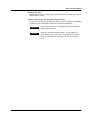
Displayed characters
Alphanumeric characters enclosed with [ ] refer to characters or setting values that are
displayed on the screen.
Symbols used on pages describing operating procedures
On pages that describe the operating procedures in Chapter 2 through 4, the following
symbols are used to distinguish the procedures from their explanations.
IM MV100-17E
Explanation
This section describes the setting parameters and the limitations
regarding the procedures.
Procedure
Follow the steps indicated with numbers. The procedures are
given with the premise that the user is carrying out the steps for
the time. Depending on the operation, not all steps need to be
taken.
iii
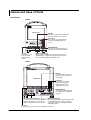
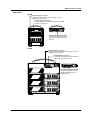
Names and Uses of Parts
Front Panel
MV100
MObileCOrder
LCD monitor
ESC key
Press this key to return to the previous
screen or cancel the new settings.
Arrow keys
Press these keys to move between
the setup items displayed on the
screen.
DISP/
ENTER
START
STOP
MEDIA
FUNC
ESC
DISP/ENTER key
Press this key when confirming the
setting or when closing the entry box.
MENU
MENU and FUNC key
After pressing the MENU key, pressing the FUNC key for
approximately 3 s displays the setup menu that is used to
enter the communication configuration menu.
Soft keys
Press these keys to
select the menu
displayed on the
screen.
MV200
ESC key
Press this key to return to the
previous screen or cancel the
new settings.
LCD monitor
Arrow keys
Press these keys to move
between the setup items
displayed on the screen.
displayed on the screen.
POWER
DISP/
1 ABC
2 DEF
3 GHI
4 JKL
5 MNO
6 PQR
ENTER
USER
FUNC
ESC
MENU
MEDIA
START
7 STU
8 VWX
0
9
YZ
STOP
FUSE
250V/T1.25A
Character/number input key
Press these keys to enter characters or
numbers for parameters such as the IP
address, domain name, and server name.
DISP/ENTER key
Press this key when confirming
the setting or when closing the
entry box.
MENU and FUNC key
After pressing the MENU key, pressing the FUNC
key for approximately 3 s displays the setup
menu that is used to enter the communication
configuration menu.
Soft keys
Press these keys to select the menu displayed on the screen.
iv
IM MV100-17E
Names and Uses of Parts
Rear Panel
MV100
Ethernet interface connector
A connector used for Ethernet communications. Comes
standard with the instrument.
RS-232 interface connector
A serial communication connector provided on models
with the suffix code /C2.
RS-422-A/485 interface terminal
Serial communication terminals
provided on models with the suffix
code /C3.
MV200
Ethernet interface connector
A connector used for Ethernet communications. Comes
standard with the instrument.
RS-232 interface connector
A serial communication connector provided on
models with the optional code /C2.
RS-422-A/485 interface terminal
Serial communication terminals
provided on models with the
optional code /C3.
IM MV100-17E
v
Names and Uses of Parts
Flow of Operation using the Operation Keys
This section will describe the basic flow of operation when changing the settings of the
MV using the front panel keys.
Settings related to communications are configured in the basic setting mode. The
procedure used to enter the basic setting mode is described in the procedure for each
item. Basic setting mode cannot be entered while data acquisition is in progress or while
computation using the computation function (/M1 option) is in progress.
1.
Press the arrow keys to move the cursor onto the desired parameter.
The parameter box containing
the cursor is blue.
2.
For parameters whose selections are shown at the bottom of the screen, press
the soft key under the desired selection. For parameters that need characters to
be entered in the entry box, press the [Input] soft key to display the entry box,
enter the characters, and press the DISP/ENTER key.
Parameter selections
(Selection example for [DNS On/Off]
Press either the [On] or [Off] soft key.)
Parameter entry box
(Example of the entry box
for the IP address)
• The boxes containing parameters that have not been changed are displayed in
white.
• The boxes containing parameters that have been changed are displayed in
yellow.
The boxes containing parameters
that have been changed are
displayed in yellow.
The boxes containing parameters
that have not been changed are
displayed in white.
3.
4.
Set other parameters as well according to steps 1 and 2.
The operation is different when you are confirming or canceling the new
changes (parameter boxes in yellow). See below.
• When confirming the new changes
Press the DISP/ENTER key. The new changes are confirmed and the yellow
parameter boxes change to white. The cursor returns to the parameter at the
upper left portion of the screen (the first parameter on the screen). However,
if the new change is not valid, then the parameter box turns red.
Parameters for which the new
changes that are not valid are
displayed in red.
vi
IM MV100-17E
Names and Uses of Parts
• When canceling the new changes
Press the ESC key. A window appears for you to confirm the cancellation.
Selecting “YES” and pressing the DISP/ENTER key cancels the new settings
and the screen returns to the previous screen.
Selecting “No” and pressing the DISP/ENTER key does not cancel the new
settings and the screen returns to the original screen.
5.
To activate the new settings in the basic setting mode, the settings must be
stored. Pressing the [End] soft key in the basic setting menu* displays a dialog
box that asks you whether or not the new settings are to be stored.
To store the settings, select [Yes]. To not store the settings, select [No]. To
return to the basic setting menu, select [Cancel] by pressing the arrow key, and
press the [DISP/ENTER] key.
* The basic setting menu is the menu that is displayed when the ESC key is pressed
several times after the basic setting parameters are changed.
IM MV100-17E
vii
Contents
Forward
................................................................................................................................... i
How to Use this Manual ..................................................................................................................ii
Names and Uses of Parts ..............................................................................................................iv
Chapter 1 Overview of the Communication Functions
1.1
1.2
The Relationship between the Communication Functions and the Ethernet/
Serial Interface .................................................................................................................. 1-1
Explanation of the Functions ............................................................................................. 1-2
Chapter 2 Using the Ethernet Interface
2.1
2.2
2.3
2.4
2.5
2.6
2.7
2.8
2.9
2.10
2.11
2.12
2.13
Ethernet Interface Specifications ...................................................................................... 2-1
Connecting the Ethernet Interface .................................................................................... 2-2
Configuring the Ethernet Interface .................................................................................... 2-3
Checking the Connection Status of the Ethernet Interface ............................................... 2-9
Setting the FTP Client (Automatic Transfer of Display/Event/Report Data Files) ........... 2-10
Performing the FTP Test ................................................................................................. 2-16
Setting the Login/Timeout for Ethernet Communications ................................................ 2-17
Displaying the Log Screen of the Error, Communication, and FTP ................................. 2-22
Setting the Web Server Function .................................................................................... 2-26
Using the Monitor Page and Operator Page ................................................................... 2-31
Setting the E-Mail Transmission Function ....................................................................... 2-38
Performing an E-Mail Transmission Test ......................................................................... 2-47
Starting/Stopping E-Mail Transmissions ......................................................................... 2-48
Chapter 3 Using the Serial Interface (Option)
3.1
3.2
3.3
3.4
3.5
Serial Interface (Option) Specifications ............................................................................. 3-1
RS-232 Interface Connector Pin Arrangement and Signal Names, the Connection
Procedure, and Handshaking ............................................................................................ 3-2
RS-422A/485 Interface Pin Arrangement and Signal Names and the Connection
Procedure .......................................................................................................................... 3-5
The Bit Structure of One Character and the Operation of the Receive Buffer .................. 3-9
Configuring the Serial Interface ....................................................................................... 3-10
Chapter 4 Using the Modbus Protocol
4.1
4.2
4.3
4.4
4.5
4.6
viii
Modbus Protocol Specifications ........................................................................................ 4-1
Register Assignments (Modbus Slave) ............................................................................. 4-2
Modbus Error Response (Modbus Slave) ......................................................................... 4-3
Setting the Configuration that is Used When the Modbus Protocol is Used ..................... 4-4
Setting the Modbus Master Function ................................................................................ 4-7
Checking the Operating Status of the Modbus Master Function..................................... 4-13
IM MV100-17E
Contents
1
Chapter 5 Commands
5.1
5.2
5.3
5.4
5.5
5.6
5.7
5.8
5.9
5.10
Command Syntax .............................................................................................................. 5-1
A List of Commands .......................................................................................................... 5-3
Input Range Parameter ..................................................................................................... 5-7
Setting Commands (Setting) ............................................................................................. 5-9
Setting Commands (Control) ........................................................................................... 5-17
Basic Setting Commands ................................................................................................ 5-20
Output Commands (Control) ........................................................................................... 5-29
Output Commands (Setup, measured, and computed data output) ............................... 5-29
Output Commands (RS-422A/485 Dedicated Commands) ............................................ 5-32
Maintenance/Test Commands (Available when using the maintenance/test server function
via Ethernet communications) ......................................................................................... 5-33
5.11 Instrument Information Output Commands (Available when using the instrument
information server function via Ethernet communications) ............................................. 5-34
2
3
4
5
Chapter 6 Response
6.1
6.2
6.3
6.4
Response Syntax .............................................................................................................. 6-1
Output Format of ASCII Data ............................................................................................ 6-6
Output Format of BINARY Data ...................................................................................... 6-20
Output Format of Instrument Information ........................................................................ 6-25
Chapter 7 Status Report
7.1
7.2
7
Status Information and Filter ............................................................................................. 7-1
The Bit Structure of the Status Information ....................................................................... 7-2
App
Appendix
Appendix 1
Appendix 2
Appendix 3
Appendix 4
Appendix 5
Appendix 6
Appendix 7
ASCII Character Codes .....................................................................................App-1
Output Flow of Internal Memory Data ................................................................App-2
Output Flow of the File or the File List in the External Storage Medium ............ App-4
Output Flow of FIFO Data ..................................................................................App-6
Data Dropout (Modbus Master) .........................................................................App-8
A List of Error Messages ....................................................................................App-9
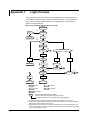
Login Process ..................................................................................................App-16
Index
IM MV100-17E
6
ix
Index
Chapter 1 Overview of the Communication Functions
1.1
The Ethernet interface comes as standard equipment with the instrument. The serial
interface (RS-232, RS-422A/485) is available as an option.
In order to use the various communication functions of the MV, the Ethernet or serial
communications must be configured beforehand.
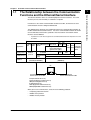
The following figure illustrates the relationship between the communication functions of
the MV and the Ethernet/serial interface. To use the communication functions of the MV
over the Ethernet/serial interface, protocols* that exist between the function and the
interface must be followed.
*
A protocol is a set of rules that govern the communication between two computers over a line
or network.
The communication functions of the MV
Application
Upper protocol
Lower protocol
Interface
Maintenance/ Web FTP
Modbus Modbus Setting/Measurement Test server
server server
slave
master server
FTP Email
Instrument
Login
client client
information
(User authorization/
server
grant access rights)
Modbus
protocol
Proprietary protocol
for the MV
Serial
communication
control
HTTP
FTP
SMTP
TCP
UDP
IP
Ethernet interface
(10BASE-T)
Serial interface
(RS-232, RS-422A/485)
PC
Connect the MV and
the PC via the serial cable
Connect the MV and
the PC via the Ethernet cable
FTP (File Transfer Protocol)
TCP (Transmission Control Protocol)
UDP (User Datagram Protocol)
IP (Internet Protocol)
HTTP (Hyper Text Transfer Protocol)
SMTP (Simple Mail Transfer Protocol)
When you use the serial interface, select one of the following protocols.
• Proprietary protocol for the MV
• Modbus slave protocol
• Modbus master protocol
IM MV100-17E
1-1
1
Overview of the Communication Functions
The Relationship between the Communication
Functions and the Ethernet/Serial Interface
1.2
Explanation of the Functions
Describes an outline of the communication functions of the MV.
Modbus slave
• By using the Modbus protocol, measured/computed data written to the MV’s input
register can be read by the PC and communication input data can be written/read
from the MV’s hold register.
• For the Modbus function codes that are supported by the MV, see section 4.1.
• This function can be used only when communicating via the serial interface (option).
• For the settings required to use the functions, see section 4.4.
Modbus master device
Data from slave device
Serial communication
MV
Modbus slave device
Modbus master
• Loads the measured data of other instruments using the Modbus protocol. The
loaded data can be handled as communication input data of the computation function
(/M1 option) on the computation channel.
• Function for writing data to other instruments is not supported.
• For details on the Modbus function codes that are supported, see section 4.1.
• This function can be used only when communicating via the serial interface (option).
• For the settings required in using this function, see section 4.4 and 4.5.
Modbus master device
MV
Data from slave device
Serial communication
Modbus slave device
1-2
IM MV100-17E
1.2 Explanation of the Functions
1
Setting/Measurement server
Maintenance/Test server
• Connection information, network information, and other information regarding
Ethernet communications can be output.
• The communication commands that can be used through this function are
maintenance/test commands (see section 5.10).
• This function can be used only when communicating via the Ethernet interface.
• For the configuration required to use this function, see sections 2.3 and 2.7.
FTP server
• You can use a PC to access the MV via FTP. You can perform operations such as
retrieving directory and file lists from the external storage medium of the MV and
transferring and deleting files.
• This function can be used only when communicating via the Ethernet interface.
• For the configuration required to use this function, see sections 2.3 and 2.7.
PC
Files on the storage medium
Ethernet
FTP server
MV
IM MV100-17E
1-3
Overview of the Communication Functions
• This function can be used to set almost all of the settings that can be configured using
the front panel keys. However, the power switch cannot be turned ON/OFF. The user
name/password for communications, user name/password for key login, and the
destination of the FTP client function cannot be configured.
• The following types of data can be output.
• Measured/computed data.
• Data in the internal memory or files in the external storage medium.
• Setup information and the status byte.
• A log of operation errors and communications
The measured/computed data can be output in binary or ASCII format to a PC. For
other types of data, ASCII format is used. For the data output format, see chapter 6.
The communication commands that can be used through this function are setting
commands (see sections 5.4 and 5.5), basic setting commands (see sections 5.6),
and output commands (see sections 5.7 to 5.9).
• This function can be used when communicating via the Ethernet or the serial
(optional) interface.
• For the configuration when using Ethernet communications, see sections 2.3 and 2.7.
For the configuration when using serial communications, see section 3.5.
1.2 Explanation of the Functions
FTP client
Automatic file transfer
• The display data file, event data file, and report data file, that are created in the
internal memory of the MV, can be automatically transferred to a remote FTP
server. The result of the transfer is recorded in the FTP log. The FTP log can be
displayed on the MV’s screen (see paragraph “Displaying error/communications/
FTP logs” described later) or output to a PC using commands.
FTP client
Data file to be
transferred
Destination (FTP server)
information
Transfer log
(FTP log)
MV
Display data file/event data file/report data file
Ethernet
Secondary
Primary
FTP server
Up to two file transfer destinations (FTP servers) can be specified (primary and
secondary). If the primary server is down, the file is transferred to the secondary
server.
• This function can be used only when communicating via the Ethernet interface.
• For the configuration required to use this function, see sections 2.3 and 2.5.
FTP test
• The file transfer can be checked by transferring a test file from the MV to a remote
FTP server.
• The result of the FTP test can be confirmed on the FTP log screen.
• This function can be used only when communicating via the Ethernet interface.
• For the configuration required to use this function, see section 2.6.
Instrument information server
• The serial number and model of the MV connected to Ethernet can be output.
• The communication commands that can be used through this function are instrument
information output commands (see section 5.11).
• This function can be used only when communicating via the Ethernet interface.
• For the configuration required to use this function, see section 2.3.
1-4
IM MV100-17E
1.2 Explanation of the Functions
1
Login
User authorization
This function allows only registered users to access the MV in order to prevent invalid
access from the network.
• Up to seven names can be registered. You will also specify the access authority
(see below) when registering the name.
• There are limitations on the number of simultaneous connections or
simultaneous uses of the MV from the PC (see section 2.1).
Granting access authority
This function provides access authority (user level) to operate the MV for the
registered users. For example, this prevents user B (user level) from changing the
measurement conditions that were set by user A (administrator level).
• There are two user levels on the MV, user and administrator.
• One administrator and six users can be registered.
• Administrator
An administrator has the authority to use all setting/measurement server
functions, maintenance/test server functions, and FTP server functions.
• User
A user has limited authority to use the setting/measurement server functions,
maintenance/test server functions, and FTP server functions. For the limitation
of commands, see section 5.2.
• Limitations on the use of the setting/measurement server
The user cannot change settings that would change the MV’s operation.
Measurement and setup data can be output.
• Limitations on the use of the maintenance/test server
The user cannot disconnect a connection between another PC and the MV.
The connection between the PC that the user is operating and the MV can
be disconnected.
• Limitations on the use of the FTP server
You cannot save files to the external storage medium of the MV or delete
files on it. Files can be retrieved from the server.
Communication timeout
This function drops the connection if no data transfer is detected between the PC and
the MV over a predetermined period of time. This applies to data transfer at the
application level only (see section 1.1). For example, this function prevents a PC from
being connected to the MV indefinitely which would prohibit other users from making
new connections for data transfer.
IM MV100-17E
1-5
Overview of the Communication Functions
• This function can be used only when communicating via the Ethernet interface and
when using the setting/measurement server, maintenance/test server, and the FTP
server functions.
• For the configuration required to use this function, see sections 2.3 and 2.7.
• For a description of the login process of the setting/measurement server and
maintenance/test server, see appendix 7.
1.2 Explanation of the Functions
Web server
• This function can be used only when communicating via the Ethernet interface.
• The MV screen can be displayed on the browser applications of Microsoft Internet
Explorer.
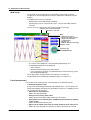
• The following two screens are available:
• Monitor page: Screen dedicated for monitoring.
• Operator page: You can switch the MV screen. You can also modify and write
messages.
You can set access control (user name and password) on each page.
Refreshes the screen automatically
Selects the screen size
Menu
• Refreshes the screen
• Displays the alarm summary
• Displays the measured
/computed data
• Displays logs
• Modifies and writes messages
Switches screens
Arrow keys and
the DISP/ENTER key
• The screen can be updated at a constant period (approximately 30 s).
• The following information can be displayed.
• Alarm summary
• Measured and computed values of all channels
• Logs (message log, error log, key login/logout log, FTP file transfer log, e-mail
log, and Web operation log)
• For the procedure in setting the Web server function, see section 2.9.
• For operations on the monitor page and operator page, see section 2.10.
E-mail transmission
This function can be used only when communicating via the Ethernet interface.
• Transmitting e-mail messages
E-mail can be automatically transmitted at the following times. You can specify two
groups of destinations and specify the destination for each item. In addition, you can
set a header string for each item.
• When alarm is active/released
Notifies the alarm information.
• During recovery from a power failure
Notifies the time of the power failure and the time of recovery.
• When memory end is detected (See “Fail/Memory End Function (/F1 Option)”
in this section)
Notifies the detection of memory end.
• When an error related to the external storage medium and FTP client occurs
Notifies the error code and message when an error is detected on the external
1-6
IM MV100-17E
1.2 Explanation of the Functions
For the procedure in setting the e-mail transmission function, see section 2.11.
For the e-mail transmission format, see section 2.13.
For the procedure to start/stop e-mail transmission, see section 2.13.
An example of the scheduled e-mail
From: [email protected]
Date: Sat, 23 Dec 2000 01:00:09 +0900 (JST)
Subject: (MV) Periodic_data
To: [email protected]
LOOP1
Scheduled
Subject
Header 1
Header 2
Periodic data.
<Host name>
MV
<Time>
Dec.23 01:00:01
• Testing e-mail transmission
• You can send a test message from the MV to the destination to check e-mail
transmissions.
• You can confirm the result of the e-mail transmission test on the e-mail log screen.
• For the procedure in using this function, see section 2.12.
Other functions
Confirming the connection status of the Ethernet interface
• The connection status of the Ethernet interface can be confirmed on the rear panel
and on the screen of the MV.
• For the display position and the meaning of the indicator, see section 2.4.
Keepalive (Extended function of TCP)
• This function forcibly drops the connection if there are no responses to the test
packets that are sent periodically at the TCP level.
• For the configuration required to use this function, see sections 2.3 and 2.7.
Displaying error/communications/FTP/Web operation/e-mail logs
• The operation log can be displayed on the following log screens.
• Error log screen: Operation errors
• Communication log screen: Communication input/output
• FTP log screen: A log of file transfers that were executed using the FTP client
function
• Web operation log screen: Record of operations on the Web server function
• E-mail log screen: Record of e-mail transmissions.
• For the configuration required to use this function, see section 2.8.
IM MV100-17E
1-7
1
Overview of the Communication Functions
storage medium or when the data cannot be saved as the free space on the
storage medium is insufficient. In addition, notifies the error code and message
such as when data transfer fails using the FTP client function.
• At the specified time
Transmits an e-mail message when the specified time is reached. It can be used
to confirm that the system including the network and the e-mail transmission
function is working properly. You can specify the reference time and the e-mail
transmission interval for each destination.
• When report is created (only on models with the optional computation
function (/M1)
Transmits the report.
Chapter 2 Using the Ethernet Interface
2.1
Ethernet Interface Specifications
Basic Specifications
Electrical and mechanical specifications
Transmission medium type
10BASE-T
Protocol
TCP, IP, UDP, ICMP, ARP
The maximum number of connections and the number of simultaneous uses
The following table indicates the number of simultaneous uses (number of users that
can use the function simultaneously), the maximum number of connections, and the
port number for each function.
Port Number*1
(Fixed)
Function
Maximum Number
of Connections
Number of
Simultaneous Uses
Administrator
User
Setting/
measurement
server
3
1
2*2
34260/tcp
Maintenance/
test server
1
1
1*2
34261/tcp
FTP server
2
2
2*2
21/tcp
Instrument
information
server
–
–
–
34264/udp
*1 Port numbers are fixed.
*2 There are user limitations. For details, see “Granting Access Authority” in section 1.2.
IM MV100-17E
2-1
2
Using the Ethernet Interface
Conforms to IEEE 802.3
(Ethernet frames conform to the DIX specifications.)
2.2
Connecting the Ethernet Interface
When connecting only the MV and a PC
Connect the MV and the PC via a HUB as in the following figure.
Ethernet
interface connector
10BASE-T straight cable
(Multiple devices can be
connected by using a hub.)
MV
HUB
PC
Ethernet
interface connector
MV
Ethernet cable
10BASE-T straight cable
When connecting to a preexisting network
The following figure illustrates an example in which the MV and a PC are connected to
the network. When connecting the MV or the PC to a preexisting network, the transfer
rate, connector type, etc. must be matched. For details, consult your system or network
administrator.
Network
10BASE-T straight cable
Ethernet
interface connector
(Adapters that support
the 10BASE-T (hubs and
routers, for example)
PC
MV
Ethernet cable
Note
•
•
2-2
Depending on the reliability of the network or the volume of network traffic, all the transferred
data may not be retrieved by the PC.
Communication performance deteriorates if multiple PCs access the recorder simultaneously.
IM MV100-17E
2.3
Configuring the Ethernet Interface
Explanation
Setting the IP address, subnet mask, default gateway, and DNS
Confirm the settings such as the IP address, subnet mask, default gateway, and DNS
with the administrator of the system or network on which the recorder is to be used.
• IP address
• Set the IP address to assign to the MV. The default setting is “0.0.0.0.”
• The IP address is used to distinguish between the various devices connected to
the Internet when communicating using the TCP/IP protocol. The address is a
32-bit value normally expressed with four values (0 to 255), each separated by a
period as in 192.168.111.24.
• Subnet mask
• Specify the mask that is used to determine the network address from the IP
address. The default setting is “0.0.0.0.”
• Set this value according to the system or the network to which the MV belongs.
In some cases, this setting may not be necessary.
• Default gateway
• Set the IP address of the gateway (router, etc.) used to communicate with other
networks. The default setting is “0.0.0.0.”
• Set this value according to the system or the network to which the MV belongs.
In some cases, this setting may not be necessary.
• DNS (Domain Name System)
You must set the DNS, if you are using a host name to specify the destination
server of the file transfer on an FTP client or the server of the e-mail recipient.
*
The DNS is a system that correlates the host name/domain name to the IP address. The
host name/domain name can be used instead of the IP address when accessing the
network. The DNS server manages the database that contains the host name/domain
name and IP address correlation.
• DNS server
• Set the address of the DNS server. The default setting is “0.0.0.0.”
• Up to two DNS servers can be specified (primary and secondary). If the
primary DNS server is down, the secondary server is used to search the host
name/domain name and IP address.
• Host name
Set the MV’s host name using up to 64 alphanumeric characters.
• Domain name
• Set the network domain name to which the MV belongs using up to 64
alphanumeric characters.
• When the destination server of the file transfer or the server of the e-mail
recipient is looked up using the DNS server, this domain name is appended
to the host name as a possible domain name if it is omitted . The destination
name (server name) becomes the “FTP server name” (see section 2.5) or the
“SMTP server name” (see section 2.11).
IM MV100-17E
2-3
2
Using the Ethernet Interface
The following configurations must be made in order to use the Ethernet communication
functions of the MV.
2.3 Configuring the Ethernet Interface
• Domain suffix
If the IP address corresponding to the “domain name,” described in the previous
paragraph, is not found on the DNS server, then it may be that the system is
configured to use another domain name. In this case, the domain suffix is
specified, so that this domain name is searched after the “domain name”
specified in the previous paragraph is searched.
• Set the domain suffix using up to 64 alphanumeric characters.
• Up to two domain suffixes can be specified (primary and secondary).
Selecting the communication interface used to output the data in the internal
memory and the files on the external storage medium
• Using output commands (ME/MI/MO commands), select the communication
interface used to output the data in the internal memory (display data, event data,
TLOG data, manual sampled data, and report data) and the files on the external
storage medium. Since these commands cannot be used on Ethernet
communications and serial communications simultaneously, you must select either
one.
• When using Ethernet communications, select [Ethernet].
Storing the settings
To activate the settings made in the basic setting mode, the settings must be saved.
Otherwise, the settings return to the previous values.
2-4
IM MV100-17E
2.3 Configuring the Ethernet Interface
Procedure
MV100 Communication (Ethernet) menu
MV200 Communication (Ethernet, Serial) menu
These setting items appears on the models with
the serial communication function (/C2, /C3).
Setting the IP address
5.
Press the arrow key to move the cursor to the [IP-address] box.
6.
Press the [Input] soft key to display the entry box.
7.
Enter the IP address of the MV in the entry box.
8.
Press the DISP/ENTER key. The entered value is set in the [IP-address] box.
Setting the subnet mask
Set this value according to the system or the network to which the MV belongs. If this
setting is not necessary, go to “Setting the default gateway.”
9.
Press the arrow key to move the cursor to the [Subnet mask] box.
10.
IM MV100-17E
Press the [Input] soft key to display the entry box.
2-5
2
Using the Ethernet Interface
For the basic flow of operations, see “Flow of Operation using the Operation Keys” on
page vi. For the procedures related to entering character strings and values, see the
MV100/MV200 User’s Manual (IM MV100-01E/IM MV200-01E).
1.
Press the MENU key to display the setting menu.
2.
Press the FUNC key for approximately 3 s to display the basic setting menu.
3.
Press the [#10 (Communication)](MV100) or [#6 (Communication)](MV200) soft
key to display the communication function setting menu.
4.
Press the [#1 (Ethernet (IP Address))](MV100) or [#1 (Ethernet, Serial)](MV200)
soft key to display the communication (Ethernet, serial) menu.
2.3 Configuring the Ethernet Interface
11.
In the entry box, enter the subnet mask of the network to which the MV belongs.
12.
Press the DISP/ENTER key. The entered value is set in the [Subnet mask] box.
Setting the default gateway
Set this value according to the system or the network to which the MV belongs. If this
setting is not necessary, go to “Setting the DNS (Domain Name System).”
13. Press the arrow key to move the cursor to the [Default gateway] box.
14.
Press the [Input] soft key to display the entry box.
15.
In the entry box, enter the IP address of the default gateway of the network to
which the MV belongs.
16.
Press the DISP/ENTER key. The entered value is set in the [Default gateway]
box.
For MV100, confirm the new settings pressing the DISP/ENTER key. To cancel,
press the ESC key.
For detailed operations regarding confirmation and cancellation, see “Flow of Operation
using the Operation Keys” on page vi.
Setting the DNS (Domain Name System)
Set the DNS, if you are using a host name to specify the destination server of the file
transfer on an FTP client or the server of the e-mail recipient.
If the DNS is not going to be used, go to step 39 (for models with the serial
communication function) or step 41 (for models without the serial communication
function).
For MV100, when settings are confirmed by procedure 16, press the ESC key to
return to the communication function setting menu, and then press the [#2 (Ethernet
(DNS))] soft key to display the communication (DNS) menu.
• Select whether or not to use the DNS (ON/OFF)
17. Press the arrow key to move the cursor to the [DNS On/Off] box.
18.
Press either the [On] or [Off] soft key. When using the DNS, select [ON] and
perform steps 19 through 38. Otherwise, select [Off] (you can skip steps 19
through 38).
• Setting the primary DNS server address
19. Press the arrow key to move the cursor to the [Primary] box under server search
order.
2-6
20.
Press the [Input] soft key to display the entry box.
21.
Enter the primary DNS server address in the entry box.
IM MV100-17E
2.3 Configuring the Ethernet Interface
22.
Press the DISP/ENTER key. The entered value is set in the [Primary] box.
24.
Set the secondary DNS server address using the same method from steps 20
through 22.
• Setting the MV's host name
25. Press the arrow key to move the cursor to the [Host name] box.
26.
Press the [Input] soft key to display the entry box.
27.
Enter the MV's host name in the entry box.
28.
Press the DISP/ENTER key. The entered string/value is set in the [Host name]
box.
• Setting the domain name to which the MV belongs
29. Press the arrow key to move the cursor to the [Domain name] box.
30.
Press the [Input] soft key to display the entry box.
31.
Enter the MV's domain name in the entry box.
32.
Press the DISP/ENTER key. The entered string/value is set in the [Domain
name] box.
• Setting the primary domain suffix
Set this value when the domain suffix is necessary. Otherwise, go to step 39 (for
models with the serial communication function) or step 41 (for models without
the serial communication function).
33. Press the arrow key to move the cursor to the [Primary] box under Domain suffix
search order.
34.
IM MV100-17E
Press the [Input] soft key to display the entry box.
2-7
2
Using the Ethernet Interface
• Setting the secondary DNS server address
Set this value when using the secondary DNS server in the system or the network
to which the MV belongs. If this setting is not necessary, go to step 25.
23. Press the arrow key to move the cursor to the [Secondary] box under server
search order.
2.3 Configuring the Ethernet Interface
35.
Enter the primary domain suffix in the entry box.
36.
Press the DISP/ENTER key. The entered value is set in the [Primary] box.
• Setting the secondary domain suffix
Set this value when the secondary domain suffix exists. If this setting is not
necessary, go to step 39 (for models with the serial communication function) or
step 41 (for models without the serial communication function).
37. Press the arrow key to move the cursor to the [Secondary] box under Domain
suffix search order.
38.
Set the secondary domain suffix in the same fashion as in steps 34 to 36.
Selecting the communication interface used to output the data in the internal
memory and the files on the external storage medium
The “Memory output” is displayed when the serial communication function is specified.
39. Press the arrow key to move the cursor to the [Memory out] box.
40.
Press either the [Ethernet] or the [Serial] soft key. Press the [Ethernet] soft key
when using Ethernet communications.
Confirming/Canceling the new settings
41. To confirm the new settings, press the DISP/ENTER key. To cancel, press the
ESC key.
For detailed operations regarding confirmation and cancellation, see “Flow of Operation
using the Operation Keys” on page vi.
Storing the new settings
42. Press the ESC key several times to display the basic setting menu.
43. Pressing the [End] soft key to display a dialog box which you select whether or
not to store the new settings.
44.
2-8
Select the [Yes] to store the new settings, the [No] to discard them, or the
[Cancel] to return to the basic setting menu by pressing the arrow key. Then,
press the DISP/ENTER key.
IM MV100-17E
2.4
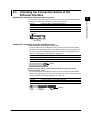
Checking the Connection Status of the
Ethernet Interface
Checking the connection status using the rear panel
Indicator
Connection Status of the Ethernet Interface
On (green)
The Ethernet interface is electrically connected.
Blinking (green)
Transmitting data
Off
The Ethernet interface is not electrically connected.
Indicator
(Rear Panel)
Checking the connection using the recorder's screen
Checking using the status display of the screen
The connection status of the Ethernet interface can be checked using the indicator
located on the right hand side of the status display section of the basic setting menu.
The basic setting menu is displayed by pressing the FUNC key for approximately 3 s
after pressing the MENU key to display the setting menu.
Indicator
Connection Status of the Ethernet Interface
On (green)
The Ethernet interface is electrically connected.
Off
The Ethernet interface is not electrically connected.
(Rear Panel)
Indicator
Checking using the display section located at the upper right corner of the
communication log screen
The connection status of the Ethernet interface can be checked using the indicator
located at the upper right corner of the communication log screen. For the procedures
on how to display the communication log, see section 2.8.
Indicator
Connection Status of the Ethernet Interface
On (green)
The Ethernet interface is electrically connected.
Off
The Ethernet interface is not electrically connected.
Indicator
IM MV100-17E
2-9
2
Using the Ethernet Interface
The connection status of the Ethernet interface can be confirmed with the indicator that
is located to the upper right of the Ethernet connector on the MV.
2.5
Setting the FTP Client (Automatic Transfer of
Display/Event/Report Data Files)
Explanation
By setting this function, the display/event and report data files that are created in the
internal memory can be automatically transferred using FTP when the files are created.
Note that the Ethernet interface must be configured beforehand (see section 2.3).
Selecting the files to transfer
• You can select whether or not to automatically transfer the display/event data file
and the report data file. The default setting is “Off.”
• When the method to save the data is set to “Auto,” the data files are automatically
transferred at appropriate times to the FTP destination described in the next
section.
• Display data file: Data files are automatically transferred at auto save intervals
or at the specified date and time.
• Event data file:
Data files are automatically transferred when data length of
data is written or at every specified date and time*.
* Auto transfer at every specified date and time is allowed only during the “free” mode.
For information on the “free” mode, see the MV00/MV200 User’s Manual (IM MV10001E/IM MV200-01E).
• Report data file:
Automatically transferred when reports are created.
Note
•
•
•
•
For details related to saving data to the external storage medium and the auto save interval,
see the MV100/MV200 User’s Manual (IM MV100-01E/IM MV200-01E).
When the method to save the data is set to “Manual,” auto transfer does not take place. You
can still output the display/event/report data files using commands.
For the format of the report data file, see the MV100/MV200 User’s Manual (IM MV100-01E/
IM MV200-01E). However, the report data file to be transferred is divided by every timeout.
If a file with the same name exists at the destination, the name of the transferred file is
changed at the last character (8th character). For the description on the file name, see
section 8.1 of the MV100/MV200 User’s Manual (IM MV100-01E/IM MV200-01E).
Example: If a file “X0212000.DDS” is to be transferred, and a file with the same name exists
at the destination, the file name is changed to “X0212001.DDS” and transferred.
(However, when the firmware version number of the MV100/MV200 is less than
“4.05,” the MV100/MV200 does not operates as described above. The file with the
same name at the destination is overwritten without any warning messages.)
Setting the FTP connection
Confirm the settings such as the primary and secondary FTP servers, port number,
login name, password, account, PASV mode, and initial path with your system or
network administrator.
• Setting the primary and secondary servers
Specify the primary and secondary file transfer destinations (FTP servers) as
described in the previous close. When the primary FTP server is down, the data
are transferred to the secondary FTP server.
2-10
IM MV100-17E
2.5 Setting the FTP Client (Automatic Transfer of Display/Event/Report Data Files)
Note
If the file transfer to both the primary and the secondary servers fails, the MV aborts the file
transfer. When the connection to the destination is recovered, the MV transfers the data files
that were not transferred along with the new data file. However, due to the limitation of the
internal memory, files that are overacquired before they are transferred are lost. For details
related to the acquiring operation to the internal memory, see the MV100/MV200 User’s
Manual (IM MV100-01E/IM MV200-01E).
Storing the settings
To activate the settings made in the basic setting mode, the settings must be saved.
Otherwise, the settings return to the previous values.
IM MV100-17E
2-11
2
Using the Ethernet Interface
• FTP server name
Set the FTP server name using up to 64 alphanumeric characters.
• When the DNS is being used, the host name can be used to specify the server
name.
• For DNS settings, see section 2.3.
• You can also specify the IP address. In this case, DNS is not necessary.
• Port number
Set the port number of the destination FTP server in the range from 0 to 65535.
The default setting is 21.
• Login name
Set the login name to use when accessing the FTP server. Up to 32 alphanumeric
characters can be used.
• Password
Set the password to use when accessing the FTP server. Up to 32 alphanumeric
characters can be used.
• Account
Set the account (the ID number) to use when accessing the FTP server. Up to 32
alphanumeric characters can be used.
• PASV mode
When using the MV behind a firewall that requires the PASV mode, turn this mode
“On.” A firewall is a security feature on a router which is used to prevent undesired
intrusion into the network from outside parties.
• Initial path
Set the destination directory for the file transfer using up to 64 alphanumeric
characters. The directory delimiter varies depending on the FTP server.
Example: When transferring files to the “data” directory in the “home” directory of
an FTP server on a UNIX file system, use the forward slash “/” as the
directory delimiter:
/home/data
2.5 Setting the FTP Client (Automatic Transfer of Display/Event/Report Data Files)
Procedure
For the basic flow of operations, see “Flow of Operation using the Operation Keys” on
page vi.
1.
2.
3.
4.
Press the Menu key to display the setting menu.
Press the FUNC key for approximately 3 s to display the basic setting menu.
Press the [#10 (Communication)](MV100) or [#6 (Communication)](MV100/
MV200) soft key to display the communication function setting menu.
Press the [#3 (FTP transfer file)](MV100) or [#2 (FTP Client)](MV200) soft key to
display the Communication (FTP client) menu.
MV100 Communication (FTP tramsfer file)
MV200 Communication (FTP client)
Selecting the files to be transferred
• Selecting whether or not to transfer the display and event data files (ON/OFF)
5.
Press the arrow key to move the cursor to the [Disp&Event data] box.
6.
Press either the [On] or [Off] soft key.
• Selecting whether or not to transfer the report data file (ON/OFF)
7.
Press the arrow key to move the cursor to the [Report] box.
8.
Press either the [On] or [Off] soft key.
For MV100, confirm the new settings pressing the DISP/ENTER key. To cancel,
press the ESC key.
For detailed operations regarding confirmation and cancellation, see “Flow of Operation
using the Operation Keys” on page vi.
2-12
IM MV100-17E
2.5 Setting the FTP Client (Automatic Transfer of Display/Event/Report Data Files)
Setting the primary FTP server
For MV100, when settings are confirmed by procedure 8, press the ESC key to return
to the communication function setting menu, and then press the [#4 (FTP connection)]
soft key to display the communication (FTP connection) menu.
9.
Press the arrow key to move the cursor to the [FTP connection] box.
Using the Ethernet Interface
10.
Press the [Primary] soft key.
• Setting the FTP server name
11. Press the arrow key to move the cursor to the [FTP server name] box.
12.
Press the [Input] soft key to display the entry box.
13.
Enter the primary FTP server name in the entry box. Generally, the IP address
is entered. However, if DNS is being used, the FTP server's host name can also
be specified.
14.
Press the DISP/ENTER key. The entered string/value is set in the [FTP server
name] box.
• Setting the FTP server’s port number
15. Press the arrow key to move the cursor to the [Port number] box.
16.
Press the [Input] soft key to display the entry box.
17.
Enter the port number of the primary FTP server in the entry box.
18.
Press the DISP/ENTER key. The entered value is set in the [Port number] box.
• Setting the login name used when accessing the FTP server
19. Press the arrow key to move the cursor to the [Login name] box.
20.
IM MV100-17E
2
Press the [Input] soft key to display the login name entry box.
2-13
2.5 Setting the FTP Client (Automatic Transfer of Display/Event/Report Data Files)
21.
Enter the login name that is used when accessing the primary FTP server in the
entry box.
22.
Press the DISP/ENTER key. The entered string/value is set in the [Login name]
box.
• Setting the password used when accessing the FTP server
23. Press the arrow key to move the cursor to the [Password] box.
24.
Press the [Input] soft key to display the entry box.
25.
Enter the password that is used when accessing the primary FTP server in the
entry box.
26.
Press the DISP/ENTER key. The entered string/value is set in the [Password]
box.
• Setting the account used when accessing the FTP server
27. Press the arrow key to move the cursor to the [Account] box.
28.
Press the [Input] soft key to display the entry box.
29.
Enter the account that is used when accessing the primary FTP server in the
entry box.
30.
Press the DISP/ENTER key. The entered string/value is set in the [Account]
box.
• Enabling (On)/Disabling (Off) the PASV mode
31. Press the arrow key to move the cursor to the [PASV mode] box.
32.
Press either the [On] or [Off] soft key.
• Setting the initial path (file transfer destination directory)
33. Press the arrow key to move the cursor to the [Initial path] box.
2-14
IM MV100-17E
2.5 Setting the FTP Client (Automatic Transfer of Display/Event/Report Data Files)
34.
Press the [Input] soft key to display the entry box.
35.
Enter the file transfer destination directory in the entry box.
36.
Press the DISP/ENTER key. The entered string/value is set in the [Initial path]
box.
2
38.
Press the [Secondary] soft key.
39.
Set the secondary FTP server using the same method from steps 11 through
36.
Confirming/Canceling the new settings
40. To confirm the new settings, press the DISP/ENTER key. To cancel, press the
ESC key.
For detailed operations regarding confirmation and cancellation, see “Flow of Operation
using the Operation Keys” on page vi.
Storing the new settings
41. Press the ESC key several times to display the basic setting menu.
42. Pressing the [End] soft key to display a dialog box which you select whether or
not to store the new settings.
43.
IM MV100-17E
Select the [Yes] to store the new settings, the [No] to discard them, or the
[Cancel] to return to the basic setting menu by pressing the arrow key. Then,
press the DISP/ENTER key.
2-15
Using the Ethernet Interface
Setting the secondary FTP server
Set the secondary FTP server when specifying a secondary file transfer destination. If
you are not using the secondary FTP server, go to step 40.
37. Press the arrow key to move the cursor to the [FTP connection] box.
2.6
Performing the FTP Test
Explanation
You can check whether or not files can be transferred via the Ethernet interface by
transferring a test file from the MV to the FTP server that was configured in section 2.5.
Items to check before performing this test
• Correctly connect the Ethernet cable. For the connection procedures, see section
2.2.
• Check that the Ethernet interface configuration is correct. For the procedures, see
section 2.3 and 2.5.
When configuring Ethernet related settings, check them with the administrator of the
system or network on which the MV is to be used.
Checking the FTP test results
• When you perform the FTP test, the test file is transferred to the initial path on the
destination FTP server that was specified in section 2.5. After the FTP test
completes, check whether or not the test file was received on the FTP server
• The result of the FTP test can be confirmed by displaying the FTP log (displayed
on the MV (see section 2.8)) or Web screen (see section 2.10) or by outputting the
result using the FL command (see section 5.8).
Procedure
Performing the FTP test.
1.
Press the FUNC key to display the FUNC menu. The construction of the FUNC
menu varies depending on the basic settings and options.
2-16
2.
Press the [FTP test] soft key to display a menu used to select the destination on
which the FTP test to be performed.
3.
Press either the [Primary] or [Secondary] soft key. The FTP test is performed
on the specified FTP server.
IM MV100-17E
2.7
Setting the Login/Timeout for Ethernet
Communications
Explanation
Enabling/Disabling the login function
If the login function is enabled, only users that are registered can login to the MV.
User registration
• Selecting the user level
Select either of the user levels, administrator or user.
• Administrator (admin)
One administrator can be registered. An administrator has the authority to use
all setting/measurement server, maintenance/test server, and the FTP server
functions.
• User (user1 to user6)
Six user can be registered. A user has limited authority to use the setting/
measurement server functions, maintenance/test server functions, and FTP
server functions. For the limitation of commands, see section 5.2.
• Limitations on the use of the setting/measurement server
The user cannot change settings that would change the MV’s operation.
Measurement and setup data can be output.
• Limitations on the use of the maintenance/test server
The user cannot disconnect a connection between another PC and the MV.
The connection between the PC that the user is operating and the MV can be
disconnected.
• Limitations on the use of the FTP server
You cannot save files to the external storage medium of the MV or delete
files on it. Files can be retrieved from the server.
• Selecting whether or not to register the user (On/Off)
• On
Registers the user. You can specify the user name and password for the login.
• Off
Does not register the user.
• Setting the user name
• Set the user name using up to 16 alphanumeric characters.
• Each user name must be unique.
• Since the word “quit” is reserved as a command on the instrument, the user
name “quit” is not allowed.
• Setting the password
Set the password using up to 6 alphanumeric characters.
IM MV100-17E
2-17
2
Using the Ethernet Interface
By setting the login and timeout, you can achieve the following:
• Prevent invalid access to the MV from the network.
• Grant authority in operating the MV via Ethernet communications.
• Disconnect connections when there are no data transfers over a predetermined
time period.
Note that the Ethernet interface must be configured beforehand (see section 2.3).
2.7 Setting the Login/Timeout for Ethernet Communications
Note
•
•
•
•
The relationship between the login function and the user name that is used when accessing
the MV is as follows.
• When the login function is set to “Enable”
• The registered user name and password can be used to login to the MV.
• The user level is the level that was specified when the user name was registered.
• When the login function is set to “Disable”
• The user name “admin” can be used to login to the MV as an administrator. Password
is not necessary.
• The user name “user” can be used to access the MV as a user. Password is not
necessary.
When the MV is an FTP server, the user name “anonymous” has a special role.
• When the login function is set to “Enable”
• If a user name “anonymous” is registered in the MV, this user name can be used to
login to the MV.
• Password is not necessary (login is possible regardless of whether or not the password
is specified).
• The user level is the level of the user who specified the user name “anonymous.”
• When the login function is set to “Disable”
• The user name “anonymous” can be used to login to the MV.
• Password is not necessary (login is possible regardless of whether or not the password
is specified).
• The user level is “User.”
There are limitations on the number of simultaneous connections or simultaneous uses of the
MV from the PC (see section 2.1).
For a description of the login process of the setting/measurement server and maintenance/
test server, see appendix 7.
Communication timeout
• Enabling/Disabling the timer (ON/OFF)
• On
The connection is dropped if no data transfer is detected over a predetermined
period of time. This applies to data transfer at the application level only (see
section 1.1).
• Off
Communication timeout is disabled.
• Setting the timeout time
When the communication timeout is enabled and if no data transfer is detected
over the time period specified here, the connection is dropped.
Range: 1 to 120 minutes
Enabling/Disabling keepalive (On/Off)
• On
If there is no response to the test packet that is periodically transmitted (every 30 s)
at the TCP level, the connection is dropped.
• Off
Keepalive is disabled.
Storing the settings
To activate the settings made in the basic setting mode, the settings must be saved.
Otherwise, the settings return to the previous values.
2-18
IM MV100-17E
2.7 Setting the Login/Timeout for Ethernet Communications
Procedure
MV100 Communication
(Control (Login, Time out))
MV200 Communication (Control -Login, Time out)
Enabling/Disabling the login function of the MV
5.
Press the arrow key to move the cursor to the [Use/Not] box under Ethernet
login.
6.
Press either the [Use] or [Not] soft key. If you select [Use], go to step 7. If you
select [Not], go to step 20.
Registering users
• Selecting the user level for the registered user
7.
Press the arrow key to move the cursor to the [Level] box.
8.
IM MV100-17E
Press one of the keys from [admin] to [user6] to select the user level. To set the
user level to administrator, select [admin]. To set the user level to user, select
[user1] to [user6].
2-19
2
Using the Ethernet Interface
For the basic flow of operations, see “Flow of Operation using the Operation Keys” on
page vi. For the procedures related to entering character strings and values, see the
MV100/MV200 User’s Manual (IM MV100-01E/IM MV200-01E).
1.
Press the Menu key to display the setting menu.
2.
Press the FUNC key for approximately 3 s to display the basic setting menu.
3.
Press the [#10 (Communication)](MV100) or [#6 (Communication)](MV200) soft
key to display the communication function setting menu.
4.
Press the [#5 (Control (Login, Timeout))](MV100) or [#3 (Control -Login,
Timeout-)](MV200) soft key to display the Communication (Control -Login, Time
out) menu.
2.7 Setting the Login/Timeout for Ethernet Communications
• Selecting whether or not to register the user (On/Off)
9.
Press the arrow key to move the cursor to the [On/Off] box under Level.
10.
Press either the [On] or [Off] soft key. If you select [On], go to step 11. If you
select [Off], go to step 19.
• Setting the user name
11. Press the arrow key to move the cursor to the [User name] box.
12.
Press the [Input] soft key to display the entry box.
13.
In the box, enter the user name for the user at the specified level.
14.
Press the DISP/ENTER key. The entered string/value is set in the [User name]
box.
• Setting the password
15. Press the arrow key to move the cursor to the [Password] box.
16.
Press the [Input] soft key to display the entry box.
17.
In the box, enter the password for the user.
18.
Press the DISP/ENTER key. The entered string/value is set in the [Password]
box.
To register another user, repeat steps 7 to 18.
19.
Setting the communication timeout
• Enabling/Disabling communication timeout (On/Off)
20. Press the arrow key to move the cursor to the [On/Off] box under
communication timeout.
21.
2-20
Press either the [On] or [Off] soft key. If you select [On], go to step 22. If you
select [Off], go to step 26.
IM MV100-17E
2.7 Setting the Login/Timeout for Ethernet Communications
• Setting the communication timeout time
22. Press the arrow key to move the cursor to the [Time] box.
2
Press the [Input] soft key to display the entry box.
24.
In the box, enter the communication timeout time.
25.
Press the DISP/ENTER key. The entered value is set in the [Time] box.
Using the Ethernet Interface
23.
Enabling/Disabling keepalive (On/Off)
26. Press the arrow key to move the cursor to the [On/Off] box under keepalive.
27.
Press either the [On] or [Off] soft key.
Confirming/Canceling the new settings
28. To confirm the new settings, press the DISP/ENTER key. To cancel, press the
ESC key.
For detailed operations regarding confirmation and cancellation, see “Flow of Operation
using the Operation Keys” on page vi.
Storing the new settings
29. Press the ESC key several times to display the basic setting menu.
30. Pressing the [End] soft key to display a dialog box which you select whether or
not to store the new settings.
31.
IM MV100-17E
Select the [Yes] to store the new settings, the [No] to discard them, or the
[Cancel] to return to the basic setting menu by pressing the arrow key. Then,
press the DISP/ENTER key.
2-21
2.8
Displaying the Log Screen of the Error,
Communication, and FTP
Explanation
Displaying the error log
A log of operation errors is displayed on the error log screen. Up to the last 50
operation errors are logged. When the number of log entries exceeds 50, room is
made by clearing the oldest entries. For the meanings of the error messages, see
appendix 6.
Error code
Date and time when
the error occurred
Error message
MV100: up to 23 characters
MV200: up to 48 characters
", ," indicates the message has
characters that are not displayed.
Displaying the communication log
A log of input and output incidents of the communication interface is displayed on the
communication log screen. Up to a total of 200 incidents of input and output are
logged. When the number of log entries exceeds 200, room is made by clearing the
oldest entries. For the meanings of the messages, see “Communication Log” in
section 6.2.
Message
(up to 20 characters)
I/O symbol
(> : input, < : output)
Name of the user that accessed this instrument
(Name registered in section 2.7)
A number used to identify the user that is connected
(See “Communication log” in section 6.2.)
Date and time when the access occurred
Displaying the FTP log
A log of file transfers is displayed on the FTP log screen. Up to the last 50 accesses
are logged. When the number of log entries exceeds 50, room is made by clearing
the oldest entries. For the meanings of the messages, see appendix 6.
File name (8 characters)
FTP server (P : primary, S : secondary)
Error code
Date and time when the file transfer was made
2-22
IM MV100-17E
2.8 Displaying the Log Screen of the Error, Communication, and FTP
Displaying the Web operation log
You can display a log (record) of the operations carried out using the Web screen on
the Web operation log screen. Up to 50 previous operations are logged. Logs that
exceed 50 operations are cleared from the oldest ones. For the meaning of the
messages, see “Web Operation Log” in section 6.2.
Type
Operation
Error code (see appendix 6)
Displaying the e-mail log
You can display a log (record) of e-mail transmissions on the e-mail log screen. Up to
50 previous e-mail transmissions are logged. Logs that exceed 50 transmissions are
cleared from the oldest ones. For the meaning of the messages, see “E-mail Log” in
section 6.2.
Date/time
Recipient address
Recipient No.
Error code (see appendix 6)
Mail type
Note
•
•
IM MV100-17E
In addition to these logs, there is also a key login log. For details regarding the key login log
screen, see the MV100/MV200 User’s Manual (IM MV100-01E/IM MV200-01E).
The error/communication/FTP log data can be output. For the data output format, see section
6.2.
2-23
Using the Ethernet Interface
Date/time
2
2.8 Displaying the Log Screen of the Error, Communication, and FTP
Procedure
Displaying the error log
1.
Press the FUNC key to display the FUNC menu. The construction of the FUNC
menu varies depending on the basic settings and options.
2.
Press the [Log] soft key to display the log screen menu.
3.
Press the [Error] soft key to display the error log screen.
Displaying the communication log
1.
Press the FUNC key to display the FUNC menu. The construction of the FUNC
menu varies depending on the basic settings and options.
2.
Press the [Log] soft key to display the log screen menu.
3.
Press the [Commu] soft key to display the communication log screen.
Displaying the FTP log
1.
Press the FUNC key to display the FUNC menu. The construction of the FUNC
menu varies depending on the basic settings and options.
2.
Press the [Log] soft key to display the log screen menu.
3.
Press the [FTP] soft key to display the FTP log screen.
Displaying the Web operation log
1.
Press the FUNC key to display the FUNC menu. The construction of the FUNC
menu varies depending on the basic settings and options.
2-24
2.
Press the [Log] soft key to display the log screen menu.
3.
Press the [Web] soft key to display the Web operation log screen.
IM MV100-17E
2.8 Displaying the Log Screen of the Error, Communication, and FTP
Displaying the e-mail log
1.
Press the FUNC key to display the FUNC menu. The construction of the FUNC
menu varies depending on the basic settings and options.
Press the [Log] soft key to display the log screen menu.
3.
Press the [E-Mail] soft key to display the e-mail log screen.
2
Using the Ethernet Interface
IM MV100-17E
2.
2-25
2.9
Setting the Web Server Function
Explanation
Enabling/Disabling the Web server function
Select Use or Not (don’t use).
Page type (type of screen to be displayed)
• Monitor
• The screen displayed on the MV is displayed.
• The following information can be displayed.
• Alarm summary
• Measured and computed values of all channels
• Logs (message log, error log, key login log, FTP log, e-mail log, and Web operation
log)
• For screen examples, see section 2.10.
• Operator
The following operations can be carried out in addition to the functions available on
the monitor page.
• Switch the screen on the MV by specifying the screen type (trend, digital, or bar
graph) and group.
• Operate the DISP/ENTER key and arrow keys on the MV.
• Set and write a message on the MV.
• For screen examples, see section 2.10.
Monitor page
• Selecting whether or not to use the monitor page
• On
Display the monitor page on the browser.
• Off
Do not use the monitor page.
• Selecting whether or not to use the access control
• On
Use the access control. You must enter the user name and password to display
the monitor page.
• Off
Do not use the access control.
• Setting the user name
Enter the user name using up to 16 alphanumeric characters.
• Setting the password
Set the password using up to six alphanumeric characters.
Operator page
• Selecting whether or not to use the operator page
• On
Display the operator page on the browser.
• Off
Do not use the operator page.
2-26
IM MV100-17E
2.9 Setting the Web Server Function
Saving the settings
To activate the settings that have been changed in the basic setting mode, the settings
must be saved. Otherwise, the settings that existed before the change are activated.
Setting the time difference from GMT
See “Setting the Time Zone” of the MV100/MV200 User’s Manual (IM MV100-01E/IM
MV200-01E).
IM MV100-17E
2-27
2
Using the Ethernet Interface
• Selecting whether or not to use command input
• On
Use the command to set and write messages.
• Off
Do not use the command to set and write messages.
• Selecting whether or not to use the access control
• On
Use the access control. You must enter the user name and password to display
the operator page.
• Off
Do not use the access control.
• Setting the user name
Enter the user name using up to 16 alphanumeric characters.
• Setting the password
Set the password using up to six alphanumeric characters.
2.9 Setting the Web Server Function
Procedure
For the basic flow of operations, see “Flow of Operation using the Operation Keys” on
page vi. For the procedures related to entering character strings and values, see the
MV100/MV200 User’s Manual (IM MV100-01E/IM MV200-01E).
1.
2.
3.
4.
Press the MENU key to display the setting menu.
Press the FUNC key for approximately 3 s to display the basic setting menu.
Press the [#11 (Web,E-Mail)](MV100) or [#7 (Web,E-Mail)](MV200) soft key to
display the Web and e-mail setting menu.
Press the [#1 (Web)] soft key to display the Web menu.
Web menu (MV100)
Web menu (MV200)
Enabling/Disabling the Web server function
5.
Press the arrow key to move the cursor to the [Use/Not] box.
6.
Press either the [Use] or [Not] soft key. If you select [Use], go to step 7. If you
select [Not], go to step 28.
Page type (type of screen to be displayed)
7.
Press the arrow key to move the cursor to the [Page type] box.
8.
Press either the [Operator] or [Monitor] soft key. If you select [Operator], go to
step 9. If you select [Monitor], go to step 23.
Operator page
• Selecting whether or not to use the operator page
9.
Press the arrow key to move the cursor to the [On/Off] box.
2-28
IM MV100-17E
2.9 Setting the Web Server Function
10.
Press either the [On] or [Off] soft key. If you select [On], go to step 11. If you
select [Off], go to step 28.
2
12.
Using the Ethernet Interface
• Selecting whether or not to use command input
11. Press the arrow key to move the cursor to the [Command] box.
Press either the [On] or [Off] soft key.
• Selecting whether or not to use the access control
13. Press the arrow key to move the cursor to the [Access control] box.
14.
Press either the [On] or [Off] soft key. If you select [On], go to step 15. If you
select [Off], go to step 28.
• Setting the user name
15. Press the arrow key to move the cursor to the [User name] box.
16.
Press the [Input] soft key to display the entry box.
17.
In the box, enter the user name.
18.
Press the DISP/ENTER key. The entered string/value is set in the [User name]
box.
• Setting the password
19. Press the arrow key to move the cursor to the [Password] box.
20.
IM MV100-17E
Press the [Input] soft key to display the entry box.
2-29
2.9 Setting the Web Server Function
21.
In the box, enter the password.
22.
Press the DISP/ENTER key. The entered string/value is set in the [Password]
box.
Monitor page
• Selecting whether or not to use the monitor page
23. Press the arrow key to move the cursor to the [On/Off] box.
24.
Press either the [On] or [Off] soft key. If you select [On], go to step 25. If you
select [Off], go to step 28.
• Selecting whether or not to use the access control
25. Set whether use or not use the access control using the same method as steps
13 and 14.
• Setting the user name
26. Set whether use or not use the access control using the same method from
steps 15 through 18.
• Setting the password
27. Set whether use or not use the access control using the same method from
steps 19 through 22.
Confirming/Canceling the new settings
28. To confirm the new settings, press the DISP/ENTER key. To cancel, press the
ESC key.
For detailed operations regarding confirmation and cancellation, see “Flow of Operation
using the Operation Keys” on page vi.
Storing the new settings
29. Press the ESC key several times to display the basic setting menu.
30. Pressing the [End] soft key to display a dialog box which you select whether or
not to store the new settings.
31.
2-30
Select the [Yes] to store the new settings, the [No] to discard them, or the
[Cancel] to return to the basic setting menu by pressing the arrow key. Then,
press the DISP/ENTER key.
IM MV100-17E
2.10 Using the Monitor Page and Operator Page
Explanation
2
Browser application that can be used
Operations have been confirmed on the following browsers.
Microsoft Internet Explorer 4.0 to 5.5
Setting the URL
Set the URL (Uniform Resource Locator) appropriately according to the network
environment that you are using. You can access the MV by setting the URL as follows:
• http://host name.domain name/file name
• http: Protocol used to access the server. HTTP (HyperText Transfer Protocol).
• Host name.domain name: Host name and domain name of the MV. You can also
use the IP address in place of the host name and domain name.
• File name: File name of the monitor page and operator page of the MV.
File name of the monitor page: monitor.htm
File name of the operator page: operator.htm
If the file name is left out, the monitor page is specified. If the monitor page is not
used, however, the operator page is specified.
Example
To display the operator page using Internet Explorer on a PC in the same domain as
the MV (the domain name, host name, and IP address are taken to be “good.co.jp,”
“MV,” “and 123.456.789.123,” respectively).
Address: http://MV.good.co.jp/operator.htm or
Address: http://123.456.789.123/operator.htm
Contents on the monitor page
Refreshes the screen automatically
Selects the screen size
Menu
• Refreshes the screen
• Displays the alarm summary
• Displays the measured
/computed data
• Displays logs
IM MV100-17E
2-31
Using the Ethernet Interface
This section describes how to display the monitor page and operator page and the
operation on each page.
2.10 Using the Monitor Page and Operator Page
• Screen displayed by the MV
• When the MV is in the operation mode*, the screen displayed on the MV (trend,
digital, bar graph, overview, alarm summary, message summary, memory
summary, report, or historical trend) is displayed on the monitor page.
• When the MV is in the setting mode* or basic setting mode*, the monitor page
cannot be displayed. An error message is displayed.
*
For details on the operation mode, setting mode and basic setting mode, see the MV100/
MV200 User’s Manual (IM MV100-01E/IM MV200-01E).
Note
A character “°” that is set on the MV is displayed as a character ”^” on the Web browser
screen.
• Refreshing the monitor page
The monitor page can be refreshed automatically or manually.
• Auto refresh ON
The monitor page is refreshed at a refresh rate of approximately 30 s.
• Auto refresh OFF
Monitor page is not automatically refreshed. You can refresh the page manually.
However, the page cannot be refreshed in approximately 30 seconds after the
page refreshment.
• Zooming in or out of the screen
The MV screen that is displayed on the monitor page can be reduced to 75% in size
(MV200) or expanded to 200% (MV100).
• Displaying the alarm summary
Displays the alarm summary. Click Refresh to refresh the data.
Refreshes the page.
• Displaying measured/computed data
Displays the measured/computed data of all channels (excludes measurement
channels set to skip and computation channels set to Off). Click Refresh to refresh
the data.
• Displaying the log
Displays the message log, error log, FTP log, key login log, Web operation log, and email log. Click Refresh to refresh the data.
2-32
IM MV100-17E
2.10 Using the Monitor Page and Operator Page
Message log
Selects log type.
Refreshes screen.
Using the Ethernet Interface
Error log
FTP log
Key login log
E-mail log
Web operation log
IM MV100-17E
2
2-33
2.10 Using the Monitor Page and Operator Page
Contents of the operator page
Refreshes the screen automatically
Selects the screen size
Menu
• Refreshes the screen
• Displays the alarm summary
• Displays the measured
/computed data
• Displays logs
• Sets and writes messages
Switches screens
Arrow keys and
the DISP/ENTER key
The size of the MV200’s screen is reduced to 75%.
On the operator page, the following operations can be carried out in addition to the
information available on the monitor page.
• Switching trend, digital, and bar graph displays
Switch the screen on the MV by specifying the group that will display the trend,
numerical, or bar graph display.
• Operating the MV using the DISP/ENTER key and arrow keys on the operator
page
When the MV is in the operation mode, you can use the DISP/ENTER key and arrow
keys on the operator page to carry out the same operations as the DISP/ENTER key
and arrow keys on the MV.
• Setting and writing messages
Sets the message string for messages 1 through 8 on the MV (16 alphanumeric
characters) and, at the same time, display them on the trend display and write them to
the internal memory. Existing messages are overwritten.
2-34
IM MV100-17E
2.10 Using the Monitor Page and Operator Page
Using the Monitor Page
This section gives an overview of the operations. Follow the operating procedures on
your PC.
Procedure
2
Start the browser and open the monitor page of the MV. If access control is
specified, proceed to step 2. Otherwise, proceed to step 5.
Note
Monitor page can be displayed when the MV is in the operation mode. An error message is
displayed when the MV is in the setting mode or basic setting mode. For details on the
operation mode, setting mode and basic setting mode, see the MV100/MV200 User’s Manual
(IM MV100-01E/IM MV200-01E).
Entering the user name and password
• Entering the user name
2.
A window appears for you to enter the user name and password. Enter the user
name.
• Entering the password
3.
Enter the password. All characters are displayed as asterisks (*).
If the [Save the password] check box is selected, the window appears with the
saved password the next time (all characters are displayed as asterisks (*)).
4.
Click [OK] to display the monitor page.
Auto refreshing the display
5.
Click [Auto Refresh] to specify ON or OFF.
Refreshing the display manually
6.
Click [Refresh] in the display menu section to refresh the page.
Zooming in or out of the display
7.
Click [Zoom] to specify 100% or 75% (MV200), or 100% or 200% (MV100).
Displaying the alarm summary
8.
Click [Alarm summary] in the display menu section to display the alarm
summary.
Click [Refresh] to refresh the alarm summary information.
Click [Close] to close the alarm summary window.
IM MV100-17E
2-35
Using the Ethernet Interface
1.
2.10 Using the Monitor Page and Operator Page
Displaying measured/computed data
9.
Click [All channels] in the display menu section to display the measured/
computed data.
Click [Refresh] to refresh the measured/computed data.
Click [Close] to close the measured/computed data window.
Displaying the log
10. Click [Log] in the display menu section to display the log.
Click the box used to select the log type. The selected type of log is displayed.
Click [Refresh] to refresh the log information.
Click [Close] to close the log window.
Using the Operator Page
This section gives an overview of the operations. Follow the operating procedures on
your PC.
Procedure
1.
Start the browser and open the operator page of the MV.
Note
Operator page can be displayed when the MV is in the operation mode. An error message is
displayed when the MV is in the setting mode or basic setting mode. For details on the
operation mode, setting mode and basic setting mode, see the MV100/MV200 User’s Manual
(IM MV100-01E/IM MV200-01E).
The following operations are the same as the monitor page. See “Using the Monitor
Page.”
• Entering the user name and password
• Auto refreshing the display
• Refreshing the display manually
• Zooming in or out of the display
• Displaying the alarm summary
• Displaying measured/computed data
• Displaying the log
The followings are the operations only on the operator page.
Setting/modifying and writing messages
When the command for writing messages is enabled (see section 2.9), [Message]
appears on the menu.
11. Click [Message] in the menu section to display the Message operate window.
Selects message.
Enters message.
Cancels message entered.
Sets and write message.
Displays the response
from the MV
2-36
IM MV100-17E
2.10 Using the Monitor Page and Operator Page
Click the message number button to select the message.
13.
Enter the message string in the message box and click [Set & Write]. The
message on the MV is set and the message appears on the trend display on the
MV. The message is also written to the internal memory.
To cancel the operation, click [Cancel].
Note
•
•
The message is displayed on the trend display and written to the internal memory only when
the data acquisition to the internal memory is in progress on the MV (The message is set
regardless of whether or not the data acquisition to the internal memory is in progress).
The response to the message setting and writing operations is displayed in the command
response section.
Switching trend, digital, and bar graph displays
14. Click [Select group] of the trend, digital, or bar graph display in the display
switch section to select the group. The MV screen changes to the specified
display. The operator page is also refreshed.
Operating using the DISP/ENTER key and arrow keys
15. Click the [DISP/ENTER] key or arrow keys that are displayed on the operator
page to operate the MV in the same fashion as the corresponding keys on the
MV. The operator page is also refreshed.
IM MV100-17E
2-37
2
Using the Ethernet Interface
12.
2.11 Setting the E-Mail Transmission Function
Explanation
To use the e-mail transmission function, set the following parameters in addition to those
described in section 2.3.
Basic settings of e-mail
• SMTP* server name
Set the SMTP server name (up to 64 alphanumeric characters) or the IP address of
the SMTP server.
*
Simple Mail Transfer Protocol.
• Port number
Set the port number to use. The default value is 25.
• Recipient 1
Set the transmission destination of the e-mail message using up to 150 alphanumeric
characters. You can specify multiple addresses. To specify multiple addresses,
delimit the addresses using spaces.
• Recipient 2
Set the transmission destination of the e-mail message using up to 150 alphanumeric
characters. You can specify multiple addresses. To specify multiple addresses,
delimit the addresses using spaces.
• Sender
Set the e-mail address using up to 64 alphanumeric characters. If the address is not
set, the first address set in the recipient box is used as the sender’s address instead.
Settings for transmitting alarm information
• Recipient 1, Recipient 2
Turns On/Off for each recipient.
• On
Transmits e-mail messages to the recipient.
• Off
Does not transmit e-mail messages to the recipient.
• Alarm number of which the alarm information is to be transmitted via the email message (alarm 1, alarm 2, alarm 3, and alarm 4)
You can turn On/Off the function for each alarm number. This setting is common to all
channels.
• On
If any one of the alarms corresponding to the relevant alarm number on all
channels changes (alarm occurrence or release), an e-mail message is
transmitted.
• Off
The alarm information of the alarm number is not transmitted.
• Contents of the transmitted mail
• Add instantaneous values
• On
Adds to the e-mail message the instantaneous values of all channels existing at
the time when the alarm condition changed.
• Off
The instantaneous values are not added to the e-mail message.
2-38
IM MV100-17E
2.11 Setting the E-Mail Transmission Function
Settings when transmitting e-mail messages at the specified time
• Recipient 1, Recipient 2
Turn On/Off for each recipient.
• On
Transmits e-mail messages to the recipient.
• Off
Does not transmit e-mail messages to the recipient.
• Interval
Time interval used to repeat the e-mail transmission starting from the Ref. Time.
Select from the following list of choices for each recipient.
1h, 2h, 3h, 4h, 6h, 8h, 12h, and 24h
• Ref. Time
Specify the time when the e-mail message is transmitted in the following range for
each recipient. The e-mail transmission is repeated every Interval from this point.
00:00 to 23:59
Example: If Ref. Time is 17:15 and Interval is 8h, e-mail messages are transmitted at
17:15, 01:15, and 09:15.
• Contents of the transmitted mail
See “Contents of the transmitted mail” on the previous page. The default value for
[Subject] is “(MV)Periodic_data.”
Settings when transmitting e-mail messages at the time of recovery from a power
failure (System E-Mail settings).
For the transmitted contents of the system mail, see section 1.2.
• Recipient 1, Recipient 2
Turn On/Off for each recipient.
• On
Transmits e-mail messages to the recipient.
• Off
Does not transmit e-mail messages to the recipient.
• Contents of the transmitted mail
See “Contents of the transmitted mail” on the previous page. The instantaneous
values of all channels are not to be added. The default value for [Subject] is
“(MV)System_warning.”
IM MV100-17E
2-39
2
Using the Ethernet Interface
• Add sender URL (Uniform Resource Locator)
• On
If the Web server function is specified on the MV, the URL of the MV is attached
to the e-mail.
• Off
The URL of the MV is not attached to the e-mail.
• Subject
Set the subject of the e-mail message using up to 32 alphanumeric characters.
The default value is “(MV)Alarm_summary.”
• Header1
Set the string to be attached to the e-mail message using up to 64 alphanumeric
characters.
• Header2
Set the string to be attached to the e-mail message using up to 64 alphanumeric
characters.
2.11 Setting the E-Mail Transmission Function
Settings when transmitting e-mail messages at the time of report creation (for
models with the computaiton functuin /M1)
• Recipient 1, Recipient 2
Turn On/Off for each recipient.
• On
Transmits e-mail messages to the recipient.
• Off
Does not transmit e-mail messages to the recipient.
• Contents of the transmitted mail
See “Contents of the transmitted mail” on page 2-38. The instantaneous values of all
channels are not to be added. The default valu-e for [Subject] is “(MV)Report_data.”
Saving the settings
To activate the settings that have been changed in the basic setting mode, the settings
must be saved. Otherwise, the settings that existed before the change are activated.
Note
A character “°” that is set on the MV is displayed as a character ”^” on the Web browser
screen.
2-40
IM MV100-17E
2.11 Setting the E-Mail Transmission Function
Procedure
For the basic flow of operations, see “Flow of Operation using the Operation Keys” on
page vi. For the procedures related to entering character strings and values, see the
MV100/MV200 User’s Manual (IM MV100-01E/IM MV200-01E).
Press the MENU key to display the setting menu.
Press the FUNC key for approximately 3 s to display the basic setting menu.
Press the [#11 (Web,E-Mail)](MV100) or [#7 (Web,E-Mail)](MV200) soft key to
display the Web and e-mail setting menu.
Basic settings of e-mail
4.
Press the [#2 (Basic E-Mail settings)] soft key to display the Web menu.
Basic E-Mail settings (MV100)
Basic E-Mail settings (MV200)
• SMTP* server name
5.
Press the arrow key to move the cursor to the [SMTP server name] box.
6.
Press the [Input] soft key to display the entry box.
7.
In the box, enter the SMTP server name.
8.
Press the DISP/ENTER key. The entered string/value is set in the [SMTP
server name] box.
• Port number
9.
Press the arrow key to move the cursor to the [Port number] box.
10.
IM MV100-17E
Press the [Input] soft key to display the entry box.
2-41
Using the Ethernet Interface
1.
2.
3.
2
2.11 Setting the E-Mail Transmission Function
11.
In the box, enter the port number.
12.
Press the DISP/ENTER key. The entered string/value is set in the [Port
number] box.
• Recipient 1
13. Press the arrow key to move the cursor to the [Recipient 1] box.
14.
Press the [Input] soft key to display the entry box.
15.
In the box, enter the address of the recipient 1.
16.
Press the DISP/ENTER key. The entered string/value is set in the [Recipient 1]
box.
• Recipient 2
17. Press the arrow key to move the cursor to the [Recipient 2] box.
18.
Set the address of the recipient 2 using the same method as setting the address
of the recipient 1.
• Sender
19. Press the arrow key to move the cursor to the [Sender] box.
20.
Press the [Input] soft key to display the entry box.
21.
In the box, enter the address of the sender.
22.
Press the DISP/ENTER key. The entered string/value is set in the [Sender] box.
Confirming/Canceling the new settings
23. To confirm the new settings, press the DISP/ENTER key. To cancel, press the
ESC key.
For detailed operations regarding confirmation and cancellation, see “Flow of Operation
using the Operation Keys” on page vi.
2-42
IM MV100-17E
2.11 Setting the E-Mail Transmission Function
• [Alarm E-Mail settings]
• Recipient 1, Recipient 2
25. Press the arrow key to move the cursor to the [Recipient 1] box or the [Recipient
2] box.
26.
Press either the [On] or [Off] soft key.
• Alarm number of which the alarm information is to be transmitted via the email message
27. Press the arrow key to move the cursor to one of the [Alarm 1] through [Alarm 4]
boxes.
28.
Press either the [On] or [Off] soft key.
• Add instantaneous values
29. Press the arrow key to move the cursor to the [Include instantaneous value]
(MV100) or [Include INST] (MV200) box.
30.
Press either the [On] or [Off] soft key.
• Add sender URL (Uniform Resource Locator)
31. Press the arrow key to move the cursor to the [Include source URL] box.
32.
IM MV100-17E
Press either the [On] or [Off] soft key.
2-43
2
Using the Ethernet Interface
[Alarm E-Mail], [Scheduled E-Mail], [System E-Mail], [Report E-Mail]
24. Press the ESC key to display the Web, e-mail setting menu. Press the soft key
to display the setting menu to be set.
[Alarm E-Mail]: Go to step 25.
[Scheduled E-Mail]: Go to step 42.
[System E-Mail]: Go to step 54.
[Report E-Mail]: Go to step 59.
2.11 Setting the E-Mail Transmission Function
• Subject
33. Press the arrow key to move the cursor to the [Subject] box.
34.
Press the [Input] soft key to display the entry box.
35.
In the box, enter the subject.
36.
Press the DISP/ENTER key. The entered string/value is set in the [Subject]
box.
• Header
37. Press the arrow key to move the cursor to either the [Header 1] box or the
[Header 2] box.
38.
Press the [Input] soft key to display the entry box.
39.
In the box, enter the character strings.
40.
Press the DISP/ENTER key. The entered string/value is set in the [Header] box.
Confirming/Canceling the new settings
41. To confirm the new settings, press the DISP/ENTER key. To cancel, press the
ESC key.
For detailed operations regarding confirmation and cancellation, see “Flow of Operation
using the Operation Keys” on page vi.
• [Scheduled E-Mail]
• Recipient 1, Recipient 2
42. Set the address of the recipient 1and 2 using the same method as steps 25 and
26.
• Interval
43. Press the arrow key to move the cursor to the [Interval] box.
44.
2-44
Press one of the soft keys from [1h] to [24h] to select the interval.
IM MV100-17E
2.11 Setting the E-Mail Transmission Function
• Ref. Time
45. Press the arrow key to move the cursor to the [Ref. Time] box.
2
Press the [Input] soft key to display the entry box.
47.
In the box, enter the reference time.
48.
Press the DISP/ENTER key. The entered string/value is set in the [Ref. Time]
box.
• Add instantaneous values
49. Set whether add or not the instantaneous values to the e-mail message using
the same method as steps 29 and 30.
• Add sender URL (Uniform Resource Locator)
50. Set whether add or not the sender URL to the e-mail message using the same
method as steps 31 and 32.
• Subject
51. Set the subject using the same method from steps 33 through 36.
• Header
52. Set the header using the same method from steps 37 through 40.
Confirming/Canceling the new settings
53. To confirm the new settings, press the DISP/ENTER key. To cancel, press the
ESC key.
For detailed operations regarding confirmation and cancellation, see “Flow of Operation
using the Operation Keys” on page vi.
• [System E-Mail]
• Recipient 1, Recipient 2
54. Set the address of the recipient 1and 2 using the same method as steps 25 and
26.
• Add sender URL (Uniform Resource Locator)
55. Set whether add or not the sender URL to the e-mail message using the same
method as steps 31 and 32.
• Subject
56. Set the subject using the same method from steps 33 through 36.
• Header
57. Set the header using the same method from steps 37 through 40.
IM MV100-17E
2-45
Using the Ethernet Interface
46.
2.11 Setting the E-Mail Transmission Function
Confirming/Canceling the new settings
58. To confirm the new settings, press the DISP/ENTER key. To cancel, press the
ESC key.
For detailed operations regarding confirmation and cancellation, see “Flow of Operation
using the Operation Keys” on page vi.
• [Report E-Mail]
• Recipient 1, Recipient 2
59. Set whether add or not the sender URL to the e-mail message using the same
method as steps 31 and 32.
• Add sender URL (Uniform Resource Locator)
60. Set whether add or not the sender URL to the e-mail message using the same
method as steps 31 and 32.
• Subject
61. Set the subject using the same method from steps 33 through 36.
• Header
62. Set the header using the same method from steps 37 through 40.
Confirming/Canceling the new settings
63. To confirm the new settings, press the DISP/ENTER key. To cancel, press the
ESC key.
For detailed operations regarding confirmation and cancellation, see “Flow of Operation
using the Operation Keys” on page vi.
Storing the new settings
64. Press the ESC key several times to display the basic setting menu.
2-46
65.
Pressing the [End] soft key to display a dialog box which you select whether or
not to store the new settings.
66.
Select the [Yes] to store the new settings, the [No] to discard them, or the
[Cancel] to return to the basic setting menu by pressing the arrow key. Then,
press the DISP/ENTER key.
IM MV100-17E
2.12 Performing an E-Mail Transmission Test
Explanation
Checking the results of the e-mail transmission test
• The result of the e-mail transmission test can be confirmed by displaying the e-mail
log (displayed on the MV (see section 2.8)) or Web screen (see section 2.10) or by
outputting the result using the FL command (see section 5.8).
• If an error message is displayed on the MV, see appendix 5, “A List of Error
Messages.”
Contents of the test e-mail message
The figure below shows the contents of the test e-mail message.
From: [email protected]
Date: Sat, 23 Dec 2000 07:25:20 +0900 (JST)
Subject: (MV) Test_mail
To: [email protected]
Test mail.
<Host name>
MV
<Time>
Dec.23 07:25:20
Procedure
Performing e-mail transmission test
1.
Press the FUNC key. The FUNC menu appears. The structure of the FUNC
menu varies depending on the basic settings and options.
IM MV100-17E
2.
Press the E-Mail test soft key. A menu appears for you to select the recipient
for the e-mail transmission test.
3.
Press the Recipient 1 or Recipient 2 soft key. The e-mail transmission test is
executed for the selected recipient.
2-47
2
Using the Ethernet Interface
You can transmit a test e-mail message to recipient 1 or recipient 2 that you specified in
section 2.11 to confirm whether or not e-mail messages can be transmitted.
Items to check before performing this test
• Connect the Ethernet cable correctly. For the connection procedure, see section 2.2.
• Check that the Ethernet interface settings are correct. For the procedure, see section
2.3 or 2.5.
• Check that the e-mail settings are correct. For the procedure, see section 2.11.
When setting the Ethernet interface or e-mail, check the settings with your system or
network administrator.
2.13 Starting/Stopping E-Mail Transmissions
Explanation
Starting/Stopping e-mail transmissions
• If the e-mail transmission is started, the e-mail transmission function is activated.
• If the e-mail transmission is stopped, the e-mail transmission function is disabled.
The e-mail messages that have not been transmitted are cleared.
Note
•
•
If the MV enters the basic setting mode while the e-mail transmission is started, the e-mail
transmission is stopped. If the MV returns to the operation mode from the basic setting
mode, the condition that existed before entering the basic setting mode is resumed.
If a e-mail transmission fails, the MV retransmits the e-mail twice at intervals of 30 seconds.
If all of the transmission fail, the mail is discarded.
Contents of the e-mail message
The figure below shows an example of an e-mail message.
Alarm e-mail
Report e-mail
From: [email protected]
Date: Sun, 24 Dec 2000 13:08:23 +0900 (JST)
Subject: (MV) Alarm_summary
To: [email protected], [email protected]
From: [email protected]
Date: Sat, 23 Dec 2000 23:00:09 +0900 (JST)
Subject: (MV) Report_data
To:[email protected], [email protected]
LOOP1
TEMPERATURE
Subject
Header1
Header2
Alarm summary.
<Host name>
MV
<CH>03
<Type>1R
<On>Dec.24 13:05:16
<Off>Dec.24 13:08:17
Dec.23 23:00:00
Channel no.
Alarm no./type <CH>01
<Ave>-0.226
Alarm date/time <Max>0.698
<CH>02
<Ave>-0.225
<Max>0.700
<Min>-0.971
.
Sender URL
System e-mail (power recoery)
From: [email protected]
Date: Sat, 23 Dec 2000 01:00:09 +0900 (JST)
Subject: (MV) Periodic_data
To: [email protected]
From: [email protected]
Date: Sat, 23 Dec 2000 07:31:58 +0900 (JST)
Subject: (MV) System_warning
To: [email protected], [email protected]
Subject
Header1
Header2
Periodic data.
<Host name>
MV
<Time>
Dec.23 01:00:01
2-48
Date/time
Channel no.
Report data
<Min>-0.972
<Sum>-1.537000E+01
<Unit>V
Scheduled e-mail
LOOP1
Scheduled
Header1
Header2
Hourly report.
<Host name>
MV
<Inst. value>
Dec.24 13:08:17
01=-0.312V
02=-0.267V
03=-0.245V
.
.
29=-0.645V
30=-0.649V
Access the following URL in order to look at
http://MV.good.co.jp/
LOOP1 DAILY
RAW MATERIAL
Subject
Date/time
Subject
LOOP1
RAW MATERIAL
Header1
Header2
Power failure.
<Host name>
MV
Message
<Power fail>Dec.23 07:30:12
<Power on>Dec.23 07:31:32
Details
IM MV100-17E
2.13 Starting/Stopping E-Mail Transmissions
Procedure
2.
Press the E-mail start soft key. E-mail transmission is started. An e-mail
transmission function icon (
) is displayed in the status display section of the
MV.
Stopping the e-mail transmission
1.
Press the FUNC key. The FUNC menu appears. The structure of the FUNC
menu varies depending on the basic settings and options. If Next is displayed
as a choice, this indicates that there are multiple lines of choices. Press the
Next soft key to display the menu with the E-Mail stop item.
2.
Press the E-mail stop soft key. E-mail transmission is stopped. The e-mail
transmission function icon disappears from the status display section of the MV.
Note
The [E-Mail START] and [E-Mail STOP] soft keys are displayed on the FUNC key menu when
the [Recipient1] or [Recipient2] for alarm, scheduled, system, or report e-mails is set to [ON].
IM MV100-17E
2-49
2
Using the Ethernet Interface
Starting the e-mail transmission
1.
Press the FUNC key. The FUNC menu appears. The structure of the FUNC
menu varies depending on the basic settings and options. If Next is displayed
as a choice, this indicates that there are multiple lines of choices. Press the
Next soft key to display the menu with the E-Mail start item.
Chapter 3 Using the Serial Interface (Option)
3.1
Serial Interface (Option) Specifications
The specifications for the two types of serial interfaces (RS-232 and RS-422A/485) on
the MV are given below.
RS-232 Interface Specifications
3
D-Sub 9 pin plug
Electrical, mechanical
specifications
Conforms to the EIA-574 standard (for the 9-pin interface of the
EIA-232 (RS-232) standard)
Connection
Point-to-point
Communication
Half-duplex
Synchronization
Start-stop synchronization
Baud rate
Select from 1200, 2400, 4800, 9600, 19200, or 38400[bps]
Start bit
1 bit (fixed)
Using the Serial Interface (Option)
Connector type
Data length
Select 7 or 8 bits
(Select 8 bits when outputting data in binary format.)
Parity
Select odd, even, or none
Stop bit
1 bit (fixed)
Hardware handshaking
Select whether to fix the CA and CB signals to TRUE or to use the
signal for flow control.
Software handshaking
Select whether to use the X-ON and X-OFF signals to control the
transmitted data only or both the transmitted and received data.
X-ON (ASCII 11H), X-OFF (ASCII 13H)
Received buffer size
2047 bytes
RS-422A/485 Interface Specifications
Terminal block type
6 point, terminal block, terminal screws: ISO M4/nominal length 6 mm
Electrical, mechanical
specifications
Conforms to EIA-422A (RS-422A) and EIA-485 (RS-485) standards
Connection
Multidrop
Four-wire type
Two-wire type
1 : 32
1 : 31
Communication
Half-duplex
Synchronization
Start-stop synchronization
Baud rate
Select from 1200, 2400, 4800, 9600, 19200, or 38400[bps]
Start bit
1 bit (fixed)
Data length
Select 7 or 8 bits
Parity
Select odd, even, or none
Stop bit
1 bit (fixed)
Received buffer size
2047 bytes
Escape sequence
Open and close
Electric characteristics
FG, SG, SDB, SDA, RDB, RDA (six points)
SG, SDB, SDA, RDB, and RDA terminals and the internal circuit of the
MV is functionally isolated.
FG terminal is the frame ground.
Communication distance Up to 1.2 km
Terminator
IM MV100-17E
External: recommended resistance 120 Ω, 1/2 W
3-1
3.2
RS-232 Interface Connector Pin Arrangement
and Signal Names, the Connection Procedure,
and Handshaking
Connector Pin Arrangement and Signal Names
Connector pin arrangement
2
1
3
4
5
(Rear panel)
6
7
8
9
Pin No.
Signal Name
Signal Meaning
2
RD (Received Data)
Received data from the PC. Input signal.
3
SD (Send Data)
Send data to the PC. Output signal.
5
SG (Signal Ground)
Signal ground.
7
RS (Request to Send)
Handshaking signal used when receiving data
from the PC. Output signal.
8
CS (Clear to Send)
Handshaking signal used when sending data to
the PC. Input signal.
*
Pins 1, 4, 6, and 9 are not used.
Table of RS-232 Standard Signal and Their JIS and ITU-T Abbreviations
Abbreviation
Pin No.
(9-pin connector)
RS-232
ITU-T
JIS
5
AB (GND)
102
SG
Signal ground
3
BA (TXD)
103
SD
Transmitted data
2
BB (RXD)
104
RD
Received data
7
CA (RTS)
105
RS
Request to send
8
CB (CTS)
106
CS
Clear to send
Description
Connection Procedure
Signal direction
RS[Request to send]
7
CS[Clear to send]
8
SD[Send data]
3
RD[Receive data]
2
PC
3-2
MV
IM MV100-17E
3.2 RS-232 Interface Connector Pin Arrangement and Signal Names, the Connection Procedure, and Handshaking
Connection example
• OFF-OFF/XON-XON
PC
• CS-RS(CTS-RTS)
PC
MV
3
2
7
8
5
SD
RD
RS
CS
SG
• XON-RS(XON-RTS)
PC
MV
3
2
7
8
5
SD
RD
RS
CS
SG
3
2
7
8
5
SD
RD
RS
CS
SG
3
The RS on the PC side and the CS
on the instrument side do not need
to be connected for control.
However, we recommend that they
be connected so that the cable
can be connected in either direction.
Handshaking
When using the RS-232 interface for transferring data, it is necessary for equipment on
both sides to agree on a set of rules to ensure the proper transfer of data. The set of
rules is called handshaking. Because there are many handshaking methods that can be
used between the instrument and the PC, one must make sure that the same method is
chosen by both the MV and the PC. You can choose any of the four methods shown in
the following table.
Table of Handshaking Methods (
indicates that it is supported)
Data Transmission Control
(Control used to send data to a PC)
Hardware
Software
handshaking
handshaking
Handshaking method
Stops
transmission
when X-OFF
is received.
Resume
when X-ON
is received.
Stops transmission
No
when CB (CTS)
handshaking
is false.
Resume when
it is true.
Data Reception Control
(Control used to receive data from a PC)
Hardware
Software
handshaking
handshaking
Send X-OFF
when the
received data
buffer is 3/4th
filled. Send
X-ON when the
received data
buffer becomes
1/4th filled.
Set CA (RTS) to
No
False when the
received data buffer handshaking
is 3/4th filled. Set to
True when the
received data buffer
becomes 1/4th filled.
OFF-OFF
XON-XON
XON-RS
CS-RS
OFF-OFF
• Data transmission control
There is no handshaking between the MV and the PC. The X-OFF and X-ON
signals are treated as data, and the CS signal is ignored.
• Data reception control
There is no handshaking between the MV and the PC. When the received buffer
becomes full, all overflow data are discarded.
The RS signal is fixed to True.
IM MV100-17E
3-3
Using the Serial Interface (Option)
SD
RD
RS
CS
SG
MV
SD
RD
RS
CS
SG
SD
RD
RS
CS
SG
3.2 RS-232 Interface Connector Pin Arrangement and Signal Names, the Connection Procedure, and Handshaking
XON-XON
• Data transmission control
Software handshaking is performed between the MV and the PC. When an X-OFF
code is received while sending data to the PC, the MV stops the data transmission.
When it receives the next X-ON code, it resumes the data transmission. The CS
signal received from the PC is ignored.
• Data reception control
Software handshaking is performed between the MV and the PC. When the
amount of used space in the received buffer reaches 1537 bytes, the X-OFF code
is transmitted. When the amount of used space in the received buffer falls to 511
bytes, X-ON code is transmitted. The RS signal is fixed to True.
XON-RS
• Data transmission control
Software handshaking is performed between the MV and the PC. When an X-OFF
code is received while sending data to the PC, the MV stops the data transmission.
When it receives the next X-ON code, it resumes the data transmission. CS signal
from the PC is ignored.
• Data reception control
Hardware handshaking is performed between the MV and the PC. When the
amount of used space in the received buffer reaches 1537 bytes, the RS signal is
set to “False.” When the amount of used space in the received buffer falls to 511
bytes, the RS signal is set to “True.”
CS-RS
• Data transmission control
Hardware handshaking is performed between the MV and the PC. When the CS
signal becomes False while sending data to the PC, the MV stops the data
transmission. When the CS signal becomes True, it resumes the data
transmission. X-OFF is treated as data.
• Data reception control
Hardware handshaking is performed between the MV and the PC. When the
amount of used space in the received buffer reaches 1537 bytes, the RS signal is
set to “False.” When the amount of used space in the received buffer falls to 511
bytes, the RS signal is set to “True.”
Note
•
•
3-4
The PC program must be designed so that the received buffers of both the MV and the PC do
not become full.
When using XON-XON, output the data in ASCII format.
IM MV100-17E
3.3
RS-422A/485 Interface Pin Arrangement and
Signal Names and the Connection Procedure
Pin Arrangement and Signal Names
(Rear panel)
FG
Case ground of the MV.
SG (Signal Ground)
Signal ground.
SDB (Send Data B)
Send data B (+).
SDA (Send Data A)
Send data A (−).
RDB (Received Data B)
Received data B (+).
RDA (Received Data A)
Received data A (−).
SDB
SDA
RDB
3
RDA
Using the Serial Interface (Option)
FG (Frame Ground)
SG
Connection Procedure
Cable
There are two types of cables available, the four-wire cable and the two-wire cable
(used only for the Modbus protocol). The cable should meet the following
specifications.
Cable
Twisted-pair cable
3 pairs 24 AWG or more (four-wire), 2 pair 24AWG or more (twowire)
Characteristic impedance
100 Ω
Capacitance
50 pF/m
Cable length
Up to 1.2 km*
*
The transmission distance of the RS-422A/485 interface is not the straight-line distance, but
rather the total length of the (twisted-pair shielded) cable.
Cable connection procedure
As shown in the figure below, attach a crimp-style terminal with an isolating sleeve for
4-mm screws to the end of the cable. Keep the section that is exposed from the
shielded cable to 5 cm or less.
Four-wire
Two-wire
FG
SG SDB SDA RDB RDA
Shield potential
Shield
FG
SG SDB SDA RDB RDA
Shield potential
Shield
WARNING
To prevent electric shock, turn OFF the power when connecting cables.
Note
•
•
IM MV100-17E
As shown on the next page, connect the RD pin to the SD (TD) pin on the PC (converter) side
and the SD pin to the RD pin on the PC side.
The two-wire cable can be used only when using the Modbus protocol.
3-5
3.3 RS-422-A/485 Interface Pin Arrangement and Signal Names and the Connection Procedure
Connection Example with the Host Computer
The instrument can be connected to a host computer that has an RS-232, RS-422A, or
RS-485 port.
• For RS-232, use the converter.
• For recommended converters, see the latter section “Serial Interface converter.”
• The two-wire cable can be used only when using the Modbus protocol. For the
configuration procedure, see section 3.5, “Configuring the Serial Interface.”
Four-wire system
In general, the instrument and the host computer are connected using a four-wire
cable. For the four-wire system, the transmission and reception lines must be
crossed.
Host
computer
Terminator (externally attached) 120 Ω, 1/2 W or more
Terminator (externally attached)
RS-422A/485
pins on the MV
SD A
SDA( – )
(SDA)
SDB( + )
(SDB)
SD A
SD B
RDA( – )
(RD A)
(RD B)
SG
(SG)
(SDA)
SD B
SD B
(SDB)
RD A
RDB( + )
SD A
(SDA)
(SDB)
RD A
(RD A)
RD B
RD A
(RD A)
RD B
(RD B)
SG
RD B
(RD B)
SG
SG
(SG)
FG
(SG)
FG
#1
FG
#2
#n
(#n ≤ 32)
Do not connect terminator to #1 to #n–1
(The following diagram illustrates the case when the host computer's interface
is RS-232)
Host
computer
Terminator (externally attached) 120 Ω, 1/2 W or more
RS-232
TD( – )
RS-422A/485
pins on the MV
SD A
(SDA)
(SDB)
RD( – )
(RD A)
RD( + )
(RD B)
SD A
(SDA)
SD B
SD B
(SDB)
RD A
(SDB)
RD A
(RD A)
RD B
(SG)
RD A
(RD A)
RD B
(RD B)
SG
RD B
(RD B)
SG
(SG)
FG
Converter
SD A
(SDA)
SD B
TD( + )
SHIELD
Terminator (externally attached)
#1
SG
(SG)
FG
#2
FG
#n
(#n ≤ 32)
Do not connect terminator to #1 to #n–1
3-6
IM MV100-17E
3.3 RS-422-A/485 Interface Pin Arrangement and Signal Names and the Connection Procedure
Two-wire system
Connect the transmission and reception signals with the same polarity on the RS422A/485 terminal block. The two-wire system can be used only when using the
Modbus protocol.
Host
computer
Terminator (externally attached) 120 Ω, 1/2 W or more
Terminator (externally attached)
RS-422A/485
pins on the MV
SDB( + )
SD A
(A)
(B)
RDA( – )
RDB( + )
SG
SD A
SD A
(A)
SD B
(A)
SD B
SD B
(B)
(B)
RD A
RD A
RD A
RD B
RD B
RD B
SG
(SG)
SG
SG
(SG)
FG
(SG)
FG
#1
Using the Serial Interface (Option)
SDA( – )
3
FG
#2
#n
(#n ≤ 31)
Do not connect terminator to #1 to #n–1
(The following diagram illustrates the case when the host computer’s interface
is RS-232)
Host
computer
Terminator (externally attached) 120 Ω, 1/2 W or more
RS-422A/485
pins on the MV
RS-232
RD( – )
RD( + )
SD A
(A)
SD A
(B)
TD( + )
SD B
(B)
SD B
(B)
RD A
RD A
RD A
RD B
RD B
RD B
SG
(SG)
SG
(SG)
FG
#1
Converter
SD A
(A)
(A)
SD B
TD( – )
SHIELD
Terminator (externally attached)
SG
(SG)
FG
#2
FG
#n
(#n ≤ 31)
Do not connect terminator to #1 to #n–1
Note
•
•
IM MV100-17E
The method used to eliminate noise varies depending on the situation. In the connection
example, only the cable shield on the MV side is connected to ground (one-sided grounding).
This is effective when there is a difference in the electric potential between the PC’s ground
and the MV’s ground. This may be the case for long distance communications. If there is no
difference in the electric potential between the PC and the MV, two-sided grounding, in which
the PC side is also grounded, may be effective. Furthermore, using two-sided grounding and
connecting a serial capacitance on one-side may be effective. Consider these possibilities to
eliminate noise.
When using the two-wire type interface (Modbus protocol), the 485 driver must be set to high
impedance within 3.5 characters after the last data byte is sent by the host computer.
3-7
3.3 RS-422-A/485 Interface Pin Arrangement and Signal Names and the Connection Procedure
Serial Interface Converter
Recommended converter: MODEL RC-57 by RA SYSTEMS CORP., or Z-101HE by
Sharp
CAUTION
Some converters not recommended by Yokogawa have FG and SG pins that
are not isolated. In this case, do not connect anything to the FG and SG pins as
shown in the diagram on the previous page. This can generate a potential
difference, especially for long distance communications, and can damage the
instrument or cause communication abnormalities. For converters that do not
have the SG pin, they can be used without using the signal ground. For details,
see the manual that came with the converter.
On some non-recommended converters, the signal polarity may be reversed (A/B or
+/– indication). In this case, reverse the connection.
For a two-wire system, the host computer must control the transmission driver of the
converter in order to prevent collisions of transmit and received data. When using the
recommended converter, the driver is controlled using the RS (RTS) signal on the RS232.
When the instrument that support only the RS-422A interface exist in the system
When using the four-wire type interface, up to 32 MVs can be connected to a single
host computer. However, this may not be true if the instrument that support only the
RS-422A interface exist in the system.
When YOKOGAWA's recorders that support only the RS-422A interface exist
in the system
The maximum number of connection is 16. Some of YOKOGAWA’s conventional
recorders (HR2400 and µR, for example) only support the RS-422A driver. In this
case, only up to 16 units can be connected.
Note
In the RS-422A standard, 10 is the maximum number of connections that are allowed on one
port (for a four-wire system).
Terminator
When using a multidrop connection (including a point-to-point connection), connect a
terminal resistance to the MV on the end of the chain. Do not connect a terminal
resistance to a MV in the middle of the chain. In addition, turn the terminator on the
host computer ON (see the computer's manual). If a converter is being used, turn ON
its terminator. An external terminator must be attached to the recommended
converter. However, there are converters that have built-in terminations.
3-8
IM MV100-17E
3.4
The Bit Structure of One Character and the
Operation of the Receive Buffer
The Bit Structure of One Character
The serial interface on the MV communicates using start-stop synchronization. With the
start-stop synchronization, a start bit is added every time a character is transmitted. The
start bit is followed by the data bits, parity bit, and stop bit. (See the figure below.)
Data bits
(7 or 8 bits)
Circuit idle state
Parity bit
(Even, odd, or none)
Start bit
Stop bit (1 or 2 bits)
Receive Buffer and Received Data
The data received from the computer are first placed in the receive buffer of the MV.
Depending on the available free space in the receive buffer, the received data are
processed as shown in the figure below. When the receive buffer becomes FULL,
overflow data are discarded.
2047 bytes
Amount of used space is 1537 bytes
Amount of used space is 511 bytes
Free
Amount of used space is FULL
IM MV100-17E
Free
When handshaking is used, the
MV stops data reception when
data in the buffer cannot be
processed fast enough and the
amount of used space reaches
1537 bytes.
After the data reception is
stopped as described above,
data in the buffer continues to
be passed to the internal
program. When the amount of
used space falls to 511 bytes, it
resumes data reception.
If the buffer becomes full in
spite of the handshaking
control, all overflow data are
discarded.
3-9
3
Using the Serial Interface (Option)
Circuit back to idle state
(dotted line)
or the start bit of the next data
(solid line)
1 character
3.5
Configuring the Serial Interface
Explanation
Selecting the baud rate
Select the baud rate from the following list.
1200, 2400, 4800, 9600, 19200, 38400
Selecting the data length
Select the data length from the following list. Make sure to select 8 bits when
outputting data in binary format.
7, 8
Selecting the parity check
Select the parity check from the following list.
Odd, Even, None
Selecting the handshaking method
Select the handshaking method from the following list. This setting is valid only for
the RS-232 interface.
Off:Off, XON:XON, XON:RS, CS:RS
Selecting the address
Select the address from the following values. This setting is valid for the RS-422A/
485 interface and the Modbus protocol.
1 to 32
Selecting the “Normal” protocol
When using the “Normal” protocol to communicate via RS-232 or RS-422A/485, select
[Normal].
Selecting the communication interface used to output the data in the internal
memory and the files on the external storage medium
• Using output commands (ME/MI/MO commands), select the communication
interface used to output the data in the internal memory (display data, event data,
TLOG data, manual sampled data, and report data) and the files on the external
storage medium. Since Ethernet communications and serial communications
cannot be used simultaneously, you must select either one.
• When using serial communications, select [Serial].
Storing the settings
To activate the settings made in the basic setting mode, the settings must be saved.
Otherwise, the settings return to the previous values.
3-10
IM MV100-17E
3.5 Configuring the Serial Interface
Procedure
For the basic flow of operations, see “Flow of Operation using the Operation Keys” on
page vi.
1.
2.
3.
4.
MV100 Communication
(Serial, Memory out) menu
MV200 Communication (Ethernet, Serial) menu
Selecting the baud rate
5.
Press the arrow keys to move the cursor to the [Baud rate] box.
6.
Press one of the soft keys from [1200] to [38400] to select the baud rate.
Selecting the data length
7.
Press the arrow key to move the cursor to the [Data length] box.
8.
IM MV100-17E
Press the [7] or [8] soft key to select the data length.
3-11
3
Using the Serial Interface (Option)
Press the MENU key to display the setting menu.
Press the FUNC key for approximately 3 s to display the basic setting menu.
Press the [#10 (Communication)](MV100) or [#6 (Communication)](MV200) soft
key to display the communication function setting menu.
Press the [#6 (Serial, Memory out)](MV100) or [#1 (Ethernet, Serial)](MV200)
soft key to display the communication (Serial) menu.
3.5 Configuring the Serial Interface
Selecting the parity
9.
Press the arrow keys to move the cursor to the [Parity] box.
10.
Press one of the soft keys from [Odd] to [None] to select the parity check.
Selecting the handshaking
(Valid only for the RS-232 interface.)
11. Press the arrow keys to move the cursor to the [Handshaking] box.
12.
Press one of the soft keys from [Off:Off] to [CS:RS] to select the handshaking
method.
Selecting the address
(Valid for the RS-422A/485 interface and the Modbus protocol)
13. Press the arrow keys to move the cursor to the [Address] box.
14.
Press one of the soft keys from [1] to [32] to select the address.
Setting the protocol to “Normal”
15. Press the arrow keys to move the cursor to the [Protocol] box.
16.
3-12
Press the [Normal] soft key.
IM MV100-17E
3.5 Configuring the Serial Interface
Selecting the communication interface used to output the data in the internal
memory and the files on the external storage medium
17. Press the arrow key to move the cursor to the [Memory out] box.
18.
Press either the [Ethernet] or the [Serial] soft key. Press the [Serial] soft key
when using serial communications.
For detailed operations regarding confirmation and cancellation, see “Flow of Operation
using the Operation Keys” on page vi.
Storing the new settings
20. Press the ESC key several times to display the basic configuration menu.
21. Press the [End] soft key to display a dialog box which you select whether or not
to store the new settings.
22.
IM MV100-17E
Select the [Yes] to store the new settings, the [No] to discard them, or the
[Cancel] to return to the basic setting menu by pressing the arrow key. Then,
press the DISP/ENTER key
3-13
Using the Serial Interface (Option)
Confirming/Canceling the new settings
19. To confirm the new settings, press the DISP/ENTER key. To cancel, press the
ESC key.
3
Chapter 4 Using the Modbus Protocol
4.1
Modbus Protocol Specifications
The Modbus protocol can be used over the serial interface (RS-232 or RS-422A/485).
The Modbus specifications of the MV are as follows.
Specification
Description
Transmission medium
RS-232 or RS-422A/485
Control (Flow control is not available.)
RS-232: None only
RS-422A/485: None only
Select from 1200, 2400, 4800, 9600, 19200, or 38400 [bps]
Start bit
1 bit (fixed)
Stop bit
1 bit (fixed)
Parity check
Odd, Even, None
Transfer mode
RTU (Remote Terminal Unit) mode only
• Data length: 8 bits
• Data interval: time equivalent to 24 bits or less*
• Error detection: Uses CRC-16
* Time interval equivalent to 3.5 characters or more is used
to detect the end of the message.
Slave address
RS-232: 1 to 32
RS-422A/485: 1 to 32
4
Using the Modbus Protocol
Baud rate
The function code of Modbus protocol that are supported by the MV are as follows.
Slave
The slave function of the MV does not support broadcast commands.
Function Code
Function
Operation
3
Reading the hold register (4xxxx).
The master device can read the
communication input data of the MV
that are written to the communication
input data using function code 6 or 16.
4
Reading the input register (3xxxx).
The master device loads the
computed, measured, and time data
of the MV.
6
Writing to the hold register (4xxxx)
The master device writes to the
communication input data of the MV.
8
Loopback test
Supports message return (test code
(0x00*)) in response to a loopback
test by the master device.
16
Writing to the hold register (4xxxx)
The master device writes to the
communication input data of the MV.
*
Hexadecimal “00”
Master
IM MV100-17E
Function Code
Function
Operation
3
Reading the hold register
(4xxxx, 4xxxxx).
The MV reads the hold register data
of another device and make it the
communication input data (Cxx).
4
Reading the input register
data(3xxxx, 3xxxxx).
The MV reads the input register
of another device and make it the
communication input data (Cxx).
4-1
4.2
Register Assignments (Modbus Slave)
The register assignments of the Modbus protocol are given below. The data in the
register do not contain unit and decimal position information. The unit and decimal
position information must be set to the Modbus master (host) beforehand.
A binary value is put into the registers with the MSB (Most Significant Bit) first.
Input register
Data
30001
Measured data of CH01
:
:
30030
Measured data of CH30
• The corresponding registers: 30001 to 30002 on the MV102. 30001 to 30004 on the
MV104. 30001 to 30006 on the MV106. 30001 to 30012 on the MV112. 30001 to 30004
on the MV204. 30001 to 30008 on the MV208. 30001 to 30010 on the MV210. 30001 to
30020 on the MV220. 30001 to 30030 on the MV230.
• Measured data is a “16-bit signed integer.” Values are the same as the measured data in
binary format(see section 6.3).
31001
Alarm status of the measured data of CH01
:
:
31030
Alarm status of the measured data of CH30
• The corresponding registers: 31001 to 31002 on the MV102. 31001 to 31004 on the
MV104. 31001 to 31006 on the MV106. 31001 to 31012 on the MV112. 31001 to 31004
on the MV204. 31001 to 31008 on the MV208. 31001 to 31010 on the MV210. 31001 to
31020 on the MV220. 31001 to 31030 on the MV230.
• Alarm status is a “16-bit unsigned integer.” Values are the same as the alarm status in
binary format(see section 6.3). The register holds the data in the order as A2A1A4A3.
32001
Computed data of CH31 (upper byte)
32002
Computed data of CH31 (lower byte)
32003
Computed data of CH32 (upper byte)
:
:
32060
Computed data of CH60 (lower byte)
• The corresponding registers: 32001 to 32016 on the MV102/MV104/MV204/MV208. 32001
to 32024 on the MV106/MV112. 32001 to 32060 on the MV210/MV220/MV230.
• These registers are for models with the computation function option /M1.
• Computed data is a “32-bit signed integer.” Two registers are assigned per a computed
data. Values are the same as the computed data in binary format (see section 6.3).
33001
Alarm status of the Computed data of CH31
:
:
33030
Alarm status of the Computed data of CH60
• The corresponding registers: 33001 to 33008 on the MV102/MV104/MV204/MV208.
33001 to 33012 on the MV106/MV112. 33001 to 33030 on the MV210/MV220/MV230.
• These registers are for models with the computation function option /M1.
• Alarm status is a “16-bit unsigned integer.” Values are the same as the alarm status in
binary format(see section 6.3). The register holds the data in the order as A2A1A4A3.
39001
39002
39003
39004
39005
39006
39007
39008
Year (4 digits)
Month
Day
Hour
Minute
Second
Millisecond
Summer/Winter time
Hold register
Data
40001
Communication input data of C01
:
:
40030
Communication input data of C30
A value in the range from –32768 to 32767 can be written in the hold register.
For MV100, the hold register is from 40001 to 40012 (from C01 to C12.)
4-2
IM MV100-17E
4.3
Modbus Error Response (Modbus Slave)
When using the Modbus slave function, the MV returns the error codes below to the
master device. For the error messages related to communications that the MV displays,
see appendix 6.
Code
Meaning
Cause
1
Bad function code
Requested a function that is not supported. For
supported functions, see section 4.1, “Modbus
Protocol Specifications.”
2
Bad register number
Tried to read/write to a register that has no
corresponding channel.
3
Bad number of registers
The number of specified registers is zero.
7
Cannot be executed.
Tried to read a computation register from a model
that has no computation option.
4
IM MV100-17E
4-3
Using the Modbus Protocol
However, no response is returned for the following cases.
• CRC error
• Errors other than the ones shown above.
4.4
Setting the Configuration that is Used When
the Modbus Protocol is Used
Explanation
Selecting the baud rate
Select the baud rate from the following list.
1200, 2400, 4800, 9600, 19200, 38400
Selecting the parity check
Select the parity check from the following list.
Odd, Even, None
Selecting the slave address (valid when Modbus slave function is engaged)
Select the address from the following values.
1 to 32
Selecting the “Modbus” protocol
When communicating using the “Modbus” protocol, select [Modbus].
Selecting the communication interface used to output the data in the internal
memory and the files on the external storage medium
Select [Ethernet], if you use output commands (ME/MI/MO commands) to output the
data in the internal memory (display data, event data, TLOG data, manual sampled
data, and report data) and the files on the external storage medium. Selecting [Serial]
has no effect.
Storing the settings
To activate the settings made in the basic setting mode, the settings must be saved.
Otherwise, the settings return to the previous values.
Note
When using the Modbus protocol, setting the data length and handshaking produces no
effect.
4-4
IM MV100-17E
4.4 Setting the Configuration that is Used When the Modbus Protocol is Used
Procedure
For the basic flow of operations, see “Flow of Operation using the Operation Keys” on
page vi.
1.
Press the MENU key to display the setting menu.
2.
Press the FUNC key for approximately 3 s to display the basic setting menu.
3.
Press the [#10 (Communication)](MV100) or [#6 (Communication)](MV200) soft
key to display the communication function setting menu.
4.
Press the [#6 (Serial, Memory out)](MV100) or [#1 (Ethernet, Serial)](MV200)
soft key to display the communication (Serial) menu.
MV100 Communication
(Serial, Memory out) menu
MV200 Communication (Ethernet, Serial) menu
4
Using the Modbus Protocol
Selecting the baud rate
5.
Press the arrow keys to move the cursor to the [Baud rate] box.
6.
Press one of the soft keys from [1200] to [38400] to select the baud rate.
Selecting the parity check
7.
Press the arrow keys to move the cursor to the [Parity] box.
8.
IM MV100-17E
Press one of the soft keys from [Odd] to [None] to select the parity check.
4-5
4.4 Setting the Configuration that is Used When the Modbus Protocol is Used
Selecting the address
9.
Press the arrow keys to move the cursor to the [Address] box.
10.
Press one of the soft keys from [1] to [32] to select the address.
Setting the protocol to “Modbus”
11. Press the arrow keys to move the cursor to the [Protocol] box.
12.
Press the [Modbus] soft key when using the Modbus slave function.
Press the [Modbus-M] soft key when using the Modbus master function.
Selecting the communication interface used to output the data in the internal
memory and the files on the external storage medium
13. Press the arrow key to move the cursor to the [Memory out] box.
14.
Press the [Ethernet] soft key when transferring data via Ethernet. Pressing the
[Serial] soft key has no effect.
Confirming/Canceling the new settings
15. To confirm the new settings, press the DISP/ENTER key. To cancel, press the
ESC key.
For detailed operations regarding confirmation and cancellation, see “Flow of Operation
using the Operation Keys” on page vi.
Storing the new settings
16. Press the ESC key several times to display the basic setting menu.
17. Pressing the [End] soft key to display a dialog box which you select whether or
not to store the new settings.
18.
4-6
Select the [Yes] to store the new settings, the [No] to discard them, or the
[Cancel] to return to the basic setting menu by pressing the arrow key. Then,
press the DISP/ENTER key.
IM MV100-17E
4.5
Setting the Modbus Master Function
Explanation
Selecting the read cycle
The cycle at which data is read from other devices. Select the read cycle from the
following:
125 ms, 250 ms, 500 ms, 1 s, 2 s, 5 s, 10 s
Operation when there is no response from the slave device (the number of
retrials is set to 2)
: Commands are sent to the slave device at the read cycle.
: The slave device responds.
X : The slave devide does not respond.
Retrials
Time
X
X
The slave device responds to the retrial.
Command sending is stopped.
Retrials
Time
X
X
X
Select the timeout time from the following:
125 ms, 250 ms, 500 ms, 1 s, 5 s, 2 s, 10 s, and 1 min
Selecting the number of retrials
The number of times to retransmit the command when there is no response from the
specified slave device. If there is no response from the slave device after the specified
number of retrials, the MV stops sending commands to the slave device. Select the
number of retrials from the following:
Off (0), 1, 2, 3, 4, 5, 10 and 20
Setting the command
The commands are used to read data from slave devices at the read cycle, and put them
to the communication input data of the MV. Data from the consecutive registers with the
same type of data in a slave device, can be read and put to the consecutive
communication input data of the MV using a command.
• Turning On/Off the command
Turn On the command registration line to be used. Up to eight commands can be
registered.
IM MV100-17E
4-7
4
Using the Modbus Protocol
Selecting the timeout time
If there is no response from the specified slave device after transmitting a command from
the MV over the time specified here (timeout time), the MV repeats the operation of
sending the command the specified number of retrials (see below) and waiting. If there
is no response from the slave device after the specified number of retrials, the MV stops
sending commands to the slave device.
4.5 Setting the Modbus Master Function
• Read channel (start CH, end CH)
Specify which communication input data will be assigned the data that is read from
the slave device (MV100: C01 to C12, MV200: C01 to C30).
Communication input
data of the MV
(Modbus master)
Registers in slave
device A
C01
C02
•
C30
Registers in slave
device B
30001
30002
30001
30002
(Two registers are used
for a 32-bit datum)
• Address
Specify the address of the slave device from the following:
1 to 247
• Register
Specify the register number of the slave device. 32-bit data is assigned to two
registers. Thus, specify the smaller register number (see “Type” below).
Input register: 30001 to 39999, 300001 to 365535
Hold register: 40001 to 49999, 400001 to 465535
• Type
Specify the type of data that is assigned to the Modbus register of the slave device
(the MV reads all data as floating point data).
• INT16
Specify this parameter when a “16-bit signed integer” is assigned to the Modbus
register.
Communication input
data of the MV
Cxx
Modbus
register
16-bit signed integer
• UINT16
Specify this parameter when a “16-bit unsigned integer” is assigned to the Modbus
register.
• INT32_B
Specify this parameter when a “32-bit signed integer” is assigned to the Modbus
register in the order upper 16 bits followed by the lower 16 bits.
Specify the smaller register number (the higher register number in this case) in
Register.
Communication input
data of the MV
Modbus
register
(Upper 16 bits)
Cxx
(Lower 16 bits)
32-bit signed integer
• INT32_L
Specify this parameter when a “32-bit signed integer” is assigned to the Modbus
register in the order lower 16 bits followed by the upper 16 bits.
Specify the smaller register number (the lower register number in this case) in
Register.
Communication input
data of the MV
Cxx
Modbus
register
(Lower 16 bits)
(Upper 16 bits)
4-8
32-bit signed integer
IM MV100-17E
4.5 Setting the Modbus Master Function
• UINT32_B
Specify this parameter when a “32-bit unsigned integer” is assigned to the Modbus
register in the order upper 16 bits followed by the lower 16 bits.
Specify the smaller register number (the higher register number in this case) in
Register.
• UINT32_L
Specify this parameter when a “32-bit unsigned integer” is assigned to the Modbus
register in the order lower 16 bits followed by the upper 16 bits.
Specify the smaller register number (the lower register number in this case) in
Register.
4
Using the Modbus Protocol
• FLOAT_B
Specify this parameter when a “32-bit floating-point data” is assigned to the
Modbus register in the order upper 16 bits followed by the lower 16 bits.
Specify the smaller register number (the higher register number in this case) in
Register.
• FLOAT_L
Specify this parameter when a “32-bit floating-point data” is assigned to the
Modbus register in the order lower 16 bits followed by the upper 16 bits.
Specify the smaller register number (the lower register number in this case) in
Register.
Setting Example
If you set as shown in the figure below, the MV reads an “INT16” value from register
30001 to put it to C01, and an “INT16” value from register 30002 to C02.
Displaying the read data
The data that is read can be displayed by writing a computing equation using C01
through C30 (C01 to C12 for MV100) on a computation channel (/M1 option). The
decimal position and the unit are specified by the slave device. Convert the read value
to a value with an appropriate unit using the computation equation (see an example
bolow). For information on the use of the computation channel, see the MV100/MV200
User’s Manual (IM MV100-01E/IM MV200-01E).
Example
Assignes the communication input data C01 to the computation channel 31.
Read an “INT16” value from register 30001 of the slave device with the address “1,” to
put it to the communication input data C01 of the MV. Change the value to have two
digits of decimal fraction (multiply 0.01) and a unit “V.”
• Command
First communication data: 01, Address: 1, Register: 30001, Type: INT16
• Computation channel
Computation equation for Channel 31: C01*K01
Unit: V
Constant: K01=0.01
IM MV100-17E
4-9
4.5 Setting the Modbus Master Function
Procedure
For the basic flow of operations, see “Flow of Operation using the Operation Keys” on
page vi. For the procedures related to entering character strings and values, see the
MV100/MV200 User’s Manual (IM MV100-01E/IM MV200-01E).
1.
2.
3.
4.
Press the MENU key to display the setting menu.
Press the FUNC key for approximately 3 s to display the basic setting menu.
Press the [#10 (Communication)](MV100) or [#6 (Communication)](MV200) soft
key to display the communication function setting menu.
Press the [#7 (Modbus master (BASIC))] or [#4 (Modbus Master)]soft key to
display the Modbus master (BASIC) menu.
MV100 Modbus master (BASIC) menu
MV200 Modbus master menu
Selecting the read cycle
5.
Press the arrow keys to move the cursor to the [Read cycle] box.
6.
Press one of the soft keys from [125ms] to [10s] to select the read cycle.
Selecting the timeout time
7.
Press the arrow keys to move the cursor to the [Time out] box.
8.
4-10
Press one of the soft keys from [125ms] to [1min] to select the timeout time.
IM MV100-17E
4.5 Setting the Modbus Master Function
Selecting the number of retrials
9.
Press the arrow keys to move the cursor to the [Retrials] box.
10.
Press one of the soft keys from [Off] to [20] to select the address.
For MV100, confirm the new settings pressing the DISP/ENTER key. To cancel,
press the ESC key.
Setting the command
For MV100, when settings are confirmed by procedure 10, press the ESC key
to return to the communication function setting menu, and then press the [#8
(Modbus master (COMMAND))] soft key to display the command setting menu.
11. Press the arrow keys to move the cursor to the [On/Off] box.
12.
Press either the [On] or [Off] soft key. If you select [On], go to step 13. If you
select [Off], go to step 24.
• Communication input data (First, Last)
13. Press the arrow key to move the cursor to the [First channel] box.
14.
Press one of the soft keys from [C01] to [C12] (MV100) or [C01] to [C30]
(MV200) to select the first communication input data.
15.
Set the last communication input data using the same method as steps 13 and
14.
• Slave address
16. Press the arrow key to move the cursor to the [Address] box.
IM MV100-17E
4-11
Using the Modbus Protocol
For detailed operations regarding confirmation and cancellation, see “Flow of Operation
using the Operation Keys” on page vi.
4
4.5 Setting the Modbus Master Function
17.
Press the [Input] soft key to display the entry box.
18.
Enter the slave address in the entry box.
• Register
19. Press the arrow key to move the cursor to the [Register] box.
20.
Press the [Input] soft key to display the entry box.
21.
Enter the slave address in the entry box
• Type
22. Press the arrow key to move the cursor to the [Type] box.
23.
Press one of the soft keys from [INT16] to [FLOAT_L] to select the register type.
Confirming/Canceling the new settings
24. To confirm the new settings, press the DISP/ENTER key. To cancel, press the
ESC key.
For detailed operations regarding confirmation and cancellation, see “Flow of Operation
using the Operation Keys” on page vi.
Storing the new settings
25. Press the ESC key several times to display the basic setting menu.
4-12
26.
Pressing the [End] soft key to display a dialog box which you select whether or
not to store the new settings.
27.
Select the [Yes] to store the new settings, the [No] to discard them, or the
[Cancel] to return to the basic setting menu by pressing the arrow key. Then,
press the DISP/ENTER key.
IM MV100-17E
4.6
Checking the Operating Status of the Modbus
Master Function
Explanation
MODBUS STATUS screen
You can check the operating status of the Modbus master function on the MODBUS
STATUS screen.
Communication conditions
4
Using the Modbus Protocol
Status code Communication input Address and register
Status lamp data of the MV
of the slave device
Communication condition
The communication status is displayed through the status lamp and the detail code.
Status Lamp
Detail Code
Meaning
Green
Yellow
Red
GOOD
Communication is operating normally.
Retrying.
Communication is suspended due to repetitive timeouts.
NONE
FUNC
REGI
ERR
(Space)
No response from the slave device.
The slave device cannot execute the command from the MV.
The slave device does not have the specified register.
There is an error in the response data from the specified slave.
The detail code is not displayed until the status is confirmed
when communication is started.
Resuming command transmission
Through key operation, you can resume command transmission to the slave device to
which the command transmission is stopped (indicated by a red status lamp).
Data while retrying/when command transmission is stopped
While retrying, the communication input data (Cxx) is held at the latest value. When
command transmission is stopped, the communication input data turns to be an error
data. In this case, computation channels display “+
.”
Data dropout
Data dropout occurs when commands 1 through 8 cannot be completed in a read cycle.
The communication input data (Cxx) is held at the previous value. Take measures such
as making the read cycle longer or reducing the number of commands.
IM MV100-17E
4-13
4.6 Checking the Operating Status of the Modbus Master Function
Procedure
Displaying the MODBUS STATUS screen
1.
Press the FUNC key. The FUNC menu appears. The structure of the FUNC
menu varies depending on the basic settings and options.
2.
Press the [Modbus master] soft key. The Modbus status screen appears.
Data dropout
When a data dropout occurs, the message “Data dropout” is displayed on the MODBUS
STATUS screen.
Press the right arrow key to clear the message.
Resuming command transmission to the slave device to which command
transmission is stopped due to timeout
1.
Using the up and down arrow keys, select the command corresponding to the
slave device to which transmission will be resumed.
A message “Push [right arrow] key to refresh” appears.
2.
4-14
Press the right arrow key to start command transmission to the specified slave
device.
IM MV100-17E
Chapter 5 Commands
5.1
Command Syntax
Command Syntax
The syntax of the setting/basic setting/output commands (see sections 5.4 to 5.9) of the
instrument is given below. ASCII codes are used for the character codes. For the
syntax of the maintenance/test commands (see section 5.10) and instrument information
output commands (see section 5.11), see the corresponding sections or the examples
for each command.
?
Command name
Parameter
Terminator
Delimiter
Sub delimiter
5
Command example
Commands
SR 02,SKIP;SR 03,VOLT,2V,-1500,1800
Parameter (02 SKIP ... 1800)
Delimiter (,)
Command name (SR)
Sub delimiter (;)
Command name
Defined using two alphabet characters.
Parameter
• Command parameters.
• Set using alphabet characters or numerical values.
• Parameters are separated by delimiters.
• All numerical values are specified using integers.
• When the parameter is a numerical value, the valid range varies depending on the
command.
• Spaces before and after of the parameter are ignored (except for parameters that
are specified using an ASCII character string (unit), when spaces are valid.)
• You can omit the parameters that do not need to be changed from their current
settings. However, delimiters cannot be omitted.
Example
SR
01,,2V<terminator>
If multiple parameters are omitted and delimiters occur at the end of the command,
those delimiters can be omitted.
Example
SR 01,VOLT,,,<terminator> → SR 01,VOLT<terminator>
• The number of digits of the following parameters is fixed. If the number of digits is
not correct when entering the command, a syntax error results.
• Date YY/MM/DD (8 characters)
YY: Year (Enter the lower two digits of the year.)
MM: Month
DD: Day
• Time HH:MM:SS (8 characters)
HH: Hour
MM: Minute
SS: Second
• Channel number: 2 characters
• Relay number: 3 characters
IM MV100-17E
5-1
5.1 Command Syntax
Query
• A question mark is used to specify a query.
• By placing a query after a command or parameter, the setting information of the
corresponding command can be queried. Some commands cannot execute
queries. For the query syntax of each command, see sections 5.4 to 5.7.
SR? or SR p1? can be executed.
Example 1 SR[ p1]?
Example 2 SA[ p1[,p2]]?
SA?, SA p1? or SA p1,p2? can be executed.
Delimiter
• A comma is used as a delimiter.
• Parameters are separated by delimiters.
Sub delimiter
• A semicolon is used as a sub delimiter.
• By separating each command with a sub delimiter, up to 10 commands can be
specified one after another. However, the following commands and queries cannot
be specified one after another. Use them independently.
• Output commands other than BO, CS, and IF commands.
• YO command
• Queries
*
If there are consecutive sub delimiters, they are considered to be single. In addition, sub
delimiters at the front and at the end are ignored.
Example
;SR01,VOLT;;;SR02,VOLT;<terminator> is taken to be
SR01,VOLT;SR02,VOLT<terminator>.
Terminator (Terminating character)
Use either of the following two characters for the terminator.
• CR + LF (0DH 0AH in ASCII code.)
• LF (0AH in ASCII code.)
Note
•
•
•
•
•
Do not specify a channel or relay number that is not available on the MV. An error will occur.
The total data length from the first character to the terminator must be less than 2047 bytes.
Commands are not case sensitive (with the exception of user-specified character strings).
All the commands that are listed using sub delimiters are executed even if one of the
commands is erroneous.
Spaces that are inserted before and after a parameter are ignored. However, if spaces are
inserted before a command, after a sub delimiter, or after a query, an error occurs.
Response
The MV returns a response (affirmative/negative response) to a command that is
delimited by a single terminator*. The controller should follow the one command to one
response format. When the command-response rule is not followed, the operation is not
guaranteed. For the response syntax, see section 6.1.
*
5-2
Commands dedicated to RS-422A/485 (see section 5.9) and instrument information output
commands (section 5.11) are exceptions.
IM MV100-17E
5.2
A List of Commands
Setting Commands
Command Command Function
Type
Name
Execution
Mode
Administrator User Page
Setting
Sets the input range
Operation mode
Yes
No
5-9
SO
Sets the computing equation
Operation mode
Yes
No
5-10
SA
Sets the alarm
Operation mode
Yes
No
5-10
SD
Sets the date and time
Operation mode
Yes
No
5-11
SW
Sets the display update rate/auto-save interval Operation mode
Yes
No
5-11
SZ
Sets the zone
Operation mode
Yes
No
5-11
SP
Sets the partial expanded display
Operation mode
Yes
No
5-12
ST
Sets the tag
Operation mode
Yes
No
5-12
SX
Sets the group
Operation mode
Yes
No
5-12
SL
Sets the trip line
Operation mode
Yes
No
5-12
SG
Sets the message
Operation mode
Yes
No
5-13
SH
Sets the file header
Operation mode
Yes
No
5-13
SE
Sets the display direction, background color,
Operation mode
Yes
No
5-13
Operation mode
Yes
No
5-13
SV
Sets the moving average of the measured channel Operation mode
Yes
No
5-13
SF
Sets the filter
Operation mode
Yes
No
5-14
SC
Sets the channel display color
Operation mode
Yes
No
5-14
SQ
Sets the LCD brightness and the screen
Operation mode
Yes
No
5-14
trend line width, trip line width, number
of grids, scroll time, and scale digit
SB
Sets the number of scale divisions, base
position of the bar graph,
and the display position of the trend scale
backlight saver
SY
Sets the 4 screen display (only for MV200)
Operation mode
Yes
No
5-14
SU
Sets the USER key (only for MV200)
Operation mode
Yes
No
5-15
SK
Sets the computation constant
Operation mode
Yes
No
5-15
SI
Sets the rolling average of the computation
Operation mode
Yes
No
5-15
SJ
Sets the TLOG timer
Operation mode
Yes
No
5-15
SS
Set the date and time at which to switch the
Operation mode
Yes
No
5-16
FR
Sets the acquiring interval to the FIFO buffer
Operation mode
Yes
No
5-16
BA
Sets the application name, the supervisor name, Operation mode
Yes
No
5-16
BB
Sets the batch number, the lot number,
Operation mode
Yes
No
5-17
Operation mode
Yes
No
5-17
Operation mode
Yes
No
5-17
channel
daylight savings time
and the manager name
automatic increment of the lot number, and the
displayed information
BC
Sets the comment number and the character
string
BD
Sets the alarm delay time
Yes: Command usable
No : Command not usable
IM MV100-17E
5-3
5
Commands
SR
5.2 A List of Commands
Note
•
•
There are two execution modes on the MV. If you attempt to execute a command in a
mode that is different from the specification, a syntax error occurs. Use the DS command to
switch to the execution mode, then set or control the MV. Query commands can be executed
in either mode.
• Basic setting mode
Measurement/computation is stopped and settings are changed in this mode.
• Operation mode
As a general rule, commands other than those for the basic setting mode described above
are used in this mode.
The administrator and user specifications in the table indicate the user level that is specified
using the login function for Ethernet communications. For details, see section 1.2.
Command Command Function
Type
Name
Execution
Mode
Administrator User Page
Control
UD
Switches the screen
Operation mode
Yes
No
5-17
PS
Starts/Stops measurements
Operation mode
Yes
No
5-18
AK
Confirms the alarm status (alarm acknowledge)
Operation mode
Yes
No
5-18
EV
Manual sample, manual trigger, snapshot,
Operation mode
Yes
No
5-19
saving the display data, saving the event data
MS
Writes the message (display and save)
Operation mode
Yes
No
5-19
TL
Starts/stops/resets computation (MATH)/
Operation mode
Yes
No
5-19
All modes
Yes
No
5-19
5-19
Clears the computation dropout status display
DS
Switches execution modes
(operation/basic setting)
LO
Loads the setting data for setting commands
Operation mode
Yes
No
LI
Saves the setting data
Operation mode
Yes
No
5-19
CM
Sets the communication input data
Operation mode
Yes
No
5-20
EM
Starts/stops the e-mail transmission function
Operation mode
Yes
No
5-20
KE
Key operation command
Operation mode
Yes
No
5-20
Yes: Command usable
No : Command not usable
Basic Setting Commands
• In order to activate the settings that are changed using the basic setting
commands, the settings must be saved using the XE command. Make sure to
save the settings with the XE command before changing from the basic setting
mode to the operation mode. Otherwise, new settings will not be activated.
• The settings that are returned in response to a query in the basic setting mode will
contain the new settings even if they are not saved with the XE command.
However, the new settings will not be activated until they are saved. In order to
activate the new settings, the XE command must be issued as described earlier. If
the settings are not saved or cleared using the XE command and the execution
mode is changed from the basic setting mode to the operation mode, the settings
that are returned in response to a query will contain the settings that existed before
they were changed.
Note
•
•
5-4
The settings that are changed using the YA/YK/YN/YQ/YS/YG/YL/YM command are activated
after saving the new settings using the XE command and rebooting the MV.
When executing the YO command, the communication is disconnected.
IM MV100-17E
5.2 A List of Commands
Command Function
Name
Execution
Mode
Administrator User Page
XA
Sets alarm related settings
Basic setting mode Yes
No
5-20
XI
Sets the A/D integral time
Basic setting mode Yes
No
5-21
XB
Sets the burn out
Basic setting mode Yes
No
5-21
XJ
Sets the RJC
Basic setting mode Yes
No
5-21
XV
Sets the scan interval
Basic setting mode Yes
No
5-21
XT
Selects the temperature unit
Basic setting mode Yes
No
5-21
XS
Sets the channels to display the trend
Basic setting mode Yes
No
5-21
Basic setting mode Yes
No
5-21
Basic setting mode Yes
No
5-22
Basic setting mode Yes
No
5-22
and acquire the data
XM
Sets the conditions used to acquire
display/event data to the internal memory or
save the data to the external storage medium
XU
Sets the channel identification display,
memory alarm time, language, whether or
not to use the partial expanded display
function and the batch function
Sets the remote action
XQ
Sets the timer
Basic setting mode Yes
No
5-23
RO
Sets the report type and generation time
Basic setting mode Yes
No
5-23
RM
Sets the report channel
Basic setting mode Yes
No
5-24
XO
Selects the communication interface used to
Basic setting mode Yes
No
5-24
Basic setting mode Yes
No
5-24
XE
Sets whether or not to store the basic settings Basic setting mode Yes
No
5-24
XG
Sets the time zone
Basic setting mode Yes
No
5-25
XP
Sets the date and time for the memory timeup
Basic setting mode Yes
No
5-25
YA
Sets the IP address, subnet mask, and default
Basic setting mode Yes
No
5-25
5-25
output data residing in the internal memory
(display, event, TLOG, manual sampled, and
report data) and files on the external storage
medium using output commands (ME/MI/MO commands)
XH
Sets whether or not to use the key login,
auto logout, and user ID functions
gateway
YK
Sets keepalive
Basic setting mode Yes
No
YN
Sets the DNS
Basic setting mode Yes
No
5-25
YQ
Sets the communication timeout
Basic setting mode Yes
No
5-26
YS
Sets the serial interface
Basic setting mode Yes
No
5-26
YO
Loads setting data
Basic setting mode Yes
No
5-26
YI
Saves setting data
Basic setting mode Yes
No
5-26
YC
Clears the measured/computed data, initializes
Basic setting mode Yes
No
5-26
setup data
YT
Sets the FTP transfer timing
Basic setting mode Yes
No
5-26
YG
Sets whether or not to use the Web server
Basic setting mode Yes
No
5-27
function
YL
Sets the Modbus master
Basic setting mode Yes
No
5-27
YM
Sets the commands for Modbus master
Basic setting mode Yes
No
5-27
YU
Sets the contents of the e-mail
Basic setting mode Yes
No
5-27
YV
Sets the recipient’s address
Basic setting mode Yes
No
5-28
YW
Sets the sender’s address
Basic setting mode Yes
No
5-28
YX
Sets the SMTP server
Basic setting mode Yes
No
5-28
Yes: Command usable
No : Command unusable
IM MV100-17E
5-5
5
Commands
XR
5.2 A List of Commands
Output Commands
Command Command Function
Type
Name
Execution
Mode
Administrator User Page
control
BO
Sets the output byte order
All modes
Yes
Yes
5-29
CS
Sets the checksum (This command can be used
All modes
Yes
Yes
5-29
only during serial communications)
IF
Sets the status filter
All modes
Yes
Yes
5-29
CC
Disconnects an Ethernet connection
All modes
Yes
Yes
5-29
5-29
(This command can be used only during
Ethernet communications)
Setup, measured, and computed data output
FC
Outputs screen image data
All modes
Yes
Yes
FE
Outputs setup data
All modes
Yes
Yes
5-29
FD
Outputs the most recent measured/computed data
Operation mode
Yes
Yes
5-30
FF
Outputs FIFO data
Operation mode
Yes
Yes
5-30
FL
Outputs logs, alarm summary, and message summary All modes
Yes
Yes
5-30
IS
Outputs status information
All modes
Yes
Yes
5-31
FU
Outputs user level
All modes
Yes
Yes
5-31
ME
Outputs data saved in the external storage
Operation mode
Yes
No
5-31
Operation mode
Yes
No
5-31
Operation mode
Yes
No
5-32
medium (Either Ethernet or serial
communication can be used)
MI
Outputs display data and event data acquired
in the internal memory (Either Ethernet or
serial communication can be used)
MO
Outputs TLOG data, manual sampled data,
and report data acquired in the internal memory
(Either Ethernet or serial communication can
be used)
RS-422A/485 dedicated commands
Esc O
Opens the instrument
All modes
Yes
Yes
5-32
Esc C
Closes the instrument
All modes
Yes
Yes
5-32
Yes: Command usable
No : Command unusable
Maintenance/Test Commands (Available when using the maintenance/test server
function via Ethernet communications)
Command
Function
Administrator User Page
close
Disconnects the connection between other devices
Yes
No
con
Outputs connection information
Yes
Yes
5-33
eth
Outputs Ethernet statistical information
Yes
Yes
5-33
help
Outputs help
Yes
Yes
5-33
net
Outputs network statistical information
Yes
Yes
5-33
quit
Disconnects the connection of the device being operated
Yes
Yes
5-34
5-33
Yes: Command usable
No : Command unusable
Instrument Information Output Commands (Available when using the instrument
information server function via Ethernet communications)
Parameter
Function
Page
all
Outputs all information that are output using the parameters below
5-34
serial
Outputs the serial number
5-34
model
Outputs the manufacturer, model, and firmware version
5-34
host
Outputs the host name
5-34
ip
Outputs the IP address
5-34
5-6
IM MV100-17E
5.3
Input Range Parameter
The following tables show which measurement ranges of the instrument correspond to
the input types of the SR command (input range setting command), VOLT, TC, RTD, DI,
and SQRT. The table also shows the ranges for the upper and lower limits of the span.
DC Voltage (VOLT), Square Root (SQRT)
Measurement
Range
Parameter for the Value of the Upper and
Value of the Upper and
SR Command
Lower Limits of the Span
Lower Limits of the SR
(Upper and Lower Limits
Command
of the Measurement Range)
20 mV
60 mV
200 mV
2 V
6 V
20 V
20 mV
60 mV
200 mV
2 V
6 V
20 V
–20.00
–60.00
–200.0
–2.000
–6.000
–20.00
to
to
to
to
to
to
20.00
60.00
200.0
2.000
6.000
20.00
mV
mV
mV
V
V
V
–2000
–6000
–2000
–2000
–6000
–2000
to
to
to
to
to
to
2000
6000
2000
2000
6000
2000
5
Measurement
Range
Parameter for the Value of the Upper and
Value of the Upper and
SR Command
Lower Limits of the Span
Lower Limits of the SR
(Upper and Lower Limits
Command
of the Measurement Range)
R
S
B
K
E
J
T
N
W
L
U
R
S
B
K
E
J
T
N
W
L
U
0.0 to
0.0 to
0.0 to
–200.0
–200.0
–200.0
–200.0
0.0 to
0.0 to
–200.0
–200.0
1760.0°C
1760.0°C
1820.0°C
to 1370.0°C
to 800.0°C
to 1100.0°C
to 400.0°C
1300.0°C
2315.0°C
to 900.0°C
to 400.0°C
0 to 17600
0 to 17600
0 to 18200
–2000 to 13700
–2000 to 8000
–2000 to 11000
–2000 to 4000
0 to 13000
0 to 23150
–2000 to 9000
–2000 to 4000
Resistance Temperature Detector (RTD)
Measurement
Range
Parameter
for the SR
Command
Value of the Upper
and Lower Limits of
the Span (Upper and
Lower Limits of the
Measurement Range)
Value of the Upper
and Lower Limits of
the SR Command
Pt100
JPt100
Cu10 (GE)*
Cu10 (L&N)*
Cu10 (WEED)*
Cu10 (BAILEY)*
Cu10 α = 0.00392 at 20°C*
Cu10 α = 0.00393 at 20°C*
Cu25 α = 0.00425 at 0°C*
PT
JPT
CU1
CU2
CU3
CU4
CU5
CU6
CU25
–200.0
–200.0
–200.0
–200.0
–200.0
–200.0
–200.0
–200.0
–200.0
–2000
–2000
–2000
–2000
–2000
–2000
–2000
–2000
–2000
*
IM MV100-17E
to
to
to
to
to
to
to
to
to
600.0°C
550.0°C
300.0°C
300.0°C
300.0°C
300.0°C
300.0°C
300.0°C
300.0°C
to
to
to
to
to
to
to
to
to
6000
5500
3000
3000
3000
3000
3000
3000
3000
Measurement range that can be specified on models with the Cu10, Cu25 resistance
temperature detector option /N1.
5-7
Commands
Thermocouple (TC)
5.3 Input Range Parameter
Digital Input (DI)
Measurement
Range
Parameter for the
SR Command
Value of the Upper and
Value of the Upper and
Lower Limits of the Span
Lower Limits of the SR
(Upper and Lower Limits
Command
of the Measurement Range)
Voltage
Contact
LEVEL
CONT
0 or 1 *1
0 or 1*2
0 or 1
0 or 1
*1: “0” when less than 2.4 V, “1” when greater than or equal to 2.4 V.
*2: “0” when contact is OFF, “1” when contact is ON.
Note
For the measurement accuracy of each measurement range, see the MV100/MV200 User’s
Manual (IM MV100-01E/IM MV200-01E)
5-8
IM MV100-17E
5.4 Setting Commands (Setting)
5.4
Setting Commands
(Setting)
SR
Sets the input range
RTD
Resistance temperature detector
DI
Digital input
p4
Measurement range
p5
Lower limit of span
p6
Upper limit of span
p7
Reference channel (MV100: 01 to 12,
MV200: 01 to 30)
When setting channels to skip
Query
SR[ p1]?
Syntax
Example
Set the range mode of channel 10 to the
SR p1,p2<terminator>
p1
p2
Channel number (MV100: 01 to 12,
difference computation between channels
MV200: 01 to 30)
with the reference channel set to 01 and
Range mode (SKIP)
set the input type to TC.
Set the range
Query
SR[ p1]?
to R.
Example
Skips channel 01.
and span upper limit to 100.0° C.
SR 10,DELTA,TC,R,100,1000,01
SR 01,SKIP
When setting the channels to voltage,
thermocouple, RTD, or digital input
SR p1,p2,p3,p4,p5<terminator>
p1
p2
Description • This command cannot be specified while
measurement/computation is in progress or
while a report is being created.
• Set parameters p4, p5, and p6 according to
the table in section 5.3.
• For parameters p5 and p6, enter a value
using 5 digits or less, excluding the decimal.
The decimal position is fixed to the position
indicated in the table in section 5.3.
Channel number (MV100: 01 to 12,
MV200: 01 to 30)
When setting the scaling
Input type
Syntax
VOLT
DC VOLTAGE
TC
Thermocouple
RTD
Resistance temperature detector
DI
Digital input
SR p1,p2,p3,p4,p5,p6,p7,p8,p9,
p10<terminator>
p1
Channel number (MV100: 01 to 12,
p2
Range mode (SCALE)
p3
Input type
MV200: 01 to 30)
p3
Measurement range
p4
Lower limit of span
VOLT
DC VOLTAGE
p5
Upper limit of span
TC
Thermocouple
Query
SR[ p1]?
RTD
Resistance temperature detector
Example
Set the input type for channel 01 to
DI
Digital input
thermocouple type R, span lower limit to
p4
Measurement range
0° C, and span upper limit to 1760.0° C.
p5
Lower limit of span
SR 01,TC,R,0,17600
p6
Upper limit of span
p7
Scaling lower limit (-30000 to 30000)
p8
Scaling upper limit (-30000 to 30000)
p9
Scaling decimal position (0 to 4)
Description • This command cannot be specified while
measurement/computation is in progress or
while a report is being created.
• Set parameters p3, p4, and p5 according to
the table in section 5.3.
• For parameters p4 and p5, enter a value
using 5 digits or less excluding the decimal.
The decimal position is fixed to the position
indicated in the table in section 5.3.
p10 Unit (Up to 6 characters)
Query
SR[ p1]?
Example
Convert the DC voltage measured on
channel 02 to a DC current.
Set the
measurement range to 6 V, span lower
limit to 1 V, span upper limit to 5 V,
scaling lower limit to 1.00 A, and
When computing the difference between channels
Syntax
SR p1,p2,p3,p4,p5,p6,p7<terminator>
p1
Channel number (MV100: 01 to 12,
MV200: 01 to 30)
IM MV100-17E
p2
Range mode (DELTA)
p3
Input type
VOLT
DC VOLTAGE
TC
Thermocouple
scaling upper limit to 5.00 A.
SR 02,SCALE,VOLT,6V,1000,5000,100,500,2,A
Description • This command cannot be specified while
measurement/computation is in progress or
while a report is being created.
• Set parameters p4, p5, and p6 according to
the table in section 5.3.
5-9
5
Commands
Description • This command cannot be specified while
measurement/computation is in progress or
while a report is being created.
• Measurements are not made on channels that
are set to SKIP.
Syntax
Set the span lower limit to 10.0° C
5.4 Setting Commands (Setting)
• For parameters p5 and p6, enter a value
using 5 digits or less excluding the decimal.
The decimal position is fixed to the position
indicated in the table in section 5.3.
• For parameters p7, p8, and p9, either set all
three parameters or omit all three parameters.
When setting the square root
Syntax
SR p1,p2,p3,p4,p5,p6,p7,p8,p9<terminator>
p1
Channel number (MV100: 01 to 12,
MV200: 01 to 30)
p2
Range mode (SQRT)
p3
Measurement range
p4
Lower limit of span
p5
Upper limit of span
p6
Scaling lower limit
(-30000 to 30000)
p7
Scaling upper limit
(-30000 to 30000)
p8
Scaling decimal position (0 to 4)
p9
Unit (Up to 6 characters)
Example
Set the computation channel to 31, the
computation to ON, the computing equation
to the sum of channel 01 and 02, span
lower limit to –10.0000, span upper limit
to 15.0000, and the unit to V.
SO 31,ON,01+02,–100000,150000,4,V
Description • This command can be used on models with
the computation function option /M1.
• This command cannot be specified while
measurement/computation is in progress or
while a report is being created.
• For computing equations, see the MV100/
MV200 User’s Manual.
• For parameters p4 and p5, enter a value
using 7 digits or less ,excluding the decimal,
for negative numbers and 8 digits or less for
positive numbers.
• For parameters p4, p5, and p6, either set all
three parameters or omit all three parameters.
SA
Sets the alarm
Query
SR[ p1]?
Example
Convert the DC voltage measured on
When not using the alarm
channel 01 to the amount of flow using
Syntax
the square root computation.
Set the
SA p1,p2,p3<terminator>
p1
Channel number (MV100: 01 to 12 or 31
p2
Alarm number (1 to 4)
p3
Alarm ON/OFF state (OFF)
to 42, MV200: 01 to 30)
measurement range to 6 V, span lower
limit to 1 V, span upper limit to 5 V,
scaling lower limit to 10.0 m3 /s, and
scaling upper limit to 100.0 m3 /s.
Query
SA[ p1[,p2]]?
SR 01,SQRT,6V,1000,5000,100,1000,1,m3/S
Example
Set off the alarm number 1 of channel 10.
Description • This command cannot be specified while
measurement/computation is in progress or
while a report is being created.
• Set parameters p3, p4, and p5 according to
the table in section 5.3.
• For parameters p4 and p5, enter a value
using 5 digits or less excluding the decimal.
The decimal position is fixed to the position
indicated in the table in section 5.3.
• For parameters p6, p7, and p8, either set all
three parameters or omit all three parameters.
SO
Syntax
SA 10,1,OFF
Description Computation channels (MV100: 31 to 42,
MV200: 31 to 60) can be configured on products
with the computation function option /M1.
When using the alarm
Syntax
SA p1,p2,p3,p4,p5,p6,p7<terminator>
p1
Channel number (MV100: 01 to 12 or 31
p2
Alarm number (1 to 4)
p3
Alarm ON/OFF state (ON)
p4
Alarm type
to 42, MV200: 01 to 30)
H Upper limit alarm
Sets the computing equation
L Lower limit alarm
SO p1,p2,p3,p4,p5,p6,p7<terminator>
h Difference upper-limit alarm
p1
Computation channel number (MV100: 31
l Difference lower-limit alarm
to 42, MV200: 31 to 60)
R Upper limit on rate-of-change alarm
p2
Turn ON/OFF computation
r Lower limit on rate-of-change alarm
p3
Computing equation (Up to 40
T Delay upper limit alarm
characters)
t Delay lower limit alarm
Lower limit of span(–9999999 to
(Upper and lower case letters are
p4
99999999)
p5
Query
5-10
distinguished.)
Upper limit of span(–9999999 to
p5
Alarm value
99999999)
p6
Relay setting
p6
Decimal position of span (0 to 4)
ON
Relay setting ON
p7
Unit (Up to 6 characters)
OFF
Relay setting OFF
SO[ p1]?
IM MV100-17E
5.4 Setting Commands (Setting)
p7
• For computation channels, the alarm
hysteresis is fixed to zero. Use the XA
command to set the alarm hysteresis.
Relay number (MV100: I01 to I06,
MV200: I01 to I06/ I11 to I16/ I21 to
I26, I31 to I36)
Query
SA[ p1[,p2]]?
Example
Set an upper limit alarm (alarm value =
1000) in alarm number 1 of channel 02,
SD
Syntax
and activate relay number 1 when an alarm
Sets the date and time
SD p1,p2<terminator>
p1
Date (YY/MM/DD fixed form)
occurs.
YY
Year (00 to 99)
SA 02,1,ON,H,1000,ON,I01
MM
Month (01 to 12)
DD
Day (01 to 31)
p2
Time (HH/MM/SS fixed form)
HH
Hour (00 to 23)
MM
Minute (00 to 59)
SS
Second (00 to 59)
Query
SD?
Example
Set the internal clock to 13:00:00,
October 1, 1999.
5
SD 99/10/01,13:00:00
Description The form of p1 and p2 is fixed to 8 characters.
Use the following form. Do not enter spaces in
between the digits, as an error will occur.
p1 = YY/MM/DD (Lower two digits of the year/
month/day)
p2 = HH:MM:SS (Hour:minute:second)
SW
Syntax
Sets the display update rate/
auto-save interval
SW p1,p2<terminator>
p1
Display update rate (15S, 30S, 1MIN,
2MIN, 5MIN, 10MIN, 20MIN, 30MIN, 1H,
2H, 4H, 10H)
p2
Auto-save interval (10MIN, 20MIN,
30MIN, 1H, 2H, 3H, 4H, 6H, 8H, 12H,
1DAY, 2DAY, 3DAY, 5DAY, 7DAY, 10DAY,
14DAY, 31DAY)
Query
SW?
Example
Set the display update rate to one minute
and the auto-save interval to 10 minutes.
SW 1MIN,10MIN
Description • This command cannot be specified while
measurement is in progress.
• The selectable auto-save interval (p2) varies
depending on the display update rate (p1)
setting. For details, see the MV100/MV200
User’s Manual.
• 15S and 30S of p1 apply only to models
MV102, MV104, MV204 and MV208.
• The p2 setting is valid when the saving
method to the external storage medium is set
to auto using the XM command (p1 of the XM
command is set to AUTO).
SZ
Syntax
Sets the zone
SZ p1,p2,p3<terminator>
p1
Channel number (MV100: 01 to 12 or 31
p2
Zone lower limit (0 to 95)[%]
to 42, MV200: 01 to 30)
IM MV100-17E
5-11
Commands
Description • When the input range setting (SR command)
is set to SKIP, p3 cannot be turned ON.
• When the computation channel setting (SO
command) is turned OFF, p3 cannot be
turned ON.
• The alarm settings are all turned OFF for the
following cases.
• When the input type is changed (VOLT,
TC······).
• When the measurement range is changed.
• When the span and scaling values are
changed during scaling display (includes
changing the decimal position).
• When the computation channel is turned
ON/OFF or when the computing equation
or the span value is changed on the
computation channel.
• The h and l settings of p4 are valid only when
the measurement range is set to computation
between channels.
• If p4 is set to R or r, set the interval for the
upper/lower limit on the rate-of-change using
the XA command.
• If p4 is set to T or t, set the alarm delay time
for the delay upper/lower limit alarm using the
BD command.
• For the range of alarm values of p5, see the
table in section 5.3.
• Set the alarm value of a computation channel
within the range of the span.
• For the alarm value of p5, enter a value using
5 digits or less, excluding the decimal. For
computation channels, enter a value using 8
digits or less, excluding the decimal.
• An error occurs if a number of a relay that is
not installed is specified in p7. For the
procedures used to set the relay numbers,
see the MV100/MV200 User’s Manual.
• Computation channels (MV100: 31 to 42,
MV200: 31 to 60) can be configured on
products with the computation function option
/M1.
• For computation channels, the alarm types
that can be specified are only H (upper limit
alarm), L (lower limit alarm), T (delay upper
limit alarm), and t (delay lower limit alarm).
5.4 Setting Commands (Setting)
p3
Zone upper limit (5 to 100)[%]
Query
SZ[ p1]?
Example
Display channel 02 in a zone between 30%
ST
Syntax
Sets the tag
ST p1,p2<terminator>
p1
Channel number (MV100: 01 to 12 or 31
p2
Tag (Up to 16 characters)
and 50%.
to 42, MV200: 01 to 30)
SZ 02,30,50
Description • Computation channels (MV100: 31 to 42,
MV200: 31 to 60) can be configured on
products with the computation function option
/M1.
• The total display width of the screen in the
direction of the amplitude is taken to be 100%.
• The zone width must be at least 5%.
• Set the parameters for the zone upper and
lower limits so that the upper limit is greater
than the lower limit.
SP
Syntax
Sets the partial expanded
display
SP p1,p2,p3,p4<terminator>
p1
p2
Query
ST[ p1]?
Example
Set the tag of channel 02 to TAG2.
ST 02,TAG2
Description • For the characters that can be used for the
tags, see appendix 1, “ASCII Character
Codes.” Note that semicolons and commas
cannot be used.
• Computation channels (MV100: 31 to 42,
MV200: 31 to 60) can be configured on
products with the computation function option
/M1.
SX
Syntax
Sets the group
SX p1,p2,p3<terminator>
Channel number (MV100: 01 to 12 or 31
p1
Group number (1 to 4)
to 42, MV200: 01 to 30)
p2
Group name (Up to 16 characters)
Enable/disable (ON/OFF) the partial
p3
Channel construction
expansion setting.
Query
SX[ p1]?
p3
Boundary position (1 to 99)[%]
Example
Set channels 01, 03, 04 to 06 to group
p4
Boundary value
number 1, and group name is GROUP2.
Query
SP[ p1]?
SX 1,GROUP2,01.03.04-06
Example
Partially expand the display of channel
Set the channel configuration by using
01.
periods "." to separate each channel or
Set the boundary position to 25% and
the boundary value to 1.00 V.
by using a hyphen "-" to specify a range
SP 01,ON,25,100
Description • Computation channels (MV100: 31 to 42,
MV200: 31 to 60) can be configured on
products with the computation function option
/M1.
• When the input range setting (SR command)
is set to SKIP, p2 cannot be turned ON.
• When the computation channel setting (SO
command) is turned OFF, p2 cannot be
turned ON.
• The range of the upper and lower limits of the
span (scaling upper and lower limits when
scaling is enabled) is taken to be 100% for
parameter p3.
• Parameter p4 can be set in the range (span
upper limit –1) to (span lower limit +1). If
scaling is enabled, the range is (scaling upper
limit –1) to (scaling lower limit +1).
• The decimal position and the number of digits
become the same as the span and scaling
settings (see the SR command).
• This command cannot be specified unless the
partial expanded display function (p4) of the
XU command is set to USE.
• This command cannot be specified if the
partial expanded display range does not exist
(when the span width is set to 1, for example).
5-12
of channels.
Description • An error occurs if a number of a channel that
is not installed in the instrument is specified.
• An error occurs if a number of a computation
channel that is not provided on the instrument
is specified.
• For the characters that can be used for the
group name, see appendix 1, “ASCII
Character Codes.” Note that semicolons and
commas cannot be used.
SL
Syntax
Sets the trip line
SL p1,p2,p3,p4,p5<terminator>
p1
Group number (1 to 4)
p2
Number of trip line (1 to 4)
p3
Turn ON/OFF the trip line display
p4
Display position (0 to 100)[%]
p5
Display color (RED, GREEN, BLUE,
B.VIOLET, BROWN, ORANGE, Y.GREEN,
LIGHTBLUE, VIOLET, GRAY, LIME, CYAN,
DARKBLUE, YELLOW, LIGHTGRAY, PURPLE)
Query
SL[ p1[,p2]]?
Example
Display trip line 1 in red for group 1.
SL 1,1,ON,RED
Description The total display width of the screen in the
direction of the amplitude is taken to be 100%.
IM MV100-17E
5.4 Setting Commands (Setting)
SG
Syntax
Sets the message
Example
Set the display direction of the trend
SG p1,p2<terminator>
waveform to horizontal, the direction of
p1
Message number (1 to 8)
the bar graph to vertical, the background
p2
Message (Up to 16 characters)
color to white, the line width of the
Query
SG[ p1]?
trend to 1 dot, the width of the trip
Example
Set character string "MESSAGE1" in
line to 2 dots, the number of grids to
message number 1.
10, the time interval for switching
SG 1,MESSAGE1
displayed group to 20s, and the scale
Description For the characters that can be used for the
message, see appendix 1, “ASCII Character
Codes.” Note that semicolons and commas
cannot be used.
SH
Syntax
digit to NORMAL.
SE HORIZONTAL,VERTICAL,WHITE,1,2,10,20s
SB
Sets the file header
SH p1,p2,p3<terminator>
p1
Header for the files saved to the
Syntax
Sets the number of scale
divisions, base position of the
bar graph, and the display
position of the trend scale
SB p1,p2,p3,p4<terminator>
p1
external storage medium (Up to 32
to 42, MV200: 01 to 30)
characters)
Directory (Up to 8 characters)
p3
Data to be saved to the external
Example
p2
Number of scale divisions (4 to 12,
p3
Base position of the bar graph
p4
Position of the scale for the trend
C10)
display (NORMAL, CENTER)
SH?
Add a header, DATA1 and save the file to
the DATAFILE directory.
display (OFF, MV100: 1 to 6, MV200: 1
Save only the
to 10)
data in the internal memory that has not
been saved.
Query
SB[ p1]?
SH DATA1,DATAFILE,UNSAVE
Example
Set the number of scale divisions of the
bar graph of channel 02 to 5, and display
Description • “Data to be saved to the external storage
medium” includes the display, event, TLOG,
manual sampled, and report data.
• Parameter p3 is valid when the saving method
to the external storage medium is set to
manual using the XM command (parameter
p1 of the XM command is set to MANUAL).
SE
Syntax
Sets the display direction,
background color, trend line
width, trip line width, number of
grids, scroll time, and scale digit
SE p1,p2,p3,p4,p5,p6,p7,p8<terminator>
p1
Display direction of the trend
waveform (HORIZONTAL, VERTICAL,
HORIZON2)
p2
the bar graph from the span lower limit
(scaling lower limit if scaling is
enabled).
SB 02,5,NORMAL,3
Description • Computation channels (MV100: 31 to 42,
MV200: 31 to 60) can be configured on
products with the computation function option
/M1.
• The base position (p3) is valid when the
display direction of the bar graph is set to
HORIZONTAL. Use the SE command to set
the display direction of the bar graph.
SV
Display direction of the bar graph
waveform (HORIZONTAL, VERTICAL)
p3
Background color (WHITE, BLACK)
p4
The line width of the trend (1 to
Syntax
3)[dot]
Query
p6
Number of grids (4 to 12, AUTO)
Example
p7
The time interval (scroll time) for
20s, 30s, 1min)
p8
Query
IM MV100-17E
Scale digit (NORMAL, FINE)
SV p1,p2<terminator>
p1
Channel number (MV100: 01 to 12,
p2
Number of times to measure the moving
average (OFF, 2 to 16) [times]
The width of the trip line (1 to
switching displayed group (5s, 10s,
Sets the moving average of the
measured channel
MV200: 01 to 30)
3)[dot]
p5
Display the scale at the third
position.
SV[ p1]?
Set the number of times to measure the
moving average on channel 02 to 12.
SV 02,12
Description This command can be used on models MV106,
MV112, MV210, MV220, and MV230.
SE?
5-13
5
Commands
p2
storage medium (UNSAVE, ALL)
Query
Channel number (MV100: 01 to 12 or 31
5.4 Setting Commands (Setting)
SF
Syntax
Sets the filter
Example
Set the LCD brightness to 2, the screen
SF p1,p2<terminator>
backlight saver function to ON, the time
p1
Channel number (MV100: 01 to 04,
after which to enable the screen
MV200: 01 to 08)
backlight saver function to 1MIN, and the
Filter (OFF, 2S, 5S, 10S)
factor that causes the screen to return
p2
Query
SF[ p1]?
from the saver mode to KEY.
Example
Set the filter on channel 02 to 2 s.
SQ 2,ON,1MIN,KEY
SF 02,2s
Description • An error occurs if a channel number other
than those shown above is specified.
• This command can be used on models
MV102, MV104, MV204 and MV208.
SC
Syntax
SY
Syntax
p10<terminator>
p1
Four screen display number (1 to 4)
SC p1,p2<terminator>
p2
Four screen display name (Up to 16
p3
The display item of the upper left
characters)
Channel number (MV100: 01 to 12 or 31
to 42, MV200: 01 to 30)
p2
Example
SY p1,p2,p3,p4,p5,p6,p7,p8,p9,
Sets the channel display color
p1
Query
Sets the 4 screen display (only
for MV200)
Display color (RED, GREEN, BLUE,
quadrant of the divided screen
B.VIOLET, BROWN, ORANGE, Y.GREEN,
(screen 1)
LIGHTBLUE, VIOLET, GRAY, LIME, CYAN,
TREND
Trend display
DARKBLUE, YELLOW, LIGHTGRAY, PURPLE)
DIGITAL
Digital display
SC[ p1]?
BAR
Bar graph display
Set the display color of channel 02 to
OVERVIEW
Overview display
ALARM
Alarm summary display
MESSAGE
Message summary display
MEMORY
Memory summary display
MEDIA
Medium summary display
(Alarm indicator)
blue.
SC 02,BLUE
Description Computation channels (MV100: 31 to 42,
MV200: 31 to 60) can be configured on products
with the computation function option /M1.
p4
SQ
in the upper left quadrant of the
Sets the LCD brightness and the
screen backlight saver
divided screen (screen 1)
p5
(screen 2), same as the selections
SQ p1,p2<terminator>
p1
for p3.
LCD brightness (MV100: 1 to 8, MV200:
p6
1 to 4)
p2
divided screen (screen 2)
OFF (OFF)
SQ?
Example
Set the LCD brightness to 2 and the
p7
(screen 3), same as the selections
for p3.
SQ 2,OFF
p8
divided screen (screen 3)
SQ p1,p2,p3,p4<terminator>
p9
LCD brightness (MV100: 1 to 8, MV200:
(screen 4), same as the selections
Screen backlight saver function ON/
for p3.
OFF (ON)
p3
p10 The group number (1 to 4) to display
Time after which to enable the screen
in the lower right quadrant of the
saver function (1MIN, 2MIN, 5MIN,
10MIN, 30MIN, 1H)
p4
Factors that causes the screen to
return from the saver mode (KEY,
KEY+ALM)
Query
SQ?
The display item of the lower right
quadrant of the divided screen
1 to 4)
p2
The group number (1 to 4) to display
in the upper right quadrant of the
When the screen backlight saver function is ON
p1
The display item of the upper right
quadrant of the divided screen
screen backlight saver function to OFF.
Syntax
The group number (1 to 4) to display
in the lower left quadrant of the
Screen backlight saver function ON/
Query
The display item of the lower left
quadrant of the divided screen
When the screen backlight saver function is OFF
Syntax
The group number (1 to 4) to display
divided screen (screen 4)
Query
SY?
Example
Set the four screen display number to 1,
four screen display name to 4DISPLAY1,
the display item of screen 1 to trend
display, the group number to display in
screen 1 to 1, the display item of screen
5-14
IM MV100-17E
5.4 Setting Commands (Setting)
2 to digital display, the group number to
SI
display in screen 2 to 2, the display
Sets the rolling average of the
computation channel
item of screen 3 to bar graph display,
to 3, the display item of screen 4 to
When the rolling average of a computation
channel is OFF
message summary display, and the group
Syntax
the group number to display in screen 3
number to display in screen 4 to 4,
SI p1,p2<terminator>
p1
Computation channel number (MV100: 31
p2
Rolling average ON/OFF (OFF)
to 42, MV200: 31 to 60)
SY 1,4DISPLAY1,TREND,1,DIGITAL,2,BAR,3,
MESSAGE,4
Description The p4, p6, p8, and p10 parameters are valid
when p3, p5, p7, and p9 are set to a display
other the OVERVIEW, respectively.
Query
SI[ p1]?
Example
Turn OFF the rolling average of
computation channel number 31.
SI 31,OFF
SU
Syntax
Sets the USER key (only for
MV200)
SU p1<terminator>
p1
Key action
No action
ALARM ACK
Alarm acknowledge
When the rolling average of a computation
channel is ON
Syntax
MANUAL SAMPLE
External trigger input
(Event data)
MESSAGE1
Write message 1
MESSAGE2
Write message 2
MESSAGE3
Write message 3
MESSAGE4
Write message 4
MESSAGE5
Write message 5
MESSAGE6
Write message 6
MESSAGE7
Write message 7
MESSAGE8
Write message 8
SNAPSHOT
Snapshot of the screen
MATH RESET Reset MATH
Query
SU?
Example
Set the key action to the snapshot of the
screen.
SU SNAPSHOT
SK
Syntax
p2
Rolling average ON/OFF (ON)
p3
Sampling interval (1S, 2S, 3S, 4S,
1MIN, 2MIN, 3MIN, 4MIN, 5MIN, 6MIN,
10MIN, 12MIN, 15MIN, 20MIN, 30MIN,
1H)
p4
SI[ p1]?
Example
Turn the rolling average of computation
channel 31 ON, set the sampling interval
to 1 minute, and the number of samples to
20.
SI 31,ON,1MIN,20
Description This command can be used on models with the
computation function option /M1.
SJ
Syntax
Sets the TLOG timer
SJ p1,p2,p3<terminator>
p1
Computation channel number (MV100: 31
p2
Timer (1 to 3)
p3
Conversion of the time unit for TLOG.
to 42, MV200: 31 to 60)
SK p1,p2<terminator>
Computation constant number (MV100:
SUM computation
K01 to K12, MV200: K01 to K30)
p2
Number of samples (1 to 64)
Query
Sets the computation constant
p1
Computation channel number (MV100: 31
5S, 6S, 10S, 12S, 15S, 20S, 30S,
MATH START/STOP
Start/Stop MATH
p1
to 42, MV200: 31 to 60)
Manual sampling
TRIGGER
OFF No conversion.
Constant (Up to 11 characters)
/S
The range is –9.9999E+29 to –1.0000E
integrated.
(The + sign of "E+" can be omitted.)
SK[ p1]?
Example
Set constant 1.0000E-10 for computation
/MIN Convert to a physical amount in
unit of minutes that are
integrated.
constant number K01.
/H
SK K01,1.0000E-10
Description • This command can be used on models with
the computation function option /M1.
• This command cannot be specified while
measurement/computation is in progress or
while a report is being created.
IM MV100-17E
Convert to a physical amount in
unit of seconds that are
–30, 0, and 1.0000E–30 to 9.9999E+29.
Query
5
SI p1,p2,p3,p4<terminator>
Convert to a physical amount in
unit of hours that are
integrated.
Query
SJ[ p1]?
Example
Set timer 1 to computation channel number
31.
No conversion of time unit.
SJ 31,1
5-15
Commands
NONE
Description This command can be used on models with the
computation function option /M1.
5.4 Setting Commands (Setting)
Description • This command can be used on models with
the computation function option /M1.
• This command cannot be specified while
computation is in progress.
• About p3
In the sum computation, sampled data are
summed over the scan interval. However,
when a physical value is measured over a
period of time, the actual value may not match
the computed result. (This is due to the fact
that the scan interval and the time unit are
different.) In these cases, set p3 to the same
unit as the time unit of the physical value.
The summed value is calculated according to
the following converting equation depending
on the parameter.
OFF
Σ(measured value)
/S
Σ(measured value) × scan interval
/MIN
Σ(measured value) × scan interval/
60
/HOUR Σ(measured value) × scan interval/
3600
The scan interval unit is in seconds.
SS
Sets the date and time at which
to switch the daylight savings
time
When the switching the daylight savings time is
OFF
Syntax
SS p1,p2<terminator>
p1
Summer time or winter time (SUMMER,
WINTER)
p2
Enable/disable (ON/OFF) the switching
(OFF)
Query
SS[ p1]?
Example
Set the summer time is OFF.
SS SUMMER,OFF
Description This command can be used on models with the
display language code “-2.”
When the switching the daylight savings time is
ON
Syntax
Example
June 30, 2000.
SS SUMMER,ON,00/06/30 23
(The 23rd hour of June 30, 2000 is set to
0 hour of July 1, 2000.)
Description This command can be used on models with the
display language code “-2.”
FR
Syntax
FR p1<terminator>
250MS, 500MS, 1S, 2S)
FR?
Example
Set the FIFO acquiring interval to 1 s.
FR 1S
Description • 125MS, 250MS, and 500MS apply only to
models MV102, MV104, MV204, and MV208.
• Set the acquiring interval to a value greater
than the scan interval.
• If the scan interval is set to a value less than
the acquiring interval using the XV command
or from the screen, the acquiring interval is
automatically set equal to the scan interval.
• The MV has a circular FIFO buffer. The
measured/computed values are acquired to
the internal memory at predetermined time
intervals from the time the power is turned
ON, and the data are output when a FF
command is received. The previous output
position is held for each connection and is
updated when the next set of data is output
with the FF command. Using this
functionality, data can be collected without
data dropouts if the PC reads the data in the
circular buffer before the data are
overacquired. This compensates for the
communication time differences that result
from periodically retrieving data from the MV
at a rate determined by the processing power
of the measurement PC. For the output flow
of FIFO data, see appendix 4.
BA
Syntax
Enable/disable (ON/OFF) the switching
Sets the application name, the
supervisor name, and the
manager name
BA p1,p2,p3<terminator>
p1
Application name (Up to 16
p2
Supervisor name (Up to 16 characters)
p3
Manager name (Up to 16 characters)
(ON)
p3
characters)
Date and time (yy/mm/dd hh fixed
form.
Insert a space between dd and
hh.)
Query
5-16
FIFO acquiring interval (125MS,
Query
Summer time or winter time (SUMMER,
WINTER)
p2
Sets the acquiring interval to the
FIFO buffer
p1
SS p1,p2,p3<terminator>
p1
Set the summer time to the 23rd hour of
Query
BA?
Example
Set the application name to "A", the
yy
Year (00 to 99)
mm
Month (01 to 12)
supervisor name to "B", and the manager
dd
Day (01 to 31)
name to "c."
hh
Hour (00 to 23)
SS[ p1]?
BA A,B,C
Description This command can be used on models with the
batch function option /BT1.
IM MV100-17E
5.4 Setting Commands (Setting)/5.5 Setting Commands (Control)
BB
Syntax
Sets the batch number, the lot
number, automatic increment of
the lot number, and the
displayed information
BB p1,p2,p3,p4<terminator>
p1
Example
Setting Commands
(Control)
UD
Switches the screen.
the lot number (ON, OFF)
When switching the screen back to the screen that
existed before settings were changed using the
communication commands.
Displayed information (BATCH, TIME)
Syntax
UD p1<terminator>
Example
Switch the screen back to the screen that
p2
Lot number (0 to 9999)
p3
Enable/disable automatic increment of
p4
Query
Batch number (Up to 16 characters)
5.5
p1
BB?
Set the batch number to "LOT", the lot
Switching the screen (0)
number to "2", enable automatic increment
existed before settings were changed
of the lot number, and set the displayed
using communication commands.
information to "BATCH."
UD 0
BB LOT,2,ON,BATCH
Description This command can be used on models with the
batch function option /BT1.
Syntax
Syntax
p1
Switching the screen (1)
p2
Display item
Sets the comment number and
the character string
BC p1,p2<terminator>
p1
Comment number (1 to 3)
p2
Character string (Up to 32
Example
BC?
Set the character string "COMMENT" to the
comment number 1.
p3
Example
Sets the alarm delay time
BD p1,p2<terminator>
p1
Channel number (01 to 60)
p2
Alarm delay time (1 to 3600)[s]
Query
BD[ p1]?
Example
Set the alarm delay time for channel 01
Digital display
BAR
Bar graph display
OVERVIEW
Overview display
ALARM
Alarm summary display
MESSAGE
Message summary display
MEMORY
Memory summary display
Group number (1 to 4)
Set the display to 1 screen display,
number to 4.
Description This command can be used on models with the
batch function option /BT1.
Syntax
Trend display
DIGITAL
display the trend, and set the group
BC 1,COMMENT
BD
TREND
(Alarm indicator)
characters)
Query
5
UD p1,p2,p3<terminator>
Commands
BC
When changing to 1 screen display
UD 1,TREND,4
When switching to 4 screen display (only for
MV200)
Syntax
UD p1,p2,p3,p4,p5,p6,p7,p8,p9<terminator>
p1
Switching the screen (2)
p2
The display item of the upper left
quadrant of the divided screen
(screen 1)
to 120 s.
BC 01,120
TREND
Trend display
DIGITAL
Digital display
BAR
Bar graph display
OVERVIEW
Overview display
ALARM
Alarm summary display
MESSAGE
Message summary display
MEMORY
Memory summary display
(Alarm indicator)
p3
The group number (1 to 4) to display
in the upper left quadrant of the
divided screen (screen 1)
p4
The display item of the lower left
quadrant of the divided screen
(screen 2), same as the selections
for p2.
IM MV100-17E
5-17
5.5 Setting Commands (Control)
p5
p6
The group number (1 to 4) to display
Example
Display the screen of 4 screen display
in the lower left quadrant of the
number 1 that was specified with the SY
divided screen (screen 2)
command.
The display item of the upper right
UD 3,1
quadrant of the divided screen
divided screen (screen 3)
When turning ON or OFF automatic switching of
the displayed groups, switching to all channel
display from group display or vice versa, turning
ON or OFF the scales, and turning ON or OFF the
numerical section on the trend screen
The display item of the lower right
Syntax
(screen 3), same as the selections
for p2.
p7
The group number (1 to 4) to display
in the upper right quadrant of the
p8
UD p1,p2,p3,p4,p5<terminator>
quadrant of the divided screen
p1
Switching the screen (4)
(screen 4), same as the selections
p2
Enables/disables automatic switching
p3
Switches all channel display and
p4
Turns the scale display ON/OFF (ON/
p5
Turns the numerical display section
of the displayed groups (ON, OFF)
for p2.
p9
The group number (1 to 4) to display
group display (ALL, GROUP)
in the lower right quadrant of the
divided screen (screen 4)
Example
OFF)
Set the screen to four screen display,
the display item of screen 1 to trend
ON/OFF (ON, OFF)
display, the group number to display in
screen 1 to 1, the display item of screen
Example
2 to digital display, the group number to
displayed groups, switches to group
display in screen 2 to 2, the display
display from all channel display, turns
item of screen 3 to bar graph display,
ON the scale display, and turns OFF the
the group number to display in screen 3
numerical section.
UD 4,ON,GROUP,ON,OFF
to 3, the display item of screen 4 to
message summary display, and the group
number to display in screen 4 to 4,
UD 2,TREND,1,DIGITAL,2,BAR,3,MESSAGE,4
Description The p3, p5, p7, and p9 parameters are valid
when p2, p4, p6, and p8 are set to a display
other the OVERVIEW, respectively.
When displaying the 4 screen display set with the
SY command (only for MV200)
Syntax
Enables the automatic switching of the
Description • Parameter p2 is valid on the trend, digital, or
bar graph screens. Automatically switches
the displayed groups. Use the SE command
to set the switching interval (scroll time).
• Parameters p3 and p4 are valid on the trend
screen.
• Parameter p5 is valid on the trend screen or
on the trend screen on the 4 screen display
(only for MV200).
UD p1,p2<terminator>
p1
Switching the screen (3)
p2
4 screen display number (0 to 4)
0
PS
Syntax
Set the screen to the 4 screen
p1
Starts/Stops measurements
display of which parameter p1 was
0
Start
set to 2 with the UD command.
1
Stop
This setting (p1 = 3, p2 = 0) is
Example
valid only when the 4 screen
display is enabled by setting p1
to 2 beforehand.
1
Starts/Stops measurements
PS p1<terminator>
Display the screen of 4 screen
Start measurement.
PS 0
Description Acquires the display, event, and report data to
the internal memory when the measurement is
started.
display number 1 that was
specified with the SY command.
2
Display the screen of 4 screen
display number 2 that was
specified with the SY command.
3
Display the screen of 4 screen
display number 3 that was
specified with the SY command.
4
Display the screen of 4 screen
AK
Confirms the alarm status
(alarm acknowledge)
Syntax
AK p1<terminator>
Example
Confirm the current held condition of the
p1
Executes alarm acknowledge (0)
alarm (executes alarm acknowledge).
AK 0
display number 4 that was
specified with the SY command.
5-18
IM MV100-17E
5.5 Setting Commands (Control)
EV
Syntax
Manual sample, Manual trigger,
snapshot, saving display data,
and saving event data
Syntax
EV p1<terminator>
p1
Switches execution modes
(operation/basic setting)
DS p1<terminator>
p1
0
Operation mode
0
Perform manual sampling.
1
Basic setting mode
1
Activate manual trigger.
2
Snapshot.
3
Save the display data to the
4
Save the event data to the
storage medium.
Perform manual sampling.
EV 1
Example
Set the mode to basic setting mode.
DS 1
Description • The setting p1 to 1 cannot be specified while
measurement/computation is in progress,
while the external storage medium is being
formatted, or while data are being saved to
the external storage medium.
• The setting p1 to 0 cannot be specified while
the external storage medium is being
formatted or while data are being saved to the
external storage medium.
• In order to activate the settings that are
changed using the basic setting commands,
the settings must be saved using the XE
command. Make sure to save the settings
with the XE command before changing from
the basic setting mode to the operation mode.
Otherwise, new settings will not be activated.
LO
Loads the setting data for
setting commands
Syntax
LO p1<terminator>
Example
Load the setting data of setting commands
p1
Syntax
Writes the message (display and
save)
Example
Message number (1 to 8)
Write the message of message number 8.
MS 8
Description This command displays the message to the
screen and writes the message into the display
data and event data.
TL
Syntax
Starts/stops/resets computation
(MATH)/Clears the computation
dropout status display
TL p1<terminator>
p1
LO SETFILE1
Description • This command cannot be used to load the
setting data of the basic setting commands.
In order to load the setting data of both setting
and basic setting commands, use the YO
command.
• This command cannot be specified on models
that do not have an external storage device or
when a medium is not inserted into the drive.
LI
Saves the setting data
Syntax
LI p1<terminator>
Example
Save the setting data of both setting and
p1
File name (Up to 8 characters)
0
Start computation
1
Stop computation
basic setting commands to the file
2
Reset computation
SETFILE2.
3
Clear the computation dropout
Start computation.
TL 0
Description • This command cannot be executed while
setup data are being saved or loaded.
• This command can be used on models with
the computation function option /M1.
IM MV100-17E
extension).
Operation type
status display
Example
from the setup file SETFILE1 (.PNL
MS p1<terminator>
p1
File name (Up to 8 characters)
LI SETFILE2
Description • A file extension “.PNL” is attached to the
saved file. This command is equivalent to the
YI command.
• This command cannot be specified on models
that do not have an external storage device or
when a medium is not inserted into the drive.
5-19
5
Commands
Description • EV3 is valid when display data are being
acquired to the internal memory, and the
MV100/MV200 is set to store the data to the
external storage medium using auto save.
The display data residing in the internal
memory can be stored to the external storage
medium at arbitrary times.
• EV4 is valid when event data are being
acquired to the internal memory in the free
mode, and the MV100/MV200 is set to store
the data to the external storage medium using
auto save. The event data residing in the
internal memory can be stored to the external
storage medium at arbitrary times.
MS
Execution modes
Operation type
storage medium.
Example
DS
5.5 Setting Commands (Control)/5.6 Basic Setting Commands
CM
Syntax
Sets the communication input
data
Communication input data number
(MV100: C01 to C12, MV200: C01 to
C30)
p2
Communication input data
The range is –9.9999E+29 to –1.0000E
–30, 0, and 1.0000E –30 to
9.9999E+29.
(The + sign of "E+" can be omitted.)
Set the communication input data 1.0000E–
10 in the communication input data number
C01.
CM C01,10.0000E02
Description This command can be used on models with the
computation function option /M1.
EM
Syntax
Starts/stops the e-mail
transmission function
EM p1<terminator>
p1
Example
Starts/Stops the e-mail function
0
Start
1
Stop
Start the e-mail function.
EM 0
Description Acquires the display, event, and report data to
the internal memory when the measurement is
started.
Description For details on the settings for the e-mail
transmission function, see sections 2.3 and 2.11.
KE
Syntax
Key operation command
• In order to activate the settings that are changed
using the basic setting commands, the settings
must be saved using the XE command. Make sure
to save the settings with the XE command before
changing from the basic setting mode to the
operation mode. Otherwise, new settings will not be
activated.
• The settings that are returned in response to a
query in the basic setting mode will contain the new
settings even if they are not saved with the XE
command. However, the new settings will not be
activated until they are saved. In order to activate
the new settings, the XE command must be issued
as described earlier. If the settings are not saved or
cleared using the XE command and the execution
mode is changed from the basic setting mode to the
operation mode, the settings that are returned in
response to a query will contain the settings that
existed before they were changed.
Note
The settings that are changed using the YA/YK/YN/YQ/
YS/YG/YL/YM command are activated after saving the
new settings using the XE command and rebooting the
MV.
XA
Syntax
KE p1<terminator>
p1
Example
Basic Setting Commands
CM p1,p2<terminator>
p1
Example
5.6
Keys
F1 to F7
Soft keys 1 to 7
ESC
ESC key
MENU
MENU key
FUNC
FUNC key
START
START key
STOP
STOP key
USER
USER key
0 TO 9
Number "0" to "9" key
MINUS
"-" key
DOT
"." key
DISP
DISP/ENTER key
UP
Up arrow key
DOWN
Down arrow key
RIGHT
Right arrow key
LEFT
Left arrow key
Sets alarm related settings
XA p1,p2,p3,p4,p5,p6,p7,p8<terminator>
p1
Turn ON/OFF reflash (ON, OFF)
p2
Relay number set to AND logic (NONE,
I01, I01-Ixx)
Ixx: I02 to I06
I11 to I16 (only for MV200)
I21 to I26 (only for MV200)
I31 to I26 (only for MV200)
p3
Energize/De-energize the relay
p4
Hold/Not hold the relay (HOLD,
p5
Hold/Not hold the alarm status
p6
Interval for the upper limit on the
p7
Interval for the lower limit on the
p8
Turn ON/OFF the alarm hysteresis (ON,
(ENERGIZE, DE_ENERGIZE)
NONHOLD)
display (HOLD, NONHOLD)
rate-of-change (1 to 15)
rate-of-change (1 to 15)
Press the DISP/ENTER key.
KE DISP
Description Operates in the same fashion as the key
operation on the MV. For consecutive key
operations, transmit the commands in the same
order as the key operation on the MV.
5-20
OFF).
Query
XA?
Example
Set relay numbers I01 to I12 to AND
logic.
Enable reflash.
energizing and hold.
Set the alarm to
Set the alarm
IM MV100-17E
5.6 Basic Setting Commands
status display to hold.
Set the interval
Description The unit of p3 is µV.
for the upper limit on the rate-of-change
to 10 and the interval for the lower
limit on the rate-of-change to 12.
XV
Syntax
Enable alarm hysteresis.
Sets the scan interval
XV p1<terminator>
p1
Scan interval
XA ON,I01-I12,ENERGIZE,HOLD,HOLD,10,12,ON
Description • The interval is set in units of the scan interval.
The XV command is used to set the scan
interval.
• The hysteresis setting does not apply to
computation channels.
Select from 125MS or 250MS on models
MV102, MV104, MV204, and MV208.
Select from 1S or 2S on models MV106,
MV112, MV210, MV220, and MV230.
Query
XV?
Example
Set the scan interval to 1s.
XV 1S
XI
Syntax
Sets the A/D integral time
XI p1<terminator>
p1
A/D integral time (AUTO, 50HZ, 60HZ,
100MS)
Query
XI?
Example
Set the A/D integral time to 50 Hz.
XT
Syntax
Description 100 MS is available only on models MV106,
MV112, MV210, MV220, and MV230.
XB
Syntax
XT p1<terminator>
p1
C
Celsius (°C)
F
Fahrenheit (°F)
Query
XT?
XB p1,p2<terminator>
Example
Set the temperature unit to Fahrenheit.
Channel number (MV100: 01 to 12,
MV200: 01 to 30)
p2
Burn out procedure (OFF, UP, DOWN)
Query
XB[ p1]?
Example
Set to UP (+ overflow) when channel 01
XT F
Description This command can be used on models with the
display language code “-2”.
XS
burns out.
XB 01,UP
Syntax
Sets the channels to display the
trend and acquire the data
XS p1,p2<terminator>
p1
Channel number (MV100: 01 to 12 or 31
p2
Enable/disable (ON, OFF) displaying
Sets the RJC
to 42, MV200: 01 to 60)
When using the internal compensation circuit
Syntax
Temperature unit
Sets the burn out
p1
XJ
5
Selects the temperature unit
Commands
XI 50HZ
Description When the A/D integration time (p1 of XI
command) is set to 100 MS on models MV106,
MV112, MV210, MV220, and MV230, the scan
interval can only be set to 2 s.
the trend and acquiring the data
XJ p1,p2<terminator>
Query
XS[ p1]?
p1
Example
Enable displaying the trend and acquiring
Channel number (MV100: 01 to 12,
MV200: 01 to 30)
p2
the data on channel 01.
Reference junction compensation
selection (INTERNAL)
Query
XJ[ p1]?
Example
Set the RJC of channel 01 to the internal
XS 01,ON
Description Computation channels (MV100: 31 to 42,
MV200: 31 to 60) can be configured on products
with the computation function option /M1.
compensation circuit.
XJ 01,INTERNAL
XM
When using an external RJC
Syntax
XJ p1,p2,p3<terminator>
p1
Channel number (MV100: 01 to 12,
MV200: 01 to 30)
p2
XM p1,p2,p3,p4,p5,p6,p7,p8,p9,
Reference junction compensation
selection (EXTERNAL)
p3
Syntax
Sets the conditions used to
acquire display/event data to the
internal memory or save the
data to the external storage
medium
p10<terminator>
p1
Saving method to the external storage
External RJC value (–20000 to 20000)
medium (AUTO, MANUAL)
Query
XJ[ p1]?
p2
Data type (DISPLAY, EVENT, E+D)
Example
Set the reference junction compensation
p3
Sample rate of event data (125MS,
of channel 02 to external and set the
250MS, 500MS, 1S, 2S, 10S, 30S, 60S,
compensation value to 0 µV.
120S)
XJ 02,EXTERNAL,0
IM MV100-17E
5-21
5.6 Basic Setting Commands
p4
Event mode (FREE, TRIGGER, ROTATE)
p5
Number of block
p6
p7
p4
Use/Not use partial expanded display
p5
Use/Not use batch function (USE, NOT)
function (USE, NOT)
When p2 is set to EVENT
1, 2, 4, 8, 16
When p2 is set to E+D
1, 2, 4
Event data length (3MIN, 5MIN, 10MIN,
Query
XU?
Example
Set the display used to identify the
20MIN, 30MIN, 1H, 2H, 3H, 4H, 6H, 8H,
measurement/computation channels to
12H, 1DAY, 2DAY, 3DAY, 5DAY, 7DAY,
channel numbers, the memory alarm length
10DAY, 14DAY, 31DAY)
to 1 hour, the language to English, use
Pretrigger(0, 5, 25, 50, 75, 95, 100)
the partial expansion function and the
[%]
batch function.
p8
Turn ON/OFF manual trigger (ON, OFF)
p9
Turn ON/OFF external trigger (ON,
OFF)
p10 Turn ON/OFF alarm trigger (ON, OFF)
Query
XM?
Example
Set the saving method to the external
storage medium to auto, the data types to
both display data and event data, the
sample rate to 10 s, the event mode to
TRIGGER, the number of blocks to 1, the
XU CHANNEL,1H,ENGLISH,USE,USE
Description • The memory alarm time (p2) is valid on
models with the FAIL/Memory End output
relay option /F1.
• The SP command cannot be specified unless
the partial expanded display function (p4) of
the XU command is set to USE.
• Parameter p5 (use/not use the batch function)
is valid on models with the optional /BT1
batch function.
event data length to 30 minutes, the
pretrigger to 50%, the manual trigger to
ON, the external trigger to ON, and the
XR
Syntax
Sets the remote action
XR p1,p2<terminator>
alarm trigger to ON.
p1
Remote number (1 to 8)
XM AUTO,E+D,10S,TRIGGER,1,30MIN,50,ON,ON,
p2
Remote action
ON
Description • The setting of p6 is valid when p1 is AUTO
and p4 is FREE.
• Parameters p3 through p10 are valid when p2
is set to EVENT or E+D.
• When p2 is set to E+D, p4 cannot be set to
FREE.
• Parameter p3 can be set to 125MS, 250MS,
or 500MS on models MV102, MV104, MV204,
or MV208.
• The settings of p5 to p10 are valid when p4 is
TRIGGER or ROTATE.
• The event data length selection (p5) varies
depending on the p3 setting and the number
of channels that are measuring and
computing. For details, see the MV100/
MV200 User’s Manual.
NONE
No action
ALARM ACK
Alarm acknowledge
MEMORY START/STOP
Start/stop measurement
MANUAL SAMPLE
Manual sampling
TRIGGER
External trigger input
MESSAGE1
Write message 1
MESSAGE2
Write message 2
MESSAGE3
Write message 3
MESSAGE4
Write message 4
MESSAGE5
Write message 5
MESSAGE6
Write message 6
MESSAGE7
Write message 7
MESSAGE8
Write message 8
(event data)
PANEL1 LOAD
Load setting 1
XU
Syntax
Sets the channel identification
display, memory alarm time,
language, whether or not to use
the partial expanded display
function, and whether or not to
use the batch function
PANEL2 LOAD
Load setting 2
PANEL3 LOAD
Load setting 3
MATH START/STOP
Start/Stop MATH
XU p1,p2,p3,p4,p5<terminator>
MATH RESET Reset MATH
p1
TIME ADJUST
The display used to identify the
measurement/computation channels
p2
p3
Adjust time
(TAG, CHANNEL)
Query
XR[ p1]?
Memory alarm time (1H, 2H, 5H, 10H,
Example
Set the remote action of remote number 1
20H, 50H, 100H)
to writing message 1.
Language (ENGLISH, JAPANESE, GERMAN,
XR 1,MESSAGE1
FRENCH)
5-22
IM MV100-17E
5.6 Basic Setting Commands
XQ
Sets the timer.
Example
Set a relative timer to timer number 1.
Set the sampling interval to 1 hour 15
When not using the timer
minutes, reset the integrated value when
Syntax
XQ p1,p2<terminator>
the timer expires, and set no action when
p1
Timer number (1 to 3)
the timer expires.
p2
Timer type (OFF)
Query
XQ[ p1]?
Example
Turn the number 1 timer OFF.
XQ 1,OFF
Description This command can be used on models with the
computation function option /M1.
When using the absolute timer
Syntax
XQ 1,RELATIVE,01:15,ON,NONE
Description • This command can be used on models with
the computation function option /M1.
• The timer expires at the interval specified by
parameter p3 from the time the instrument is
turned ON, the timer is reset, and when the
timer setting is OFF, and performs the
operation set with parameters p4 and p5.
XQ p1,p2,p3,p4,p5,p6<terminator>
p1
Timer number (1 to 3)
p2
Timer type (ABSOLUTE)
p3
Interval (1MIN, 2MIN, 3MIN, 4MIN,
RO
When report type is set to none
20MIN, 30MIN, 1H, 2H, 3H, 4H, 6H, 8H,
Syntax
RO p1<terminator>
Reference Time (hh fixed form)
Query
RO?
hh
Example
Set report to none.
p1
p5
Hour (00 to 23)
p6
Action to take when the timer expires
Report type (OFF)
RO OFF
Reset/not reset the integrated value
when the timer expires. (ON/OFF)
5
Commands
5MIN, 6MIN, 10MIN, 12MIN, 15MIN,
12H, 24H)
p4
Sets the report type and
generation time.
Description This command can be used on models with the
computation function option /M1.
(OFF, DATA SAVE)
Query
XQ[ p1]?
For hourly, daily, and daily + monthly reports
Example
Set an absolute timer to timer number 1.
Syntax
RO p1,p2,p3<terminator>
Set the sampling interval to 30 minutes,
p1
Report type (HOUR, DAY, DAY+MONTH)
the reference time to 7 O'clock, reset
p2
Date of creation (dd fixed form)
p3
Time of creation (h h fixed form)
dd
the integrated value when the timer
expires, and set no action when the timer
hh
expires.
Day (01 to 28)
hour (00 to 23)
Query
RO?
Description • This command can be used on models with
the computation function option /M1.
• The timer expires at the interval specified by
parameter 3 from the time specified by p4,
and performs the operation set with
parameters p5 and p6.
Example
Create a daily report at 9 o'clock
When using the relative timer
For daily+weekly reports
Syntax
Syntax
XQ 1,ABSOLUTE,30MIN,07,ON,NONE
XQ p1,p2,p3,p4,p5<terminator>
RO DAY,05,09
Description This command can be used on models with the
computation function option /M1.
RO p1,p2,p3<terminator>
Timer number (1 to 3)
p1
Report type (DAY+WEEK)
p2
Timer type (RELATIVE)
p2
Day of creation (SUN, MON, TUE, WED,
p3
Interval (hh:mm fixed form)
p3
Time of creation (hh fixed form)
p5
hh
Hour (00 to 24)
mm
Minute (00 to 59)
THU, FRI, SAT)
hh
hour (00 to 23)
Set in the range 00:01 to 24:00
Query
RO?
Reset/not reset the integrated value
Example
Create a daily report at 9 o'clock
when the timer expires. (ON/OFF)
everyday, and a weekly report every
Action to take when the timer expires
Tuesday.
(OFF, DATA SAVE)
IM MV100-17E
example).
p1
p4
Query
everyday (Parameter p2 is invalid in this
XQ[ p1]?
RO DAY+WEEK,TUE,09
Description This command can be used on models with the
computation function option /M1.
5-23
5.6 Basic Setting Commands
RM
Sets the report channel
integrated value is found according to the
following conversion equations that depend
on the p4 parameter.
OFF
Σ(Measured value)
/S
Σ(Measured value) × scan interval
/MIN
Σ(Measured value) × scan
interval/60
/HOUR Σ(Measured value) × scan
interval/3600
/DAY
Σ(Measured value) × scan
interval/86400
The unit of the scan interval is seconds.
When not using the report channel
Syntax
RM p1,p2<terminator>
p1
Report channel number (MV100: 01 to
12, MV200: 01 to 30)
p2
Use/Not use the report channel (OFF)
Query
RM[ p1]?
Example
Set the report channel of number 1 to
unused.
RM 01,OFF
Description This command can be used on models with the
computation function option /M1.
XO
When using the report channel
Syntax
RM p1,p2,p3,p4<terminator>
p1
Report channel number (MV100: 01 to
12, MV200: 01 to 30)
p2
Use/Not use the report channel (ON)
p3
The measurement/computation channel
number for which to create reports
(MV100: 01 to 12 or 31 to 42, MV200:
Syntax
01 to 30)
p4
Selects the communication
interface used to output data
residing in the internal memory
(display, event, TLOG, manual
sampled, and report data) and
files on the external storage
medium using output
commands (ME/MI/MO
commands)
XO p1<terminator>
p1
Summation conversion of the waveform
Communication type
ETHERNET
on which integration is to be
SERIAL
performed.
OFF
no conversion
Query
XO?
/S
Convert as though the physical
Example
Set the communication interface to
/MIN
values are integrated in units
Ethernet (the communication interface is
of seconds.
used to output data in the internal
Convert as though the physical
memory and files on the external storage
values are integrated in units
medium using the ME/MI/MO commands).
XO ETHERNET
of minutes.
/H
Convert as though the physical
values are integrated in units
Description The p1 parameter can be set on models with the
serial interface option /C2 or /C3.
of hours.
/DAY
Convert as though the physical
XH
values are integrated in units
of days.
Query
RM[ p1]?
Example
Use the report channel number 1.
Syntax
Set the
Sets whether or not to use the
key login, auto logout, and user
ID functions
XH p1,p2,p3<terminator>
p1
Use/not use the key login function
p2
Use/not use the auto logout function
p3
Use/not use the User ID function
measurement/computation channel number
(USE, NOT)
for which to create reports to 01, and
the summation conversion of the waveform
(ON, OFF)
on which integration is to be performed
to 1 s.
RM 01,ON,01,/S
Description • This command can be used on models with
the computation function option /M1.
• About p4
Because the sampled data are integrated over
each scan interval, the physical value
integrated over a given period of time may be
different from the actual integrated value. This
occurs if the given period is not equal to the
scan interval. In these cases, set p4 to the
unit of the integration time desired. The
5-24
(USE, NOT)
Query
XH?
Example
Use the key login, auto logout, and user
ID functions.
XH USE,ON,USE
XE
Syntax
Sets whether or not to store the
basic settings
XE p1<terminator>
p1
Store or discard the settings (STORE,
ABORT)
IM MV100-17E
5.6 Basic Setting Commands
Example
Store the basic settings.
YA
XE STORE
Description In order to activate the settings that are changed
using the basic setting commands, the settings
must be saved using the XE command. Make
sure to save the settings with the XE command
before changing from the basic setting mode to
the operation mode. Otherwise, new settings will
not be activated.
XG
Syntax
Sets the time zone
Syntax
p1
IP address (0.0.0.0 to
p2
Subnet mask
p3
Default gateway
(0.0.0.0 to 255.255.255.255)
(0.0.0.0 to 255.255.255.255)
Query
YA?
Example
Set the IP address to 192.168.111.24,
XG p1<terminator>
subnet mask to 255.255.255.0, and default
p1
gateway to 0.0.0.0.
The offset time from GMT (-1200 to
YA 192.168.111.24,255.255.255.0,0.0.0.0
Upper two digits
Hours (00 to 12)
Lower two digits
Minutes (00 to 59)
Description The settings specified by this command take
effect the next time the MV is turned ON.
Set the offset time to 9 hours lead.
YK
XG 0900
Sets the data and time for the
memoty timeup
When the memory timeup is set to none
Syntax
YK p1<terminator>
Query
YK?
Example
Disable keepalive
p1
Enable/Disable keepalive (ON, OFF)
YK OFF
Description The settings specified by this command take
effect the next time the MV is turned ON.
Syntax
XP p1<terminator>
Query
XP?
Example
Set the memory timeup to none.
When not using the DNS
XP OFF
Syntax
YN p1<terminator>
Query
YN?
Example
Do not use the DNS.
p1
Timeup type (OFF)
YN
Sets the DNS.
p1
When the timeup type is set to “HOUR”, “DAY”, or
“MONTH”
Syntax
XP p1,p2,p3<terminator>
p1
Timeup type (HOUR, DAY, MONTH)
p2
Date of timeup (dd fixed form)
dd
p3
hour (00 to 23)
Query
XP?
Example
The memory timeup occures at 9 o'clock
YN OFF
Description The settings specified by this command take
effect the next time the MV is turned ON.
When using the DNS
Syntax
YN p1,p2,p3,p4,p5,p6,p7<terminator>
p1
Use/Not use the DNS (ON)
p2
Address of the primary DNS server
p3
Address of the secondary DNS server
p4
Host name (Up to 64 characters)
p5
Domain name (Up to 64 characters)
p6
Domain suffix 1 (Up to 64 characters)
p7
Domain suffix 2 (Up to 64 characters)
everyday (Parameter p2 is invalid in this
(0.0.0.0 to 255.255.255.255)
example).
XP DAY,05,09
(0.0.0.0 to 255.255.255.255)
When the timeup type is set to “WEEK”
Syntax
XP p1,p2,p3<terminator>
p1
Timeup type (WEEK)
p2
Day of timeup (SUN, MON, TUE, WED,
THU, FRI, SAT)
p3
Time of timeup (hh fixed form)
hh
Use/Not use the DNS (OFF)
Day (01 to 28)
Time of timeup (hh fixed form)
hh
5
Sets keepalive
hour (00 to 23)
Query
XP?
Example
The memory timeup occures at 9 o'clock
Query
YN?
Example
Use the DNS server at 192.168.0.1.
YN 192.168.0.1
Description The settings specified by this command take
effect the next time the MV is turned ON.
every Tuesday.
XP WEEK,TUE,09
IM MV100-17E
5-25
Commands
Description This command can be used on models with the
computation function option /M1.
XP
YA p1,p2,p3<terminator>
255.255.255.255)
1200)
Example
Sets the IP address, subnet
mask, and default gateway
5.6 Basic Setting Commands
YQ
Sets the communication timeout
When not using the timeout
Syntax
YQ p1<terminator>
p1
Enable/Disable communication timeout
(OFF)
Query
YQ?
Example
Disable timeout.
YQ OFF
Description The settings specified by this command take
effect the next time the MV is turned ON.
Description • This command loads the setting data of both
setting and basic setting commands. To load
only the setting data of setting commands,
use the LO command.
• This command cannot be specified on models
that do not have an external storage device or
when a medium is not inserted into the drive.
• When executing this command, the
communication is disconnected.
YI
Syntax
When using the timeout
Syntax
p2
Enable/Disable communication timeout
p1
Name of the destination file (Up to 8
characters)
Example
Save the setting data of both setting and
(ON)
basic setting commands to the file
Timeout time (1 to 120) [minutes]
SETFILE2.
Query
YQ?
Example
Enable communication timeout and set the
YI SETFILE2
timeout period to 3 min.
YQ ON,3
Description The settings specified by this command take
effect the next time the MV is turned ON.
Syntax
YO p1<terminator>
YQ p1,p2<terminator>
p1
YS
Saves setting data
Description • A file extension “.PNL” is attached to the
saved file. This command is equivalent to the
LI command.
• This command cannot be specified on models
that do not have an external storage device or
when a medium is not inserted into the drive.
Sets the serial interface
YS p1,p2,p3,p4,p5,p6<terminator>
p1
YC
Baud rate (1200, 2400, 4800, 9600,
19200, 38400)
Syntax
Clears the measured/computed
data, initializes setup data
YC p1<terminator>
p1
Type of data to be cleared or
p2
Data length (7, 8)
p3
Parity check (NONE, ODD, EVEN)
initialized
p4
Handshaking (OFF:OFF, XON:XON,
0
and initialize the setup data of
p5
RS-422A/485 address (01 to 32)
the setting mode and basic
p6
Protocol (NORMAL, MODBUS)
setting mode.
1
Query
YS?
Example
Set the baud rate to 9600, the data
the setting mode.
2
handshaking to OFF:OFF, the RS-422A/485
address to 02, and the protocol to
Example
Description • The settings specified by this command take
effect the next time the MV is turned ON.
• This command can be used on models with
the serial interface option /C2 or /C3.
Syntax
Loads setting data
YO p1<terminator>
p1
Clear all measured/computed data.
Description • The measured/computed data indicates the
data residing in the internal memory of the
MV.
• This command cannot be specified while the
external storage medium is being formatted.
YT
Syntax
Name of the source file (Up to 8
Sets the FTP transfer timing
YT p1,p2<terminator>
p1
Auto transfer when display and event
p2
Auto transfer when report data files
characters)
Example
Clear all measured/computed data.
YC 2
NORMAL.
YS 9600,8,ODD,OFF:OFF,02,NORMAL
Clear all measured/computed data
and initialize the setup data of
length to 8, the parity check to ODD,
YO
Clear all measured/computed data
XON:RS, CS:RS)
data files are created (ON, OFF)
Load the setting data of both setting and
basic setting commands from the setup
are created (ON, OFF)
file SETFILE1 (.PNL extension).
Query
YT?
YO SETFILE1
Example
Auto transfer the display and event data
files.
Do not transfer the report data
file.
YT ON,OFF
5-26
IM MV100-17E
5.6 Basic Setting Commands
Description • When the method to save the data to the
external storage medium is set to “Auto,” the
data files are automatically transferred when
they are created. For the methods to save the
data to the external storage medium, see the
MV100/MV200 User’s Manual.
p4
Last channel number (MV100: C01 to
p5
Slave device address number (1 to
p6
Register number (30001 to 39999,
C12, MV200: C01 to C30)
247)
40001 to 49999, 300001 to 365535,
400001 to 465535)
YG
Syntax
Sets whether or not to use the
Web server
p7
INT32_L, UINT32_B, UINT32_L, FLOAT_B,
FLOAT_L)
YO p1<terminator>
p1
Use/Not Web server (USE, NOT)
Data type (INT16, UINT16, INT32_B,
Query
YM?
Example
Take a 32-bit signed integer assigned to
Query
YG?
Example
Use Web server.
registers 30003 (upper 16 bits) and 30004
YG USE
(lower 16 bits) in slave device (address
Description • For details on the settings for the Web server,
see sections 2.3 and 2.9.
• The settings specified by this command take
effect the next time the MV is turned ON.
Syntax
Sets the Modbus master
YL p1,p2,p3<terminator>
p1
Read cycle (125MS, 250MS, 500MS, 1S,
2S, 5S, 10S)
p2
YM 2,ON,C02,C02,5,30003,INT32_B
Description • This command is valid when the serial
interface protocol is set to “Modbus-M.” For
the procedure in setting the serial interface,
see section 4.4.
• The settings specified by this command take
effect the next time the MV is turned ON.
Timeout time (125MS, 250MS, 500MS,
1S, 2S, 5S, 10S, 1MIN)
p3
data channel C02.
Number of retrials
(OFF, 1, 2, 3, 4, 5, 10, 20)
YU
Sets the contents of the e-mail
When setting the alarm mail
Syntax
YU p1,p2,p3,p4,p5,p6,p7,p8,p9,p10,p11,p12
Query
YL?
Example
Set the read cycle to 500, timeout time
<terminator>
to 250MS, and number of retials to 2.
p1
Type (ALARM)
Yl 500MS,250MS,2
p2
Recipient 1
(ON, OFF)
p3
Recipient 2
(ON, OFF)
p4
Alarm No.1 (ON, OFF)
p5
Alarm No.2 (ON, OFF)
p6
Alarm No.3 (ON, OFF)
p7
Alarm No.4 (ON, OFF)
p8
Instantaneous values (ON, OFF)
p9
URL of the MV (ON, OFF)
Description • This command is valid when the serial
interface protocol is set to “Modbus-M.” For
the procedure in setting the serial interface,
see section 4.4.
• The settings specified by this command take
effect the next time the MV is turned ON.
YM
Sets the commands for Modbus
master
When the command is not used
Syntax
YM p1,p2<terminator>
p1
Registration number (1 to 8)
p2
Command ON/OFF (OFF)
Query
YM[p1]?
Example
Set the command registration number 1 to
YS p1,p2,p3,p4,p5,p6,p7<terminator>
p1
Registration number (1 to 8)
p2
Command ON/OFF (ON)
p3
First channel number (MV100: C01 to
C12, MV200: C01 to C30)
IM MV100-17E
Header 1 (Up to 64 characters)
p12
Header 2 (Up to 64 characters)
YU[p1]?
Example
Send alarm mails from alarm no. 1 to 4,
to the recipient 1.
Attach the
instantaneous values but the URL.
Set
the subject and the header 1 to "ALM" and
"LP2" respectively.
YU ALARM,ON,OFF,ON,ON,ON,ON,ON,OFF,ALM
,LP2
YM 1,OFF
Syntax
Subject (Up to 32 characters)
p11
Query
OFF.
When the command is used
p10
When setting the scheduled mail
Syntax
YU p1,p2,p3,p4,p5,p6,p7,p8,p9,p10,p11,p12
<terminator>
p1
Type (TIME)
p2
Recipient 1
p3
Interval for recipient 1 (1H, 2H, 3H,
(ON, OFF)
4H, 6H, 8H, 12H, 24H)
5-27
5
Commands
YL
number is 5) to the communication input
5.6 Basic Setting Commands
p4
• For details on the settings for the e-mail
transmission function, see sections 2.3 and
2.11.
Time to send mail to recipient 1
(HH:MM)
p5
Recipient 2 (ON, OFF)
p6
Interval for recipient 2 (1H, 2H, 3H,
YV
4H, 6H, 8H, 12H, 24H)
p7
Time to send mail to recipient 2
Syntax
(HH:MM)
Sets the recipient’s address
YV p1,p2<terminator>
p1
p8
Instantaneous values (ON, OFF)
p9
URL of the MV (ON, OFF)
Recipient
1 Recipient 1
2 Recipient 2
p10
Subject (Up to 32 characters)
p11
Header 1 (Up to 64 characters)
Query
YV[p1]?
p12
Header 2 (Up to 64 characters)
Example
Set the addresses for the recipient 1 to
Query
YU[p1]?
Example
Send scheduled mails to the recipient 1
p2
Addresses (Up to 150 characters)
"[email protected]" and "[email protected]."
at 17:15 everyday.
Do not attach the
instantaneous values.
Attach the URL.
Set the subject and the header 1 to
"GOOD" and "LP2" respectively.
YU TIME,ON,24H,17:15,OFF,,,OFF,ON,GOOD
YV 1,[email protected] [email protected]
Description • To specify multiple addresses, delimit the
addresses using spaces.
• For details on the settings for the e-mail
transmission function, see sections 2.3 and
2.11.
,LP2
YW
When setting the system mail
Syntax
Syntax
YU p1,p2,p3,p4,p5,p6,p7<terminator>
p1
Type (SYSTEM)
p2
Recipient 1
(ON, OFF)
p3
Recipient 2
(ON, OFF)
p4
URL of the MV (ON, OFF)
p5
Subject (Up to 32 characters)
p6
Header 1 (Up to 64 characters)
p7
Header 2 (Up to 64 characters)
p1
Example
Send system mails to the recipient 1 with
Query
YW[p1]?
Example
Set the sender’s addresses to "MV210."
Description For details on the settings for the e-mail
transmission function, see sections 2.3 and 2.11.
YX
Set the
Syntax
subject and the header 1 to "SystemAlart"
When setting the report mail
YU p1,p2,p3,p4,p5,p6,p7<terminator>
p1
Type (REPORT)
p2
Recipient 1
(ON, OFF)
p3
Recipient 2
(ON, OFF)
p4
URL of the MV (ON, OFF)
p5
Subject (Up to 32 characters)
p6
Header 1 (Up to 64 characters)
p7
Header 2 (Up to 64 characters)
YX p1,p2<terminator>
p1
SMTP server’s name (Up to 64
p2
Port number (0 to 65535)
Query
YX?
Example
Set the SMTP server’s name to
"mhs.good.co.jp" and the port number to
"25."
YX 1,mhs.good.co.jp,25
Description For details on the settings for the e-mail
transmission function, see sections 2.3 and 2.11.
Query
YU[p1]?
Example
Send report mails to the recipient 1 with
the URL of the MV attched.
Sets the SMTP server
characters)
"LP2" respectively.
YU SYSTEM,ON,OFF,ON,SystemAlart,LP2
Syntax
Sender’s address (Up to 64
YW MV210
YU[p1]?
and
YW p1<terminator>
characters)
Query
the URL of the MV attched.
Sets the sender’s address
Set the
subject and the header 1 to "Report" and
"LP2" respectively.
YU REPORT,ON,OFF,ON,Report,LP2
Description • For details on the system mail, see section
1.2.
• The report mail can be used on models with
the computation function option /M1.
5-28
IM MV100-17E
5.7 Output Commands (Control)/5.8 Output Commands (Setup, measured, and computed data output)
5.7
Output Commands
(Control)
BO
Syntax
BO p1<terminator>
Byte order
0
Sends MSB first.
1
Sends LSB first.
Query
BO?
Example
Output MSB first
BO 0
Description This command is used to specify the byte order
for the numerical data during binary output.
Syntax
Output Commands (Setup,
measured, and computed
data output)
Sets the output byte order
p1
CS
5.8
Sets the checksum
FC
FC p1<terminator>
Example
Outputs screen image data from the MV.
p1
FC GET
FE
Syntax
Outputs setup data
FE p1,p2,p3<terminator>
p1
Not use
1
Use
Query
CS?
Example
Use the checksum.
2
Setup data of the basic setting
3
Decimal and unit information of
4
Setting data file
the most recent TLOG value
p2
First channel number (MV100: 01 to 12
p3
Last channel number (MV100: 01 to 12
or 31 to 42, MV200: 01 to 30)
IF p1<terminator>
Status filter value
(0.0.0.0 to 255.255.255.255)
Decimal position and unit
commands
Sets the status filter
p1
1
information
Description This command can be used only during serial
communications.
Syntax
Setup data of the setting
commands
CS 1
IF
5
Output data type
0
or 31 to 42, MV200: 01 to 30)
Example
Output the setup data of the setting
Query
IF?
commands of channel 1 through 5 from the
Example
Set the status value to 1.0.4.0.
instrument.
IF 1.0.4.0
Description For details, see chapter 7.
CC
Disconnects an Ethernet
connection
Syntax
CC p1<terminator>
Example
Disconnect the connection.
p1
Disconnect the connection (0)
FE 0,01,05
Description • Set the parameters for the first and last
channel numbers so that the last channel
number is greater than or equal to the first
channel number.
• The settings of p2 and p3 are valid when p1 =
0, 1, 2, and 3.
CC 0
Description This command can be used only during Ethernet
communications.
IM MV100-17E
5-29
Commands
Use/not use checksum
0
Outputs screen image data (GET)
Description Obtains the screen image data of the current
screen and outputs the data in PNG format.
CS p1<terminator>
p1
Outputs screen image data
Syntax
5.8 Output Commands (Setup, measured, and computed data output)
FD
Syntax
Outputs the most recent
measured/computed data
FD p1,p2,p3<terminator>
p1
Output data type
0
Output the most recent measured/
1
Output the most recent measured/
4
Output the most recent TLOG data
5
Output the most recent TLOG data
computed data in ASCII format
computed data in binary format.
in ASCII format.
in binary format.
p2
First channel number (MV100: 01 to 12
p3
last channel number (MV100: 01 to 12
or 31 to 42, MV200: 01 to 30)
or 31 to 42, MV200: 01 to 30)
Example
Output the most recent measured/computed
data from channel 1 to 5 in ASCII format.
FD 0,01,05
Description • The most recent measured/computed data
indicates the most recent measured/computed
data residing in the internal memory when the
MV receives the FD command.
• Set the parameters for the first and last
channel numbers so that the last channel
number is greater than or equal to the first
channel number.
FF
Syntax
Outputs FIFO data
FF p1,p2,p3,p4<terminator>
p1
Operation type
GET
Output the data starting
from the next to the
previous read position
RESEND
Retransmit the previous
output
RESET
Set the read position to the
most recent acquire position
GETNEW
p2
Output the newest data
First channel number (MV100: 01 to 12
or 31 to 42, MV200: 01 to 30)
p3
p4
Description • The FIFO buffer is of a circular type which
overacquires from the oldest data when it is
full. The FR command is used to set the
acquiring interval.
• There are two types of output method, GET
and GETNEW.
GET
Output the specified number of blocks (p4) of
FIFO data starting from the next to the
previous read position (block). Make sure to
read the data within the following buffer period
to prevent data dropouts.
• For models MV102, MV104, MV204, and
MV208
FIFO buffer length: 240 intervals (scan
interval)
Maximum buffer period: 240 x (acquiring
period)
• For models MV106, MV112, MV210,
MV220, and MV230
FIFO buffer length: 60 intervals (scan
interval)
Maximum buffer period: 60 x (acquiring
period)
GETNEW
Output the specified number of blocks (p4) of
FIFO data back starting from the recent
acquire position (block).
• Parameters p2 and p4 are valid when p1 is
set to GET or GETNEW.
• If p4 is omitted, all the data of all blocks
acquired in the FIFO buffer are output.
• Set the parameters for the first and last
channel numbers so that the last channel
number is greater than or equal to the first
channel number.
• For the output flow of FIFO data, see
appendix 4.
FL
Syntax
FL p1,p2<terminator>
p1
last channel number (MV100: 01 to 12
Log type
or 31 to 42, MV200: 01 to 30)
COM
Communication
The upper limit of number of blocks
FTPC
FTP client
that are to be loaded (1 to 120)
ERR
Operation error
1 to 240 for models MV102, MV104,
KEY
Key login
p2
MV204 and MV208
Maximum read length of the log
1 to 60 for models MV106, MV112,
When p1 is COM: 1 to 200
MV210, MV220, and MV230
When p1 is some type other than COM:
1 to 50
If the measured/computed data is less
than the specified number of blocks,
only the available data are
transmitted.
Example
Outputs communication log
Output two blocks of FIFO data from
channels 1 to 10.
Example
Output the ten most recent operation
error logs.
FL ERR,10
Description • Outputs the log that is saved in the MV.
• If p2 is omitted, all written logs are output.
FF GET,01,10,2
5-30
IM MV100-17E
5.8 Output Commands (Setup, measured, and computed data output)
IS
Syntax
Outputs status information
p1
Example
• Output the list of all display data
files in the DATA0 directory.
IS p1<terminator>
ME DIR,/DATA0/*.DDS
Output status information (0)
• Output the data in the file
Output status information.
72615100.DDS in the DATA0 directory.
IS 0
Description The output status can be masked using the
status filter (IF command).
FU
Outputs user level
Syntax
FU p1<terminator>
Example
Output user information.
p1
Output user information (0)
FU 0
Description Outputs the information of the user currently
connected to the MV.
ME
MI
ME p1,p2,p3<terminator>
p1
Operation type
DIR
Output the file list
GET
Output (first time)
NEXT
Output (succeeding times),
Syntax
Outputs display data and event
data acquired in the internal
memory
MI p1,p2,p3,p4<terminator>
p1
Operation type
DIR
communication output and
this parameter is used to
output data list
output the remaining data
when the first output
operation is not adequate.
RESEND
GET
Output (first time)
NEXT
Output (succeeding times),
This parameter is used to
Retransmit the previous
output the remaining data
output
DEL
DIRNEXT:
when first output operation
Delete
is not adequate.
Outputs the succeeding file
RESEND
list after the file list is
SIZE
The number of output lists is
p2
If this
EVENT
lists have been output, only
the free space of the storage
File name (Up to 26 characters)
Specify with a full path.
p3
The maximum number of file lists to
be output (1 to 100). All file lists
in the specified directory are output
when p3 is omitted.
Example
• Output the list of all files in the
root directory.
ME DIR,/
• Output 10 files of the file list of the
root directory.
ME DIR,/,10
• Output the list of all files in the
DATA0 directory.
ME DIR,/DATA0/*.*
IM MV100-17E
Output data type
DISPLAY Display data
command is executed after all
p2
Output the data size
(capacity)
the p3 value specified with
medium is output.
Retransmit the previous
output
output using the DIR command.
the DIR command.
Put the data on standby for
Example
Event data
p3
Block number (1 to 16)
p4
Output format (FILE, DATA)
Output the data in block number 1
containing display data using the file
output format.
MI GET,DISPLAY,1,FILE
Description • Parameter p2 is valid when p1 is set to DIR,
GET, or SIZE.
• Parameters p3 and p4 are valid when p1 is
set to GET or SIZE.
• This command can be used to output data
over the communication interface (Ethernet or
serial) that was selected with the XO
command.
• This command outputs the data that have
been put on standby using (p1=) DIR using
(p1=) GET. Make sure to put the data on
standby using DIR before outputting the data
using GET.
5-31
5
Commands
Syntax
Outputs data saved in the
external storage medium
ME GET,/DATA0/72615100.DDS
Description • Parameter p2 is valid when p1 is set to DIR,
GET, or DEL.
• Parameter p3 is valid when p1 is set to DIR.
• This command can be used to output data
over the communication interface (Ethernet or
serial) that was selected with the XO
command.
• If an error occurs during data transmission,
(p1=) RESEND can be used to retransmit the
data.
5.8 Output Commands/5.9 Output Commands (RS-422-A/485 Dedicated Commands)
MO
Syntax
Outputs TLOG data, manual
sampled data, and report data
acquired in the internal memory
5.9
MO p1,p2,p3<terminator>
p1
Operation type
DIR
Put the data on standby for
communication output and
ESC O
output data list
GET
Output (first time)
NEXT
Output (succeeding times),
This parameter is used to
The ASCII code of ESC is 1BH. See appendix 1.
ESC O p1<terminator>
Example
Open the instrument at address 01, and
p1
Retransmit the previous
output
SIZE
Output the data size
(capacity)
p2
Output data type
TLOG
p3
Example
TLOG data
MANUAL
Manual sampling data
REPORT
Report
Block number
When p2 is TLOG
1 to 16
When p2 is MANUAL
1 to 50
When p2 is REPORT
1 to 40
ESC O 01
Description • Specifies the address of the device with which
to communicate.
• Only one instrument can be opened at any
given time.
• When an instrument is opened with the ESC
O command, any other instrument that is
currently open is automatically closed.
• When this command is received correctly, the
.”
MV transmits the data “ ESC 0
• Normally, either CR+LF or LF can be used as
terminators for communication commands.
However, the terminator for this command
must be CR+LF.
Output the data in block number 1
containing TLOG data from the instrument.
ESC C
MO GET,TLOG,1
Description • Parameter p2 is valid when p1 is set to DIR,
GET, or SIZE.
• Parameter p3 is valid when p1 is set to GET
or SIZE.
• This command can be used to output data
over the communication interface (Ethernet or
serial) that was selected with the XO
command.
• This command outputs the data that have
been put on standby using (p1=) DIR using
(p1=) GET. Make sure to put the data on
standby using DIR before outputting the data
using GET.
5-32
Instrument's address (01 to 32)
enable all commands.
when first output operation
is not adequate.
Opens the instrument
Syntax
output the remaining data
RESEND
Output Commands (RS422A/485 Dedicated
Commands)
Closes the instrument
The ASCII code of ESC is 1BH. See appendix 1.
Syntax
ESC C p1<terminator>
Example
Close the instrument with the address 01.
p1
Instrument's address (01 to 32)
ESC C 01
Description • Clears the current connection with the
instrument.
• When this command is received correctly, the
MV transmits the data “ ESC C
.”
• Normally, either CR+LF or LF can be used as
terminators for communication commands.
However, the terminator for this command
must be CR+LF.
IM MV100-17E
5.10 Maintenance/Test Commands
5.10 Maintenance/Test
Commands (Available
when using the
maintenance/test server
function via Ethernet
communications)
eth
Outputs Ethernet statistical
information
Syntax
eth<terminator>
Example
eth
EA
00/00/00 12:34:56
Ethernet Statistics
close
Syntax
Disconnects the connection
between other devices
Name
In Pkt
In Err
Out Pkt
Out Err
lo0
0
0
0
0
0
close,p1,p2:p3<terminator>
mb0
74
0
64
0
0
p1
Port on the MV side (0 to 65535)
EN
p2
IP address on the PC side
(0.0.0.0 to 255.255.255.255)
p3
Syntax
close,34159,192.168.111.24:1054
Outputs help
p1
E0
Syntax
Command name
(close, con, eth, help, net, quit)
Description This command cannot be used to disconnect a
server port. Also, it cannot disconnect the MV
being operated. Use the quit command for this
purpose.
con
5
help [,p1]<terminator>
Example
help
EA
con
- echo connection information
eth
- echo Ethernet information
help
- echo help
Outputs connection information
net
- echo network status
con<terminator>
quit
- close this connection
Example
EN
net
con
EA
00/00/00 12:34:56
Outputs network information
Syntax
net<terminator>
Example
net
EA
Active connections
00/00/00 12:34:56
Proto Local Address
Foreign Address
TCP
192. 168.111. 24:1053 ESTABLISHED
192.168.111. 24:34159
State
TCP
0.
0.
0.
0:34155
0.
0.
0.
0:
0 LISTEN
TCP
0.
0.
0.
0:34159
0.
0.
0.
0:
0 LISTEN
TCP
0.
0.
0.
0:34150
0.
0.
0.
0:
0 LISTEN
EN
TCP
Protocol used.
Local Address
The MV's socket address.
Displays “IP address : port number.”
Foreign Address
The destination socket address.
Displays “IP address : port number.”
State
Connection status
ESTABLISHED
Connection established
Network Status
APP: power on time = 00/00/00 12:34:56
APP: applalive
= disable
APP: genedrops
= 0
APP: diagdrops
= 0
APP: ftpsdrops
= 0
TCP: keepalive
= 30 s
TCP: connects
= 14
TCP: closed
= 0
TCP: timeoutdrop
= 0
TCP: keepdrops
= 0
TCP: sndtotal
= 53
TCP: sndbyte
= 0
TCP: sndrexmitpack = 0
TCP: sndrexmitbyte = 1
TCP: rcvtotal
= 0
TCP: rcvbyte
= 0
DLC: 16 collisions = 0
EN
IM MV100-17E
5-33
Commands
Example
help
Port on the PC side (0 to 65535)
16 Coll
5.10 Maintenance/Test Commands/5.11 Instrument Information Output Commands
TCP: keepalive
Keepalive check cycle
TCP: connects
Total number of established
connections.
TCP: closed
Total number of dropped connections.
TCP: timeoutdrop
Total number of dropped connections
due to TCP retransmission timeout.
5.11 Instrument Information
Output Commands
(Available when using the
instrument information
server function via
Ethernet communications)
When the transmitted packet (the unit
of transmitted data) is not received,
the packet is automatically
retransmitted at a predetermined time
interval.
If the packet is not
The instrument information server function interprets
one UDP packet to be one command and returns a
single packet (containing the MV’s information) in
response to the command.
received after 14 retransmissions,
timeout occurs and the connection is
dropped.
Port number
TCP: keepdrops
Total number of dropped connections
due to TCP keepalive timeout.
TCP: sndtotal
Total number of transmitted packets.
TCP: sndbyte
Transfer data
Received buffer length
Transmit buffer length
Maximum number
of parameters
34264/udp (see section
2.1)
ASCII
128
512
32
Total number of transmitted bytes.
In the command packet, parameters corresponding to
the desired information are placed one after another.
TCP: sndrexmitpack
Total number of retransmitted
packets.
TCP: sndrexmitbyte
Total number of retransmitted bytes.
Parameter
all
TCP: rcvtotal
Total number of received packets.
serial
model
TCP: rcvbyte
Total number of received bytes.
DLC: 16 collisions
Number of collision incidents.
A
host
collision occurs when two or more
devices on the network attempt to
transmit simultaneously.
ip
The
Description
Outputs all information that is output using the
parameters below (serial, model,
host, ip).
Outputs the serial number.
Outputs the manufacturer, model, and
firmware version.
Outputs the host name (the host name
specified in section 2.3).
Outputs the IP address (the IP address
specified in section 2.3).
tendency for collisions to occur
increases when the network is
congested.
16 collisions would mean
16 consecutive collision incidents.
Example
Query the IP address and host name.
(Of
the two frames below, the top frame
represents the command packet, the bottom
frame represents e response packet.)
quit
Syntax
Disconnects the connection of
the device being operated
ip host
quit<terminator>
EA
ip = 192.168.111.24
host = MV200-1
EN
Description • Separate each parameter with one or more
blanks (space, tab, carriage return, line feed).
• Parameters are not case sensitive.
• Undefined parameters will be ignored.
• Parameters beyond the 32nd parameter are
ignored.
5-34
IM MV100-17E
Chapter 6 Response
6.1
Response Syntax
The following table shows the types of responses for the various commands described in
the previous chapter.
The MV returns a response (affirmative/negative response) to a command that is
separated by a single delimiter. The controller should follow the one command to one
response format. When the command-response rule is not followed, the operation is not
guaranteed.
Function
Setting/
Measurement
server
*
Command
Command Type
Setting command Setting
Control
Basic setting command
Output command Control
Setup, measured, and
computed data output
RS422-A/485 dedicated
Response
Affirmation
Negation
Single
negative
Affirmative
response or
response
Multiple
negative
ASCII output
responses
BINARY output
Dedicated response No response
For the responses to the instrument information server function, see section 6.4.
Note
The “CRLF” used in this section denotes carriage return line feed.
6
Response
Affirmative Response
When the command is processed correctly, an affirmative response is returned.
Syntax
E0CRLF
Example
E0
Single Negative Response
When the command is not processed correctly, a single negative response is returned.
Syntax
E1_nnn_mmm···mCRLF
nnn
Error number (001 to 999)
mmm···m
Message (Variable length, one line)
_
Space
Example
E1 001 "Syntax error"
Multiple Negative Responses
• If there is an error in any one of the multiple commands that are separated by sub
delimiters, multiple negative response are returned.
• The response is generated for each erroneous command.
• If there are multiple commands that have errors, the negative responses are
separated by commas.
• The error position number is assigned to the series of commands in order starting with
“1” assigned to the first command.
Syntax
E2_ee:nnnCRLF
(When there is only one error)
E2_ee:nnn,ee:nnn,···,ee:nnnCRLF
(When there are multiple errors)
ee
Error position (01 to 10)
nnn
Error number (001 to 999)
_
Space
Example
E2 02:001
IM MV100-17E
6-1
6.1 Response Syntax
ASCII Output
The following types of ASCII data are available. For the data formats, see section 6.2.
Setting data, basic setting data, decimal position/unit information, measured/
computed data, communication log, FTP log, operation error log, key login log, Web
operation log, e-mail log, alarm summary, message summary, status information, file
list, data list, and user level
Syntax
EACRLF
···············CRLF
:
···············CRLF
···············CRLF
ENCRLF
BINARY Output
Conceptual diagram
1 byte
'E'
'B'
BINARY header
(12 bytes)
LF
ASCII
Data length
Flag
ID
Header sum
BINARY data
BINARY data
BINARY footer
(2 bytes)
CR
BINARY
Data sum
EBCRLF
Indicates that the data are BINARY.
Data length
The byte value of “flag + identifier + header sum + BINARY data + data sum.”
Header sum
The sum value of “data length + flag + identifier.”
BINARY data
For the output format of various data types, see section 6.3.
Data sum
The sum value of “BINARY data.”
Note
The data length of the BINARY header section is output according to the byte order specified
with the BO command.
6-2
IM MV100-17E
6.1 Response Syntax
Flag
Bit Name (abbreviation)
7
6
5
4
3
2
1
0
BO
CS
–
–
–
–
–
END
Flag
0
1
Meaning of the flag
MSB
No
–
–
–
–
–
Middle
LSB
Yes
–
–
–
–
–
End
Output byte order
Existence of a check sum
In the middle or at the end of the continuous data
Identifier
ID number
BINARY data type
Type
Format
0
1
1
2
3
4
5
6
7
8
9
10
11
12
13
Undefined file
Measured/computed data
FIFO data
Display data file
Event data file
Manual sampled data file
Hourly report data file
Daily report data file
Weekly report data file
Monthly report data file
TLOG data file
Setup data file
Display data
Event data
Screen image data
file (*.*)
data
data
file (*.DDS)
file (*.DEV)
file (*.DMN)
file (*.DHR)
file (*.DDR)
file (*.DWR)
file (*.DMR)
file (*.DTG)
file (*.PNL)
data
data
file (*.PNG)
–
Yes
Yes
No
No
Yes
Yes
Yes
Yes
Yes
No
No
Yes
Yes
–
Yes: disclosed, No: undisclosed, –: common format
• The table above shows the different types of BINARY Data.
• BINARY data come in two types, data and file.
• Data
• Measured/computed data can be output using the FD command.
• FIFO data can be output using the FF command.
• Display data or event data can be output using the MI command.
• The data format is disclosed. See section 6.3.
• File
• Display data, event data, TLOG data, and setup data files can be used on the
standard software DXA100 that came with the package. For details, see the
DAQSTANDARD User’s Manual (IM 04L02A01-61E).
• Files that are in common formats can be opened using software programs
that are sold commercially.
• Other formats are written in ASCII code. A text editor can be used to open
these types of files.
• The identifier section in the “Conceptual diagram” on the previous page contains
the ID number that indicates the BINARY Data type.
Note
BINARY data that are not indicated in the above table are considered undefined files.
IM MV100-17E
6-3
6
Response
• When the BO flag is “0,” the MSB is output first. When the BO flag is “1,” the LSB is
output first.
• If the check sum is enabled (parameter = 1) using the CS command parameter, each
sum value is inserted in the header sum and data sum sections in the “Conceptual
diagram” on the previous page. If the check sum is disabled (parameter = 0), a zero
is inserted in the header sum and data sum sections. For a sample program that
calculates the sum value, see “Calculating the sum value” on the next page.
• When the amount of data output in response to a ME, MI, or MO command is large,
all of the data may not be able to be returned in one output request (parameter GET).
In this case the END flag becomes “0.” You must send output requests (parameter
NEXT) to receive the rest of the data until the END flag becomes “1.”
• The bits that have “–” for the name and flag are not used. The value is undefined.
6.1 Response Syntax
Calculating the sum value
When the CS command parameter is set to “1,” check sum values are output only
during serial communications. The check sum is the same as that used in the TCP/IP
and is derived according to the following algorithm.
Buffer on which the sum value is calculated
• For the header sum, it is calculated from “data length + flag + identifier” (fixed to 6
bytes).
• For the data sum, it is calculated from “BINARY data.”
Padding
1 byte
0
(1)
(2)
(3)
(4)
(5)
(6)
If the data length of the buffer is odd, a “0” is padded so that it is even. (1) through (6)
are summed as unsigned two-byte integers (unsigned short). When the digit
overflows a “1” is added. Finally, the result is bit-wise inverted.
Sample program
The sum value is determined using the following sample program, and the calculated
result is returned. The sum determined by the sample program can be compared with
the header sum of the output BINARY header section and the data sum of the output
BINARY footer section.
/*
* Sum Calculation Function (for a 32-bit CPU)
*
* Parameter buff
: Pointer to the top of the data on which the sum is calculated
*
len
: Length of the data on which the sum is calculated
* Returned value
: Calculated sum
*/
int
{
cksum(unsigned char *buff, int len)
/* Pointer to the next two-byte data word in the buffer that is to be summed. */
unsigned short *p;
unsigned int csum;
/* Checksum value */
int
i;
int
odd;
csum = 0;
/* Initialize. */
odd = len%2;
/* Check whether or not the number of data points is even. */
len >>= 1;
/* Determine the number of data points using a "short" data type. */
p = (unsigned short *)buff;
for(i=0;i<len;i++)
csum += *p++;
/* Sum using an unsigned short data type. */
if(odd){
/* When the data length is odd */
union tmp{
/* Pad with a 0, and add to the unsigned short data. */
unsigned short s;
unsigned char c[2];
}tmp;
tmp.c[1] = 0;
tmp.c[0] = *((unsigned char *)p);
csum += tmp.s;
}
if((csum = (csum & 0xffff) + ((csum>>16) & 0xffff)) > 0xffff)
/* Add the overflowed digits */
csum = csum - 0xffff;
/* If the digit overflows again, add a 1. */
return((~csum) &
0xffff); /* bit inversion */
}
6-4
IM MV100-17E
6.1 Response Syntax
RS-422A/485 Dedicated Response
The following table shows dedicated commands for the RS-422A/485 interface and their
responses.
Command syntax Meaning
Response
ESC O_xx CRLF
• Response from the instrument with the specified
address
ESC O_xx CRLF
• Response when the instrument with the specified
address does not exist*
None
(_ Space)
ESC C_xx CRLF
(_ Space)
*
Open the instrument
Close the instrument • Response from the instrument with the specified
address
ESC C_xx CRLF
• Response when the instrument with the specified
address does not exist*
None
The causes that the condition become “The instrument with the specified address does not
exist” is such as a command error, the address not matching that of the instrument, the
instrument is not being turned ON, and the instrument not being connected via the serial
interface.
Note
The ASCII code of ESC is 1BH. See appendix 1.
IM MV100-17E
6-5
6
Response
• The “xx” in the table indicates the instrument's address. Specify the address that is
assigned to the instrument from 01 to 32.
• Only one instrument can be opened at any one time.
• When an instrument is opened with the ESC O command, all commands on the
instrument become active.
• When an instrument is opened with the ESC O command, any other instrument that is
open is automatically closed.
• Normally, either CR+LF or LF can be used as terminators. However, the terminator
for this command must be CR+LF.
6.2
Output Format of ASCII Data
The following types of ASCII data are available. The format for each type is described in
this section.
• Setting data/basic setting data
• Decimal position/unit information
• Measured/computed data
• Communication log
• FTP log
• Operation error log
• Key login log
• Web operation log
• E-mail log
• Alarm summary
• Message summary
• Status information
• File list
• Data list
• User level
Note
The “CRLF” used in this section denotes carriage return line feed.
Setting data/basic setting data
• The FE command is used to output the data.
• The setting/basic setting data are output in the order of the listed commands in the
table in section 5.2, “A List of Commands.” However, the setting information for the
following commands is not output.
• Setting command (Setting)
SD/FR command
• Setting command (control)
All commands from UD to CM
• Basic setting command
XE, YO, YI, and YC commands
• The output format of the setting/basic setting data conforms to the syntax of each
command.
• Some commands are output in multiple lines. (Example: Commands that are
specified for each channel.)
Syntax
The two-character command name and the succeeding parameters are output in the
following syntax.
EACRLF
ttsss···sCRLF
··············
ENCRLF
6-6
tt
Command name (SR, SA···, XA, XI···)
sss···s
Setting, basic setting data (variable length, one line)
IM MV100-17E
6.2 Output Format of ASCII Data
Example
EA
SR01,VOLT,20mV,0,20
SR02,VOLT,20mV,0,20
···················
EN
Decimal Position/Unit Information
• The FE command is used to output the data.
• The measured/computed data that are output using the FD command contains only
the mantissa. By combining with the BINARY display data or the decimal position
information obtained with the FE command, the correct measured/computed data can
be derived.
Syntax
The data are output in the following syntax.
EACRLF
s_kccuuuuuu,ppCRLF
··················
6
ENCRLF
Response
s
Data status
N : Normal
D : Differential input
S : Skip (When the measurement range is set to SKIP for a
measurement channel or when the channel is turned
OFF for a computation channel)
k
Channel type
0 : Measurement channel
A : Computation channel
cc
Channel number
01 to 60
uuuuuu
Unit information (6 characters, left-justified)
mV____ : mV
V_____ : V
^C____ : ° C
xxxxxx : (user-defined character string)
pp
Decimal position (00 to 04)
No decimal (00000) for 00.
One digit below the decimal (0000.0) for 01.
Two digits below the decimal (000.00) for 02.
Three digits below the decimal (00.000) for 03.
Four digits below the decimal (0.0000) for 04.
_
Space
Example
EA
N 001mV
,01
N 002mV
,01
EN
IM MV100-17E
6-7
6.2 Output Format of ASCII Data
Measured/Computed Data
• The FD command is used to output the data.
• The measured/computed data that are output using the FD command contains only
the mantissa. By combining with the BINARY display data or the decimal position
information obtained with the FE command, the correct measured/computed data can
be derived.
Syntax
The measured/computed data are output in the following syntax along with the date
and time information for each channel.
EACRLF
DATE_yy/mo/ddCRLF
TIME_hh:mi:ss.mmmtCRLF
s_kcca1a2a3a4uuuuuufdddddE-ppCRLF
····························
ENCRLF
yy
Year (00 to 99)
mo
Month (01 to 12)
dd
Day (01 to 31)
hh
Hour (00 to 23)
mi
Minute (00 to 59)
ss
Second (00 to 59)
mmm
Millisecond (000 to 999.
A period is placed between
seconds and milli-seconds.)
t
Summer time or winter time
S: summer time
(Space): winter time
s
Data status
N : Normal
D : Differential input
S : Skip
O : Over
E : Error
k
Channel type
0 : Measurement channel
A : Computation channel
cc
Channel number
01 to 60
a1a2a3a4
a1
Alarm status (level 1)
a2
Alarm status (level 2)
a3
Alarm status (level 3)
a4
Alarm status (level 4)
(Each status is set to H, L, h, l, R, r, T, t, or space.)
(H : upper limit alarm, L : lower limit alarm, h :
difference upper-limit alarm, l : difference lower-limit
alarm, R : upper limit on rate-of-change alarm, r : lower
limit on rate-of-change alarm, T : delay upper limit
alarm, t : delay lower limit alarm, space : no alarm)
uuuuuu
Unit information (6 characters, left-justified)
mV____: mV
V_____: V
^C____: ° C
xxxxxx: (user-defined character string)
6-8
IM MV100-17E
6.2 Output Format of ASCII Data
f
Sign (+, -)
ddddd
Mantissa (00000 to 99999, 5 digits)
• 8 digits for computed data.
• For abnormal data (data status is E) or data of which
the mantissa or the exponent exceeds the range (data
status is O), the mantissa is set to 99999 (99999999 for
computed data).
pp
Exponent (00 to 04)
_
Space
Example
EA
DATE 99/02/23
TIME 19:56:32.500
N 001h
mV
+12345E-03
N 002
mV
-67890E-01
S 003
EN
6
Note
Data for non-existing channels are not output (not even the channel number).
For channels set to skip, output values from alarm status to exponent are spaces.
Response
•
•
Communication Log
• The FL command is used to output the data.
• A log of setting/basic setting/output commands and responses is output. Up to 200
logs are retained. Logs that exceed 200 are cleared from the oldest data.
Syntax
EACRLF
yy/mo/dd_hh:mi:ss_n_uuu···ufd_mmm···mCRLF
······································
ENCRLF
yy
Year (00 to 99)
mo
Month (01 to 12)
dd
Day (01 to 31)
hh
Time (00 to 23)
mi
Minute (00 to 59)
ss
Second (00 to 59)
n
Connection ID.
A number used to identify the user that is
connected.
0 : serial
1 to 3 : Ethernet
uuu···u
User name (16 characters)
f
Multiple command flag
(Space) : single
* : multiple
If multiple commands are separated by sub delimiters and
output at once, “*” is displayed.
The multiple commands
are divided at each sub delimiter and stored as
IM MV100-17E
6-9
6.2 Output Format of ASCII Data
individual logs (1 log for 1 command and 1 log for 1
response).
d
Input/Output
> : input
< : output
mmm···m
Message (up to 20 characters)
• The communication log contains only the error number
and not the error message section..
• Normally, the transfer data are transmitted as they are,
but in some cases, a special message is output.
The
special messages are shown below.
Reception
(Over length) : Command length exceeded.
(Over number) : Number of commands exceeded
(Serial error) : Received an error character through
serial communications.
Transmission
(ddd byte) : data output (ddd is the number of data
points)
(Login) : login
(Logout) : logout
(Disconnected) : Forced disconnection (occurs when the
connection was disconnected when transmitting data using
Ethernet)
(Time out) : Timeout, keepalive, TCP retransmission,
etc.)
E1 nnn : single negative response.
nnn is the error
number.
E2 ee:nnn : multiple negative response.ee is the error
position, nnn is the error number.
_
Space
Example
The following example shows the log when multiple commands separated by sub
delimiters, “B01;???;CS1,” are transmitted. The commands are separated and
output in order with the multiple command flags “*.”
EA
99/05/11 12:31:11 1 user
*> BO1
99/05/11 12:31:11 1 user
*< E0
99/05/11 12:31:11 1 user
*> ???
99/05/11 12:31:11 1 user
*< E2 01:124
99/05/11 12:31:11 1 user
*> CS1
99/05/11 12:31:11 1 user
*< E0
EN
6-10
IM MV100-17E
6.2 Output Format of ASCII Data
FTP Log
• The FL command is used to output the data.
• The FTP client log is output. Up to 50 file transfer logs are retained. Logs that
exceed 50 are cleared from the oldest log.
• For the meanings of the error codes, see the MV100/MV200 User's Manual (IM
MV100-01E/IM MV200-01E).
Syntax
EACRLF
yy/mo/dd_hh:mi:ss_nnn_xxxxxxxxx_k_ffffffff_eeeCRLF
····································
ENCRLF
yy
Year (00 to 99)
mo
Month (01 to 12)
dd
Day (01 to 31)
hh
Hour (00 to 23)
mi
Minute (00 to 59)
ss
Second (00 to 59)
nnn
Error number (001 to 999)
6
k
Response
xxxxxxxxx Detailed code (9 characters)
Server type (FTP destination)
P : Primary
S : Secondary
ffffffff
File name (8 characters)
eee
Extension (3 characters)
_
Space
Example
EA
99/07/26 10:00:00
P 72610000 DDR
99/07/27 10:00:00
P 72710000 DDR
99/07/28 10:00:00 123 HOSTADDR P 72810000 DDR
99/07/29 10:00:00 123 HOSTADDR P 72910000 DDR
EN
IM MV100-17E
6-11
6.2 Output Format of ASCII Data
Operation Error Log
• The FL command is used to output the data.
• The operation error log is output. Up to 50 operation error logs are retained. Logs
that exceed 50 are cleared from the oldest log.
• Other communication messages (400 to 999) and status messages (500 to 599) are
not output.
• For the meanings of the error codes, see the MV100/MV200 User’s Manual (IM
MV100-01E/IM MV200-01E).
Syntax
EACRLF
yy/mo/dd_hh:mi:ss_nnn_uuu···uCRLF
································
ENCRLF
yy
Year (00 to 99)
mo
Month (01 to 12)
dd
Day (01 to 31)
hh
Hour (00 to 23)
mi
Minute (00 to 59)
ss
Second (00 to 59)
nnn
Error code (001 to 999)
uuu···u
Error message (Up to 80 characters)
_
Space
Example
EA
99/05/11 12:20:00 212 "Format error."
99/05/11 12:30:00 217 "Unknown file type."
EN
Key Login Log
• The FL command is used to output the data.
• A log of users that have logged in and logged out is output. Up to 50 login/logout logs
are retained. Logs that exceed 50 are cleared from the oldest log.
• If the power goes down while logged in, you will be logged out. However, it will not be
recorded as a logout.
• User number and user name are not output at the time of the logout.
Syntax
EACRLF
yy/mo/dd_hh:mi:ss_xxx_nn_uuu···uCRLF
···································
ENCRLF
6-12
yy
Year (00 to 99)
mo
Month (01 to 12)
dd
Day (01 to 31)
hh
Hour (00 to 23)
mi
Minute (00 to 59)
ss
Second (00 to 59)
xxx
Login or logout (In_, Out), left-justified
nn
User number (01 to 07)
uuu···u
User name (16 characters)
_
Space
IM MV100-17E
6.2 Output Format of ASCII Data
Example
EA
99/05/11 12:20:00 In
01 administrator
99/05/11 12:30:00 Out
99/05/11 12:20:00 In
03 user
99/05/11 12:30:00 Out
EN
Web Operation Log
• The FL command is used to output the data.
• The log of operations on the operator page is output. Up to 50 logs are retained.
Logs that exceed 50 are cleared from the oldest log.
Syntax
EACRLF
yy/mo/dd_hh:mm:ss_ffffff_eee_???···?CRLF
···································
ENCRLF
Year (00 to 99)
mo
Month (01 to 12)
dd
Day (01 to 31)
hh
Hour (00 to 23)
mm
Minute (00 to 59)
ss
Second (00 to 59)
ffffff
6
Response
yy
Operation code
SCREEN : Switching screens
KEY : Key operation
MSG : Setting/writing message
eee
Error code
All space : succeeded
001 to 999 : Error code
???···?
Detailed operation code
When ffffff=SCREEN
yy/mo/dd_hh:mm:ss_ffffff_eee_ddddd_nnCRLF
ddddd : Screen
TREND : Trend screen
DIGIT : Digital screen
BAR : Bar graph screen
nn : Group number (01 to 04)
When ffffff=KEY
yy/mo/dd_hh:mm:ss_ffffff_eee_kkkkkCRLF
kkkkk : Key
DISP : The DISP/ENTER key
UP : The up arrow key
DOWN : The down arrow key
LEFT : The left arrow key
RIGHT : The right arrow key
IM MV100-17E
6-13
6.2 Output Format of ASCII Data
When ffffff=MSG
yy/mo/dd_hh:mm:ss_ffffff_eee_nn_mmm···mCRLF
nn : Message number (01 to 08)
mm···m : Message (Up to 16 characters)
_
Space
Example
EA
01/02/11 12:20:00 SCREEN 275 TREND 01
01/02/11 12:21:00 SCREEN
BAR
01/02/11 12:30:00 KEY
UP
01
01/02/11 12:31:00 KEY
RIGHT
01/02/11 12:40:00 MSG
05 Hello-Hello
01/02/11 12:41:00 MSG
05 Hello-Hello
EN
E-Mail Log
• The FL command is used to output the data.
• The log of e-mail transmission is output. Up to 50 logs are retained. Logs that
exceed 50 are cleared from the oldest log.
Syntax
EACRLF
yy/mo/dd_hh:mm:ss_fffff_eee_n_uuu···uCRLF
···································
ENCRLF
yy
Year (00 to 99)
mo
Month (01 to 12)
dd
Day (01 to 31)
hh
Hour (00 to 23)
mm
Minute (00 to 59)
ss
Second (00 to 59)
fffff
E-mail type
ALARM : Mail at the alarm ocurrence/release
TIME : Mail at the scheduled time
REPORT : Mail at the report creation
FAIL : Mail at the recovery from the power failure
FULL : Mail at the memory end
TEST : Test mail
ERROR : Error message mail
eee
Error code
All space : Succeeded
001 to 999 : Error code
n
Recipient code
1 : Recipient 1
2 : Recipient 2
+ : Recipient 1 and Recipient 2
6-14
uuu···u
Recipient’s e-mail address (Up to 30 characters)
_
Space
IM MV100-17E
6.2 Output Format of ASCII Data
Example
EA
01/05/11 12:20:00 ALARM
+ notice
01/05/11 12:30:00 REPORT 375 1 user1 user2
EN
Alarm Summary
• The FL command is used to output the data.
• The alarm summary is output. Up to 120 alarms are retained. Alarms that exceed
120 are cleared from the oldest alarm.
Syntax
EACRLF
yy/mo/dd_hh:mm:ss_kcc_ls_YY/MO/DD_HH:MM:SSCRLF
···································
ENCRLF
yy/mo/dd_hh:mm:ss
yy
Year (00 to 99)
mo
Month (01 to 12)
dd
Day (01 to 31)
hh
Hour (00 to 23)
mi
Minute (00 to 59)
ss
Second (00 to 59)
6
Response
k
Alarm ocurrence time
Channel type
0 : Measurement channel
A : Computation channel
cc
Channel number
01 to 60
l
Alarm number (1 to 4)
s
Alarm type (H,h,L,l,R,r,T,t)
01 to 60
YY/MO/DD_HH:MM:SS
_
Alarm release time
YY
Year (00 to 99)
MO
Month (01 to 12)
DD
Day (01 to 31)
HH
Hour (00 to 23)
MM
Minute (00 to 59)
SS
Second (00 to 59)
Space
Example
EA
01/05/11 12:20:00 001 1L 01/05/11 12:25:00
01/05/11 12:30:00 A31 3t
EN
IM MV100-17E
6-15
6.2 Output Format of ASCII Data
Message Summary
• The FL command is used to output the data.
• The message summary is output. Up to 100 messages are retained. Messages that
exceed 100 are cleared from the oldest message.
Syntax
EACRLF
yy/mo/dd_hh:mm:ss_nn_mmm···m_uuu···uCRLF
···································
ENCRLF
yy
Year (00 to 99)
mo
Month (01 to 12)
dd
Day (01 to 31)
hh
Hour (00 to 23)
mi
Minute (00 to 59)
ss
Second (00 to 59)
nn
Message number (01 to 08)
mmm···m
Message (16 characters.
Spaces are embedded when the
number of characters is less than 16.)
uuu···u
User name (Up to 16 characters.
Output when the key login
function is engaged.)
_
Space
Example
EA
01/05/11 12:20:00 01 Hello-Hello
superstar
01/05/11 12:20:00 03 0123456789abcdef kokoko
EN
Status Information
• The IS command is used to output the data.
• The operation status of the MV is output.
• For details related to the status information, see section 7.2, “The Bit Structure of the
Status Information.”
Syntax
EACRLF
ddd.ccc.bbb.aaaCRLF
ENCRLF
aaa
Status information 1 (000 to 255)
bbb
Status information 2 (000 to 255)
ccc
Status information 3 (000 to 255)
ddd
Status information 4 (000 to 255)
Example
EA
000.000.032.000
EN
6-16
IM MV100-17E
6.2 Output Format of ASCII Data
File List
• The ME command is used to output the data.
• The file list and the file data sizes of the specified directory on the MV’s external
storage medium are output.
Syntax
EACRLF
ffffffff_eee_ssssssss_yy/mo/dd_hh:mi:ss_llllllllllCRLF
······················································
zzzzzzz_Kbyte_freeCRLF
ENCRLF
ffffffff
File name (8 characters)
When this is a directory, the characters <DIR> is shown
at the position displaying the file data size.
eee
Extension (3 characters)
ssssssss
Data size of the file (_______0 to 99999999) [byte]
yy
Year (00 to 99)
mo
Month (01 to 12)
dd
Day (01 to 31)
hh
Hour (00 to 23)
mi
Minute (00 to 59)
ss
Second (00 to 59)
zzzzzzz
Free space on the medium (______0 to 9999999)
llllllllll
ID number(_________0 to 9999999999)
6
Response
• This becomes a numerical value only when the file
extension is DEV or DDS.
This value is specific to the
file and is the same as the ID number of the block in
the internal memory from which the file originates.
• This becomes a space when the file extension is not DEV
or DDS.
• This becomes a “0” if the file was saved using another
instrument.
_
Space
Example
EA
XV1
DEV
124 99/02/24 20:07:12
XV1
PNL
1204 99/01/19 01:52:37
DATA
12310
<DIR> 99/01/19 01:23:64
523 Kbytes free
EN
IM MV100-17E
6-17
6.2 Output Format of ASCII Data
Data List
• The MI/MO command is used to output the data.
• The number of blocks and file names of the specified data in the internal memory are
output.
• When the first parameter of the MI/MO command is DIR, the data in the internal
memory is put on a standby and the list is output.
Syntax
EACRLF
aaCRLF
bb_ffffffff_eee_ssssss_yy/mo/dd_hh:mi:sskllllllllllCRLF
·······················································
ENCRLF
aa
Number of valid blocks (00 to 99)
bb
Block number (00 to 99)
ffffffff
File name (8 characters)
eee
Extension (3 characters)
ssssss
Number of collections (_____1 to 999999)
yy
Year (00 to 99)
mo
Month (01 to 12)
dd
Day (01 to 31)
hh
Hour (00 to 23)
mi
Minute (00 to 59)
ss
Second (00 to 59)
The year/month/day/hour/minute/second will contain the
time at which the last data of the block were acquired.
k
Data attributes
* : Internal memory block being sampled
+ : Internal memory block being overacquired
(Space) : Fixed block
If the data of the original block are changing when the
data are put on standby, * or + is output.
llllllllll
ID number (_________0 to 9999999999)
• This becomes a numerical value only when the file
extension is DEV or DDS.
This value is specific to
the data.
• This parameter will be space if the file extension is
not DEV or DDS.
_
Space
Example
EA
02
01 DATA0001 DHR
128 99/02/24 20:10:00
02 DATA0002 DHR
128 99/02/24 20:11:00
EN
6-18
IM MV100-17E
6.2 Output Format of ASCII Data
User Level
• The FU command is used to output the data.
• User name, user level, and other information are output.
Syntax
EACRLF
p_l_uuu···uCRLF
ENCRLF
p
Physical layer
E : Ethernet
S : RS-232 or RS-422A/485
l
User level
A : Administrator
U : User
uuu···u
User name (up to 16 characters)
_
Space
Example
6
EA
Response
E A admin
EN
IM MV100-17E
6-19
6.3
Output Format of BINARY Data
This section describes the output format of the BINARY data that is disclosed. For other
BINARY data, see “Identifier” on page 6-3.
• Measured/computed data and FIFO data
• Display data
• Event data
The measued and computed data are output as “16-bit signed integer” and “32-bit signed
integer,” respectively. These integers can be understood as physical values by adding
the decimal point and the unit. The decimal position is obtained using FE command.
Typical Examples to obtain physical values
Binary value
(Integer)
Decimal position code
Physical value
(Measured/computed value)
10000
0
10000
10000
1
1000.0
10000
2
100.00
10000
3
10.000
10000
4
1.0000
Note
The “CRLF” used in this section denotes carriage return line feed.
Measured/computed data and FIFO data
• The FD command is used to output the measured/computed data.
• The FF command is used to output the FIFO data.
• The ID number of the output format is “1.” See “Identifier” on page 6-3.
2 bytes
2 bytes
Number of blocks
Number of bytes
Block 1
···
Block n
BINARY data
(The BINARY data section
on the “Conceptual diagram”
on page 6-2.)
Number of blocks
This is the number of blocks.
Number of bytes
This is the size of one block in bytes.
Block
1 byte
1 byte
Month
Year
Measured/
Channel
Computed
2 bytes
1 byte
1 byte
1 byte
1 byte
Day
Hour
Minute
Second
A2A1
A4A3
Measured data
Millisecond
···
···
···
···
···
···
···
···
···
···
A2A1
A4A3
Computed data
Measured/
Channel
Computed
···
···
···
···
···
···
···
···
···
···
1 byte
1 byte
S/W time*
Flag
4 bytes
*
6-20
Summer time or Winter time
IM MV100-17E
6.3 Output Format of Binary Data
• Flag
The meaning of the flags are given on the table below. The flags are valid during
FIFO data output. The flags are undefined for other cases.
Bit
Flag
0
1
Meaning of the flag
7
6
5
4
3
2
No
–
–
–
–
No
Yes
–
–
–
–
Yes
Indicates that the screen snap shot was executed.
1
No
Yes
0
No
Yes
Indicates that the decimal position or unit information was changed during
measurement.
Indicates that the FIFO acquiring interval was changed with the FR
command during measurement.
Indicates that the internal process took too much time (computation, for
example) and that the measurement could not keep up at the specified scan
interval.
The flags that have “–” for the flag column are not used. The value is undefined.
• Block member
BINARY value
Year
Month
Day
0 to 99
1 to 12
1 to 31
Hour
Minute
Second
Millisecond
0 to 23
0 to 59
0 to 59
0 to 999
6
Response
Name
Summer, Winter
0, 1
Measurement,
Computation
Channel
00H : measurement, 80H : computation
Alarm status*
A1 (Bit 0 to 3)
A2 (Bit 4 to 7)
A3 (Bit 0 to 3)
A4 (Bit 4 to 7)
*
01 to 60
0 to 8
BINARY value 0 to 8 is entered in the upper and lower 4 bits of a byte (8 bits) for the alarm
status. The binary values 0 to 8 correspond to H (upper limit alarm), L (lower limit alarm), h
(difference upper-limit alarm), l (difference lower-limit alarm), R (upper limit on rate-of-change
alarm), r (lower limit on rate-of-change alarm), T (delay upper limit alarm), and t (delay lower
limit alarm) as follows:
0: no alarm, 1: H, 2: L, 3: h, 4: l, 5: R, 6: r, 7: T, and 8: t.
Special data value
The measured/computed data take on the following values under special conditions.
Special data value
Measured data
Computed data
+ over
– over
Skip
Error
Undefined
7FFFH
8001H
8002H
8004H
8005H
7FFF7FFFH
8001H8001H
8002H8002H
8004H8004H
8005H8005H
Note
The number of blocks, number of bytes, and measured/computed data are output according
to the byte order specified with the BO command.
IM MV100-17E
6-21
6.3 Output Format of Binary Data
Display Data
• The MI command is used to output the FIFO data.
• The ID number of the output format is “11.” See “Identifier” on page 6-3.
Header
Block 1
···
Block n
BINARY data
(The BINARY data section
on the “Conceptual diagram”
on page 6-2.)
Header
Syntax
aaaaaa,ddd,ffffggg,ttttttCRLF
DATE_yy/mo/ddCRLF
TIME_hh:mi:ss.mmmtCRLF
s_kccuuuuuu,ppCRLF
··················
s_kccuuuuuu,ppCRLF
aaaaaa
ddd
ffff
ggg
tttttt
yy
mo
dd
hh
mi
ss
mmm
t
s
k
cc
uuuuuu
pp
_
6-22
Number of data points (6 digits), Matches the number
of blocks, n, in the above figure.
Number of channels (3 digits)
Sampling interval value (4 digits)
Sampling interval unit (3 characters, left
justified)
Data number of the trigger position (6 digits,
counting starts with 0.)
For display data, this value is the number of the
last display data.
Year (00 to 99)
Month (01 to 12)
Day (01 to 31)
Hour (00 to 23)
Minute (00 to 59)
Second (00 to 59)
Millisecond (000 to 999)
Summer time or winter time
S : summer time
(Space) : winter time
Data status
N : Normal
D : Differential input
Channel type
0 : Measurement channel
A : Computation channel
Channel number
01 to 60
Unit information (6 characters, left-justified)
mV____ : mV
V_____ : V
^C____ : ° C
xxxxxx : (user-defined character string)
Decimal position (00 to 04)
No decimal (00000) for 00.
One digit below the decimal (0000.0) for 01.
Two digits below the decimal (000.00) for 02.
Three digits below the decimal (00.000) for 03.
Four digits below the decimal (0.0000) for 04.
Space
IM MV100-17E
6.3 Output Format of Binary Data
Block
2 bytes
2 bytes
Measured data
Measured data
···
···
···
···
Computed data
···
···
MIN value
MAX value
Computed data
···
···
4 bytes
4 bytes
Special data value
The measured/computed data take on the following values under special conditions.
Special data value
Measured data
Computed data
+ over
– over
Skip
Error
Undefined
7FFFH
8001H
8002H
8004H
8005H
7FFF7FFFH
8001H8001H
8002H8002H
8004H8004H
8005H8005H
6
The measured/computed data are output according to the byte order specified with the BO
command.
IM MV100-17E
6-23
Response
Note
6.3 Output Format of Binary Data
Event Data
• The MI command is used to output the FIFO data.
• The ID number of the output format is “12.” See “Identifier” on page 6-3.
Header
Block 1
···
Block n
BINARY data
(The BINARY data section
on the “Conceptual diagram”
on page 6-2.)
Header
Same as the “Header” for the display data.
Block
2 bytes
Measured data
···
Computed data
···
···
4 bytes
Special data value
The measured/computed data take on the following values under special conditions.
Special data value
Measured data
Computed data
+ over
– over
Skip
Error
Undefined
7FFFH
8001H
8002H
8004H
8005H
7FFF7FFFH
8001H8001H
8002H8002H
8004H8004H
8005H8005H
Note
The measured/computed data are output according to the byte order specified with the BO
command.
Manual sampled Data
• The ME or MO command is used to output the data.
• The ID number of the output format is “4.” See “Identifier” on page 6-3.
• For the data format, see the MV100/MV200 User’s Manual (IM MV100-01E/IM
MV200-01E).
Report Data (hourly, daily, weekly, monthly data)
• The ME or MO command is used to output the data.
• The ID number of the output format is “5,” “6,” “7,” and “8” for hourly data, daily data,
weekly data, and monthly data, respectively. See “Identifier” on page 6-3.
• For the data format, see the MV100/MV200 User’s Manual (IM MV100-01E/IM
MV200-01E).
6-24
IM MV100-17E
6.4
Output Format of Instrument Information
This section describes the instrument information output format of the instrument
information server.
Note
The “CRLF” used in this section denotes carriage return line feed.
Response
The parameters of the packet that are returned as a response are lined up according to
the following format.
EACRLF
(Parameter 1)_=_(value of parameter 1)CRLF
(Parameter 2)_=_(value of parameter 2)CRLF
·····································
ENCRLF
The following table shows the parameter types.
Parameter
Output information
all
serial
model
host
ip
All information that are output using the parameters below
Serial number
Manufacturer, model, and firmware version
Host name
IP address
Output Example
Several output examples are indicated below.
Packet Parameter Sent as Commands
Response
The “all” parameter can be used to output all information for parameters serial, model, host, and ip.
all
EA
serial = 12V636848
model = YOKOGAWA,MV200,1.01
host = MV200-1
ip = 192.168.111.24
EN
Parameters are not case sensitive.
ip HoSt
EA
ip = 192.168.111.24
host = MV200-1
EN
Even if the same parameters are specified numerous times, only the first occurrence is output.
host ip host ip host model
EA
host = MV200-1
ip = 192.168.111.24
model = YOKOGAWA,MV200,1.01
EN
Undefined parameters are ignored.
(Space)
IM MV100-17E
EA
EN
6-25
6
Response
• The parameter values are output in the order specified by the command parameter.
• The output order of the parameters when “all” is specified is not constant.
• Even if the same parameters are specified numerous times, only the first
occurrence is output.
• Lower-case characters are used for the parameters.
• “_” indicates a space.
Chapter 7 Status Report
7.1
Status Information and Filter
The following figure depicts the status information and filter on this instrument.
4 bytes
4
3
2
1
Status information
Filter
4
3
2
1
Condition register
• The IF command can be used to set the filter.
• When a status indicated on the following page is entered, the corresponding bit in the
condition register is set to “1.” The logical AND of the condition register and the filter
becomes the status information.
• The IS command is used to output the status information. Status information 1 and 2
are cleared when they are output. Status information 3 and 4 are not cleared when it
is output, and remains at “1” while the event is occurring.
• When multiple connections are up, filters can be specified for the individual
connection. Therefore, the status information can be held for each connection.
7
Status Report
IM MV100-17E
7-1
7.2
The Bit Structure of the Status Information
The following four groups of status information are output in response to a status
information output request using the IS command. For the output format, see “Status
Information” in section 6.2, “Output Format of ASCII Data.”
Status Information 1 (Operation complete)
Bit
Name
Description
0
A/D conversion complete
1
Medium access complete
2
3
4
5
6
7
Report generation complete
Timeout
–
–
–
–
Set to “1” when the A/D conversion of the
measurement is complete.
Set to “1” when the display, event, manual
sampled, report, TLOG, or screen image data file
are finished being saved to the external storage
medium.
Set to "1" when setting data is successfully saved
or loaded.
Set to “1” when report generation is complete.
Set to “1” when the timer expires.
–
–
–
–
Status Information 2 (Abnormal operation)
Bit
Name
Description
0
Measurement drop
1
2
3
Decimal/unit information
change
Command error
Execution error
4
5
6
7
–
–
–
–
Set to “1” when the measurement process could
not keep up.
Set to “1” when the decimal/unit information is
changed.
Set to “1” when there is a command syntax error.
Set to “1” when an error occurs during command
execution.
–
–
–
–
Status Information 3 (Event occurrence)
7-2
Bit
Name
Description
0
1
2
–
–
Memory end
3
4
5
6
7
–
–
–
–
–
–
–
Set to “1” when the free space in the internal
memory or the external storage medium is low
(see section 1.8 of the MV100/MV200 User’s
Manual).
–
–
–
–
–
IM MV100-17E
7.2 The Bit Structure of the Status Information
Status Information 4 (Mode)
Bit
Name
Description
0
1
Basic setting
Memory sampling
2
3
4
Computing
Alarm generating
Accessing medium
5
6
7
Activating e-mail
–
–
Set to “1” during basic setting mode.
Set to “1” while data are being acquired into the
internal memory.
Set to "1" only when computation is executed.
Set to “1” while the alarm is occurring.
Set to “1” while the display, event, manual
sampled, report, TLOG, or screen image data file
are being saved to the external storage medium.
Set to “1” while the e-mail function is engaged.
–
–
7
Status Report
IM MV100-17E
7-3
Appendix
Appendix 1 ASCII Character Codes
Upper 4 bits
Lower 4 bits
7
3
4
5
SP
0
@
P
1
1
A
Q
a
q
2
2
B
R
b
r
3
C
S
c
s
4
D
T
d
t
0
3
1
#
4
%
5
E
U
e
u
6
&
6
F
V
f
v
7
G
W
g
w
8
(
8
H
X
h
x
9
)
9
I
Y
i
y
*
:
J
Z
j
z
A
LF
k
L
l
–
M
m
E
.
N
°
n
F
/
O
_
o
ESC +
C
D
CR
9
A
B
C
D
E
F
App
Appendix
K
B
8
p
5
7
IM MV100-17E
6
2
0
App-1
Appendix 2 Output Flow of Internal Memory Data
Display Data Example
Command to send
START
Command description
Received response data
Send command
*1
MI DIR,DISPLAY
Put the internal memory data in standby for communication
output and view the data list.
Receive response
ASCII (see page 6-18)
EA
02
01 10102400 DDS···
02 10102500 DDS···
EN
A
Send command
MI GET,DISPLAY,2,FILE *2
Receive response
Output the second block from the list to a file (file name
10102500.DDS)
BINARY (see pages 6-2 and 6-22)
BINARY header
BINARY data
BINARY footer
Are there
*4
more data?
NO
YES
Send command
*3
MI NEXT
*1 to *3 See the next page
*4 When bit 0 of the BINARY header
flag is
0 : More data exist.
1 : Data transmission is complete.
Output
subsequent data
Receive response BINARY (see pages 6-2 and 6-22)
BINARY header
BINARY data
BINARY footer
END
App-2
IM MV100-17E
Appendix 2 Output Flow of Internal Memory Data
Event data (Set *1, *2, and *3 in the previous figure to the following commands)
*1 : MI DIR,EVENT
Output the list.
*2 : MI GET,EVENT,2,FILE Output the data of the second block to a file.
*3 : MI NEXT
If there are subsequent data, output the data.
Manual sampled data (Set *1 and *2 in the previous figure to the following
commands)
*1 : MO DIR,MANUAL
*2 : MO GET,MANUAL,2
Since manual sampled data can be transmitted in one session, *3 is not necessary.
Report data (Set *1 and *2 in the previous figure to the following commands)
*1 : MO DIR,REPORT
*2 : MO GET,REPORT,2
Since report data can be transmitted in one session, *3 is not necessary.
TLOG data (Set *1, *2, and *3 in the previous figure to the following commands)
*1 : MO DIR,TLOG
*2 : MO GET,TLOG,2
*3 : MO NEXT
App
Appendix
IM MV100-17E
App-3
Appendix 3 Output Flow of the File or the File List
in the External Storage Medium
Example in which the file 10101000.DDS in the DATA0 directory is output
Command to send
START
Command description
Received response data
Send command
ME GET,/DATA0/10101000.DDS
Receive response
Specify the file name using the full path,
and output the file.
BINARY (See page 6-2)
BINARY header
BINARY data
BINARY footer
Are there
more data? *
NO
YES
* When bit 0 of the BINARY header flag is
0 : More data exist.
1 : Data transmission is complete.
Send command
Output
subsequent data
ME NEXT
Receive response
BINARY (See page 6-2)
BINARY header
BINARY data
BINARY footer
END
App-4
IM MV100-17E
Appendix 3 Output Flow of the File or the File List in the External Storage Medium
Example in which the file list belonging to directory DATA0 is output 10 files at a time
Command to send
START
Command description
Received response data
Send command
Output command for the first file list
Specify the number of file lists to be
output when issuing this command.
ME DIR,/DATA0/,10
Receive response
ASCII (See page 6-17)
EA
....................
....................
xxxKbyte free
EN
File lists
Are there
more file lists?*
NO
YES
Send command
ME DIRNEXT
Receive response
Output subsequent
file lists
ASCII (See page 6-17)
App
File lists
Appendix
EA
....................
....................
xxxKbyte free
EN
* When the number of output file lists is
smaller than the maximum number of
file lists specified by the ME DIR
command (10 in this example), one can
conclude that there are no more file lists.
END
IM MV100-17E
App-5
Appendix 4 Output Flow of FIFO Data
Overview of the FIFO Buffer
The MV has a dedicated internal memory for outputting measured/computed data. This
memory is structured as a FIFO (First-In-First-Out). Measured/computed data are
constantly acquired to the internal memory at the specified acquiring interval (FIFO
acquiring interval, set with the FR command). By using this function, it is possible to
read measured/computed data that have been saved at the specified intervals
regardless of the frequency at which the PC periodically reads the measured/computed
data.
The following example shows the case when the acquiring interval is 1 s and the
capacity of the FIFO memory is for 8 intervals.
Block1
2
3
Previous read
position : RP1
4
5
Current read
position : RP2
6
Most recent acquire
position : WP
7
Block8
• Acquiring of the measured/computed data
• The measured/computed data are acquired to the internal memory at 1 s intervals.
• Measured/computed data are acquired to blocks 1 through 8 in order. After
acquiring to block 8, the next acquiring operation returns to block 1.
• Reading the measured/computed data (FF GET command)
Outputs the data from the next to the previous read position (RP1) to the most recent
acquire position (WP).
In this example, more than 2 s has elapsed from the previous read operation.
Therefore, data in blocks 5 and 6 are output.
• Reading the measured/computed data (FF GETNEW command)
Output the specified number of blocks of FIFO data back starting from the recent
acquire position (WP).
In this example, if you specify the number of blocks to “5,” data in blocks 2 to 6 are
output.
The capacity of the FIFO memory (FIFO buffer data length) that is allocated varies
depending on the model.
MV102/MV104/MV204/MV208: 240 intervals (30 s at a acquiring interval of 125 ms)
MV106/MV112/MV210/MV220/MV230: 60 intervals (60 s at a acquiring interval of 1 s)
App-6
IM MV100-17E
Appendix 4 Output Flow of FIFO Data
Example in which the FIFO acquiring interval on the MV112 is set to 1 s and the
measured/computed data from CH1 to CH12 are continuously output using the FIFO
function
Command to send
START
Command description
Received response data
Send command
Move the FIFO read position to the most recent
acquire position.
FF RESET
Receive response
E0
Wait for the FIFO
acquiring interval (1 s)
Send command
Output the measured/computed data using the FIFO.
FF GET,1,12
Receive response
BINARY (see pages 6-2 and 6-20)
BINARY header
BINARY data
BINARY footer
App
Appendix
NO
Stop measurement?
YES
END
Note
•
•
IM MV100-17E
The FIFO acquiring interval must be set using the FR command beforehand.
The FIFO acquiring interval applies to both serial and Ethernet communications.
App-7
Appendix 5
Data Dropout (Modbus Master)
If the MV does not have received the response from the slave device corresponding to
the command it transmitted until the time for the next command transmission, data
dropout occurs. Take appropriate measures referring to the figures below.
1. When slsve deice takes time to respond
Read cycle
Slave device1
G
G
G
G
Slave device2
G
Slave device3
G
Data dropout
(Slave2 and 3)
Data dropout
(Slave3)
2. When slave device does not respond
Read cycle
Slave device1
G
G
G
Timeout time
G
Slave device2
Y
G
Slave device3
G
G
G
Data dropout
(Slave2 and 3)
3. When slave device is disconnected (Number of retrials is set to “1”)
Read cycle
Slave device1
G
G
Timeout time
Timeout time
(Retrial)
Y
Slave device2
G
Slave device3
Data dropout
(Slave2 and 3)
G
Y
G
R
G
G
Slave device 2 disconnected
Data dropout
(Slave2 and 3)
R : Status lamp, G: Green, Y: Yellow, R: Red
: Command from the MV
: Response from slave device
App-8
IM MV100-17E
Appendix 6
A List of Error Messages
The list of error codes and messages is given below.
Errors Related to Parameter Settings
• Setting Errors
Code
Message
1
System error.
Explanation/Countermeasures/Ref. section
Contact your nearest YOKOGAWA dealer.
2
Incorrect date or time setting.
See section 3.7.*1
3
A disabled channel is selected.
See sections 5.4, 5.6, and 5.8.
4
Incorrect function parameter.
See sections 5.4 to 5.11.
5
The input numerical value exceeds the set range.
Enter a proper value.
6
Incorrect input character string.
Enter a proper character string.
7
Too many characters.
Enter specified number of characters.
8
Incorrect input mode.
See section 5.4.
9
Incorrect input range code.
See section 5.4.
21
Cannot set an alarm for a skipped channel.
See section 5.4.
22
The upper and lower span limits are equal.
See sections 5.1 to 5.7.*1
23
The upper and lower scale limits are equal.
See sections 5.5 and 5.6.*1
30
The partial boundary value exceeds the range of the span.
See section 7.11.*1
31
Partial expansion display is set ON for a SKIPPED channel.
See section 5.4.
35
The upper and lower limits of the display band are equal.
See section 7.9.*1
36
The lower limit of the display band is greater than the upper limit.
See section 7.9.*1
37
The display band is narrower than 4% of the entire display.
See section 7.9.*1
40
Incorrect group set character string.
See section 7.6.*1
41
There is no specified input channel.
See sections 5.4, 5.6, and 5.8.
42
Exceeded the number of channels which can be set.
See sections 5.4, 5.6, and 5.8.
43
A channel number cannot repeat in a group.
See section 7.6.*1
45
There is no character string saved in the clipboard.
Copy a character string to the clipboard.
46
The character string saved in the clipboard is too long.
Paste a character string with the specified number
of characters.
61
There is no channel specified by the MATH expression.
See section 11.4.*1
62
MATH expression grammar is incorrect.
See section 11.2.*1
63
MATH expression sequence is incorrect.
See section 11.2.*1
64
MATH upper and lower span values are equal.
See section 11.4.*1
70
The range of the MATH constant is exceeded.
See section 11.4.*1
71
Set range of the MATH constant is exceeded.
See section 11.6.*1
81
All space or ‘quit’ string cannot be specified.
See section 10.6.*1
83
Duplicate used combination of user ID and password.
See section 10.6*1 (when /BT1 is equipped).
85
The login password is incorrect.
See section 10.5.*1
86
The key-lock release password is incorrect.
See section 10.3.*1
87
This key is locked.
See section 10.3.*1
88
This function is locked.
See section 10.3.*1
89
Press [FUNC] key to login.
See section 10.5.*1
90
No permission to enter to the SETUP mode.
See sections 10.5 and 10.6.*1
91
Password is incorrect.
See sections 10.3 and 10.5.*1
92
Press [ESC] key to change to the operation mode.
Press the ESC key.
93
String including space or all space cannot be specified.
Spaces are not allowed in the Web user name and
password.
94
More than one address cannot be specified.
Multiple addresses cannot be specified. Only a
single sender is allowed.
App-9
Appendix
IM MV100-17E
App
Appendix 6 A List of Error Messages
Code
Message
100
IP address doesn’t belong to class A, B, or C.
Explanation/Countermeasures/Ref. section
See section 5.6.
101
The result of the masked IP address is all 0s or 1s.
See section 5.6.
102
SUBNET mask is incorrect.
See section 5.6.
103
The net part of default gateway is not equal to that of IP address.
See section 5.6.
104
FTP client failed because the memory mode is ‘manual’.
See section 5.6.
*1 See the MV100/MV200 User’s Manual (IM MV100-01E, IM MV200-01E).
• Execution Errors
Code
Message
Explanation/Countermeasures/Ref. section
150
This action is not possible because sampling is in progress.
See sections 8.5 and 8.6.*1
151
This action is not possible during sampling or calculating.
See sections 8.5, 8.6, and 11.3.*1
152
This action is not possible because saving is in progress.
Wait till the saving ends.
153
This action is not possible because formatting is in progress.
Wait till the formatting ends.
155
The message is not written while sampling is stopped.
See sections 8.5 and 8.6.*1
160
Cannot load the specified data. Change the memory setting.
See sections 4.5, 9.3, and 9.4.*1
*1 See the MV100/MV200 User’s Manual (IM MV100-01E, IM MV200-01E).
Operation Errors
• Errors related to external storage medium
Code
Message
Explanation/Countermeasures/Ref. section
200
Operation aborted because an error was found in media.
Check the storage medium.
201
Not enough free space on media.
Use another storage medium.
202
Media is read-only.
Release the write protection.
210
Media has not been inserted.
Insert a storage medium into the drive.
211
Media is damaged or not formatted.
Use another storage medium or carry out formatting.
212
Format error.
Try formatting again or use another storage medium.
213
The file is read-only.
Access to other files or make the file write-enable.
214
There is no file or directory.
See section 5.8.
215
Exceeded the allowable number of files.
Delete files or change storage medium.
216
The file or directory name is incorrect.
See sections 8.9 and 9.1.*1
217
Unknown file type.
Access to other files.
218
Directory exists. Delete the directory or change directory name.
See section 8.9.*1
219
Invalid file or directory operation.
Cannot handle files and directories in the 2nd and
deeper layers.
220
The file is already in use. Try again later.
Wait till file is free.
230
There is no setting file.
Access to other files.
231
Abnormal setting exists in file.
Access to other files.
*1 See the MV100/MV200 User’s Manual (IM MV100-01E, IM MV200-01E).
App-10
IM MV100-17E
Appendix 6 A List of Error Messages
• Errors related to historical trend
Code
Message
Explanation/Countermeasures/Ref. section
232
There is no available data.
This message may appear when recalling historical
trend. Access to other files.
233
The specified historical data do not exist.
This message may appear when recalling historical
trend. See section 4.5.*1
234
The specified channel is not assigned to the display group.
This message may appear when switching to trend
or bar graph from overview.
See sections 4.4 and 7.6.*1
• Errors related to e-mail and Web server
Code
Message
Explanation/Countermeasures/Ref. section
260
IP address is not set or ethernet function is not available.
The IP address is not specified. Check the IP
address.
261
SMTP server is not found.
Occurs when the SMTP server is specified by
name.
• Check the DNS setting.
• Check the SMTP server name.
262
Cannot initiate E-mail transmission.
• The host name of the MV is not correct. Check
the host name.
• The port number for SMTP server is not correct.
Check the port number.
263
Sender’s address rejected by the server.
Check the sender’s address.
264
Some recipients’ addresses are invalid.
Check the recipient’s address.
265
SMTP protocol error.
May occur if a network failure (cable problems,
duplicate addresses, network device failure, and so
on) occurs in the middle of the e-mail transmission.
266
Ethernet cable is not connected.
Check the cable connection.
267
Could not connect to SMTP server.
• Check to see that the SMTP server is connected
to the network.
• If the SMTP server name is specified using an IP
address, check to see that the IP address is correct.
268
E-mail transmission request failed.
Contact your nearest YOKOGAWA dealer.
269
E-mail transfer error.
May occur if a network failure (cable problems,
duplicate addresses, network device failure, and so
on) occurs in the middle of the e-mail transmission.
275
The current image cannot be output to the Web.
The setup screen cannot be output to the Web.
This message is displayed on the Web screen.
276
Image data currently being created. Unable to perform key operation.
Try again a little later.
This message is displayed on the Web screen.
277
Could not output screen to Web.
Failed to create the image.
This message is displayed on the Web screen.
App-11
Appendix
IM MV100-17E
App
Appendix 6 A List of Error Messages
• Errors related to FTP client
For information regarding the FTP client function of the MV100/MV200, see the MV100/
MV200 Communication Interface User’s Manual (IM MV100-17E).
Code
Message
280
IP address is not set or FTP function is not available.
Further details are provided by the character string that appears after error code 280.
Character String and Details
HOSTADDR
The MV’s IP address has not been specified.
Check the IP address.
DORMANT
Internal processing error.*1
LINK
Data link is disconnected.
Check the cable connection.
281
FTP mail box operation error.
Further details are provided by the character string that appears after error code 281.
Character String and Details
MAIL
Internal processing error.*1
STATUS
Internal processing error.*1
TIMEOUT
Internal processing error.*1
PRIORITY
Internal processing error.*1
NVRAM
Internal processing error.*1
282
FTP control connection error.
Further details are provided by the character string that appears after error code 282.
Character String and Details
HOSTNAME
Failed the DNS lookup (search the IP address corresponding to the host name).
Check the DNS setting and the destination host name.
TCPIP
Internal processing error.*1
UNREACH
Failed to connect to a control connection server.
Check the address setting and that the server is running.
OOBINLINE
Internal processing error.*1
NAME
Internal processing error.*1
CTRL
The control connection does not exist.
Check that the server does not drop the connection and that it responds within the proper
time period.
IAC
Failed to respond in the TELNET sequence.
Check that the server does not drop the connection and that it responds within the proper
time period.
ECHO
Failed to transmit data on the control connection.
Check that the server does not drop the connection and that it responds within the proper
time period.
REPLY
Failed to receive data on the control connection.
Check that the server does not drop the connection and that it responds within the proper
time period.
SERVER
The server is not in a condition to provide the service.
Check that the server is in a condition in which service can be provided.
App-12
IM MV100-17E
Appendix 6 A List of Error Messages
Code
Message
283
FTP command was not accepted.
Further details are provided by the character string that appears after error code 283.
Character String and Details
USER
Failed user name verification.
Check the user name setting.
PASS
Failed password verification
Check the password setting.
ACCT
Failed account verification.
Check the account setting.
TYPE
Failed to change the transfer type.
Check that the server supports the binary transfer mode.
CWD
Failed to change the directory.
Check the initial path setting.
PORT
Failed to set the transfer connection.
Check that the security function is disabled.
PASV
Failed to set the transfer connection.
Check that the server supports PASV commands.
SCAN
Failed to read the transfer connection settings.
Check that proper response to the PASV command is received from the server.
284
FTP transfer setting error.
Further details are provided by the character string that appears after error code 284.
Character String and Details
App
IM MV100-17E
Appendix
MODE
Internal processing error.*1
LOCAL
Internal processing error.*1
REMOTE
The destination file name is not correct.
Check that you have the authority to create or overwrite files.
ABORT
File transfer abort was requested by the server.
Check the server for the reason for the abort request.
App-13
Appendix 6 A List of Error Messages
Code
Message
285
FTP data connection error.
Further details are provided by the character string that appears after error code 285.
Character String and Details
SOCKET
Failed to create a socket for the transfer connection.*2
BIND
Failed the transfer connection command.*2
CONNECT
Failed the transfer connection.*2
LISTEN
Failed the transfer connection reception.*2
ACCEPT
Failed to accept the transfer connection.*2
SOCKNAME
Internal processing error.*2
RECV
Failed to receive data over the transfer connection.*2
SEND
Failed to send data over the transfer connection.*2
286
FTP file transfer error.
Further details are provided by the character string that appears after error code 286.
Character String and Details
READ
Internal processing error.*1
WRITE
Internal processing error.*1
*1 Contact your nearest YOKOGAWA dealer.
*2 These errors may occur if the network experiences trouble during the data transmission (bad
cable connection, duplicate addresses, network equipment failure).
Note
The FTP client function on the MV100/MV200 has a timer function that drops the connection
if there is no data transfer for two minutes. If the server does not respond within this time
period, the transfer fails.
Communication Errors
• Errors during Setting and Basic Setting Modes, Output Communication Command
Execution, and Setup Data Loading
Code
Message
300
Command is too long.
301
Too many number of commands delimited with ‘;’.
302
This command has not been defined.
303
Data request command can not be enumerated with sub-delimiter.
350
Command is not permitted to the current user level.
351
This command cannot be specified in the current mode.
352
The option is not installed.
353
This command cannot be specified in the current setting.
354
This command is not available during sampling or calculating.
App-14
IM MV100-17E
Appendix 6 A List of Error Messages
• Memory Access Errors during Setting and Basic Setting Modes and Output
Communication Command Execution
An English error message is returned via the communication interface. It is not
displayed on the screen.
Code
Message
360
Output interface must be chosen from Ethernet or RS by using ‘XO’ command.
361
The memory data is not saved for the communication output.
362
There are no data to send ‘NEXT’ or ‘RESEND’.
363
All data have already been transferred.
• Maintenance and Test Communication Command Errors
An English error message is returned via the communication interface. It is not
displayed on the screen.
Code
Message
390
Command error.
391
Delimiter error.
392
Parameter error.
393
No permission.
394
No such connection.
395
Use ‘quit’ to close this connection.
396
Failed to disconnect.
397
No TCP control block.
• Other Communication Errors
An English error message is returned via the communication interface. It is not
displayed on the screen.
Message
400
Input username.
401
Input password.
402
Select username from ‘admin’ or ‘user’.
403
Login incorrect, try again!
404
No more login at the specified level is acceptable.
410
Login successful. (The special user level)
411
Login successful. (The general user level)
420
Connection has been lost.
421
The number of simultaneous connection has been exceeded.
422
Communication has timed-out.
IM MV100-17E
Appendix
Code
App
App-15
Appendix 7
Login Process
You log into the MV from your PC to use the functionality of the setting/measurement
server and the maintenance/test server via the Ethernet interface. If you complete the
process successfully up to login complete in the following figure, the commands in
chapter 5 become functional.
When using the Ethernet login function of the MV
Connect
communications
No
E1 421
Within
the number of
connections*1
Disconnect
communications
E1 400
No
Within
2 minutes?
User name
Yes
Entered
"quit"?
Increment retry count
1
E1 401
E1 422
Within
2 minutes?
E1 403
Disconnect
communications
Password
Wait 5 s
No
Within
the number of
simultaneous
uses?*3
1
E1 420
No
Within
three retries?*2
Verification
match?
E1 404
1
No
No
Within
three retries?*2
1
E0
Disconnect
communications
Login complete
Start
Decision
End
Transition
User entry
E1 403
Response from the MV (message omitted)
For a description of the response format, see section 6.1.
Code (for a description of codes and messages, see page App-15)
*1 Connections cannot exceed the maximum number of connections (see section 2.1).
*2 If you attempt to log in using a wrong password four consecutive times, the communication is
dropped (the number of login retries is three).
*3 If you attempt to log in causing the number of simultaneous use at the Administrator or User
level to be exceeded (see section 2.1) four consecutive times, the communication is dropped
(even if the password is correct).
App-16
IM MV100-17E
Appendix 7 Login Process
When not using the Ethernet login function of the MV
Login as “admin” or “user.”
• You can log into the MV as an administrator by accessing the MV using the user
name “admin.”
• You can log into the MV as a user by accessing the MV using the user name “user.”
Connect
communications
No
E1 421
Within
the number of
connections*1
Disconnect
communications
E1 402
No
Within
2 minutes?
User name
Yes
Entered
"quit"?
Increment retry count
1
E1 422
E1 403
E1 404
Disconnect
communications
App
1
E1 420
Disconnect
communications
IM MV100-17E
Within
the number of
simultaneous
uses?*3
No
Within
three retries?*2
1
No
No
Within
three retries?*2
1
E0
Login complete
App-17
Appendix
No
Verification
match?
Index
A
access control ................................................................... 2-27
account ............................................................................. 2-11
address ...................................................................... 3-10, 4-4
administrator .............................................................. 1-5, 2-17
affirmative response ............................................................ 6-1
arrow key .............................................................................. iv
ASCII character code ..................................................... App-1
authority .............................................................................. 1-5
automatic file transfer .......................................................... 1-4
automatic transfer of data files .......................................... 2-10
B
basic setting command .............................................. 5-4, 5-20
basic setting mode .............................................................. 5-4
baud rate .................................................................... 3-10, 4-4
BINARY data section .......................................................... 6-2
BINARY data type ............................................................... 6-3
BINARY footer section ........................................................ 6-2
BINARY header section ...................................................... 6-2
bit structure ......................................................................... 3-9
bit structure of the status information .................................. 7-2
block (display data) ........................................................... 6-23
block (event data) ............................................................. 6-24
block (measured/computed/FIFO data) ............................ 6-20
block member ................................................................... 6-21
BO flag ................................................................................ 6-3
browser ............................................................................. 2-31
C
IM MV100-17E
Index-1
Index
Index
cable ................................................................................... 3-5
cable connection procedure ................................................ 3-5
calculating the sum value .................................................... 6-4
canceling operation ............................................................... vii
carriage return code ....................................................... App-1
character/number input key .................................................. iv
checking the connection status ........................................... 2-9
command
AK ............................................................................... 5-18
all ................................................................................ 5-34
BA ............................................................................... 5-16
BB ............................................................................... 5-17
BC ............................................................................... 5-17
BD ............................................................................... 5-17
BO .............................................................................. 5-29
CC .............................................................................. 5-29
close ........................................................................... 5-33
CM .............................................................................. 5-20
con .............................................................................. 5-33
CS ............................................................................... 5-29
DS ............................................................................... 5-19
EM .............................................................................. 5-20
ESC C ......................................................................... 5-32
ESC O ........................................................................ 5-32
eth ............................................................................... 5-33
EV ............................................................................... 5-19
FC ............................................................................... 5-29
FD ............................................................................... 5-30
FE ............................................................................... 5-29
FF ............................................................................... 5-30
FL ............................................................................... 5-30
FR ............................................................................... 5-16
FU ............................................................................... 5-31
help ............................................................................. 5-33
host ............................................................................. 5-34
IF ................................................................................ 5-29
ip ................................................................................. 5-34
IS ................................................................................ 5-31
KE ............................................................................... 5-20
LI ................................................................................. 5-19
LO ............................................................................... 5-19
ME .............................................................................. 5-31
MI ................................................................................ 5-31
MO .............................................................................. 5-32
model .......................................................................... 5-34
MS .............................................................................. 5-19
net ............................................................................... 5-33
PS ............................................................................... 5-18
quit .............................................................................. 5-34
RM .............................................................................. 5-24
RO .............................................................................. 5-23
SA ............................................................................... 5-10
SB ............................................................................... 5-13
SC ............................................................................... 5-14
SD ............................................................................... 5-11
SE ............................................................................... 5-13
serial ........................................................................... 5-34
SF ............................................................................... 5-14
SG .............................................................................. 5-13
SH ............................................................................... 5-13
SI ................................................................................ 5-15
SJ ............................................................................... 5-15
SK ............................................................................... 5-15
SL ............................................................................... 5-12
SO .............................................................................. 5-10
SP ............................................................................... 5-12
SQ .............................................................................. 5-14
SR ................................................................................. 5-9
SS ............................................................................... 5-16
ST ............................................................................... 5-12
SU ............................................................................... 5-15
SV ............................................................................... 5-13
SW .............................................................................. 5-11
SX ............................................................................... 5-12
SY ............................................................................... 5-14
SZ ............................................................................... 5-11
TL ............................................................................... 5-19
UD .............................................................................. 5-17
XB ............................................................................... 5-21
XE ............................................................................... 5-24
XG .............................................................................. 5-25
XH ............................................................................... 5-24
XI ................................................................................ 5-21
XJ ............................................................................... 5-21
XM .............................................................................. 5-21
XO .............................................................................. 5-24
XP ............................................................................... 5-25
XQ .............................................................................. 5-23
XR ............................................................................... 5-22
XS ............................................................................... 5-21
XT ............................................................................... 5-21
XU ............................................................................... 5-22
XV ............................................................................... 5-21
YA ............................................................................... 5-25
Index
YC ............................................................................... 5-26
YG .............................................................................. 5-27
YI ................................................................................ 5-26
YK ............................................................................... 5-25
YL ............................................................................... 5-27
YM .............................................................................. 5-27
YN ............................................................................... 5-25
YO .............................................................................. 5-26
YQ .............................................................................. 5-26
YS ............................................................................... 5-26
YT ............................................................................... 5-26
YU ............................................................................... 5-27
YV ............................................................................... 5-28
YW .............................................................................. 5-28
YX ............................................................................... 5-28
command (Modbus master) ................................................ 4-7
command name .................................................................. 5-1
command syntax ................................................................. 5-1
command-response ............................................................ 6-1
communication condition .................................................. 4-13
communication distance ..................................................... 3-1
communication function ...................................................... 1-1
communication log ............................................................ 2-22
communication timeout .............................................. 1-5, 2-18
conceptual diagram (BINARY) ............................................ 6-2
configuring the Ethernet interface ....................................... 2-3
confirming operation ............................................................. vi
confirming the connection status ........................................ 1-7
connecting the Ethernet interface ....................................... 2-2
connection status ................................................................ 1-7
connector pin arrangement (RS-232) ................................. 3-2
converter ............................................................................. 3-8
CR + LF ............................................................................... 5-2
CS-RS ................................................................................. 3-4
D
data dropout (Modbus master) .............................. 4-13, App-8
data length ........................................................................ 3-10
data length (BINARY output) .............................................. 6-2
data reception control ......................................................... 3-3
data sum ............................................................................. 6-2
data transmission control .................................................... 3-3
default gateway ................................................................... 2-3
delimiter .............................................................................. 5-2
DISP/ENTER key .................................................................. iv
DNS .................................................................................... 2-3
DNS server ......................................................................... 2-3
domain name ...................................................................... 2-3
domain suffix ....................................................................... 2-4
F
FIFO buffer ..................................................................... App-6
file transfer destination directory ....................................... 2-14
filter ..................................................................................... 7-1
flag ...................................................................................... 6-3
flag (FIFO) ......................................................................... 6-21
FLOAT_B ............................................................................ 4-9
FLOAT_L ............................................................................ 4-9
flow of operation .................................................................... vi
front panel ............................................................................. iv
FTP client ............................................................................ 1-4
FTP connection ................................................................. 2-10
FTP log ............................................................................. 2-22
FTP server .......................................................................... 1-3
FTP server name .............................................................. 2-11
FTP test ..................................................................... 1-4, 2-16
FUNC key ............................................................................. iv
G
granting access authority .................................................... 1-5
H
handshaking ............................................................... 3-3, 3-10
header ...................................................................... 6-22, 6-24
header sum ......................................................................... 6-2
hold register ........................................................................ 4-2
host name ........................................................................... 2-3
I
identifier (BINARY data) ...................................................... 6-3
initial path .......................................................................... 2-11
input range parameter ......................................................... 5-7
input register ....................................................................... 4-2
instrument information output command .................... 5-6, 5-32
instrument information server ............................................. 1-4
INT16 .................................................................................. 4-8
INT32_B .............................................................................. 4-8
INT32_L .............................................................................. 4-8
IP address ........................................................................... 2-3
ITU-T ................................................................................... 3-2
K
keepalive .................................................................... 1-7, 2-18
L
E
e-mail log .......................................................................... 2-23
e-mail message ................................................................. 2-48
e-mail transmission ............................................................. 1-6
e-mail transmission test .................................................... 2-47
END flag .............................................................................. 6-3
error log ............................................................................. 2-22
error message ................................................................ App-9
ESC key ................................................................................ iv
escape code ................................................................... App-1
Ethernet interface connector .................................................. v
execution mode ................................................................... 5-3
explanation of the function .................................................. 1-2
Index-2
LF ........................................................................................ 5-2
line feed code ................................................................. App-1
list of commands ................................................................. 5-3
login ........................................................................... 1-5, 2-17
login name ........................................................................ 2-11
login process ................................................................ App-16
M
maintenance/test command ....................................... 5-6, 5-33
maintenance/test server ...................................................... 1-3
master ................................................................................. 4-1
maximum number of connections ....................................... 2-1
MENU key ............................................................................. iv
Modbus error response ....................................................... 4-3
IM MV100-17E
Index
Modbus master ................................................................... 1-2
Modbus protocol ................................................................. 4-4
Modbus protocol specification ...................................... 4-1, 4-7
Modbus slave ...................................................................... 1-2
MODBUS STATUS screen ............................................... 4-13
monitor page ..................................................................... 2-26
monitor page (contents) .................................................... 2-31
multiple negative responses ............................................... 6-1
N
name of part .......................................................................... iv
negative response ............................................................... 6-1
Normal protocol ................................................................. 3-10
number of bytes ................................................................ 6-20
number of simultaneous uses ............................................. 2-1
O
P
parameter ............................................................................ 5-1
parameter (instrument information) ................................... 6-25
parity check ................................................................ 3-10, 4-4
password ............................................... 2-11, 2-17, 2-26, 2-27
PASV mode ...................................................................... 2-11
pin arrangement (RS-422A/485) ......................................... 3-5
port number .......................................................2-1, 2-11, 2-38
primary ....................................................................... 2-3, 2-10
protocol ............................................................................... 1-1
IM MV100-17E
query ................................................................................... 5-2
R
read cycle ............................................................................ 4-7
rear panel ............................................................................... v
receive buffer ...................................................................... 3-9
recipient ............................................................................ 2-38
refreshing the monitor page .............................................. 2-32
register assignments ........................................................... 4-2
response ............................................................................. 5-2
response (instrument information) .................................... 6-25
response syntax .................................................................. 6-1
resuming command transmission ..................................... 4-13
retrials ................................................................................. 4-7
RS-232 interface connector ................................................... v
RS-232 interface specification ............................................ 3-1
RS-232 standard ................................................................. 3-2
RS-422A/485 dedicated response ...................................... 6-5
RS-422A/485 interface specification ................................... 3-1
RS-422A/485 interface terminal ............................................. v
S
secondary .................................................................. 2-3, 2-10
sender ............................................................................... 2-38
sender URL ....................................................................... 2-39
serial interface converter ..................................................... 3-8
serial interface specification ................................................ 3-1
setting command ................................................................. 5-3
setting command (control) ....................................... 5-17, 5-20
setting command (setting) ................................................... 5-9
setting/measurement server ............................................... 1-3
signal direction .................................................................... 3-2
signal name (RS-232) ......................................................... 3-2
signal name (RS-422A/485) ................................................ 3-5
single negative response .................................................... 6-1
slave .................................................................................... 4-1
SMTP server ..................................................................... 2-38
soft key .................................................................................. iv
space code ..................................................................... App-1
special data value ............................................................. 6-21
special message ............................................................... 6-10
starting/stopping e-mail transmissions .............................. 2-48
status information ................................................................ 7-1
status report ........................................................................ 7-1
storing operation .................................................................. vii
sub delimiter ........................................................................ 5-2
subnet mask ........................................................................ 2-3
T
terminator ............................................................. 3-1, 3-8, 5-2
time difference from GMT ................................................. 2-27
time out ............................................................................... 1-5
timeout time ............................................................... 2-18, 4-7
type (Modbus resister data) ................................................ 4-8
types of ASCII data ............................................................. 6-6
U
UDP .................................................................................... 1-1
UINT16 ................................................................................ 4-8
UINT32_B ........................................................................... 4-9
UINT32_L ............................................................................ 4-9
Index-3
Index
Index
OFF-OFF ............................................................................ 3-3
operation mode ................................................................... 5-4
operator page .................................................................... 2-26
output command ................................................................. 5-6
output command (control) ................................................. 5-29
output command (RS-422A/485 dedicated commands) ... 5-32
output command (setup, measured, and computed) ........ 5-29
output flow of FIFO data ................................................ App-6
output flow of internal memory data ............................... App-2
output flow of the file ...................................................... App-4
output flow of the file list ................................................. App-5
output format (alarm summary) ......................................... 6-15
output format (communication log) ..................................... 6-9
output format (data list) ..................................................... 6-18
output format (decimal position/unit information) ................ 6-7
output format (display BINARY data) ................................ 6-22
output format (e-mail log) .................................................. 6-14
output format (event BINARY data) .................................. 6-24
output format (FIFO BINARY data) ................................... 6-20
output format (file list) ....................................................... 6-17
output format (FTP log) ..................................................... 6-11
output format (key login log) ............................................. 6-12
output format (manual sampled data) ............................... 6-24
output format (measured/computed BINARY data) .......... 6-20
output format (measured/computed data) ........................... 6-8
output format (message summary) ................................... 6-16
output format (operation error log) .................................... 6-12
output format (report data) ................................................ 6-24
output format (setting data/basic setting data) .................... 6-6
output format (status information) ..................................... 6-16
output format (user level) .................................................. 6-19
output format (web operation log) ..................................... 6-13
output format of ASCII data ................................................ 6-6
output format of BINARY data .......................................... 6-20
output format of instrument information ............................ 6-25
Q
Index
URL ................................................................................... 2-31
use of part ............................................................................. iv
user ............................................................................ 1-5, 2-17
user authorization ............................................................... 1-5
user level ........................................................................... 2-17
user name .......................................................2-17, 2-26, 2-27
user registration ................................................................ 2-17
W
web operation log .............................................................. 2-23
web server .......................................................................... 1-6
X
XON-RS .............................................................................. 3-4
XON-XON ........................................................................... 3-4
Index-4
IM MV100-17E