1
Quick Start Guide for Tempo HD (Windows Version)
Installation Preparation
Prior to installing the Tempo HD into your system, you should read the section in
your computer’s user manual that addresses PCI card installation.
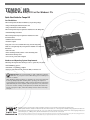
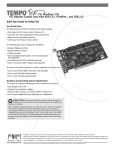
Tempo HD
Tempo HD Installation Steps
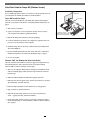
PCI slots
This section covers the installation of the Tempo HD without additional hard
drives into your system. For information on attaching additional hard drives, see
page 4.
1. Shut down your computer.
2. Open your computer to access its expansion card area (PCI slots); refer to
your computer’s user manual for specific information.
3. Remove the Tempo HD card from its anti-static packaging.
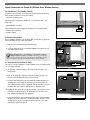
The location of your
computer’s PCI slots may
vary from this illustration.
Figure 1
4. Locate an available PCI slot inside your computer and, if present, remove its
port access cover from the rear of the computer.
5. Install the Tempo card into the PCI slot; make sure the card is firmly seated
and secured (Figure 1).
6. If you are installing additional hard drives at this time, refer to “Hard Drive
Installation Preparation” and “Hard Drive Installation Steps” on page 4.
7. Close your computer.
Windows 98SE and Windows Me Driver Installation
This section describes the installation of drivers to support the Tempo HD in systems running Windows 98SE or Windows Me. If your system is running
Windows 2000 or Windows XP, skip to the next page.
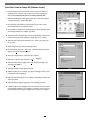
1. Turn on your computer; during Windows startup, the New Hardware Found
window will briefly appear, with PCI Mass Storage Device listed as the new
hardware type.
2. When the Add New Hardware Wizard window appears, click Next.
3. When the next window appears, select “Search for best driver for your device
(Recommended),” and then click Next.
4. Insert the Tempo HD Windows Driver diskette into your floppy drive.
4. Type A:\Win9x-me, and then click Next.
5. When the message stating “Windows is now ready to install the best
driver…” appears, click Next, and then click Finish.
6. At the next prompt, click Yes to restart your system; you must now format
the attached drive. Skip to “Drive Formatting—Windows 98SE and Windows
Me” on page 5.
2