1
Installation
1
2
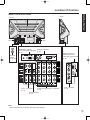
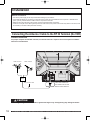
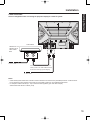
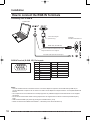
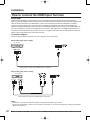
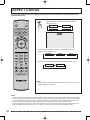
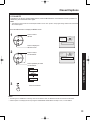
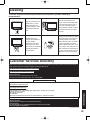
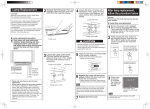
Connect the HDMI output from the set top box or a DVD player to the HDMI input on the back of the unit.
• If you cannot display the picture because your Digital Set Top Box does not have a Digital Out terminal
setting, use the Component Video Input (or the S-Video Input or Video Input). In this case, the picture will be
displayed as an analog signal.
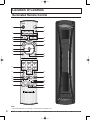
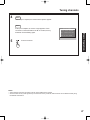
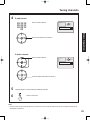
Press TV/VIDEO on the Remote Control to select HDMI input.
By inputting a High-bandwidth Digital Content Protection high-definition picture source to the HDMI IN terminal of
this Device Display, high-definition pictures can be displayed on the screen in their digital form. (This terminal is for
use in the future when High-bandwidth Digital Content Protection DVD players and D-VHS are put on the market.)
Getting Started
Procedure
Notes:
•
•
•
•
Select the HDMI input position by pressing the TV/VIDEO button. (P. 35)
The HDMI IN terminal can only be used with 1080i, 720p and 480p picture signals.
If there is no audio, check if the source equipment has PCM output. If not, please use analog connections.
Be sure HDMI is securely connected. If not, picture noise and/or incorrect picture display may result.
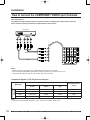
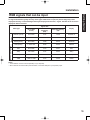
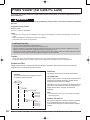
Compatible formats
Video Signal:
The Device display is compatible with following formats. Please set the connecting device to following format.
Display mode
No. of dots
Vertical scanning frequency (Hz)
1080i
1920 x 1080i
59.94 / 60
720p
1280 x 720p
59.94 / 60
480p
720 x 480p
640 x 480p
59.94 / 60
59.94 / 60
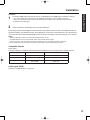
Audio signal (PCM)
Please see “AUDIO SELECT” on page 43.
21