1
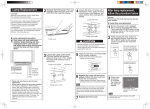
Photo Viewer (SD Card/PC Card)
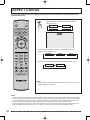
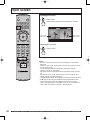
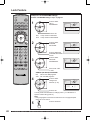
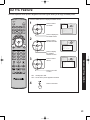
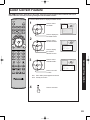
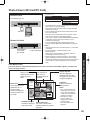
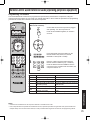
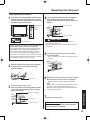
Compatible Card
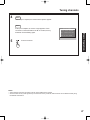
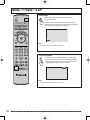
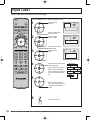
Insert the Card.
SD Card slot
SD Card
MultiMediaCard
Front Card Slot (P. 10)
PC Card slot
Compact Flash*
Smart Media*
Memory Stick*
xD Picture Card*
• The media* listed in the right column above can be read via
the PC Card in the PC Card adaptor.
• Hard disk PC Cards, Flash ATA Cards, and other recorded
media cannot be used.
• Place the selected media onto the PC Card and then insert
into the PC Card Slot.
• When both an SD Card and PC Card are inserted, the SD
Card contents has priority and will be displayed.
• If the Card is unusable, “CARD FORMAT NOT SUPPORTED”
is displayed on-screen. Remove the Card only when
ACCESS is not displayed.
• If an incompatible JPEG file is displayed (full size file
preview), “DATA FORMAT NOT SUPPORTED” is displayed.
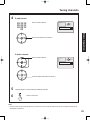
SD Card
PC Card
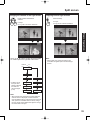
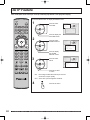
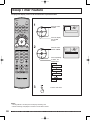
Remove the Card.
Notes:
Press in lightly
on SD Card,
then release.
Press PC Card
EJECT TAB twice.
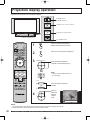
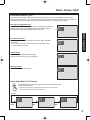
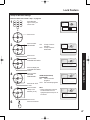
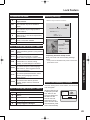
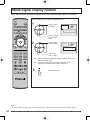
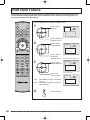
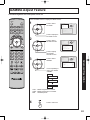
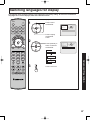
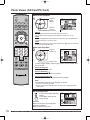
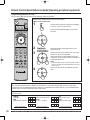
Card Menu Screen
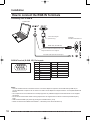
The screen below is displayed automatically when a card is inserted. If “NO CARD” appears, confirm that a
card is correctly inserted.
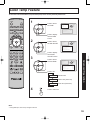
Parent Folder
Returns currently
displayed folder to the
parent (previous)
folder.
Menu Area
Select display method
(SINGLE PLAY or
SLIDE SHOW).
Confirm the displayed
card type (SD Card or
PC Card).
Subfolder
The subfolder of
the currently
displayed folder is
opened.
0(183$*(
6,1*/(
6/,'(
6'3&
$&&(66B3$1$
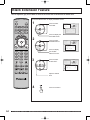
ACCESS Indication
ACCESS is displayed
while data is read.
Folder Name Area
The name of the selected
subfolder (framed in yellow) is
displayed.
Display Page No.
When the displayed
files/folders fill more than
one page, the total number
of pages is displayed.
Index Area
Folders and files are
displayed here.
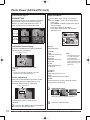
Notes:
Advanced Operation
• Insert/remove Card while “Card Menu Screen” or “NO CARD”
is displayed.
• Be sure ACCESS is not displayed before Card
insertion/removal.
• Fully insert the Card (ACCESS is displayed). Wait until
ACCESS goes out before removing.
• Before reinserting a Card after removing it, wait until “NO
CARD” is displayed. If there are Cards in both Card Slots,
wait until the Card Menu Screen of the other Slot is displayed
and ACCESS is no longer displayed before reinserting a
Card.
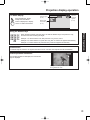
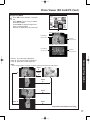
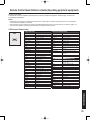
• Up to 1 000 JPEG files can
be displayed. (This number
may be lower if subfolders,
or files other than JPEG are
included in the folder.)
• Depending on JPEG
file type, “JPEG” will
be displayed instead of
thumbnail image.
• Only JPEG files can be
displayed.
69