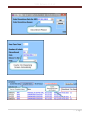
1
VHN Release 11.2: User Notes v3
TableofContents
Introduction ..................................................................................................................... 3 Clinical............................................................................................................................. 5 Macros ............................................................................................................................ 5 Clinical Encounter ......................................................................................................... 15 E-Prescribing ................................................................................................................. 30 Patient Summary Screen .............................................................................................. 31 Allergies ........................................................................................................................ 32 Discontinue Medications ............................................................................................... 33 Vital Signs ..................................................................................................................... 35 Lab Review ................................................................................................................... 36 TB Screens ................................................................................................................... 38 Pharmacy Screens ........................................................................................................ 41 Front Office ................................................................................................................... 47 Front Office /Clerical...................................................................................................... 47 Specific States .............................................................................................................. 51 Michigan Only ............................................................................................................... 51 Reports.......................................................................................................................... 53 Daily Money Report ....................................................................................................... 53 Billing Statements ......................................................................................................... 55 Lab Accession Log ........................................................................................................ 56 Pharmacy Dispensing Log ............................................................................................ 58 Georgia Billing Reports ................................................................................................. 59 1
VHNRelease11.2v3
System Administration................................................................................................... 65 Providers Table ............................................................................................................. 65 Valid Codes ................................................................................................................... 66 Procedure Codes .......................................................................................................... 67 Diagnosis Table ............................................................................................................ 68 System Configuration .................................................................................................... 70 Pharmacy Directions ..................................................................................................... 71 Workflow Maintenance .................................................................................................. 74 Load Documents ........................................................................................................... 78 E-charting Maintenance ................................................................................................ 79 Lab Maintenance ........................................................................................................... 86 Service Code Table: Michigan Only .............................................................................. 87 New Tables, Loads and Permissions ............................................................................ 90 2|Page
Introduction
Introduction
Major changes occur to the Clinical Encounter and the Workflow with the 11.2 Release
1. All counties/districts must move to the EHR Clinical Encounter with this release
1. M&M will offer General Clinical Encounter Overviews by Webex. E-mails will
be sent out as each Webex is scheduled
2. It is encouraged that all Clinical Users view at least 1 Webex prior to
implementing the EHR Clinical Encounter
3. Counties that have not moved to the EHR Clinical Encounter v11.1 are
encouraged to request detailed training and assistance with set-up
4.
to schedule training by the. The
Implementation and Training group will schedule the training sessions
2. For counties/districts with work flows in place:
1. System Administrators must review the section on Work flows in the
System Administration section
2. Update the Work flows
1. Users will not be able to access major functions of the Clinical
Encounter is this is not completed prior to being of business on the
day of Go-live
2. The following must be added to each work flow for users to work
1. Encounter Info
2. Office Visit
3. Procedures
4. Education
5. Program Details
3. Optional items or items not required to complete the encounter can
be added later.
3. Updating work flows is the responsibility of the LHD
3. For counties/districts not using Work Flows
1. M&M will load 1 Default Work flow
1. Allows users to being work
2. Structured with only those items required to complete the Clinical
Encounter
3. LHDs are strongly encouraged to implement Work Flows quickly to
allow users access to those items i.e. e-charts that are not included
in the standard Work flow
Page 3 of 92
VHNRelease11.2v3
2. If assistance creating Work Flows is needed please
3. Review the Maintenance Manual section on Work Flows
4. New Tables
1. With the release install M&M will
1. Complete the Adjust function for permissions
2. Reapply users to any existing roles
3. Give all users Select permissions on any new tables
2. LHD is responsible for the following
1. Review the list of new tables in the release notes
2. Apply permissions to new tables as they deem necessary
3. Adjust permissions for users as problems may arise if new table
permissions beyond Select are needed.
5. Release install and Incident Creation
1. Please remember to
for the release
Install
1. Installation group will schedule a call to coordinate dates and times
for Release Installation
2. Include any plans to implement ancillary functionality i.e. signature
pads, cameras or scanning
2. During release install the tables in Permissions will be adjusted
1. All new tables will have select permissions only
2. It is the responsibility of the LHD/System Administrators to
complete editing permissions based on the new tables listed in the
System Administrator Notes
4|Page
Clinical
Macros
1. Macros added to all note fields to provide users with shortcuts for long strings of
documentation
1. Each macro is established by a user
1. Macros are user specific and are not available to other users
2. Macros are currently found in 3 areas
1. E-charting notes
2. Encounter notes
3. Progress notes
3. Macros can be used across the 3 areas by the user
2. E-charting notes
1. Note Fields: Limited to 512 characters
2. Under the Pencil/Flag note button
3. Not available on Text fields (short answers of 20 characters)
3. Encounter notes
1. Unlimited number of characters
2. Available from any area of the encounter note
3. See section on Clinical Encounter
5
VHNRelease11.2v3
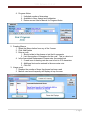
4. Progress Notes
1. Unlimited number of characters
2. Available in New, Amend and Addendum
3. Review current User's Manual for Progress Notes
2. Creating Macros
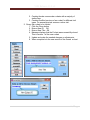
1. Select the Macro button from any of the 3 areas
2. Click Add/Update
3. Enter a code
1. Should relate to the phrase or text that it represents
2. Limit the number of characters for the code. This is a short cut
4. In the Associated Replacement Phrase enter the needed text
1. If used in an e-charting note be sure to limit to 512 characters
2. Additional text can be entered in the encounter note
3. Click OK
3. Usage count
1. Displays the number of times the phrase has been used
2. Macros used most frequently will display at top of screen
6|Page
Clinical
4. Using Macros
1. Macros can be used across the 3 sources: E-charting, Encounter, Progress
Notes
2. Consumer Patient macros are established by M&M and cannot be altered or
deleted
3. Inserting
1. Using a tag
1. Place the cursor in the note field
2. Insert the macro ID/Code as a tab: #macroid#
3. Text Phrase inserts when the second # is typed
2. Selecting from the Macro Table/List
1. Place the cursor in the note field
2. Click the Macro button
3. Select the Macro to use
4. Click OK
5. Text phrase inserts into the note
Page 7 of 92
VHNRelease11.2v3
5. Using Macros to create other Macros
1. Click the Macro button
2. Create the Macro
3. Insert the text to be use
1. From the Consumer Patient Module
2. From another macro in the list
4. In the Associated Replacement Phrase enter #macro#
1. Surround the macro with text, punctuation
2. Remember text character limits
3. Inserts a combination phrase
8|Page
Clinical
E-Charting
1. Tabbed option only form available
1. E-charts will now open automatically in Tabbed format
2. Page format no longer available
3. Previous paged e-charts
1. Open in tabbed format
2. Page breaks will be as before
3. Tabs will display as numeric values
System administration will need to modify formatting for these e-charts
2. Pencil Note display
1. Note is limited to 512 characters
2. User is now stopped at the 512 character limit
3. Recommended that user pull the e-chart into the EHR encounter and enter
longer notes there.
3. New Special options
1. New options added for users to move through the EHR
2. Use icons or right arrow icon to move to the screen
3. Notation inserts into field when return to the e-chart
4. Reminder: users can move to other e-charts by clicking on the arrow
1. Message to Save the current e-chart
Page 9 of 92
VHNRelease11.2v3
2. Moves to the other e-chart
1. Becomes a view if the other e-chart has be completed and signed
on the same day
2. Becomes a new e-chart if one has not been completed for that day
3. Complete and sign if appropriate.
4. Click Finish to return to the original e-chart in the same tab
See System Administration notes for set-up
10 | P a g e
Clinical
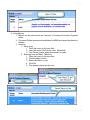
4. Attribution of copied items
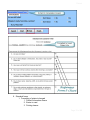
1. Items that copied automatically from one e-chart to another based on set-up will
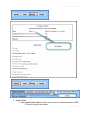
now be indicated with a Purple Star
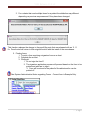
1. Click the star and a message with the attribution for that question will
display
2. If the item is changed or modified in any way the attribution indicator will
become greyed out
3. To view the response referenced by the attribution click the file folder
button
2. Items that are not copied automatically will have a greyed out star
1. To copy an item not from a previous e-chart click the copy button to bring
that response forward
2. The star turns purple and the attribution displays if the star is clicked
Page 11 of 92
VHNRelease11.2v3
3. For e-charts that used multiple times for a patient the attribution may different
depending on previous responses and if they have been changed.
This function replaces the change to the pencil/flag note that was released with an 11.1.1
fix. Pencil notes will return to their original function with the install of the new release.
5. Printing forms
1. To print a form requiring a signature from an e-chart
2. Complete the e-chart
3. Click print
1. Do not sign the form!!!
2. The signature application process will proceed based on the form to be
printed and who has to sign it.
3. Form will be stored in the patient's file cabinet and/or can be
printed off
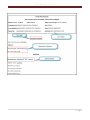
See System Administration Notes regarding Forms. Current form is Example Only!
12 | P a g e
Clinical
6. Standard forms
1. Formatting of printout changed
1. Patient information clearer
2. Easier to read
3. Printing clearer
Page 13 of 92
VHNRelease11.2v3
14 | P a g e
Clinical
Clinical Encounter
1. All users must move to the Clinical Encounter EHR with this release
To request training on the Clinical Encounter EHR: Include if
requesting web training or on-site training. Include at least
3 dates for the requested training. Also include
times available for web training. Someone from M&M will
contact the person creating within 7-10 working days to
schedule training.
2. Menu buttons removed from clinical encounter
1. All menu buttons are replaced by tool bar icons
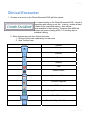
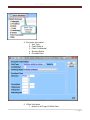
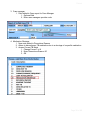
2. New Tool bar icons:
ICON
Function
Query
Previous
Next
Remove
Void
Review Orders
Appointment Orders
Prioritize Diagnosis
VisReview
Change Encounter Program
Check Encounter
Close then Open New Encounter
Page 15 of 92
VHNRelease11.2v3
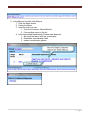
3. Items removed from the Clinical Encounter process
1. Update
2. Show/Hide Details
3. Close Encounter
4. OK (save)
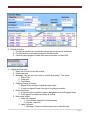
4. Continued integration of Workflow and Clinical Encounter
1. Workflow contains all components to complete an encounter
1. Details section removed from the clinical encounter
2. Items now included in the workflow
1. Encounter Information
2. Office Visit/Problem list
3. Education
4. Procedures
5. Program Details
6. Outprocessing
1. Limited Use
2. Users are encouraged to use the Task List/ToDo List
7. Merged Documents
8. Web Links
9. All review options
10. Orders
11. Breast Cancer Screening
12. Cervical Cancer Screening
13. Sign Encounter
3. Must choose workflow when enter the clinical Encounter
1. Workflow opens in left pane of encounter screen
2. Items continue to check when completed
1. Required Items check
2. Will not check if Time and Activity Codes are not entered
3. E-charts:
1. Check yellow when not signed
2. Check green when signed
4. New function: Show/Hide Workflow
1. Automatically shows when user chooses the workflow
2. Hides when want to see Patient Summary
3. Click Show to return to the workflow while remain in
encounter
4. If exit the encounter must choose the workflow again
16 | P a g e
Clinical
Page 17 of 92
VHNRelease11.2v3
4. Encounter Information:
1. Visit Type
2. Check Walk-In
3. Check Confidential
4. Smoking Status
5. Providers/Time
5. Office Visit option
1. Access to all 3 type of Office Visits
18 | P a g e
Clinical
2. Select the Office Visit: General, Preventive or Counseling
3. Use the drop down to select the office visit
6. Primary Diagnosis
1. Displays the Primary Diagnosis
2. Click Change to access the problem list
1. Problem list functions as before
2. Exit returns user to the Office Visit/Diagnosis screen
3. Item checked when return to workflow
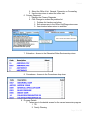
7. Education: Access to the Education/Other Services drop down
8. Procedures: Access to the Procedures drop down
9. Program Details
1. Takes user to the details screen for the current encounter program
1. TB
2. Family Planning
Page 19 of 92
VHNRelease11.2v3
10. Outprocessing
1. Allows the use of the Out Process orders screen
1. Patient Waiting message displays
2. List of orders displays
3. Checks the work flow
11. Merged Documents
1. Allows for consents, releases and other documents to be signed from
the workflows
1. Must have signature pads available
2. Forms can require patient and/or provider signatures
2. Each document that may or not be signed during the encounter needs
to be added to the Work Flow
1. Select the document needed
2. Using the signature pad apply the patient signature.
1. Apply any other signatures required for the form.
1. If signature is required the user must click OK to
apply signature
2. If signature is not required the user has option to
apply or not
2. If a required signature is not collected the form will not
insert into the file cabinet
3. Form will display with
20 | P a g e
Clinical
See System Administration Notes for creating documents
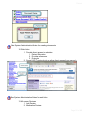
12. Web Links
1. Provide direct access to websites
1. Patient Education
2. Provider references
3. Protocols
2. Some LHD IT protocols do no allow direct access from user pc's.
See System Administration Notes for web links
13. All screen Reviews
1. Lab Review
2. Medication Review
Page 21 of 92
VHNRelease11.2v3
3. Problem List Review
4. Immunizations
5. Review Task List
14. All Order Types
1. Medication Orders
2. Lab Orders
3. Appointment Orders
4. Referral Orders
5. X-Ray Order
6. Miscellaneous Orders
1. New functionality
2. Allows users to enter orders other than the above categories
3. Order is free text
4. Order can be repeated
5. Mark the order completed when order is written
6. Order will insert into the Task List to be assigned to another
provider
15. Sign Encounter
1. Takes user to Sign/Save of Encounter Note
1. Sign the Note to close the encounter
2. Use the Final Edit/Sign button
3. Encounter edits completed when user clicks Sign/Save button
4. System continues to generate messages regarding items not
complete for the encounter
1. Office visit
2. Diagnosis
3. Family Planning
1. Procedures
2. Education/Other Services
3. Program Details
5. If encounter is incomplete reopens the workflow
22 | P a g e
Clinical
Page 23 of 92
VHNRelease11.2v3
5. Changes to a signed/closed encounter
1. Any changes to a field after the note is completed and signed require an addendum
to the note
1. Make the change
2. Message displays that Addendum is required
3. User taken to the Addendum portion of progress notes.
4. Addendum attached to Encounter note automatically.
2. Modifies the billing for this patient visit even for a closed encounter
24 | P a g e
Clinical
Page 25 of 92
VHNRelease11.2v3
6. Default Workflow
1. Provides a workflow for users that have not previously set-up workflows
2. Provides access to all required areas of the encounter.
3. Users are encouraged to create their own encounters for their EHR
7. Voiding an Encounter
1. Select the Void icon from the toolbar
2. Enter password
3. Message: Are you sure you want to void the Encounter? This voids:
1. Office Visit
2. Diagnosis
3. Procedures
4. Charting Forms (e-charts)
1. Signed forms must be voided through e-chart
2. If form not signed Cancel form prior to voiding encounter
5. Encounter Notes
1. If signed must be voided by person designated to Void Progress Notes
2. If not signed void when encounter is voided
6. New items voided
1. Labs Not collected:
1. Cancel Labs ordered for this Encounter
2. Answer Yes or No
2. Labs Collected
1. Message: Cannot void encounter due to collected labs
26 | P a g e
Clinical
2. Go to lab orders and cancel the lab that has been collected
3. Click Void icon on the encounter toolbar to repeat steps
3. Medication Orders:
1. Pending Med orders exist for this encounter. Do you want to void them
now?
2. For medications dispensed go to the Pharmacy Dispensing screen to
void
4. Educational topics
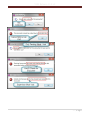
Possible Messages:
Page 27 of 92
VHNRelease11.2v3
28 | P a g e
Clinical
Page 29 of 92
VHNRelease11.2v3
E-Prescribing
1. E-Prescribing Messages
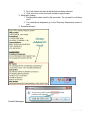
1. Message boxes for e-prescribing replaced by a Progress Bar
1. Message no longer display in a message window
2. Progress is noted by a Progress Bar similar to the Dictionary Progress on
login
30 | P a g e
Clinical
Patient Summary Screen
1. Added word Summary to the Patient Summary Screen
1. Avoid confusion with the Encounter
2. Provide clarity of screen purpose
2. Menu Buttons
1. Toolbar icons have replaced menu buttons for all except sub menus
2. User must use the icons for access to stand alone screens and processes
3. Buttons that connect to other menus will continue for this release
Page 31 of 92
VHNRelease11.2v3
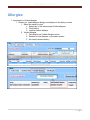
Allergies
1. Inactivated or Voided allergies
1. Reason for inactivating an allergy now displays in the history screen
1. Select the option to view
1. Select any of the items except Voided allergies
2. Click History
3. Inactive reason displays
2. Voided allergies
1. Only display on Voided Allergies option
2. Reason for void displays on the same screen
3. No need to access history
32 | P a g e
Clinical
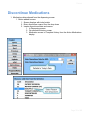
Discontinue Medications
1. Medications discontinued from the dispensing screen
1. Button added to menu
1. Screen displays with today's date
2. Enter discontinue reason from the drop down
3. Inserts discontinued date and reason
1. In Dispensing screen
2. On medication history screen
3. Medication moves to Complete History from the Active Medications
display.
Page 33 of 92
VHNRelease11.2v3
34 | P a g e
Clinical
Vital Signs
1. Added physical activity information to Vital Signs
1. Access vital signs screen
2. Add
3. New fields
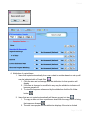
1. Minutes: number of minutes per day patient exercises
2. Days/Week: the number of days a week the patient exercises
3. Minutes/Week: calculated by the system
1. Tab out of the Days/Week
2. System calculates minutes per week
4. Total minutes per week inserts into Vital Signs Summary History
Page 35 of 92
VHNRelease11.2v3
Lab Review
1. Exit item on lab review screen
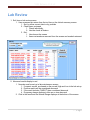
1. User accesses lab review from the tool bar on the clinical summary screen.
1. Sort by either current client or by probider
2. Check items reviewed
1. Check individually
2. Use the check all feature
3. Exit:
1. User leaves the screen
2. Items reviewed are removed from the screen and marked reviewed.
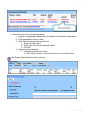
2. Abnormal results display in red
1. Normals must be set-up in lab maintenance screen
1. If numeric results are based on the normal High and Low in the lab set-up
2. Positive results will be considered abnormal
3. If the result includes "UNSAT" then considered abnormal
4. Pregnancy always displays in blue as no true abnormal
2. Click in the result and the Normal Range displays at the bottom of the screen
36 | P a g e
Clinical
3. Special forms to be sent with specimens
1. System can generate a special form if needed to be sent with a speciment
2. Form generates from an e-chart
3. Order lab that requires the special form
1. Order from lab orders
2. Order from clinical encounter/lab orders
3. Click OK
4. Required e-chart displays
1. Complete and sign the e-chart
2. Click Finish to return to clinical encounter or to the lab orders
See System Administration notes for set-up
Page 37 of 92
VHNRelease11.2v3
TB Screens
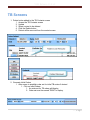
1. Delete button added to the TB Contacts screen
1. Access the TB Contacts screen
2. Update
3. Select contact to be deleted
4. Click the Delete button
5. Patient will be removed from the contact screen
2. Generate Initial Orders
1. Allow users to establish order set for initial TB orders if desired
1. Click on Initial Orders
1. An order set for TB orders will display
2. Order set must be named TBINIT to display
38 | P a g e
Clinical
3. Case manager
1. Field added to Case report for Case Manager
1. Optional field
2. Enter case managers provider code
4. Medication Shortage
1. New code added to Discontinue Reason
2. Allows to discontinue a TB medication due to a shortage of a specific medication
3. Access Current TB Meds
1. Change Current? to N
2. Enter Discontinue Reason 20
3. OK
Page 39 of 92
VHNRelease11.2v3
System Administrators need to set code in the Valid Codes table
40 | P a g e
Clinical
Pharmacy Screens
1. Pharmacy Transaction Screen flow modified
1. Changes to the pharmacy transaction screen allow improved alignment of fields
1. Changes focused on the "Other" section
2. Users move down the screen instead of down-across and then back down
again
3. No longer tab through fields that are already populated
4. Easily follow data entry as move through the screen
2. Default Number of Units to Dispense
1. Used for Depo Provera
2. Pharmacy Inventory Screen
1. Reflects the number of units that are routinely given of the medication
2. Update the Pharmacy Inventory Screen
1. Enter the 150 in the Default Number of Units
2. Takes numeric values only
3. Inhouse medication order
1. 2 step order
1. No refills
1. Choose Order Meds from the Work Flow
2. Enter the order
1. The number of units defaults on the order screen
2. Complete the order process
3. Dispensing screen
1. Amount defaults into:
1. Total Prescribed field
2. Units per RX field
Page 41 of 92
VHNRelease11.2v3
2. Tab to the Amount Dispensed and the units inserts
automatically
2. With Refills
1. Orders
1. Enter the Refills on the Medication Order
2. Complete order
3. Dispense Now? is No
2. Click on the Task List in the Work Flow
1. Select the Meds Tab
2. Check the View/Process Order box on the Medication
Order to move to the Dispensing Screen
3. Process Order
1. Enter the Dispensing Screen
42 | P a g e
Clinical
2. Defaults
1. Total Prescribed:
1. The number of refills Xs the number of
refills
2. System calculated
2. Original # of Refills: Defaults from the order
3. Remaining: Always 0 when enter the screen
4. Units per RX: number of units from the Default #
of Units for Dispensing on the Inventory Record
3. Tab to the Amount Dispensed
1. Enter the number of Units to dispense
2. Total Prescribed is unchanged
3. Original # of Refills is unchanged
4. Remaining (refills) :
1. Same as Original # for initial order
2. Decreases as refills entered
5. Amount remaining is now the Total Prescribed
minus the Amount Dispensed
Page 43 of 92
VHNRelease11.2v3
44 | P a g e
Clinical
2. 1 Step Drug Order (Georgia)
1. Choose Order Meds from the Work Flow
2. Dispensing screen displays
3. Enter the Drug and Tab
1. Units insert automatically in:
1. Total Prescribed
2. Units Per RX
2. Tab to insert the units in the Amount Dispensed
Page 45 of 92
Front Office
Front Office /Clerical
1. Patient labels
1. Patient labels have been modified to be accessible from the Dashboard
Request stand alone patient labels to be added to
dashboard. Indicate to what menu to add the items. Indicate
if a toolbar icon is needed. Allow 7-10 working days for item
to be scheduled and installed
1. Access the menu option for the Patient Labels
1. Menu displays: same list of labels as accessed from Patient
Central Registry
2. Select label needed
3. Enter patient number in the screen and click OK
4. Select number of labels to print
5. Labels will print
2. Service Slip: Presenting Problem
1. Referral does not print when REF is entered as presenting problems
47
VHNRelease11.2v3
3. Receipt screen displays user logged in at time receipt was printed
1. Print receipt
2. View receipt options from menu
48 | P a g e
Front Office
4. Transaction List
1. Transaction List has been remove from Output in Guarantor Mode
1. Print from Patient Mode if a parent needing a Transaction Statement
for a child
2. Print statements from the Guarantor Mode
5. 3pInsurance page
1. Relation to client field expanded
1. Displays description rather than the code
2. Allows user to readily note the person insured's relationship to client
2. Suffix added to Patient's name
1. Required by some insurances
2. Enter on page 1 of Patient Central Registry to insert automatically into
Suffix field
3. Does not insert into Patient Central Registry if entered first on
3Pinsurance screen
Page 49 of 92
Specific States
Michigan Only
1. Enter only numeric values in the street number field
1. Edit check on street number
2. User no longer able to enter letters or symbols in the street number field
3. Enter a alpha character and receive a message regarding use of only
numeric values
4. OK message and system moves back to the Street# field
2. Secondary Insurance Claims (CAS Codes)
1. Adjustments to the billing process made to reflect items not covered by a
patient's Secondary Insurance
See System Administration Notes for correct method of setting billing flags.
51
Reports
Daily Money Report
1. Daily Money Report
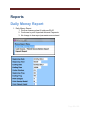
1. Prints a summary sheet if totals are $0.00
2. Continues to print Unposted Advance Payments
3. No change to how report parameters are entered
Page 53 of 92
VHNRelease11.2v3
54 | P a g e
Billing Statements
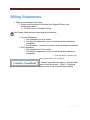
1. Ability to run statements by center
1. Center must be marked to Exclude from Regular Billing in the
maintenance tables
2. For Self-Pay and Contractor billing
See System Administration notes regarding exclusions
3. Process Statements
1. Run statements for ALL centers
2. Run Regular statements: does not include centers marked as
exceptions
3. Run Exception: includes only those centers marked as exceptions
4. Run Statements
1. Run statements for ALL centers
2. Run Regular statements: does not include centers marked as
exceptions
3. Run Exception: includes only
those centers marked as exceptions
Request new statement options. Indicate what
menu to add the items to. Allow 7-10 working
days for item to be scheduled and installed
Page 55 of 92
VHNRelease11.2v3
Lab Accession Log
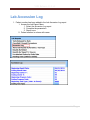
1. Patient number has been added to the Lab Accession Log report
1. Access the Lab Report Menu
1. Select the Accession Log report
2. Complete the parameters
3. Report runs
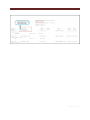
2. Patient number in column with name
56 | P a g e
Page 57 of 92
VHNRelease11.2v3
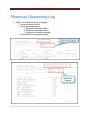
Pharmacy Dispensing Log
1. Ability to run Dispensing Log by program
1. Access report as before
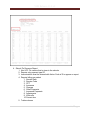
2. Enter report parameters
1. Beginning and ending date
2. Beginning and ending center
3. Beginning and ending program
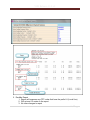
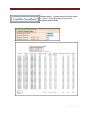
3. Prints totals for center and program.
58 | P a g e
Georgia Billing Reports
1. New report for electronic billing and posting of Medicaid
1. Medicaid Payment Summary + Recoupment
2. Run report from MDCD Billing screen
1. Sorted by payer
2. Reports:
1. EPSDT
2. PCM
3. FP
4. PRS
5. DSPS
6. Totals
3. Reports by payment date
4. Totals payments by payer
5. Grand Total for all payers
Page 59 of 92
VHNRelease11.2v3
2. RevMax Report
1. Report will suppress any CPT codes that have the prefix LU (Local Use)
2. Will not see LU codes on the report
3. No other changes to report
60 | P a g e
3. Supplemental Billing Summary Report
1. Sorts by CPT Codes
2. Displays for all Payers
3. Displays totals for centers, providers by program. Does not sort by center
or provider
4. Displays by:
1. Number of patients
2. Number of procedures
3. Charges
4. Payments
5. Adjusted
6. Denied
7. Balances
8. Pending charges
5. Provides Grand Totals for all columns
Request report. Indicate what menu to add the
report to. Allow 7-10 working days for item to be
scheduled and installed.
Page 61 of 92
VHNRelease11.2v3
4. School Flu Revenue Report
1. Non-VFC Flu vaccine that is given in the schools
2. Reports only payment type 04
3. Immunizations must be entered with Action Code of S to appear on report
4. Reports billing per patient
1. Service Date
2. Service Code
3. CPT
4. Insurance
5. Charges
6. Other Payments
7. Insurance Payments
8. Adjustments
9. Write-offs
10. Current due
5. Totals columns
62 | P a g e
Request report. Indicate menu to add the report
to. Allow 7-10 working days for item to be
scheduled and installed.
Page 63 of 92
System Administration
Providers Table
1. Field added for e-prescribing
1. Field added to store provider's Dr.First Username
1. Allows provider access to DrFirst without entering another login and
password
2. User profile is immediately available in DrFirst and does not have to be
selected from another drop down
3. User name is provided by DrFirst and included in the Signature sheet
that is returned to DrFirst at time of enrollmenmt
2. Access the Provider Table from the Main Maintenance Table
1. Query the provider that is e-prescribing medications
2. Update
3. Move to the RX Username field
4. Enter the provider's DrFirst user name
65
VHNRelease11.2v3
Valid Codes
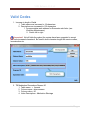
1. Increase in length of fields
1. Table name now increased to 18 characters
2. Description now increased to 100 characters
1. Accommodates web address for Encounter web links (see
Workflow Maintenance)
2. Scrolls left to right
Important! Not all fields throughout the system have been upgraded to accept
these increased characters! Be careful about character length with service codes,
Immunization etc.
2. TB Medication Discontinue Reason 20
1. Table name = tbmeds
2. Column name = disconreason
3. Column value = 20
4. Value Description = Medication Shortage
66 | P a g e
System Administration
Procedure Codes
1. Modifiers for 04 Insurance
1. InsCode field added to specify insurance code
2. Allows for Modifier to insert automatically on ONLY those insurance types
that require a modifier
1. If modifier is required by all insurance types:
1. Indicate modifier is required InsrReq = Y
2. InsCode is blank
3. Modifier required by minimal number of insurance types
1. InsrReq = Y and InsCode = the insurance code for the payers requiring
the modifier
2. InsrReq = N and leave InsCode blank to cover all other insurances
4. Modifier required by most insurance types
1. InsrReq = Y and InsCode blank to require the modifier for most
insurance types
2. InsrReq = N and InsCode = the insurance codes for the payers that do
not require the modifier
Page 67 of 92
VHNRelease11.2v3
Diagnosis Table
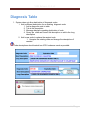
1. System does not allow duplication of diagnosis codes
1. Add a different description for an existing diagnosis code
1. Add a diagnosis code to table
2. Tab to the description
3. Message displays regarding duplication of code
4. Query the code and correct the description or add to the long
description
2. Add a new code to replace the expired code
1. Unexpire the existing code and change the descriptions if
needed.
Code descriptions should match true ICD-9 codes as much as possible
68 | P a g e
System Administration
Page 69 of 92
VHNRelease11.2v3
System Configuration
1. Spanish Monographs
1. New flag to turn availability of Spanish Monographs on or off
2. To include Spanish Monographs is included in annual maintenance
contract
3. For users that do not choose to use Spanish Monographs
4. Flag will be set at time of release install as determined by current M&M
contract
To have flag changed at any time after current contract
year. Please notify Martha Sapp regarding any
changes. M&M will set flag after verification with Martha
Sapp of contract specifications.
70 | P a g e
System Administration
Pharmacy Directions
1. Pharmacy Directions table enhanced
1. Allow users smoother transition from VHN to Rcopia for e-prescribing
2. Eliminates re-entering the directions while in Rcopia
2. Access the Pharmacy Directions from the More Maintenance menu
1. Update existing Direction Codes
2. Choose Add to create new code for e-prescribing
3. Direction codes are used for all prescribing methods
3. Drop downs in the Sig Information portion of the screen currently correspond to
the drop downs in the Rcopia application
1. This portion of the screen needs to be populated only for those items used
in e-prescribing
1. For clinics only using e-prescribing all codes should have the
additional information
2. If not doing e-prescribing this step is not necessary
3. If doing both e-prescribing and in-house orders codes used for both
functions need to include the additional information
2. Valid Codes for these drop downs will be loaded during the release install
1. Table is phdir
2. Columns are:
1. Action
2. Dose
3. Doseother
4. Dosetiming
5. Doseunit
6. Drugroute
7. Duration
8. Quantityunit
Page 71 of 92
VHNRelease11.2v3
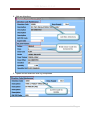
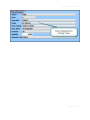
4. Add new directions:
5. Update current directions with Sig components
72 | P a g e
System Administration
Page 73 of 92
VHNRelease11.2v3
Workflow Maintenance
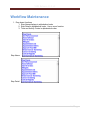
1. Drop down functions
1. Step Name displays in alphabetical order
2. Step Detail in alphabetical order. Has a zoom function
3. Time and Activity Codes in alphabetical order
Step Name
Step Detail
74 | P a g e
System Administration
Time and Activity Codes
2. Gender and Age restrictions
1. Workflow only displays when patient age and gender matches the items in
maintenance
2. Allows shorter list based on age as in Child Health
3. Gender restrictions allow only Male and Female work flows
4. Use both options or either Gender or age depending on workflow
5. For established work flows
1. Query the workflow
2. Update
3. Enter the Gender and/or age range
6. New work flows: complete when creating the new workflow
Page 75 of 92
VHNRelease11.2v3
3. Duplicate Workflow IDs
1. Warning message displays if user tries to create a new workflow with the
same ID as one already in place
4. Workflow Maintenance for Clinical Encounter:
See Clinical Encounter notes for use of each item
1. Workflow now used to complete Clinical Encounter
2. Items that replace the any drop downs will use the same codes. Codes
do not have to be redone
3. New items added for Encounter Set-up
1. Encounter Info
1. Visit Type
2. Walk-in check box
3. Confidential check box
4. Providers/Time
2. Office Visit
1. Office Visit
1. Types of office visits: General, Preventive,
Counseling
2. Drop down to select office visit
2. Problem List
1. Displays Primary Diagnosis code
2. Ability to access Problem List to add/change or reprioritize the diagnosis for this visit
3. Procedures: access to the procedure table (drop down)
4. Education: Access the education topics/other services drop down
5. Program Details: Access to items currently under program details
6. Progress Notes: Access to progress note screen
7. Prioritize Diagnosis: Prioritize Diagnosis screen
76 | P a g e
System Administration
8. Check Encounter: Checks the encounter to assure billing/required
items are complete
9. Cancer Screening: Access to the Breast and Cervical cancer menu
10. Miscellaneous orders: Takes users to the miscellaneous order
details
5. Default workflow
1. Default work flow/Standard work flow
2. System defaults to this work flow if no encounter has been created
3. Can be update locally
4. Can only have one Default work flow
5. Loaded by M&M during release install
6. Signing documents
1. Allows users to sign consents, forms from the work flow
2. Option is Merge Document
1. Step Name is Merge Document
2. Step Type is the Form Identifier from the Forms table
Page 77 of 92
VHNRelease11.2v3
Load Documents
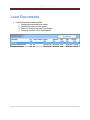
1. Load Documents screen modified
1. Update date removed from screen
2. Updated by removed from screen
3. Items not used so removed from display
4. Category function still in development
78 | P a g e
System Administration
E-charting Maintenance
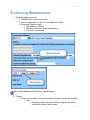
1. Paged formatting removed
1. Tabbed forms now the only option
2. User no longer has an option for the Paged or Tabbed
3. Previously Paged e-charts
1. Will default to Tabbed
2. Release install when insert page breaks
3. Tabs will be numbered
See current Maintenance Manual for Tabbed pages
2. Cloning
1. Users are now able to clone and rename e-charts to create new e-charts
1. Use:
1. Creating multiple e-charts for different age groups where
information needs to pull forward
Page 79 of 92
VHNRelease11.2v3
2. Creating female versus male e-charts with a majority of
similar tags
3. Creating modified versions of an e-chart for different visit
types. An annual physical versus a routine visit.
2. Query the e-chart to be cloned
1. Click the Clone button
2. Enter a New ID. OK
3. Enter a New Title. OK
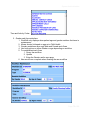
4. Message displays that the E-chart was successfully cloned.
This is version 1 of the new e-chart
5. Update and make the needed changes or adjustments.
6. When complete lock the new version of the cloned e-chart
80 | P a g e
System Administration
2. Preview an e-chart multiple times during construction
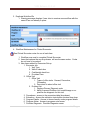
1. Check the "Allow more than one from of theeis type per client per date of
service"
2. Click Preview
3. For printing click Print
1. Save the Record
2. After the print preview displays Cancel
4. User will be able to preview e-chart again
5. Uncheck the "Allow more than one form of this type per client per date of
service" for e-charts that are limited to one per
Page 81 of 92
VHNRelease11.2v3
82 | P a g e
System Administration
3. Special fields
1. New special fields added to allow user to move to various screens in EHR
1. Enter the tag for the screen.
Page 83 of 92
VHNRelease11.2v3
4.
2. Type is Special
2. Screens and tags:
1. Allergies = docallergy
2. Medication screen = medorder
3. Lab Orders = laborder
4. Referral Orders = reforder
5. Appointment Orders = apptorder
6. X-Ray Orders = xrayorder
7. Immunizations = immun
8. TST (PPD) = ppd
9. Vital Signs = vitals
10. Lab Review = labreview
11. Problem List = problems
12. Outprocessing = outprocorder
13. To move to another e-chart
1. Tag = echartID. Example echartFPEXAM
2. Type = Special
Add a Template
1. Allows user to establish a form that can be signed and printed from the echart
1. Create the e-chart
1. Questions and responses should be formatted carefully so
the answers will make sense on the form
2. Best used for Y/N questions
2. Create the form:
1. Question Tag becomes the tag for the forms
2. Example: question tag = sick; form tag =
#@@sick@@#
See the section on creating and setting up intake forms
3. Load form into the forms table
4. In the e-chart insert the Forms Identifier into the Template field
84 | P a g e
System Administration
Page 85 of 92
VHNRelease11.2v3
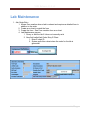
Lab Maintenance
1. Ask Order Entry
1. Allows form creation when a lab is ordered and requires a detailed form in
addition to the order
2. Create an e-chart to match the form
3. Create the form: See Form creation from an e-chart
4. Lab Maintenance screen
1. Query or Add the lab if it does not currently exist
2. New field called Ask Order Entry E-Chart
1. Enter E-chart ID
2. System pulls this e-chart when the order for the lab is
generated
86 | P a g e
System Administration
Service Code Table: Michigan Only
1. Non-covered services by a Secondary Insurance
1. Changes made to assure that non-covered services will be reflected in the
Medicaid Billing File
1. Services are not covered by:
1. Private 3rd party insurance
2. Medicare
2. Services are billable to Medicaid
2. To correct a current service code
1. Access the ServCode table from the Maintenance Menu
2. Query the service that is billable to Medicaid but not to the patient's
other Insurance
1. Update
2. Medicaid Bill = Y
3. Medicare Bill = N (if not covered by Medicare)
4. Insurance Bill = N
5. OK
3. Choose Cptupd
1. Select the current Detail Record that has a Medicare and/or
Insurance amount
1. Expire the current Detail Record
2. Enter Y to create a new Detail Record
3. Change the Medicare amount to $0.00 if applicable
4. Change the Insurance amount to $0.00
5. OK
Page 87 of 92
VHNRelease11.2v3
88 | P a g e
System Administration
3. To create a new code:
1. Add the new service code with N in the Medicare and/or Insurance Bill
fields
2. Enter $0.00 in the Fee fields for Medicare and/or Insurance fields
Services may be covered by Medicare and not Insurance or not covered by
Medicare but covered by Insurance. Set the fees to reflect the service coverage.
Page 89 of 92
VHNRelease11.2v3
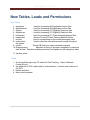
New Tables, Loads and Permissions
New Tables
1.
2.
3.
4.
5.
6.
7.
8.
appadvice:
Used for processing 824 Application Advice files
appadviceraw:
Used for processing 824 Application Advice files
eligrecv
Used for processing 271 Eligibility Response files
eligrecvraw
Used for processing 271 Eligibility Response files
hhclaimack
Used for processing 277 Claim Acknowledgement files
leadmedact
Monroe County NY Lead Tracking Medical Actions
rxmeds
Used in e-prescribing to store meds/prescription data
mnemonics
Used to store the user-defined macros used throughout
the system
9. mhvisit
Stores OB history for maternal health programs.
10. Orderqueuelog
Maintains a history of providers assigned to a particular
task list item. Requires update permission if has update on the orderqueue table
11. vhndata_driver
Loads
1. A new workflow type code CT added for Child Tracking. Used in Macomb
County MI only
2. An update list of CVX codes used for immunizations. Includes new codes as of
5/1/2013
3. Default workflow
4. New e-chart template
90 | P a g e