1
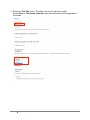
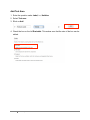
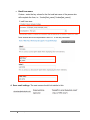
4. In the Edit component, the label details and the field key are auto-filled from the
information that you added to the label.
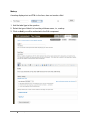
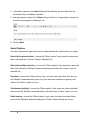
5. Add appropriate content to the Value section of the form. If appropriate, change the
format from paragraph to Heading 2, etc.
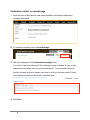
6. Click on Save.
Select Options
The select options field type allows you to create checkboxes, radio buttons, or menus:
Select list (single selection) – choose the "Select options" type, enter the values and
label, and make sure "List box" option is checked (on).
Select list (multiple selection) - choose the "Select options" type, enter the values and
label, then choose the "Multiple" advanced setting, and make sure "Listbox" option is
checked (on).
Checkbox - choose the "Select options" type, enter the value and label, then choose
the "Multiple" advanced setting (even if you just want one checkbox to appear), and
make sure "Listbox" option is not on.
Checkboxes (multiple) - choose the "Select options" type, enter the values and label,
then choose the "Multiple" advanced setting, and make sure "Listbox" option is not on.
Radio buttons - choose the "Select options" type, enter the values and label. Make
sure both the 'Multiple' advanced setting and "Listbox" option settings are not on.
9
MHC Drupal User Manual: Webforms
02/22/13