1
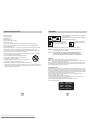
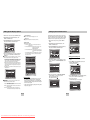
Choosing a Connection
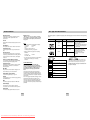
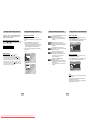
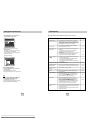
Playing a Disc
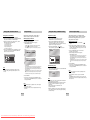
7. Step Motion Play (DVD only)
Connection to a TV (For Video)
Before Play
TV (Normal, Widescreen, Projection, etc..)
• Turn on your TV and press the TV/VIDEO button
to select the video mode.
• Turn on your Audio System and select AUX, CD or
DVD.
Basic Audio
Method 1
Method 2
Method 3
Method 4
Good
picture
Better
picture
Best
picture
Optimum
picture
After plugging in the player, the first time you press
the DVD POWER button, this screen comes up :
If you want to select the language, press a
NUMBER button. (This screen will only appear
when you plug in the player for the first time.)
TV
AV
Cable
S-Video
Cable
Video
Cables
OR
OR
Pb
Y
Pr
Pb
Y
L
Audio Output
Jacks
VIDEO OUT
Video Output
Jack
S-VIDEO OUT
S-Video Jack
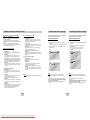
Press and hold the
button on the remote during
PAUSE or STEP mode. Press again and you can select
slow motion play for 1/8, 1/4 and 1/2 of normal speed.
- No sound is heard during slow mode.
- Press PLAY/PAUSE (
) to resume normal play.
- Reverse slow motion play will not work.
When you stop disc play, the player remembers
where you stopped, so when you press the
PLAY (
) again, it will pick up where you left off.
(unless the disc is removed or the player is
unplugged, or if you press the STOP (
) button
twice.)
Play
Pr
R
8. Slow Motion Play (DVD only)
RESUME function
DVD
Player
ANALOG AUDIO OUT
Press the STEP button on the remote during play.
- Each time the button is pressed, a new frame will
appear.
- No sound is heard during STEP mode.
- Press PLAY/PAUSE (
) to resume normal play.
(You can only perform step motion play in the forward
direction.)
COMPONENT VIDEO OUT
Component Video Jacks
(Interlace)
COMPONENT VIDEO OUT
Component Video Jacks
(Progressive)
Method 1
DVD Player + TV with Video Input Jack
(The Video Output in Setup Menu must be set to the S-Video or Component (I-SCAN).)
Method 2
DVD Player + TV with S-Video Input Jack
(The Video Output in Setup Menu must be set to the S-Video.)
Method 3
DVD Player + TV with Component Video Jacks
(The Video Output in Setup Menu must be set to the Component (I-SCAN).)
Method 4
DVD Player + TV with Progressive Scan Jacks.
(The Video Output in Setup Menu must be set to the Component (P-SCAN).)
• If you want to convert Video Output to the Progressive Scan, you have to first connect Video or S-Video on
your TV. Then select Component (P-SCAN) out of Video Output in Setup Menu. Within 10 seconds, change the
TV’s external input to 525p(480p or Component) and select “Yes” (See Page 30).
• If Component (P-SCAN) Video Output is selected in Setup Menu, Video and S-Video will not work.
1. Press the OPEN/CLOSE button.
The STANDBY indicator light goes out and the tray
opens.
2. Place a disc gently into the tray with the disc’s
label facing up.
3. Press the PLAY/PAUSE (
) button or
OPEN/CLOSE button to close the disc tray.
4. Stopping Play
Press the STOP (
) button during play.
5. Removing Disc
Note
• If the player is left for 5 minutes in pause mode, it
will stop.
• If the player is left in the stop mode for more than
30 minutes, the power will automatically shut off.
(Automatic Power-Off Function)
• If the player is left in the stop mode for more than
one minute without any user interaction, a screen
saver will be activated. Press the PLAY (
)
button to resume normal play.
• This
icon indicates an invalid button press.
Press the OPEN/CLOSE button.
6. Pausing Play
Press the PLAY/PAUSE (
) or STEP button on the
remote during play.
- Screen stops, no sound.
- To resume, press the PLAY/PAUSE (
) button once
again.
Important Note
• Consult your TV User’s Manual to find out if your TV supports Progressive Scan. If Progressive Scan is
supported, follow the TV User’s Manual’s instructions regarding Progressive Scan settings in the TV’s menu
system.
• Depending on your TV, the Method of connection may differ from the illustration above.
ENG-12
Downloaded From DvDPlayer-Manual.com Samsung Manuals
ENG-13