1
•
•
•
•
•
•
•
•
•
•
•
•
•
•
•
Embedded web server to support multi-page browser viewing.
Multi-level user management and password definition.
Supports wireless network (Wi-Fi/802.11/b/g).
Internal wireless module can flexibly create a wireless monitoring environment.
Supports motion detection, allowing for whole-area/whole-house monitoring.
Alarm messages can be sent via email, FTP, through an alarm server, etc.
Supports multiple alarm functions.
Compact for easy installation.
Suitable for a variety of locations.
Supports UPnP.
Supports auto port-mapping of the router.
Supports viewing via mobile phone.
Supports remote upgrade functionality.
Every device has a unique serial number and factory DDNS.
Factory can provide free client software and multi-pictures, extended recording and
video playback, etc.
2.2 Device interface
1
2
3
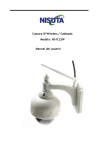
Note: Your IP Camera set should include the following items: video camera,
antenna, adaptor, 1.5-meter network cable, bag with screws, installation CD,
mounting bracket.
1.
2.
3.
2 Product views and interface
2.1 Product views
Reset button
Power adaptor
Ethernet port/L
LAN: RJ-45 10/100 Base-T
Power supply: DC5V/2A
RESET button: To reset the IP Camera settings back to the factory default
settings, press and hold the RESET button for 5 seconds.
3 Device installation
2
System configuration requirements for viewing multiple IP camera feeds:
1
1.
1.
1.
3
Light Sensor Holes: To detect the level of outside light and need for
infrared LED
Infrared LED
Lens: CMOS sensor with manual lens adjustment capability to adjust
the focus
Warning: Do not remove the plastic lens cover from the camera as it
may cause damage to the internal components of the camera.
4
CPU: 2.06 GHz or above
Memory: 512M or above
Network Card: 10M or above
Display Card: Microsoft DirectX 9 graphics device or above
Recommended Operating System: Windows XP/ Vista/Windows 7/Windows 8
Supports multiple web browsers: Internet Explorer/Firefox/Safari/Chrome, etc.
3.1 Hardware installation
When installing your IP Camera’s hardware, follow each step carefully in order
to ensure optimum camera operation. Take care with the IP camera’s installation
IP100 Manual
5