1
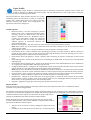
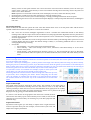
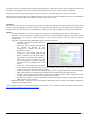
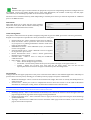
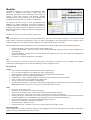
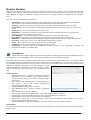
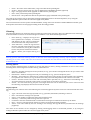
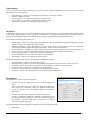
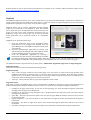
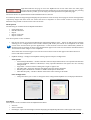
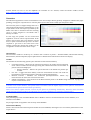
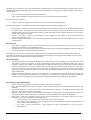
Monitor Modules Modules are used for managing jobs as they pass through the system and to monitor Server and Client activity. The modules can be added to a tab as part of a Monitor layout, or selected as a Floating module, where the window is stand‐
alone. Modules are added to a Monitor through the Layout menu; floating modules are available from the Modules menu. There are twelve (12) modules to choose from: •
•
•
•
•
•
•
•
•
•
•
•
BookMonitor – Similar to the RIPMonitor, this module displays a list of Books compiled via the Bookfilter. This module is only available in Veripress and the Blackmagic Softproofing Add‐on. ClientLog – Displays a log of Client messages that may be generated during normal Client operations. ClusterStatus – Monitors the progress of Imaging and Rendering tasks on the Server and any active Cluster Nodes. DropZone – A place to drag and drop files for processing. MediaStatus – A window showing the current calibration status of a Media data type and a progress bar showing the amount of media (e.g. Paper) used. QueueManager – View and manage jobs after they have been submitted for processing. QueueStatus – A progress meter showing the current status of active jobs on the selected queue. RIPMonitor – Displays the files polled using RIPs configured under the RIP data type within the Workbench. ServerLog – Displays any system, error and polling messages from the Server. Status – Shows the disk status (usage) of the Server processing areas. Thumbnail – Displays a thumbnail of jobs as they image or render. VirtualPress – Available within the RIPMonitor module. Allows for the assignment, alteration and management of plates to polled RIP jobs. BookMonitor The BookMonitor module displays the publications polled from planning files using the BookFilter data type. The publications can be expanded to show a list of pages and filenames associated with each page. The module allows for quick viewing of large multi‐section or multi‐edition publications, such as newspapers. When View Original, Rendered or FlipBook are selected for a publication in the BookMonitor, it searches the chosen queues in the QueueManager for filenames matching those in the page list and assembles them on‐the‐fly for proofing in the SoftProof or FlipBook applications. The Page Navigator in both applications (SoftProof & FlipBook) will show any pages missing from the publication (those that have not yet arrived from the RIP). Toolbar Options • Expand/Collapse Jobs – Expand or Collapse the selected publications to list individual pages. Double‐clicking a publication in the display panel will also expand/collapse the page list. • Poll – Poll the selected BookFilter for any planning files. Once polled, a list of the available planning file publications will be displayed. • Toggle Bookfilter Polling – Enable / Disable • Show BookFilter Menu – Enable / Disable a dropdown menu. • Show Bookfilter List – Enable / Disable • View Original – Opens the Imaged Preview of the selected publication in SoftProof. • View Printed – Opens the Rendered Preview of the selected publication in SoftProof. • View FlipBook – Opens the selected publication in FlipBook. • Queue Order – Select this to choose the Output queue in the QueueManager the Bookfilter will search for matching Imaged or Rendered job pages. • Calculate Ink Weight – Open the Ink Weights calculator window for the selected publication. View Options The following sort columns can be selected using the contextual (right click) menu on the sort column header bar in the Display panel: Serendipity Blackmagic User Manual – Version 5.1 60