1
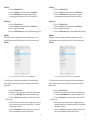
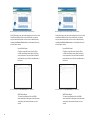
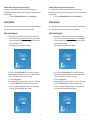
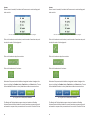
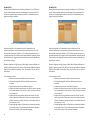
Edit Group
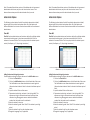
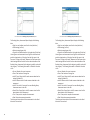
1. Click on the Class Roll button.
2. Click on the Groups tab on the right side of the Students tab.
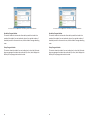
3. Click on the Edit Group button to make changes to a group,
including assigning the group level, instructor, and students.
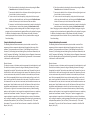
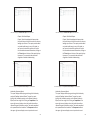
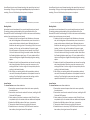
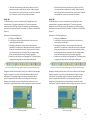
Edit Group
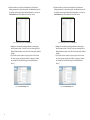
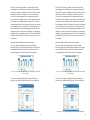
1. Click on the Class Roll button.
2. Click on the Groups tab on the right side of the Students tab.
3. Click on the Edit Group button to make changes to a group,
including assigning the group level, instructor, and students.
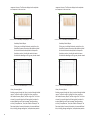
Delete Group
1. Click on the Class Roll button.
2. Click on the Groups tab on the right side of the Students tab.
3. Click on the group to be deleted.
4. Click on the Delete Group button, and press OK to delete the group.
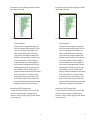
Delete Group
1. Click on the Class Roll button.
2. Click on the Groups tab on the right side of the Students tab.
3. Click on the group to be deleted.
4. Click on the Delete Group button, and press OK to delete the group.
Overrides
Student Overrides can be viewed when adding or editing a student. From
the Add Student screen or Edit Student screen, click on the third tab, called
Overrides.
Overrides
Student Overrides can be viewed when adding or editing a student. From
the Add Student screen or Edit Student screen, click on the third tab, called
Overrides.
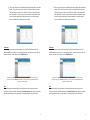
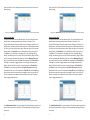
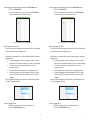
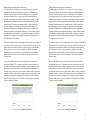
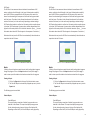
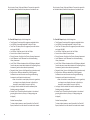
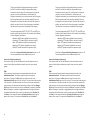
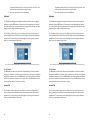
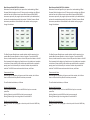
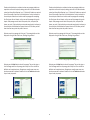
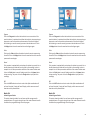
This is the screen that appears when one clicks on the Overrides tab.
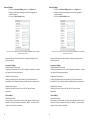
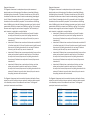
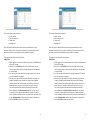
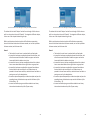
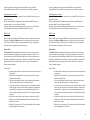
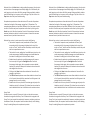
This is the screen that appears when one clicks on the Overrides tab.
The Overrides screen provides overriding options that allow administrators
to tailor student progress through the program, according to each student’s
specific needs.
The Overrides screen provides overriding options that allow administrators
to tailor student progress through the program, according to each student’s
specific needs.
1. Click on the Class Roll button.
2. Double-click on the student name to enter the Edit Student screen,
or click on the Add Student button to add a new student record.
3. Click on the Overrides tab near the top right-hand side of the Edit Student screen.
4. Select the lesson you want to override by clicking on the empty box
next to the lesson (or by clicking on the lesson title). The lesson will
be highlighted in light blue.
5. Click on the Override button toward the bottom of the screen. The
box by the corresponding lesson will change to black.
15
1. Click on the Class Roll button.
2. Double-click on the student name to enter the Edit Student screen,
or click on the Add Student button to add a new student record.
3. Click on the Overrides tab near the top right-hand side of the Edit Student screen.
4. Select the lesson you want to override by clicking on the empty
box next to the lesson (or by clicking on the lesson title). The lesson will be
highlighted in light blue.
5. Click on the Override button toward the bottom of the screen. The
box by the corresponding lesson will change to black.
15