1
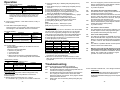
Operation 1. The function of LED display: LED DISPLAY DESCRIPTION Light off PC power off Green light on PC power on and connected Green light on & Red light PC power on, connected and flashing selected Note: It occurs occasionally that the green light of LED display is on and the red light of LED display keeps flashing after shutting down the PC because of the PC default. The condition will not affect the regular operation of KVM switch. 2. 3 ways for PC selection – Push-button switch, hot key or mouse clicking 2-1 Push-button switch (Manual Type) Press the button on front panel to switch the CPU ports. The red light of LED indicates which PC is selected. 2-2 Mouse clicking Item IC-712-IAUR Operation [Middle button] + [Left Button] or [Middle button] + [Right Button] IC-714-IAUR [Middle button] + [Left Button] IC-714-IAUR [Middle button] + [Right Button] Function Access between two PCs. Switch to the previous PC. Switch to the next PC. Note: 2-Key Mouse is NOT applicable. 2-3 Hot Key option Hot Key Navigation allows you to select PC from the keyboard directly. Options for Hot Key Navigation: Select PC by Hot Key Command mode Auto scan mode Beep sound on/off option: Press [Right Shift] key twice to turn on or off the beep sound when needed. Select PC by Hot Key: Press either left or right [Ctrl] key twice. Item IC-712-IAUR IC-714-IAUR IC-714-IAUR Hot Key Operation [L Ctrl] + [L Ctrl] or [R Ctrl] + [R Ctrl] [L Ctrl] + [L Ctrl] [R Ctrl] + [R Ctrl] Function Access between two PCs. Switch to the previous PC. Switch to the next PC. Command Mode: Press [Num Lock] key twice, and the 3 keys [Num Lock], [Caps Lock] and [Scroll Lock] will flash to access the Command Mode. a). Directly press the function key [F1] ~ [F2] for IC-712-IAUR or [F1] ~ [F4] for IC-714-IAUR to select PC. -3- b). Press [Left Ctrl] key to disable [Ctrl] and [Shift] hot key function. c). Press [Right Ctrl] key to enable [Ctrl] and [Shift] hot key function. d). Press [Left Shift] key to turn off the beep sound. e). Press [Right Shift] key to turn on the beep sound. f). Press [Left Win] key or mouse [Middle button] + [Left Button] to disable Mouse clicking function. g). Press [Right Win] key or mouse [Middle button] + [Right Button] to enable Mouse clicking function. h). Press [Left Alt] key to disable Auto skip function. i). Press [Right Alt] key to enable Auto skip function. j). Press [Esc] or [Enter] key to quit the mode. Note: [Ctrl] Hot Key function – Selecting PC ports. [Shift] Hot Key function – Beep sound on/off. A1d: Auto Scan Mode: Press [Scroll Lock] key twice to activate the Auto Scan Mode. The time scale of Auto Scan ranges from 5 to 30 seconds, and it can be recognized by the lights of the 3 keys [Num Lock], [Caps Lock] and [Scroll Lock] as the timetable below. a). Press the right number key [+] to increase time scale. b). Press the right number key [-] to decrease time scale. c). Press [Esc] key to quit the mode. Note: Light(s) corresponding timetable Seconds Num Lock Caps Lock Scroll Lock 5 seconds Off Off On 10 seconds On Off Off 15 seconds On Off On 20 seconds Off On Off 25 seconds Off On On 30 seconds On On Off Q3: A3: The mouse is out of control. The characteristic of the mouse is inefficient. Try another superior mouse and plug it back again. Start the operation after hearing the beep sound. Q4: A4a: There is the video problem. The setting of resolution or bandwidth is over high. Smart View KVM Switch supports the VGA, SVGA, Multisync and XGA (interlaced) with the resolution up to 1920 x 1440 Hz. The maximum bandwidth is 200 MHz. The cable is unqualified. Please use the superior cables of Smart View cables series. 3. The boot-up default of Smart View KVM Switch is connected to your first activated PC. 4. When the PC is shut down under the function of “Auto skips over the power-off PC”, it cannot be turned on again by keyboard. A1e: Q2 : A2a: A2b: A2c: A2d: A4b: Q5: A5: PCs can’t supply the power to Smart View KVM Switch. Please attach a power adapter of DC9V 300mA with positive central polarity. Try another keyboard. The mouse does not respond accurately. Re-install the mouse. Unplug the mouse from the Console Port and plug it back again. Re-install the Smart View KVM Switch. Shut down the PCs, unplug the cables from the Smart View KVM Switch, and wait for five seconds. Then plug the cables back and activate the PCs. PCs can’t supply the power to Smart View KVM Switch. Please attach a power adapter of DC9V 300mA with positive central polarity. Try another mouse. Why the green light of LED display is on and red light keeps flashing after shutting down the PC? The condition is normal and caused from the PC default. The condition will not affect the regular operation of Smart View KVM switch. Troubleshooting Make sure the cables are qualified and positioned. The keyboard does not respond accurately. Q1 : A1a: Re-install the keyboard. Unplug the keyboard from the Console Port and plug it back again. A1b: Re-install the Smart View KVM Switch. Shut down the PCs, unplug the cables from the Smart View KVM Switch and wait for five seconds. Then plug the cables back and activate the PCs. A1c: When under Auto Scan Mode, please press [Esc] key to escape. -4- © C&C TECHNIC TAIWAN CO., LTD. All rights reserved. Trademarks: All the companies, brand names, and product names referred to this manual are the trademarks or registered trademarks belonging to their respective companies. -5-