1
Introduction
PNetLab is a software for Petri Nets (PN) simulation, analysis and supervision.
PNetLab allows modelling and analysis of Coloured Modified Hybrid Petri Nets (CMHPNs),
Coloured Petri Nets (CPNs), place-transition nets, timed/untimed.
The simulation engine has been developed in C++, it works in cooperation with a graphical user
interface and provides interactive simulation with graphical animation of the model and movement
of the tokens, step-by-step and off-line simulations, forward and backward time progression. It
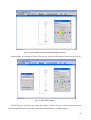
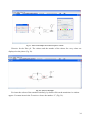
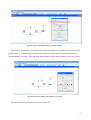
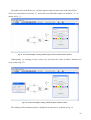
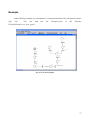
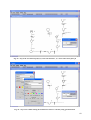
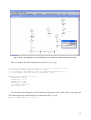
allows drawing of timed/untimed, PN/CPN/CMHPN plant models by means a Java graphical user
interface.
For PN models (not for CPNs neither for CMHPNs), the computation of T-P-invariant, minimal
siphons and traps, pre-incidence, post-incidence and incidence matrixes and coverability tree is
available.
PNetLab allows the integration of a PN/CPN/CMHPN model with a standard C/C++ control
algorithm thus allowing closed-loop analysis and simulation of supervised systems. It is also
interfaced with Xpressby Dask Optimization, a tool of linear programming.
The simulation engine, without graphical interface, can be linked to an external program. This
allows the integration of PNetLab simulation engine in a general-purpose simulation loop.
3