1
C H A P T E R 3 Upgrading VMware Workstation
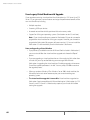
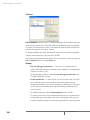
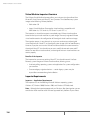
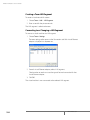
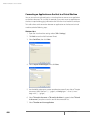
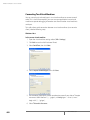
Procedure to Upgrade Virtual Machines
1. Shut down the guest operating system and power off the virtual machine,
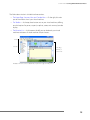
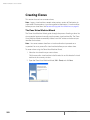
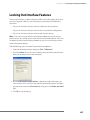
2. Choose VM > Upgrade Virtual Machine.
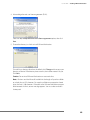
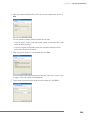
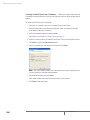
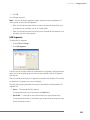
A dialog box appears, warning that the upgrade process cannot be reversed.
3. Click Yes to continue, then follow the on-screen directions.
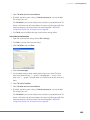
4. Power on the virtual machine in Workstation 5.
5. Upgrade VMware Tools to the new version
Refer to Installing VMware Tools on page 140. Do not remove the older version
of VMware Tools before installing the new version.
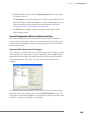
Note: If you are upgrading a virtual machine that runs from a physical disk,
rather than a virtual disk, you may safely ignore the message: “Unable to upgrade
<drivename>. One of the supplied parameters is invalid.” Click OK to continue
the upgrade.
69