1
Integration
Once HighPerMAP is installed on your computer,
you can use it to bring maps directly into your
Location Map form in HighPerFORM.
To configure HighPerFORM to recognize
HighPerMAP as your location map software, first
open a report with a blank Location Map form
attached to it. Click on the Forms in this Report
button and choose the Location Map form.
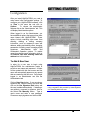
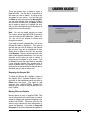
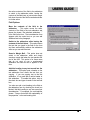
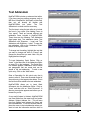
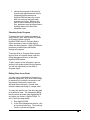
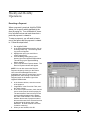
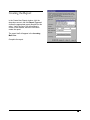
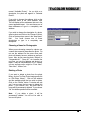
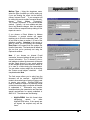
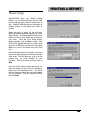
When you click on the blank gray field where
your map will go, a dialogue box should pop up
titled Insert Graphic Image. Make sure the
option to Launch an external program to create
this image is selected, then click Configure.
Note:
Once you configure the first time successfully,
you will not need to again. HighPerMAP should
automatically show up as the Program to launch,
and you can just click OK once the Launch an
external program to create this image is selected.
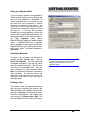
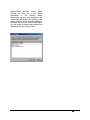
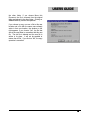
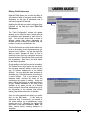
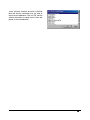
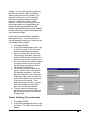
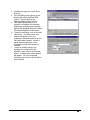
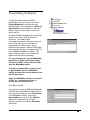
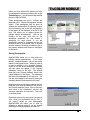
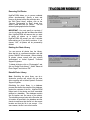
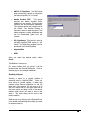
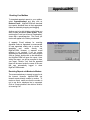
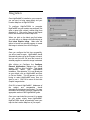
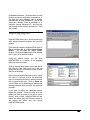
After clicking on Configure, the Configure
External Applications dialogue box should
appear. Click on Auto Configure. This should
automatically
detect
your
HighPerMAP
installation. After detection, if it is not already set
as your default, click on HighPerMAP and then
on Set as Default. This will prevent you from
having to select HighPerMAP every time you
want to use it. Click OK to return to the Insert
Graphic Image window.
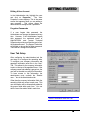
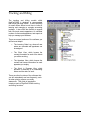
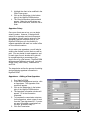
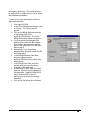
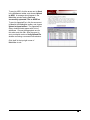
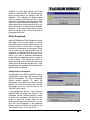
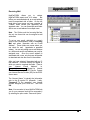
Click OK to launch HighPerMAP. Addresses of
the
subject
and
comparables
should
automatically be detected and plotted. For more
information on modifying your map, reference the
appropriate section of this HighPerMAP guide.
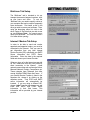
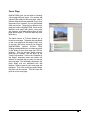
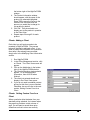
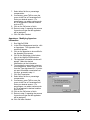
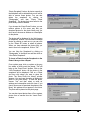
Once your map looks like you want it to appear
on your screen, simply close HighPerMAP.
HighPerFORM should automatically insert your
map into the Location Map form of your report.
105