1
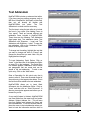
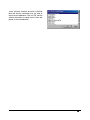
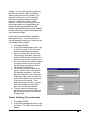
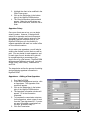
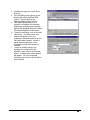
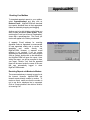
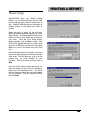
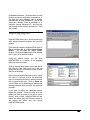
7. Select either flat fee or percentage
compensation.
8. If necessary, press TAB to move the
cursor to the Fee or Percentage field.
Enter your desired amount. For
percentages, use whole numbers such
as 79 as opposed to decimal notation
such as 0.79.
9. Click on the OK button to finish.
10. Return to step 5, repeating the process
for each work type that this appraiser
will be assigned.
11. Click OK when finished.
Appraisers: Modifying Appraiser
Information
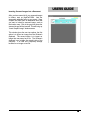
1. Run HighPerFORM.
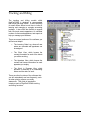
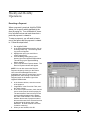
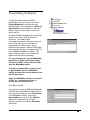
2. In the Office Management section, click
on Appraisers. The Appraiser View
screen will appear.
3. Click on the appraiser to be modified in
the Appraiser View screen.
4. Click on the Edit button in the bottom
right of the HighPerFORM window.
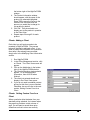
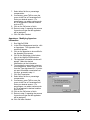
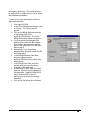
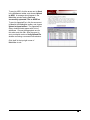
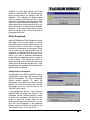
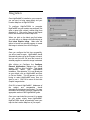
5. The Appraiser Information window will
appear. Make the desired
modifications to the information.
6. To complete the commission structure
for this appraiser, select a type of work
from the Type drop down list. If you do
not want to establish commissions at
this time, proceed to step 11.
7. Click Set Commission.
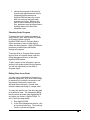
8. Select either flat fee or percentage
compensation.
9. If necessary, press TAB to move the
cursor to the Fee or Percentage field.
Enter your desired amount. For
percentages, use whole numbers such
as 79 as opposed to decimal notation
such as 0.79.
10. Click on the OK button to finish.
11. Return to step 5, repeating the process
for each work type that this appraiser
will be assigned.
12. Click OK when finished.
68