1
ownCloud User Manual, Release 9.0
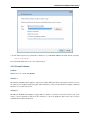
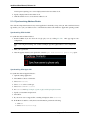
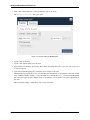
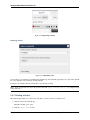
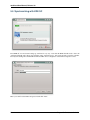
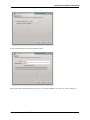
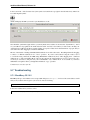
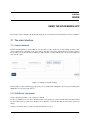
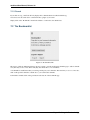
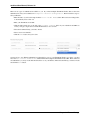
3. Make sure Use SSL is set to “OFF”.
4. Change the port to 80.
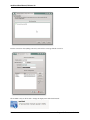
5. Return to “account information” and click Save.
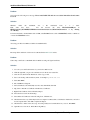
Your contacts appear in the address book of your iPhone.
Using Other Synchronization Options
ownCloud provides the following alternative synchronization options:
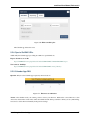
• For Android devices, you can use an official Android app. You can find this app here.
• For iOS (iPhone and iPad) devices, you can use their official app. You can find this app here.
5.1.5 Special CardDAV URLs
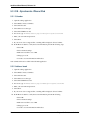
Additionally, the Contacts app is providing an URL for special functions:
Export an address book as a vCard file
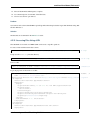
https://ADDRESS/remote.php/carddav/addressbooks/USERNAME/ADDRESSBOOKNAME?export
5.1.6 Troubleshooting
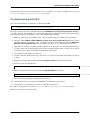
Are you having problems using the app? Have a look at the Troubleshooting and Troubleshooting Contacts & Calendar
guides.
5.2 Using the Calendar App
The Calendar app is not enabled by default in ownCloud 8 and needs to be enabled seperately. It is also not a supported
core app. You may ask your ownCloud server admin to enable it, and if you are your own admin consult the Installation
> Installing and Managing Apps section of the ownCloud Server Administration Manual.
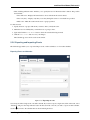
The ownCloud Calendar app enables you to create and edit events, synchronize to other calendars you might use, and
create new, personalized calendars.
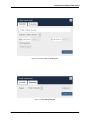
By default, when you access the Calendar app for the first time, you get a “Personal” calendar that you can use or
modify as you like.
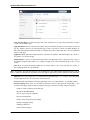
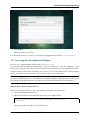
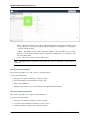
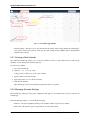
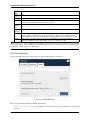
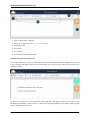
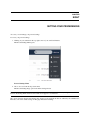
The Calendar app contains the following fields and controls:
• Calendar Date Field – Provides the current date or enables you to select a date that you want to view.
• Calendar View Options – Enables you to choose between a day, week, or month view for the main Calendar app
window. Also provides a quick jump button to access the current day (Today).
• Calendar Selection – Enables you to choose the calendar that you want to view.
• Calendar Controls – Provides controls for each individual calendar. These controls include sharing, obtaining
an external URL link to the calendar, an export function, an edit function, and a delete (trash) button.
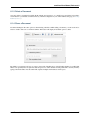
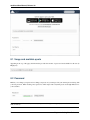
Note: Some Ad-Block plugins hide the “Share” button for calendars. If the “Share” button is missing, try
disabling your Ad-Block plugin or add a whitelist-entry for your OwnCloud instance.
5.2. Using the Calendar App
47