1
ownCloud User Manual, Release 9.0
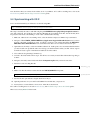
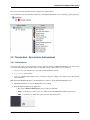
2. Click the Share icon
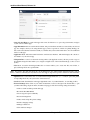
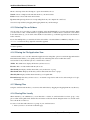
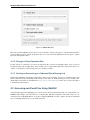
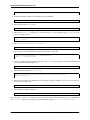
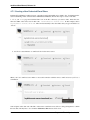
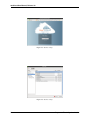
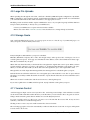
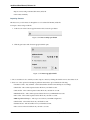
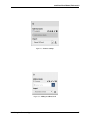
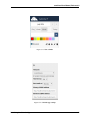
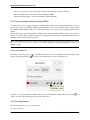
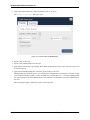
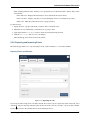
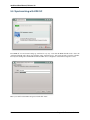
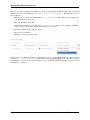
The Share dialog box opens to show the following options:
Figure 4.3: Share dialog box
Type the name of the user or group that you want to share with. If you want to share with more than one, you have to
create each share separately. Check the permissions you want the user or group to have, and optionally send them an
email notification.
Note: Users must enter their email addresses on their Personal pages for email notifications to work
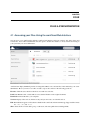
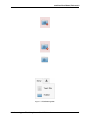
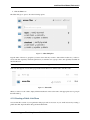
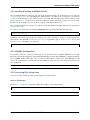
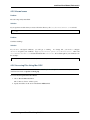
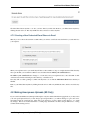
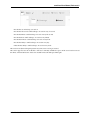
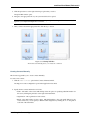
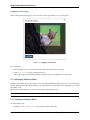
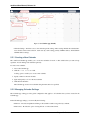
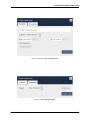
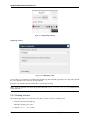
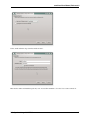
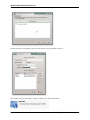
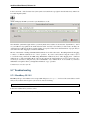
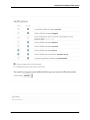
Your new share appears on user’s Files pages marked with a Share icon, and the name of the file owner.
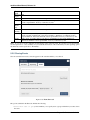
Figure 4.4: Shared file
When you want to revoke a share, simply click the Trashcan icon next to the name of the appropriate user or group in
the Shared dialog.
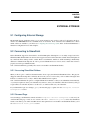
4.1.9 Creating a Public Link Share
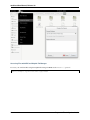
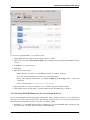
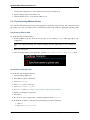
You can share files outside of your organization with people who are not users on your ownCloud server by creating a
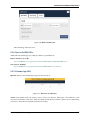
public share link. Open the Share dialog and check Share Link.
4.1. Accessing your Files Using the ownCloud Web Interface
13