1
ownCloud User Manual, Release 9.0
Changes that you make to any contact information are implemented immediately.
Defining a Contact Avatar
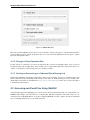
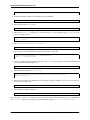
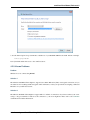
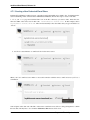
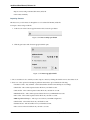
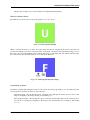
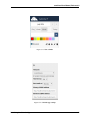
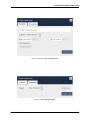
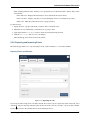
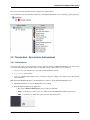
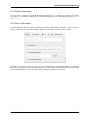
By default, new contacts receive a letter avatar (picture) of “U” (for “User”).
Figure 5.5: Contact picture (default)
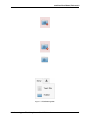
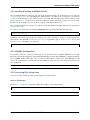
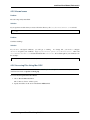
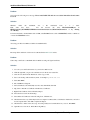
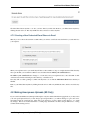
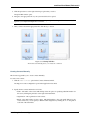
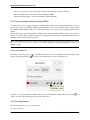
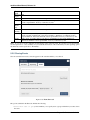
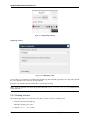
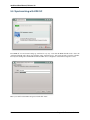
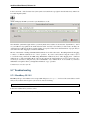
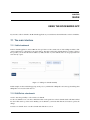
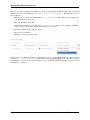
When you specify the name of a contact, the avatar reflects the name by adopting the first letter of the name you
provide. For example, if you were to specify the name of “Frederick,” the avatar would dynamically change to “F” for
that contact. If you provide multiple contacts with the same name, or with names that start with the same first letter,
the avatar uses the same letter but changes color to indicate the difference.
Figure 5.6: Contact picture (dynamic change)
Customizing an Avatar
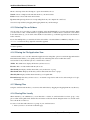
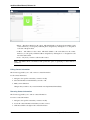
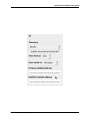
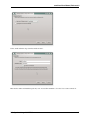
In addition to dynamically altering the avatar for each contact, the Contacts app enables you to customize the avatar.
You can specify an avatar in one of the two following ways:
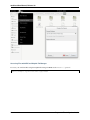
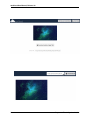
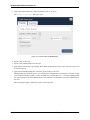
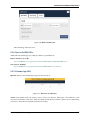
• Upload new image – By selecting this option, ownCloud opens a File Upload window. You can choose a new
image by navigating to the image, selecting it, and clicking Open.
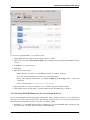
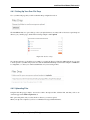
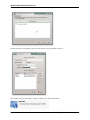
• Select image from Files – By selecting this option, ownCloud opens the Files dialog on the ownCloud server.
You can choose an image by navigating to the image in the ownCloud directory, selecting it, and clicking
Choose.
5.1. Using the Contacts App
43