1
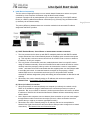
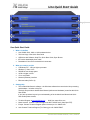
Uno Quick Start Guide 8. Initial Device Connectivity The Uno series of digital processors run on a network based infrastructure and are set up and controlled by a host computer via Ethernet using the NeuConsole software. A network connection can be made between your computer and Uno (a) Via a DHCP enabled Router (or a DHCP enabled Server/Router combination) or (b) Directly using an Ethernet cable (or indirectly via an Ethernet switch). The primary difference between these two connection methods is the automatic IP address assignment that DHCP provides. (a) DHCP Enabled Router, Server/Router or Router/Switch Combo Connection The Uno processor device boots up with DHCP enabled by default so with DHCP enabled routers and servers Uno will automatically obtain an IP address upon connection and power up. This may take a minute or two as Uno will look for a DHCP router or server to obtain its IP address - as will your computer. This is by far the recommended connection method whenever there is no specific need to assign IP addresses manually. Since the Xilica Mini Series wall controls will often be used to remotely control the processor and they need to be connected to a router or router/switch combo - and better still a POE router/switch that also supplies power over the Ethernet cable to each Mini wall control - the standard network connection of the processor, a DHCP enabled POE router or router/switch combo and your PC will provide DHCP enabled automatic IP address assignment quickly and reliably (and accommodate our Mini Series wall controls). Where there is a need to manually assign an IP address, this can be accomplished in Network View. See Network View and Connection below. (b) Direct (or Indirect) Connection When the processor is connected directly to a computer (or indirectly via a switch or hub) DHCP is not available to assign IP addresses so the connection process is not quite as automatic. But, once no DHCP is detected - the Uno processor device will revert to is default IP address of 169.254.128.128 and the NeuConsole software will then automatically connect with the device. Note: Most modern computers can now detect a direct connection so you can use a straight through Ethernet cable for the direct connection (if there is a direct connection issue that persists then you might try a crossover type Ethernet cable). Where there is a need to manually assign an IP address, that can be accomplished in Network View (right click the device and select Device Setup to make changes to the network connections). See Network View and Connection below. XILICA AUDIO DESIGN CANADA / ASIA / EUROPE Page | 6