1
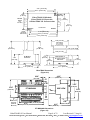
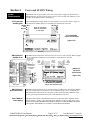
Following these steps will make installation and start-up easier. Getting Started with Sixnet Hardware (Also see Section 5 for more details.) Mount the Hardware If you purchased a TrakPak packaged system, the complete enclosure is ready for installation on any flat surface. If you purchased individual components, refer to the following sections of this or the appropriate user manuals for information on installing them into an enclosure. Install ST-BUS or Communication Wiring to I/O Modules Make ST-BUS wiring connections to any SixTRAK I/O modules. Refer to a following section for ST-BUS wiring guidelines. Make the necessary communication connections to any EtherTRAK or RemoteTRAK I/O modules. If you have a TrakPak packaged system, all these connections have already been done for you. Connect Power and I/O Wiring to the Modules Connect AC power to the Sixnet or user supplied power supply. Make DC power connections from the power supply to the Sixnet components. Make field wiring connections to the Sixnet I/O modules and any peripheral equipment. Refer to the appropriate user manuals for I/O connection details. Install Communication Cabling Install the appropriate Ethernet, RS232, and/or RS485 cabling between the Sixnet equipment and to your PC. Fabricate and install RS232 and RS485 cables as needed to connect to other devices. If you are using Ethernet units, install the correct cabling and peripherals. Refer to the documentation for your Ethernet communication devices for details. Apply Power Power up the Sixnet components and related peripherals. Observe the status LED on each unit. Typically a solid ON indicates proper operation. A blinking LED may indicate that the unit needs to be configured. Refer to the appropriate Sixnet user manual for details. Configure Using the Sixnet I/O Tool Kit Refer to the steps on the next page to create a hardware configuration for each Sixnet station. Refer to the on-line help in the I/O Tool Kit for details. Test the Hardware Use the Test I/O window in the I/O Tool Kit program to verify proper I/O operation of all Sixnet stations. Refer to the I/O Tool Kit on-line help system. Configure Your PC Software to Communicate with the Sixnet station(s) Refer to the documentation for your software. If You Have Difficulty If you experience startup trouble, refer to a following page in this document for some troubleshooting tips or go to www.sixnet.com. If you still need assistance then please contact Sixnet. EtherTRAK I/O User Manual Page 5 of 32 Last Revised: 17-Aug-09 Sixnet Technology Park 331 Ushers Road Clifton Park, NY 12019 USA +1-518-877-5173 [email protected]