1
56
Interact User Guide v4.0 User's Guide
102)
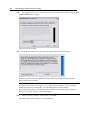
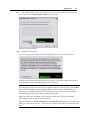
Check audio quality.
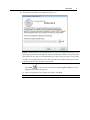
When the Adjust Your Microphone: Quality Check screen appears, click Start Quality
Check and then read aloud the text shown in the box. When the program beeps to
indicate it has finished checking the quality, click Finish. If you need more help with
this step or if the Quality check screen tells you the sound quality is too low, see
Appendix B (on page 81).
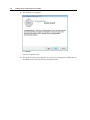
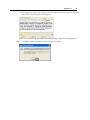
The Interact-AS Configure window reappears.
Step 2 - Train profile
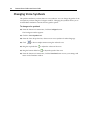
103)
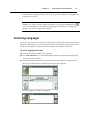
From the Speech Recognition tab, make sure you have selected the voice profile
that you want to train.
104)
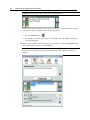
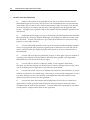
Click
.
NOTE: If you have already trained the selected voice profile, you can perform
additional training at any time.
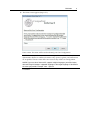
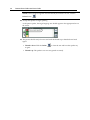
The General Training screen appears.
105)
Follow the instructions on the screens that follow. If you need more help with this
step, see Appendix C (on page 85).
106)
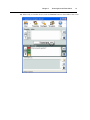
Click the Translate button from the Interact-AS main menu to begin translating.