1
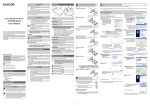
Troubleshooting Using the horizontal scrolling and button allocation functions To use the horizontal scrolling function with the tilt wheel of this product, you need to install the ELECOM MouseAssistant 2 that can be downloaded from the ELECOM website. Obtaining ELECOM MouseAssistant 2 Access the ELECOM website using the following URL and download the latest driver. Click . Click After installation is complete, click restart the PC. When the product appears to be malfunctioning . http://www.elecom.co.jp/global/ download/utility/mouse_assistant/ Before installation.... ●● Keep the mouse installed. For details, see "Step 2 - Installing the Receiver Unit" on the front of this sheet. ●● If mouse utility software from ELECOM or another company is installed, uninstall it. ●● Login with a user account that has administrative privileges. ●● It is recommended that all programs (application software) be terminated. * Though the subsequent screens of the installation program differ depending on the OS, the procedure is the same. Double-click the downloaded "mouse_ driver_xxxx(.exe)". * The file name may be different depending on the version of the driver. The installer is activated. When the "user account control" screen is displayed, click [Permit] or [Continue]. Click . Click Installing the ELECOM MouseAssistant 2 for Macintosh Before installation.... ●● Keep the mouse installed. For details, see “Step 2 - Installing the Receiver Unit” on the front of this sheet. ●● If mouse utility software from ELECOM or another company is installed, uninstall it. ●● Login with a user account that has administrative privileges. ●● It is recommended that all programs (application software) be terminated. Double-click the downloaded "ELECOM_Mouse_Installer_ X.X.X.X.dmg". •• If other mouse utilities have been installed, to uninstall them. click •• If a previous version of MouseAssistant has been installed, follow the instructions on the screen to uninstall it. Click . . Now, the installation of the ELECOM MouseAssistant 2 for Windows is complete. •• After restart, mouse functions can be set. Right-click the icon in the task tray or notification area and select [Properties]. icon is displayed in the Notification Area in * If the Windows® 7, click it and then right click the icon and then click the [Properties]. •• For the setting method, see the Help file. Enter a user name and password with administrative privileges . and click Click . File copying starts. After installation is complete, click restart the Macintosh. to The disk image is mounted on the desktop and a window is displayed. * T he file name may be different depending on the version of the driver. Double-click the "ELECOM_Mouse_Installer_ x.x.x.x" that has been displayed. Now, the installation of the ELECOM MouseAssistant 2 for Macintosh is complete. The installer is activated. Click Click Click . . . Installation starts. If “MouseAssistant” has been installed, click and uninstall. With the receiver unit connected to the PC, follow the procedure below to remove the unknown device. * B e sure to log on using an administrator account when Windows starts up. * S creen display may differ depending on operating system, but the procedure remains the same. When the mouse pointer on the screen does not move, or moves unstably, when the mouse is moved to Installing the ELECOM MouseAssistant 2 for Windows Basic specifications •• After restart, mouse functions can be set. Clicking the icon registered in the Dock causes the utilities to start. (The icon is only registered in the Dock for the user who installed the software. If you are not the user who installed the software, click [Applications] -> [Utilities] and double-click "ELECOM_Mouse_Util". •• For the setting method, see the help file. It is possible that the reflectivity of the surface on which this product is being used is not suitable for an optical mouse. When using this product on a metallic surface such as a steel desk, radio wave outreach may be shortened. In such cases, move the receiver unit closer to the mouse until mouse operation stabilises. It is possible that the receiver unit is not connected correctly to the USB port. Disconnect the receiver unit from the USB port and reconnect it. The receiver unit and the mouse body are too far apart or there is a possibility that the receiver unit is facing in a direction from which it cannot receive radio signals. Adjust the position of the receiver unit. The operable range of this product is the area within a circle Approximately with a radius of 7 m 7m from the receiver unit. Depending on the Receiver unit usage environment, the mouse may not operate even when it is within approximately 10 m of the receiver unit. In such cases, move the mouse closer to the receiver unit until operation stabilises. Interference may occur if multiple units of this product are used together or if this product is used with other wireless devices. In this case, change the channel of other wireless devices. (Multiple units of this product have an automatic channel avoidance function.) Operation becomes unstable when battery power is low. See "Installing·Replacing the Battery" on the reverse of this sheet, and replace the batteries as soon as possible. •• The alkaline batteries supplied with this product are for checking product operation. These batteries may discharge and drain during storing and shipping. * When not using the mouse, turn it off to save battery power. It is possible that the standard Windows mouse driver did not install correctly and that this product is detected as an unknown device by Windows®. This product is usually detected as a USB human interface device. If it is detected as an unknown device, see "Removing an unknown device," and after removing the device from Device Manager, repeat "Step 2 - Installing the Receiver Unit" on the front of this sheet. If you have installed drivers and settings utilities produced by the original manufacturer for a previous mouse, uninstall them first. This product may not operate correctly if a driver made by another company is installed. See the instruction manual that was supplied with your previous mouse for uninstall instructions. It is possible that the driver is conflicting with another driver such as that for a laptop touch pad. To use this product correctly, you must delete the touch pad driver. However, if you delete this driver, you may not be able to use the touch pad or touch pad functions. Contact the PC manufacturer for more details. Display Device Manager. ●● Windows® 7 and Windows Vista® 1. From the [Start] menu, right-click [Computer]. 2. Click [Properties]. ●● If there are multiple unknown devices, before removing a device, check that it is actually this product. Disconnect the receiver unit and check which unknown device disappears. The device that disappears is this product. ●● If the unknown device does not disappear even after you have deleted the driver following the instructions below, it is possible that there is something wrong with the PC. Contact the PC manufacturer. -2- Wireless Laser Mouse Article No. M-SODL Series OS Windows 7, Windows Vista (up to SP2), Windows XP (SP2 to SP3) Mac OS X (10.5 to 10.5.8, 10.6 to 10.6.4) Resolution (dpi) 800 Interface USB Radio frequency 2.4 GHz bandwidth Radio wave method DS-SS modulation Radio wave outreach Non-magnetic substance (e.g. wooden desk): Approx. 7 m Magnetic substance (e.g. metal desk): Approx. 3 m * Test values in the ELECOM environment . The uninstallation begins. When the software is uninstalled, click and then restart the PC. Receiver unit dimensions 15.0 (W) x 29.3 (D) x 7.0 (H) mm Operating temperature/ 5 to 40°C, 90% RH max. (no condensation) humidity 3. Click [Device Manager]. This completes the unistallation process. Uninstalling ELECOM MouseAssistant 2 for Mac OS X ●● Windows® XP 1. From the [Start] menu, right-click [My Computer]. 2. Click [Properties]. 3. Click the [Hardware] tab. To reinstall ELECOM MouseAssistant 2 for Mac OS X, uninstall the existing version of ELECOM MouseAssistant 2 first. ●● Login with a user account that has administrative privileges. ●● It is recommended that all programs (application software) be terminated. Delete the 4. Click . Batteries AAA alkaline battery, AAA manganese battery, AAA nickel hydride battery Operating time Measure of the operating time when an AAA alkaline battery is used Continuous operating time: Approx. 60 hours Continuous standby time: Approx. 125 days Estimated serviceable time: Approx. 28 days (when the PC is operated for eight hours a day and 25% of the PC operation is assigned to mouse operation) B 급 기기 ( 가정용 정보통신기기 ) 이 기기는 가정용으로 전자파적합등록을 한 기기로서 주거지역에서는 물론 모든 지역에서 사용할 수 있습니다 . Double-click [ELECOM_Uninstall] in the utilities folder in the Finder application folder. Click Click -10 to 60°C, 90% RH max. (no condensation) 당해 무선설비는 운용 중 전파혼신 가능성이 있음 . . The Device Manager window appears. Right-click the unknown device, and click [Uninstall]. Storing temperature/ humidity icon that is registered in the Dock. To remove icons from the Dock, the "Enable access for assistive devices" check box in Universal Access under System Preferences must be selected. . Type an administrator username and password, . and then click 廢電池請回收 低功率電波輻射性電機管理辦法 第十二條 經型式認證合格之低功率射頻電機,非經許可,公司、商號或使 用者均不得擅自變更頻率、加大功率或變更原設計之特性及功 能。 第十四條 低功率射頻電機之使用不得影響飛航安全及干擾合法通信; 經發現有干擾現象時,應立即停用,並改善至無干擾時方得繼續 使用。 前項合法通信,指依電信規定作業之無線電通信。 低功率射頻電機須忍受合法通信或工業、科學及醫療用電波輻射 性電機設備之干擾。 Disconnect the receiver unit and restart the PC. Repeat the procedure from "Step 2 - Installing the Receiver Unit" on the front of this sheet. Uninstalling ELECOM MouseAssistant 2 for Windows When the software is uninstalled, click then restart your Mac. and To reinstall ELECOM MouseAssistant 2 for Windows, uninstall the existing version of ELECOM MouseAssistant 2 first. ●● Login with a user account that has administrative privileges. ●● It is recommended that all Windows programs (application software) be terminated. In certain applications that do not support the scrolling function, the mouse cursor will not move when you move the wheel. Removing an unknown device Click Product name Mouse body dimensions 65.7 (W) x 88.3 (D) x 40.2 (H) mm The wheel moves, but the mouse cursor does not If the standard Windows mouse driver did not install correctly and this product is detected as an unknown device, remove the unknown device from Device Manager, and then repeat "Step 2 Installing the Receiver Unit" on the front of this sheet. * T hough the subsequent screens of the uninstallation program differ depending on the OS, the procedure is the same. This completes the unistallation process. Wireless Laser Mouse M-SODL Series User's Manual 1st edition, August 31, 2009 ELECOM Co., Ltd. From the [Start] menu, select [Control Panel]. The Control Panel appears. Do one of the following: ●● Windows® 7 and Windows Vista® Under [Programs], click "Uninstall a program". ●● Windows® XP Click "Add or Remove Programs". Select [ELECOM Mouse Assistant 2] from the list of (Windows® installed programs, and then click (Windows® XP). 7/Windows Vista®) or * W hen the User Account Control screen is displayed in Windows Vista, click the . ELECOM CO., LTD. 1-1 Fushimi-machi 4-Chome Chuoku, Osaka Japan 541-8765 宜麗客 (上海) 貿易有限公司 上海市徐匯区肇嘉浜路1065甲号飛雕国際大厦704号 電話 : 86-21-33680011 FAX : 86-21-64271706 URL : http://www.elecom-china.com/ ELECOM (SHANGHAI) TRADING CO. , LTD. Rm 704 , Feidiao International Bldg , 1065 ZhaoJiaBang Rd , Shanghai , China 200030 TEL : 86-21-33680011 FAX : 86-21-64271706 URL : http://www.elecom-china.com/ Elecom Korea Co., Ltd. 5F Suam Bldg. 1358-17, Seocho2-dong, Seocho-gu, Seoul 137-862, Korea TEL : 1588-9514 FAX : (02)3472-5533 URL : www.elecom.co.kr •• This manual is copyright of ELECOM Co., Ltd. •• Unauthorised copying and/or reproducing of all or part of this manual is prohibited. •• The specifications and appearance of this product may be changed without prior notice for product improvement purposes. •• ELECOM Co., Ltd. shall bear no responsibility for any and all affects resulting from the use of this product regardless of the above reasons. •• Export or service transaction permission under the Foreign Exchange and Foreign Trade Control Law is required in order to export this product or parts of this product that constitute strategic materials or services. •• Windows and the Windows logo are trademarks of the Microsoft group of companies. •• Mac, Mac OS, and Macintosh are registered trademarks or trademarks of Apple Inc., in the United States •• Company names, product names, and other names in this manual are generally trademarks or registered trademarks. ©2009 ELECOM Co., Ltd. All Rights Reserved.