1
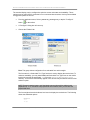
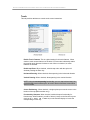
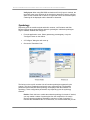
NAURTECH W EB BROWSER AND TERMINAL EMULATION FOR W INDOWS CE AND W INDOWS MOBILE By default the Macro toolbar will not be visible when you are playing a macro. If you want the macro toolbar to be visible when the macro is playing, please check the ―Show Macro on Play‖ checkbox under [Session][Configure][Display][Advanced][Hide/Show]. Creating a Mini-Macro Within CETerm, most application operations have an associated ID Action (or IDA) code defined. These IDA codes can be chained to create a sequence of events, which is called a mini macro. This sequence of events can be remapped to any key. You can use the User Text configuration to define a sequence of IDA operations which will get executed is serial order. This is a mini-macro. To create your mini macro: 1. Navigate to [Session]->[Configure]->[Options]->[Config KeyBars and Keys]->[User Text] 2. Enter your IDA sequences for Text n entries, where n is an index number between 1 and 64. The syntax is demonstrated via examples below. 3. Now you can remap Text n to any application, hardware or KeyBar key. Note that there are KeyBar buttons only for Text 1 through 20 Text 1 = \IDA_SESSION_S1\\IDA_SLEEP_5000\\IDA_SESSION_CONNECT\ In the example above, Text 1 will trigger the following operations in order: It will switch to session S1 Wait for 5 seconds (5000 milliseconds) Attempt to connect to the configured host on this session Text 2 = \IDA_SESSION_DISCON_ALL\\IDA_PROGRAM_EXIT\ In the example above, Text 2 will trigger the following operations in order: Disconnect all connected host sessions Exit CETerm application You can join several IDA actions to create an elaborate macro to automate application navigation steps. Please contact us at [email protected] for more information on IDA codes to create mini macros. User‘s Manual for CETerm | CE3270 | CE5250 | CEVT220 Page 134