1
1
Reference Manual
Personal Computer
Model No.
CF-W4 Series
We recommend that this Reference Manual be printed.
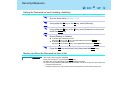
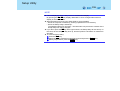
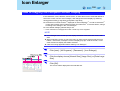
To magnify all the icon
display (for example,
etc.
To magnify the one part
of the screen display
)
Read Me First
2
z Some of the illustrations in this manual may differ slightly in shape from the actual items
on your computer. This should make the explanations easier to understand.
z If a user has logged on to Windows without the administrator authority, some functions
may not be executable, and some screens may not be displayed as shown in this manual.
If this happens, log on to Windows with the administrator authority to enable these
functions.
z In this manual, "Microsoft® Windows® XP Professional Service Pack 2 with Advanced
Security Technologies" is indicated as "Windows" or "Windows XP."
z In this manual, the following software packages are described as follows:
• "WinDVD™ 5 (OEM Version)" as "WinDVD"
• "B's Recorder GOLD8 BASIC" as "B's Recorder"
• "B's CLiP 6" as "B's CLiP"
z If the icon on the notification area being explained in this manual is hidden and not
displayed, click the
icon to display all icons.
(The icons on the notification area used in this manual are only examples. The actual
types and order of icons may differ depending on your operating environment; for
example, settings of various functions and connected devices.)
z Optional Products or Accessories
Confirm the latest information on optional products or accessories from various sources.
Read Me First
3
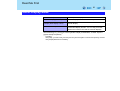
Illustrations and Terminology in this Reference Manual
NOTE
NOTE provides a useful fact or helpful information.
CAUTION
CAUTION indicates a condition that may result in minor
or moderate injury.
Enter
This illustration means to press the Enter key.
Fn+F5
This illustration means to press and hold the Fn key,
then press the F5 key.
When using with the Fn key and the Ctrl key functions
interchanged, read with the Fn key and the Ctrl key
reversed.
[start] - [Run]
This illustration means to click [start], then to click [Run].
Î or ⇒
These symbols indicate related pages.
Î : If this is clicked, it will jump to the page corresponding Reference Manual.
⇒ : Refer to the Operating Instructions.
xxxx*1
If *1 is clicked, it will jump to a related topic.
Read Me First
4
About Display Mode
Internal LCD (Notebook)
This computer's display
External Display (Monitor)
External display connected to this computer
Simultaneous Display
(Intel(R) Dual Display Clone)
To display the same screen on both the LCD and
external display
Extended Desktop
To use both the internal LCD and the external display as
an extended display domain. You can drag a window
between the internal LCD and the external displays.
The terminology in ( ) is the one used in [Mobile Intel(R) 915GM/GMS, 910GML Express
Chipset Family Properties].*1
*1
To display:
Click [start] - [Control Panel], from the [See Also] area click [Other Control Panel Options], and then
click [Intel(R) GMA Driver for Mobile].
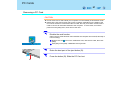
Using the Touch Pad
5
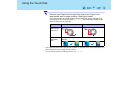
Use the touch pad to move the cursor on the screen and perform computer operations.
A. Work Surface (touch pad)
B. Left Button
C. Right Button
Function
Operation
Moving the Cursor
Move the tip of your finger lightly over the
work surface.
Tapping/Clicking
tapping
or
clicking
To right-click: Can only be performed by clicking the right
button.
Double-Tapping/
Double-Clicking
double-tapping
or
double-clicking
Dragging
Two quick taps, but on the second tap leaving your finger
down (applying pressure) and moving it on the work surface.
or
While holding down the button, moving your finger on the work
surface.
Vertical/Horizontal Scroll
Trace a circle around the touch pad. (Î page 6)
Using the Touch Pad
6
NOTE
z You can change the speed of the double-click or the operations of mouse buttons
using [Mouse Properties] screen.
To display [Mouse Properties]:
Click [start] - [Control Panel] - [Printers and Other Hardware] - [Mouse].
When the cursor doesn’t move the way you want it to
z Sensitivity when touching the touch pad can be adjusted. (Î page 15)
z When an external mouse is connected and the cursor does not operate properly:
In the [Main] menu of the Setup Utility, set [Touch Pad] to [Disable]. When you want to
use the touch pad again, return the setting to [Enable]. (Î page 142)
Scroll
There are two ways of scrolling with the touch pad: the Touch Pad utility, and the Virtual
Scrolling Function. You cannot use both functions at the same time.
The Touch Pad utility is enabled at the time of purchase.
z The Touch Pad utility (Î page 7)
• You can scroll continuously by tracing a circle on the touch pad.
• This is designed for ease of use, in keeping with the shape of the touch pad.
Vertical scroll
It can be used at the time of purchase.
Horizontal scroll
A setting is required to use the horizontal scroll.
z The Virtual Scrolling function (Î page 13)
• You can scroll vertically (or horizontally) by tracing repeatedly in the desired direction.
• This is the same operation as that used on square touch pads installed in other
computers.
Vertical scroll
The Virtual Scrolling function must be set to enable.
Horizontal scroll
You can use separate settings for each account regarding whether to use the Touch Pad
utility or the Virtual Scrolling function.
Using the Touch Pad
7
Using the Touch Pad Utility
You can scroll easily by tracing a circle on the touch pad.
NOTE
z External mouse drivers cannot be used at the same time as the Touch Pad utility.
When using an external mouse, refer to "When Using an External Mouse." (Î page
118)
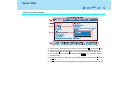
1
Make the following settings to use the horizontal scroll.
Once the settings have been made, it is not necessary to make the same settings
the next time.
A Click the
icon on the notification area, and click [Settings].
When the
icon is not displayed:
Click [start] - [All Programs] - [Panasonic] - [Touch Pad utility settings].
If a message appears indicating that the Touch Pad utility is not yet running,
click [start] - [All Programs] - [Panasonic] - [Touch Pad utility], and display the
icon.
B Add a checkmark for [Use horizontal scroll function] in the [General settings]
screen, and click [OK].
2
Display the scrollable screen.
3
Place the cursor over the area that you want to scroll, and tap (click).
Using the Touch Pad
8
4
Remove your finger from the pad, then place your finger in the
appropriate area to begin scrolling. (See figure below)
The scroll direction and finger position on the touch pad can be changed using
the settings in the Touch Pad utility. (Î page 10) This explanation assumes the
settings at the time of purchase.
Vertical scroll*1
Horizontal scroll
Position
where finger
is placed*2
Icon on the
notification
area
*1
When you place your finger on the touch pad, the icon
changes.
If the horizontal scroll function has not been enabled, the segment shown in the figure above (A) is
also included in the area to begin vertical scrolling.
*2 You can change the area for starting the scroll. (Î page 12)
Using the Touch Pad
9
5
Trace a circle around the touch pad without lifting your finger from the
pad.
The scroll direction can be changed using [Reverse the direction of the vertical
scrolling] or [Reverse the direction of the horizontal scrolling] in the Touch Pad
utility. (Î page 10)
This explanation assumes the settings at the time of purchase.
Trace clockwise
Icon on the
notification
area
Trace
counter-clockwise
Icon on the
notification
area
*1
Vertical scroll
Horizontal scroll*1
To scroll down
To scroll right
While scrolling, the icon will rotate clockwise.
Vertical scroll
Horizontal scroll*1
To scroll up
To scroll left
While scrolling, the icon will rotate counter-clockwise.
When the horizontal scroll function has not been enabled, any scrolling will be vertical scrolling.
z The screen will not scroll if you trace toward the center of the touch pad.
z On screens that cannot be scrolled (e.g., desktop screen), if you scroll, the
computer may try to scroll the screen, causing the cursor to freeze. If this
Using the Touch Pad
10
happens, remove your finger from the touch pad and begin again, this time
starting from the center of the touch pad.
z For example, on a screen that will only scroll horizontally, even if you execute a
vertical scroll, the screen will scroll horizontally.
6
Once scrolling has begun, continue to trace a circle on the touch pad
without removing your finger from the pad.
z As long as you are tracing a circle, you can continue scrolling using any position
on the touch pad. It is not necessary to trace a circle around the edge of the
pad.
z To scroll in the opposite direction, trace a circle in the opposite direction without
removing your finger from the touch pad.
7
When you finish scrolling, remove your finger from the touch pad.
Change the settings for the Touch Pad utility
1
Click the
When the
2
icon on the notification area, and then click [Settings].
icon is not displayed:Î page 7, step1-A
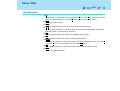
Change the settings.
z General settings
Use Touch Pad function
(On/Off)
If you add a checkmark, you can use the touch pad
function (screen scroll). If you remove the checkmark,
the touch pad function will be disabled, and the
icon will be displayed on the notification area.
Display icon in task tray
(On/Off)
If you add a checkmark, the icon will be displayed in the
notification area.
Using the Touch Pad
11
Animated icon in task
tray (On/Off)
If you add a checkmark, the icon displayed when you
touch the area to begin scrolling, and the icon displayed
while you are scrolling, will change.
Touch the area to begin scrolling
Scrolling
Rotate icon when wheel
is operated (On/Off)
If you add a checkmark, the icon will rotate while you
are scrolling.
Touch the area to begin scrolling
Scrolling
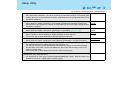
Scroll item under
mouse cursor
If you add a checkmark, scroll the region where the
mouse cursor is located within the active window.
If you remove the checkmark, scroll the selected region
within the active window. In either case, if the mouse
cursor is outside the active window, scroll the selected
region.
Reverse the direction of
the vertical scrolling
You can change the direction in which the screen scrolls
when you trace the touch pad clockwise from the
position where you begin scrolling.
• When checkmark is added: Upwards
• When checkmark is removed: Downwards
Use horizontal scroll
function (On/Off)
Î page 7
Using the Touch Pad
12
Reverse the direction of
the horizontal scrolling
You can change the direction in which the screen scrolls
when you trace the touch pad clockwise from the
position where you begin scrolling.
• When checkmark is added: Scroll left
• When checkmark is removed: Scroll right
Scroll speed setting
You can change the scroll speed.
z Initial scope
3
A. Width of the initial
scope
By dragging the inner circumference of the starting area,
you can change the width of the initial scope (A) in five
stages.
You can also change the width by sliding the [Initial
scope] slide bar.
B. Vertical and
horizontal scroll
initial scope
You can change the initial scope (B) by dragging border
of the vertical and horizontal scroll initial scope. The
maximum starting area for the horizontal scroll is half
the circumference.
Click [OK].
Using the Touch Pad
13
Using the Virtual Scrolling Function
Set the Virtual Scrolling function using the following procedure. The Touch Pad utility will be
disabled.
1
2
Click the
icon on the notification area, and click [Settings].
When the
icon is not displayed:Î page 7, step 1-A
Remove a checkmark from [Use Touch Pad function] in [General settings], and then click [OK].
The
icon on the notification area will change to the
icon.
3
Click [start] - [Control Panel] - [Printers and Other Hardware] [Mouse] - [Device Settings].
4
Click the device name in [Devices] (e.g., Synaptics TouchPad), then
click [Settings].
Using the Touch Pad
14
5
Click [Virtual Scrolling], add a checkmark for the scroll functions you
want to use, then click [OK].
6
Click [OK] at [Mouse Properties].
NOTE
z To begin using the Touch Pad utility again:
A Conduct steps 3 to 4 in previous page.
B Click [Virtual Scrolling], remove a checkmark from [Enable vertical scrolling] and
[Enable horizontal scrolling], then click [OK].
C Click [OK] at [Mouse Properties].
D Click [start] - [All Programs] - [Panasonic] - [Touch Pad utility settings].
E Click [General settings], add a checkmark for [Use Touch Pad function], then click
[OK].
z Because the Touch Pad utility and the Virtual Scrolling function both offer scrolling
functions that use the touch pad, these two features cannot be used simultaneously. If
you try to use them at the same time, a message may be displayed asking you if you
want to enable the Touch Pad utility.
• To use the Touch Pad utility:
Click [Yes]. The Virtual Scrolling function will be disabled.
• To use the Virtual Scrolling function:
Click [No].
You can uninstall the Touch Pad utility using the following procedure.
A Click the
or
icon on the notification area, and then click [Exit].
B Click [start] - [Control Panel] - [Add or Remove Programs] - [Touch Pad Utility],
and then click [Change/Remove] to remove the program.
Using the Touch Pad
15
Adjusting the Sensitivity when Touching the Touch Pad
Adjust [PalmCheck] and [Touch Sensitivity] using the following procedure:
1
Click [start] - [Control Panel] - [Printers and Other Hardware] [Mouse] - [Device Settings].
2
Click the device name in [Devices] (e.g. Synaptics TouchPad), then
click [Settings].
3
Double-click [Sensitivity], then click [PalmCheck] or [Touch Sensitivity].
4
After making the adjustment, click [OK].
Using the Touch Pad
16
PalmCheck™
z When operating the keyboard, if your hand touches the touch pad unintentionally causing
the cursor to move, adjust the sensitivity using "PalmCheck™."
• By dragging slide bar (A) to the [Maximum] position, you can prevent the cursor from
moving unintentionally.
• By dragging slide bar (A) to the [Minimum] position, you can enable the cursor to move
even with a light touch of the palm on the touch pad.
Touch Sensitivity
z When operating the touch pad, if your finger touches the touch pad, unintentionally
causing the cursor to move; or if the cursor does not move even when you move your
finger on the touch pad, adjust the sensitivity using the "Touch Sensitivity" setting.
• When slide bar (B) is dragged to the [Heavy Touch] position, the cursor will only move
with a strong touch on the touch pad.
• When slide bar (B) is dragged to the [Light Touch] position, the cursor will move even
with a light touch on the touch pad.
NOTE
z Click [Defaults] to return the settings to their original positions at the time of purchase.
Handling the Touch Pad
z By design, the touch pad is to be used with a fingertip only. Do not place any object on the
work surface or press down forcefully with sharp-pointed objects (e.g., nails) or hard
objects that can leave marks (e.g., pencils and ball point pens).
z Try to avoid having any harmful substances, such as oil, come in contact with the touch
pad. The cursor may not work properly in such cases.
z When the touch pad becomes dirty:
Wipe to remove dirt by using a dry soft cloth such as gauze or a soft cloth first applied with
detergent diluted with water and then thoroughly wrung.
Do not use benzene or thinner, or rubbing alcohol. Doing so may adversely affect the
surface, e.g., discoloration. In addition, do not use commercially available household
cleaners and cosmetics, as they may contain components harmful to the surface.
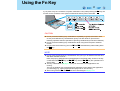
Using the Fn Key
17
If you press a key for a character or symbol contained in a key while pressing the Fn key, the
function for the character or the symbol contained in that key will be executed.
CAUTION
z Do not press the following key combinations repeatedly in (quick) succession. Also,
do not press different key combinations quickly one after another. (Execute the
following operation after the operation of pressing combined keys has been reflected.)
z Do not press the following key combinations while using the touch pad or external
mouse.
z Do not press the function key (such as F1 and F2) simultaneously while holding down
the Fn key.
NOTE
z Do not press the following key combinations until you log on to Windows and the hard
disk drive indicator turns off.
Note, that pop-up windows will not be displayed in the Setup Utility, however, the key
combinations the Fn+F1 key, the Fn+F2 key and the Fn+F3 key are operable in the
Setup Utility.
z The key combinations (Î page 18) may not work while some applications are
running.
The pop-up window may not be displayed, depending on the state of the application
you are using (e.g., when [Command Prompt] is set to "Full Screen").
z When using with the Fn and Ctrl functions interchanged: Î page 143
Using the Fn Key
18
Key
Fn+F1
Fn+F2
Functions
LCD brightness control
(Fn+F1= down / Fn+F2= up)
Pressing this key combination adjusts the LCD
brightness control.
You can select a different brightness level setting
for when the AC adaptor is connected and for
when it is not connected.
(At the time of purchase, the LCD brightness is set
to be darker when the AC adaptor is not
connected.)
NOTE
z The brightness of the power indicator
(Î page 24) changes in keeping with the
brightness level of the internal LCD.
Pop-up Window
(Displayed after
logging on to
Windows)
Using the Fn Key
19
Key
Fn+F3
Functions
Display change (When the external display is
connected)
By pressing this key combination, you can select
either an external display, internal LCD or
simultaneous. (Î page 112)
CAUTION
z Do not press another key until the display
destination has been completely switched.
z Do not press this key combination in the
following conditions:
• When the external display is not connected
• When a video such as a DVD video or an
MPEG file is playing
• When the Extended Desktop is being
utilized
• When a game such as pinball is displayed
NOTE
z When switching to a different user with the
Fast User Switching function, this key
operation may not work. In this case, log off
all users and restart the computer.
z When an external display is connected,
refer to "NOTE" in "External Display."
(Î page 113)
Pop-up Window
(Displayed after
logging on to
Windows)
Using the Fn Key
20
Key
Fn+F4
Functions
Pop-up Window
(Displayed after
logging on to
Windows)
Speaker on/off switch
Pressing this key combination turns on/off audio
from the internal speaker and headphone jack.
OFF
(MUTE)
NOTE
ON
z Turning off the speaker will also turn off the
warning beep.
z Speaker and other audio devices connected
to the USB port cannot be turned off.
Fn+F5
Fn+F6
Volume control
(Fn+F5= down / Fn+F6= up)
Pressing this key combination adjusts the volume
of the internal speaker and headphone jack.
NOTE
z The volume for speaker and other audio
devices connected to the USB port cannot
be adjusted.
Fn+F7
Forcing the standby function
Pressing this key combination causes the current
status of the computer to be saved to memory, and
puts the computer into standby mode. (Î page 45)
Fn+F9
Remaining capacity of the battery pack
Î page 31
Fn+F10
Forcing the hibernation function
Pressing this key combination causes the current
status of the computer to be saved to the hard disk,
and puts the computer into hibernation mode.
(Î page 45)
Using the Fn Key
21
Key
Functions
Pop-up Window
(Displayed after
logging on to
Windows)
Fn+NumLk
Run the ScrLk (Scroll Lock) function
The functions differ depending on the application
software being used.
Fn+Home
Lead to the last page or move the cursor to the
end of the current line (End)
Fn+Ï
Move the back page (PgUp)
Fn+Ð
Move the next page (PgDn)
Using the Fn Key
22
Hotkey Settings
There are two Fn key functions as follows:
z Fn key lock function
After the Fn key is pressed once, it stays in the "pressed" position until another key is
pressed. This is convenient when it is difficult to press two buttons simultaneously.
z Pop-up windows display ON/OFF
NOTE
z The Hotkey settings can be set separately for each user.
1
Run the Hotkey Settings.
Click [start] - [All Programs] - [Panasonic] - [Hotkey Settings].
2
Set the parameters.
A. Use Fn key lock
Add the checkmark if you want to enable the Fn key lock function. The following
Fn key lock function will then be enabled.
z To use the Fn key only once:
A Press the Fn key once. (Locked)
B Press another key for combination. (Lock released)
z To use the Fn key successively:
A Press the Fn key twice. (Locked)
B Press another key for combination.
Fn key remains locked until the Fn key is pressed once more.
B. Notification
This setting is only available when [Use Fn key lock] is checked.
[Make sounds when Fn key is pressed]
Notifies the user with a sound when the Fn key is locked or released.
When the speaker function is disabled, e.g., by the key combination the Fn+F4
key, there will be no sound. By the key combination the Fn+F5 key, there will be
lower sound.
Using the Fn Key
23
[Show status on screen]:
Displays the Fn key status on the notification area.
C. Disable popup
Add the checkmark if you want to turn the popup window display function OFF.
"Full Screen" of [Command Prompt] or MPEG files may change to a window
display if the Fn+Fx*1 key is pressed. To prevent this, turn the popup window
display function OFF.
3
*1
Click [OK].
The "Fx" key indicates any function key from the F1 key to the F10 key.
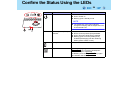
Confirm the Status Using the LEDs
24
Indicators
Indicators Name
Power indicator
Status
z Not lit: Power off / Hibernation mode
z Green: Power on
z Blinking green: Standby mode
NOTE
z The brightness of the power indicator
changes in keeping with the brightness level
of the internal LCD.
ECO
Economy Mode (ECO)
indicator
Î page 36
z Not lit: Economy Mode (ECO) disabled.
z Green: Economy Mode (ECO) enabled.
z Blinking green: Economy Mode (ECO)
enabled (Discharging until the remaining
battery power is 80% or less).
Battery indicator
Î page 29
Caps Lock indicator
This indicator lights green when the
Caps Lock key is pressed. Subsequent
non-shifted input is capitalized.
To disable, press the Caps Lock key again
(the indicator will turn off).
Confirm the Status Using the LEDs
25
Indicators
Indicators Name
Status
NumLk indicator
(Ten-key mode)
This indicator lights green when the NumLk
key is pressed.
Part of the keyboard (see figure below) will function as a ten-key numeric input. When the green
light is on, part of the keyboard can be used to
input numbers or calculation functions.
The Enter key functions differently depending
on the application.
To disable, press the NumLk key again (the
indicator will turn off).
ScrLk indicator
(Scroll lock)
This indicator lights green when the Fn + ScrLk
key is pressed. Scroll lock functions differently
depending on the application.
Hard disk drive indicator
This indicator lights when the hard disk drive is
accessed.
Confirm the Status Using the LEDs
26
Indicators
A on the
left
Indicators Name
Status
DVD-ROM & CD-R/RW
drive indicator
z Not lit
Drive power is off.
z Green
Drive power is on, but the DVD-ROM & CD-R/
RW drive is not accessed.
z Blinking green
Drive power is on, and the DVD-ROM & CDR/RW drive is either being accessed or the
disk cover is ready to open.
How to switch the drive power on/off: Î page 65
SD memory card indicator
This indicator lights when the SD memory card is
accessed.
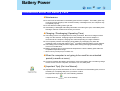
Battery Power
27
Precautions about the Battery Pack
Maintenance
z Do not touch the terminals on the battery pack and the computer. The battery pack may
no longer function properly if the contacts are dirty or damaged. Also, the computer may
not operate properly.
z Do not allow the battery pack to get wet.
z If the battery is damaged and battery fluid leaks out entering the eyes, immediately flush
with large volumes of water and contact your doctor.
Charging / Discharging (Operating Time)
z The battery pack is not charged when it is first purchased. Be sure to charge it before
using it for the first time. Charging begins automatically when the AC adaptor is
connected to the computer; charging time varies depending on usage conditions.
z This computer prevents overcharging of the battery by recharging only when the
remaining power is less than approx. 95%*1 of capacity after the battery is fully charged.
z The battery pack normally becomes slightly warm during recharging and discharging.
This is not a malfunction.
z Battery operation time is reduced at low temperatures. Use the battery pack within the
acceptable temperature range.
*1
When Economy Mode (ECO) is enabled: 75%
When the computer is not going to be used for an extended
period (a month or more)
z In order to maintain the battery performance, remove the battery with a remaining charge
of 30% to 40% from the computer, and store it in a cool, dark place.
[Important Tips] (On-Line Manual)
z Important Tips provides information on how to maximize use of the battery pack, which is
necessary for computing away from your home or office.
See [Important Tips] using one of the following methods.
• Double-click the
icon on the desktop.
Battery Power
28
• To see [start] menu.
A Click [start] - [All Programs] - [Panasonic].
B Click [On-Line Manuals] or [Battery], and click [Important Tips].
• Right-click on the Economy Mode (ECO) icon
/
, and click [Important Tips].
(If the [Important Tips] file has been deleted, [Important Tips] will not be displayed.)
Battery Power
29
Use the Battery Indicator to Check the Battery Status
Battery Indicator
Battery Status
Not lit
Battery pack is not connected or no charging.
Orange light on /
flashing*1*2
Charging in progress.
z If [Battery Charging Indicator] in the [Main] menu of the
Setup Utility is set to [Flashing], the indicator will
alternately become lighter and darker (Flashing)
(Î page 143).
Green*1
Fully charged.
Red
The battery level is very low (the charge is approx. 9% or less).
Connect the AC adaptor. You can use the computer when
the battery indicator light is orange. If you do not have an
AC adaptor, save your data and power off your computer.
After replacing the battery pack with a fully charged one, you
can turn your computer on.
Blinking red*1
Battery pack or charging circuit may not be working properly.
Quickly save your data and power off your computer.
Remove the battery pack and disconnect the AC adaptor,
then connect them again. If the problem persists, contact
your technical support office. The battery pack or charging
circuit may be defective.
Blinking orange*1*2
z Battery cannot be recharged temporarily because the
internal temperature of the battery pack is outside the
acceptable temperature range for recharging. Once the
allowable range requirement is satisfied, charging begins
automatically. Your computer can be used normally in this
state.
z Software applications and peripheral devices (USB
devices, etc.) are consuming too much power. Exit the
software applications currently running. Once the
allowable range requirement is satisfied, charging begins
automatically.
*1
*2
When the AC adaptor is connected.
The orange display light has three modes: on, flashing and blinking. Note the difference between
flashing and blinking.
Battery Power
30
Check the Remaining Battery Power
There are three methods to check the remaining battery power.
z Press the Fn+F9 key. (After logging on to Windows)(Î page 31)
z Check the Windows Power Meter. (After logging on to Windows)(Î page 31)
z Check the number of bright LEDs. (When the power is off or in standby/hibernation
mode)(Î page 32)
NOTE
z In the following cases, there may be a difference between the remaining battery
capacity displayed on the indicator and the actual remaining battery capacity. To
correct this, perform the "Battery Recalibration." (Î page 35)
• The battery indicator light remains red
• The battery remaining displays 99% ("79%" when Economy Mode (ECO) is
enabled) and the indicator light is orange for a long period time.
• Low battery warning appears after a short period of time
This may be caused by the use of standby mode for long periods of time. The
battery is discharging while the computer is in standby mode when the AC adaptor
is not connected.
z The remaining battery power and remaining time indicated in the Windows Power
Meter ([Power Meter] in [Power Options Properties]) are calculated based on the
computer's usage conditions at that time, so these displays may change when usage
conditions change. (These displays are only a guide)
The remaining battery power displayed using the Fn+F9 key is calculated differently,
so displays may differ to some degree. This is not a malfunction.
Battery Power
31
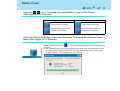
Press the Fn+F9 key to Check the Remaining Battery Power on the Screen
(After logging on to Windows)
When Economy Mode (ECO) is enabled
When Economy Mode (ECO) is disabled
When the battery pack is inserted
in the computer (example)
When the battery pack is inserted
in the computer (example)
When the battery pack is not
inserted in the computer
When the battery pack is not
inserted in the computer
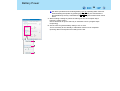
Check the Remaining Battery Power and Remaining Time using the Windows Power
Meter (After logging on to Windows)
Display by double-clicking the
icon on the notification area when the AC adaptor is not
connected.
z The remaining battery power and remaining time indicated are calculated based on the
computer's usage conditions at that time, so these displays may change when usage
conditions change. (These displays are only a guide)
Battery Power
32
Confirm the Battery Indicator (When the power is off or in standby/hibernation mode)
You can view the remaining battery capacity using the following procedure.
A Close the display and confirm that the latch is locked.
B Disconnect the AC adaptor.
C Slide the power switch (A) and confirm the battery indicator (B).
Battery Indicator (B)
Remaining Battery Capacity
Red
0%-4%
Blinking Orange
5 % - 19 %
Orange
20 % - 49 %
Blinking Green
50 % - 94 %
Green
95 % - 100 %
Battery Power
33
Before the Remaining Battery Power Level Gets to Low
We recommend that you become familiar with battery power confirmation methods (Î page
30) and alarm settings to become aware when battery power is low.
Alarm settings
The following is factory default setting.
When remaining battery capacity falls to 10%
[Low battery alarm]
z Displays a message indicating the low
battery level.
When remaining battery capacity falls to 5%
[Critical battery alarm]
z Displays a message indicating the low
battery level.
z The computer will enter hibernation
mode.
Charge your battery.
Connect the AC adaptor before starting up
the computer next time.
z Connect the AC adaptor immediately. If
you do not have the AC adaptor with you,
exit any programs currently running, then
exit Windows and confirm that the power
indicator is off.
z If you have a fully charged spare battery,
turn off the computer, replace the battery,
and turn the computer on again.
z Connect the AC adaptor, then charge the
battery.
z If you have a fully charged spare battery,
turn off the computer, replace the battery,
and turn the computer on again.
The computer will enter hibernation
mode when the battery runs down. If
computer operations are resumed
without charging battery, Windows may
not start up properly, and in some cases
the alarm function may not operate
properly from that point on.
z Do not replace the battery pack while the computer is in standby mode. This will cause
unsaved data to be lost.
Above settings can be changed.
A Display [Alarms] screen.
Click [start] - [Control Panel] - [Performance and Maintenance] - [Power
Options] - [Alarms].
Battery Power
34
B Set alarm operations and remaining battery level for operating alarm functions.
When disabling the speaker by pressing the Fn+F4 key, the sound alarm is
also disabled. By the key combination the Fn+F5 key, there will be lower sound
alarm.
A. When making a setting for [When the alarm goes off, the computer will] in
[Alarms] - [Alarm Action]:
Add a checkmark for [Force stand by or shutdown even if a program stops
responding].
B. Set the value for [Critical battery alarm] to 5% or more.
This is necessary for the standby or hibernation function to be completed
(assuring data is saved) when the battery level is low.
Battery Power
35
Accurately Displaying Battery Capacity (Battery Recalibration)
The battery pack has a function for measuring, storing and learning about battery capacity.
Using the Battery Recalibration function to accurately display remaining battery capacity
requires that the battery pack be fully charged (charged to 100%), then fully discharged. This
procedure should be performed once after you purchase the computer. As you use the
battery pack over a long period of time, the remaining capacity display may become
inaccurate due to aging of the battery pack and other factors. The following procedure
should be performed again.
NOTE
z Perform the following procedure in a temperature range of 10°C to 30°C {50°F to 86°F}.
z If the computer is turned off while performing the "Battery Recalibration" (electrical
power outage, accidental removal of the AC adaptor or battery pack, etc.), the
"Battery Recalibration" will not be performed properly.
z The "Battery Recalibration" function takes time to execute because of the large
battery capacity; this is not a malfunction.
• Time taken to obtain a full charge: Approx. 5 hours [max.]
• Time taken for a complete discharge: Approx. 5 hours
z "Battery Recalibration" does not increase the battery's capacity. If "Battery
Recalibration" is executed frequently, deterioration of the battery may result.
z If you have two or more battery packs, perform the "Battery Recalibration" for each
battery pack.
1
Attach the battery pack, then connect the AC adaptor.
Remove all peripherals (except for the battery pack and AC adaptor).
2
Close all applications.
3
Perform Battery Recalibration.
A Click [start] - [All Programs] - [Panasonic] - [Battery] - [Battery Recalibration].
B At the confirmation message, click [Start].
Battery Power
36
A message urging caution will appear when Battery Recalibration is to be
performed again in less than a month or so since it was last performed. In a
case like this, do not perform Battery Recalibration.
C The display will ask you to shut down Windows. Click [Yes].
Battery Recalibration will begin.
After the battery pack is fully charged, discharging begins. When the
discharging is completed, the power automatically goes off.
When Battery Recalibration is completed, charging begins.
CAUTION
z Do not close the LCD panel or disconnect the AC adaptor while Battery Recalibration
is being executed.
NOTE
z Battery Recalibration can also be performed by following the procedure below.
A Restart the computer.
B Press the F9 key while the [Panasonic] boot screen is displayed a few moments
after the computer begins the startup procedure.
C When the Battery Recalibration Capacity is displayed, press the Enter key.
Follow the on-screen instructions.
Switching between Long Battery Life and Extended Operating
Time (Economy Mode (ECO) Setting Utility)
The battery pack is a consumable item, and deteriorates gradually each time it is used.
Particularly when the battery is charged repeatedly while the AC adaptor is connected for a
long period of time, or when the computer is used in a very warm location, the battery pack
deteriorates more easily, and the years of durability may decrease. On this computer, you
can use effective switching of the Economy Mode (ECO) to reduce battery pack
deterioration, and enable the battery pack to last a little longer. Switch the Economy Mode
(ECO) in accordance with the way you use your computer.
Battery Power
37
Economy Mode (ECO)
Disabled
Enabled
Recommended usage
Mobile
Using your computer while
on the move
Desktop
AC adaptor is connected
most of the time
Operation time
Extended
Normal
Lifetime of battery
Normal
Extended
z Economy Mode (ECO) disabled:
At the time of purchase, the Economy Mode (ECO) is set to "Disabled."
Charge the battery to 100% (fully charged). The computer will operate longer on the
battery than when Economy Mode (ECO) is enabled. If you use the battery pack
frequently, and you want to extend the battery operation time as much as possible, we
recommend that you disable the Economy Mode (ECO).
z Economy Mode (ECO) enabled:
Stop the battery recharging at 80% of fully charged. By stopping the battery recharging
before 100% (fully charged), the burden on the battery is reduced and deterioration is
prevented, so the lifetime of battery pack will be extended. The computer will not operate
as long on the battery as when Economy Mode (ECO) is disabled.
If you often use the computer with the AC adaptor connected, and if you want to prevent
deterioration of the battery pack, we recommend that you enable the Economy Mode
(ECO).
Switching the Economy Mode (ECO)
1
Right-click either the
(Disable) or the
Mode (ECO) icon on the notification area.
(Enable) Economy
If the
or
icon is not displayed, click [start] - [All Programs] - [Panasonic] [Battery] - [Economy Mode(ECO) Setting Utility].
Battery Power
38
2
Click [Economy Mode(ECO) Enable] or [Economy Mode(ECO)
Disable].
If [Economy Mode(ECO) Enable] is set
z When remaining battery power is 81% or more
The battery will discharge until the remaining battery power is 80% or less.
During discharge, the Economy Mode (ECO) indicator will blink.
A When the confirmation message is displayed, read the message on the
screen carefully, and click [OK].
B Use the computer with the AC adaptor unplugged until the remaining battery
power is 80% or less.
When the remaining battery power falls to 80% or less, battery discharge ends,
and the Economy Mode (ECO) indicator lights.
If you continue using the computer with the AC adaptor, it may take about a day
until the remaining battery power falls to 80%.
C When the confirmation message is displayed, read the message on the screen
carefully, and click [OK].
D Connect the AC adaptor.
If you do not click [OK] at step C, the computer will go into forced standby mode
after about three minutes to prevent the remaining battery power from dropping.
• The computer will go into forced standby mode even while application
software is running or data is being sent or received, or when the hard disk
is being accessed, so be sure to connect the AC adaptor.
z When the remaining battery power is 80% or less
The Economy Mode (ECO) indicator will light.
When the confirmation message is displayed, read the message on the screen
carefully, and click [OK].
If [Economy Mode(ECO) Disable] is set
The Economy Mode (ECO) indicator will turn off.
When the confirmation message is displayed, read the message on the screen
carefully, and click [OK].
Battery Power
39
NOTE
z When the cursor is placed over the "Economy Mode (ECO) icon" (
or
), the
current Economy Mode (ECO) will be displayed in a pop-up text.
z After disconnecting the battery pack, if you connect it to a computer on which the
Economy Mode (ECO) settings differ, the battery will either recharge or discharge until
the next time the computer is turned on, giving priority to the battery pack setting on
that computer.
Replacing the Battery Pack
The battery pack is a consumable item and therefore will require replacement. If the battery
operation time becomes noticeably short and if performance is not recovered even after executing Battery Recalibration, we recommend that the battery be replaced.
CAUTION
z Read the precautions about the battery pack carefully before using it (Î page 27).
z Use only the specified battery pack (CF-VZSU40U) with your computer.
z Do not remove/change the battery pack while the standby mode: Removing the pack
in the standby mode will erase your data and may damage the computer.
1
Power off your computer.
(⇒ Operating Instructions "Starting Up/Shutting Down")
Do not use the standby function.
2
Turn your computer over and remove the battery pack.
A Slide the left-side latch (locked manually: A) to the unlock position
.
B Slide the right-side latch (B) to the unlock position , and hold the latch in that
position while pushing the center of the battery pack outwards, parallel with the
body of the computer.
Battery Power
40
3
Insert the battery pack.
A Slide the left-side latch (locked manually: A) to the unlock position .
B Making sure the battery pack is facing the correct direction, slide it in the
direction of the arrow.
C Slide the left-side latch (A) to the lock position
the battery pack is held firmly.
(Right-side latch is locked automatically.)
, and then check to ensure that
CAUTION
z Confirm that the latch is properly locked. If it is not, the battery pack may come off
while you are carrying the computer.
z Do not remove the battery pack by force when the latch is locked. Doing so could
damage the battery pack.
z When the battery pack has been removed, do not apply pressure from the top of the
closed display. This may result in damage to the LCD.
Computing on the Road
41
One of the main features of notebook-type computers is that you have the power of
computing away from your home or office. Following is information on how to maximize use
of the battery pack which is necessary for such computing.
z Four Important Points
• POINT 1
Be sure to charge your battery before and after use.
• POINT 2
To get the maximum use of your battery, set the power management mode.
• POINT 3
Check to see that you have your AC adaptor with you before leaving your home or
office.
Purchasing a spare battery (CF-VZSU40U) is highly recommended.
• POINT 4
Always watch your battery level!
Power-saving Methods
At the time of purchase, [Power schemes] is set to [Panasonic Power Management], but you
can reduce power consumption using the following method.
When using the battery, the computer can be used for a longer period of time.
Power conservation effects can be achieved even when the AC adaptor is connected.
Change [Power Schemes]
z Click [start] - [Control Panel] - [Performance and Maintenance] - [Power Options], and
then set [Power schemes] to [Max Battery].
Power consumption can also be minimized with detailed settings; for example, by
reducing the time setting for [Turn off monitor].
Computing on the Road
42
Adjust the brightness (darker) with the Fn+F1 key (Î page 18)
Leave your computer off when it is not in use
(⇒ Operating Instructions "Starting Up/Shutting Down")
Remove peripheral devices (USB devices, PC Cards, external
mouse, etc.) when not in use
Turn off the wireless LAN function when it is not in use (Î page
131)
Using display power saving settings (Power Scheme Settings)
z Intel(R) Display Power Saving Technology makes it possible to reduce power
consumption when operating with the battery by lowering the display luminance while
maintaining a certain apparent LCD brightness by adjusting the image contrast, color and
other settings. In some cases, however, the images on the display may become
momentarily distorted, use the setting in accordance with computer usage conditions.
We recommend removing the checkmark from [Intel(R) Display Power Saving
Technology] when fine adjustment of the image or color is necessary, or when performing
advanced image editing using image editing application software.
z Setting method:
A Click [start] - [Control Panel], and from the [See Also] area, click [Other Control
Panel Options], and then click [Intel(R) GMA Driver for Mobile].
B Click [Power Schemes Settings].
C Click [Intel(R) Display Power Saving Technology] to add the checkmark, set the
slide bar (A) to the [Maximum Battery] side, and click [OK]. The slide bar can be
adjusted in five steps, from [Maximum Battery] to [Maximum Quality].
Minimize power consumption for the DVD-ROM & CD-R/RW
drive
z Set the [CD/DVD Drive Power] to [Off] in the [Main] menu of the Setup Utility.
(Î page 143)
Computing on the Road
43
The drive power remains off when the computer is started up.
The DVD-ROM & CD-R/RW drive consumes power just by being on, even when it is
not being used. Turning this [Off] will reduce the power consumption.
Even if this is set to [Off], if Windows has been started up, the drive power can be
turned on using the drive power/open switch.
If you want to use the computer with the [CD/DVD Drive Power] set to [On], you can
also turn the drive power off using the drive power/open switch when you are not
using the drive. (Î page 67)
z Using the Optical Disk Drive Power-Saving Utility (Î page 68)
When using this computer with the battery pack only
z We recommend against using applications that place a significant load on the CPU.
Some screensavers place a large burden on the CPU even when you are not operating
the computer.
We recommend that you do not use a screensaver.
z We recommend that you fully charge the battery pack beforehand.
NOTE
z When using the computer on the road, we recommend that you always carry the AC
adaptor.
z At the time of purchase, the power saving function on the USB2.0 USB Root Hub is
set to off. To extend battery operation time, turn the power saving function on using
the following procedure:
A Click [start] - [Control Panel] - [Performance and Maintenance] - [System] [Hardware] - [Device Manager].
B Click [View] - [Devices by connection].
C Click
for the following items in order.
[ACPI Uniprocessor PC] Î [Microsoft ACPI-Compliant System] Î [PCI bus] Î
[Intel(R) 82801FB/FBM USB2 Enhanced Host Controller - 265C]
D Right-click [USB Root Hub] (displayed below [Intel(R) 82801FB/FBM USB2
Enhanced Host Controller - 265C]), and click [Properties].
E Click [Power Management] and add a checkmark to [Allow the computer to
turn off this device to save power].
F Click [OK].
Computing on the Road
44
• If a mini port replicator is connected, remove the checkmark from this item. If the
checkmark is added, it may be impossible to use the USB ports (2a, 2b, 2c) on the
mini port replicator. If this occurs, remove the checkmark, then restart the computer.
Standby/Hibernation Functions
45
Starting Up Your Computer Quickly
If you use the standby or hibernation function, you can shut down the computer without
closing programs and documents. When restarting your computer from either the standby or
hibernation mode, you can immediately continue working in all programs or documents that
were open at the time the computer was placed into standby or hibernation mode.
Differences between the Standby and Hibernation Functions
Function
Where data
is saved to
Time until
resume
Need for power supply
Standby function
Memory
Short
Yes (if power is cut, all data is lost)
Rather long
Power is not required to maintain data*1
Hibernation function Hard disk
*1
In hibernation mode, power is not required to maintain data. However, power is consumed.
NOTE
z We recommend plugging in the AC adaptor if the standby function is to be used for a
long period of time. If the AC adaptor cannot be connected, we recommend that
hibernation mode be used instead of the standby mode in order to maintain data.
z If you set the time of [System hibernates] longer than that of [System standby] in
[start] - [Control Panel] - [Performance and Maintenance] - [Power Options] - [Power
Schemes], when carrying your computer, turn the computer off without using the
standby or hibernation function. When the computer has been in standby mode for a
specific period of time and the computer automatically enters hibernation mode, the
computer will turn itself on temporarily. (At the time of purchase, [System hibernates]
is set to [Never].)
z If the standby or hibernation function is used repeatedly, the computer may not work
properly. To stabilize computer operations, shut down Windows on regularly basis
(about once a week) without using the standby or hibernation function.
Standby/Hibernation Functions
46
Precautions
Before entering the standby or hibernation mode
z Save any unsaved data and save any files you may be editing.
z When a file in an external device such as a CD/DVD drive, external hard disk, or ATA card
is opened, close the file.
z Even when a password has been set in the Setup Utility, [Enter Password] does not
appear when the computer resumes from the standby or hibernation mode. If you want to
display the password input screen for security reasons, set the Windows log on password,
click [start] - [Control Panel] - [Performance and Maintenance] - [Power Options] [Advanced], and add checkmark for [Prompt for password when computer resumes from
standby]. (The checkmark is added in the settings at the time of purchase.) If you are
particularly concerned about security (e.g., confidentiality and prevention of data theft),
we recommend that you do not use the standby or hibernation mode, and turn off the
power instead.
z Do not enter either the standby or hibernation mode under the following conditions, as
you may corrupt your data or file, the standby or hibernation function may not work, or the
computer (or peripherals) may fail to work properly:
• While the hard disk drive indicator or SD memory card indicator
is on, or while the
DVD-ROM & CD-R/RW drive indicator is blinking (accessing drive or card)
• When playing/recording audio files and displaying images (such as MPEG files)
• When playing a DVD-Video
• When writing to CD-R/RW
• When using communications software or the network function (except when the Wake
Up from LAN function is in use)
After resuming from hibernation mode or standby mode, the computer may not work
properly, or may not be able to connect to the network.
• When using peripheral devices
If these devices fail to work properly, restart the computer.
• At the time of purchase, the computer is set so that the computer cannot enter standby
or hibernation mode if a disk formatted with B’s CLiP is inserted into the DVD-ROM &
CD-R/RW drive (while the
icon is displayed on the notification area). In this case,
eject the disk in advance.
Standby/Hibernation Functions
47
When entering the standby or hibernation mode
Standby mode: until the power indicator blinks green
Hibernation mode: until the power indicator goes off
z Avoid the following:
• Touching the keyboard, touch pad or power switch
• Using external mouse or other peripheral devices
• Connecting or disconnecting the AC adaptor
• Closing or opening the display
• Operating the drive power/open switch
• Operating the wireless LAN switch
• Inserting and removing the SD memory card
z It may take one or two minutes to enter standby or hibernation mode.
In standby or hibernation mode
z Do not insert or remove peripherals; abnormal operation may result.
z In standby mode, power is consumed. If PC Cards are inserted, more power is
consumed. When all power has been consumed, all data saved at standby is lost since it
is retained in memory. We therefore recommend plugging in the AC adaptor when using
the standby function.
Standby/Hibernation Functions
48
Entering the Standby or Hibernation Mode
Use any of the following methods to enter the standby or hibernation mode.
To use the hibernation mode, set [Power Options] in advance (below).
z Press the Fn+F7 key or the Fn+F10 key to put your computer in the standby or hibernation mode (Î page 20)
z Using the power switch (Î page 49)
z Closing the display (Î page 50)
z From the shutdown screen
• Standby
In [start] - [Turn Off Computer], click [Stand By].
• Hibernation
In [start] - [Turn Off Computer], press and hold the Shift key, then click [Hibernate].
Setting for Using the Hibernation Mode
At the time of purchase, the computer is set so that hibernation mode can be used.
1
Click [start] - [Control Panel] - [Performance and Maintenance] [Power Options].
2
In [Hibernate], add the checkmark for [Enable hibernation] and click
[OK].
Standby/Hibernation Functions
49
Using the Power Switch
At the time of purchase, the computer is set so that standby mode can be used.
Setting
1
Click [start] - [Control Panel] - [Performance and Maintenance] [Power Options] - [Advanced].
2
Click [Stand by] or [Hibernate] for [When I press the power button on
my computer], and then click [OK].
Entering the standby or hibernation mode
1
Slide the power switch (A); release your finger at the beep*1 sound.
The computer will enter either the standby or hibernation mode, depending on the
setting.
CAUTION
z After releasing your finger from the power switch, do not touch it until the power
indicator goes off or blinks.
z At the beep*1 sound, release your finger from the power switch. If you continue to
slide the power switch and hold it for more than four seconds, the computer will emit a
second beep*1 then power off. Data not previously saved will be lost.
Even when [When I press the power button on my computer] is set to [Shut down]
with [start] - [Control Panel] - [Performance and Maintenance] - [Power Options] [Advanced], if you slide the power switch for more than four seconds and do not
release it, a second beep*1 will sound and the power will be turned off forcibly. Data
not previously saved will be lost.
*1
When the speaker function is disabled, e.g., by the key combination the Fn+F4 key, there will be
no beep sound. By the key combination the Fn+F5 key, there will be lower beep sound.
Standby/Hibernation Functions
50
When Closing the Display
At the time of purchase, the computer is set to go into standby mode.
Setting
1
Click [start] - [Control Panel] - [Performance and Maintenance] [Power Options] - [Advanced].
2
Click [Stand by] or [Hibernate] for [When I close the lid of my portable
computer], and then click [OK].
Entering the standby or hibernation mode
1
Close the display.
The computer will enter either the standby or hibernation mode, depending on the
setting.
z When entering the standby or hibernation mode, close the display correctly. If
you do not (for example, if you open the display soon after you close it), the
computer may not enter standby or hibernation mode.
Resuming Operation (Recovery from standby or hibernation mode)
CAUTION
z Until resuming is complete (requires about 15 seconds, or 60 seconds if connected to
a network, after the display returns), avoid the following:
• Touching the keyboard (except for password input), touch pad or power switch
• Using external mouse or other peripheral devices
• Connecting or disconnecting the AC adaptor
• Closing or opening the display
• Shutting down or restarting Windows
Standby/Hibernation Functions
51
•
•
•
•
Entering either the standby or hibernation mode again
Operating the drive power/open switch
Operating the wireless LAN switch
Inserting and removing the SD memory card
Using the Power Switch
When the computer has gone into standby or hibernation mode, resume operations using the
following procedure.
1
Slide the power switch (A).
When Opening the Display
When [Stand by] or [Hibernate] is selected as the setting for [When I close the lid of my
portable computer] (Î page 50), you can resume operation using the following procedure.
1
Open the display.
Even if the display is closed after the computer has entered either the standby or
hibernation mode, operation will resume when the display is opened. If the
computer does not resume when the display is opened, slide the power switch.
Security Measures
52
To prevent unauthorized access of your computer, the various security measures are
provided below.
Situation
Function to use
z You do not want the settings in the Setup
Utility to be changed
z Supervisor Password (Î page 53)
z User Password (Î page 55)*1
z You do not want your computer to be
used without your permission
z Password on boot (Î page 56)*1
z SD memory card security function
(Î page 102)
z You do not want your computer to be
used without your permission
z You do not want the computer to resume
operation from standby or hibernation
mode
z Windows log on password (Î page 58)
z You do not want data stored on the hard
disk to be read or data to be written to the
hard disk and/or you want to prevent loss
of data due to theft of the hard disk
z Hard Disk Lock (Î page 60)*1
*1
For this function to work correctly a "Supervisor Password" must be set.
NOTE
z Windows has a security function that differs from the above security measures. For
detailed information, refer to the Windows help.
z For security functions for the wireless LAN: Î page 134
CAUTION
z Do not forget your password!
• If the Supervisor Password is forgotten:
Contact your technical support office.
• If the User Password is forgotten:
Ask a person who knows the Supervisor Password.
Security Measures
53
• If the Windows log on password is forgotten:
Computer administrator’s password:
If you have created a password reset disk (⇒ Operating Instructions "First-time
Operation"), a message will be displayed when the wrong password is entered
Reset the password according to the message.
If you have not created a password reset disk, after reinstallation set up Windows
and reset the password.
Limited user’s password:
Ask your system administrator.
z When running the Setup Utility, do not leave your computer even for a short time, as
the possibility exists for the password to be set/changed by another person.
About entering a password
z Your password will not be displayed on the screen.
z Only up to 32 alphanumeric characters (including spaces) can be used for Supervisor
Password and User Password.
• There is no distinction between uppercase and lowercase letters.
• Use only the upper horizontal row of numeric keys to input your password.
• Do not input your password while holding down on the Shift key or the Ctrl key.
Using an SD memory card instead of entering a password
If you initialize a commercial SD memory card (SD Card Setup), you can start up the
computer or log on to Windows by setting the specified SD memory card.
Setting the Supervisor Password (enabling, changing, disabling)
If only a Supervisor Password has been set, other users cannot change the settings in the
Setup Utility. If you want to prevent others from starting up the computer, after setting the
password set [Password on boot] to [Enable].
1
Run the Setup Utility. (Î page 138)
2
Using either the Î key or the Í key, select [Security].
Security Measures
54
3
Using either the Ï key or the Ð key, select [Set Supervisor
Password] and press the Enter key.
4
Only when the Supervisor Password has been set:
Enter your password at [Enter Current Password] and press the
Enter key.
5
Enter your password at [Enter New Password] and press the Enter
key.
z To disable the Supervisor Password
Press only the Enter key.
6
Re-enter your password at [Confirm New Password] and press the
Enter key.
z To disable the Supervisor Password
Press only the Enter key.
7
At [Setup Notice], press the Enter key.
8
Press the F10 key and select [Yes], then press the Enter key.
NOTE
z Disabling the Supervisor Password also disables the User Password.
Security Measures
55
Setting the User Password (enabling, changing, disabling)
User Password is set when several people will be using this computer.
For example, the system administrator sets the Supervisor Password and the User
Password, and only advises the other users of the User Password. In this way, other users
can be restricted from changing the Setup Utility.
NOTE
z When the Supervisor Password has not been set, the User Password cannot be set.
Set the Supervisor Password if you have not done so (Î page 53).
z To disable the User Password, start up the Setup Utility with the Supervisor
Password.
1
Run the Setup Utility. (Î page 138)
2
Using either the Î key or the Í key, select [Security].
3
Using either the Ï key or the Ð key, select [Set User Password] and
press the Enter key.
4
Only when the User Password has been set:
Enter your password at [Enter Current Password] and press the
Enter key.
5
Enter your password at [Enter New Password] and press the Enter
key.
z To disable the User Password
Press only the Enter key.
Security Measures
56
6
Re-enter your password at [Confirm New Password] and press the
Enter key.
z To disable the User Password
Press only the Enter key.
7
At [Setup Notice], press the Enter key.
z When you do not want the User Password enabled or changed without
permission:
Set [User Password Protection] using the following procedure:
A Using the Ï key and the Ð key, select [User Password Protection] and press
the Enter key.
B Using either the Ï key or the Ð key, select [Protected] and press the Enter
key.
8
Press the F10 key and select [Yes], then press the Enter key.
When you do not want your computer to be used without
permission
When [Password on boot] is set to [Enable], it is impossible to start the computer without
knowing the password.
NOTE
z You cannot set [Password on boot] without setting the Supervisor Password. Set the
Supervisor Password if you have not done so (Î page 53).
z When starting up the Setup Utility, the password input screen will be displayed if a
Supervisor Password or User Password has been set, even if [Password on boot] is
set to [Disable].
Security Measures
57
Setting the Password on boot (enabling, disabling)
1
Run the Setup Utility. (Î page 138)
2
Using either the Î key or the Í key, select [Security].
3
Using either the Ï key or the Ð key, select [Password on boot] and
press the Enter key.
4
Select [Enable] or [Disable].
z To enable the Password on boot:
Using the Ï key or the Ð key, select [Enable] and press the Enter key.
z To disable the Password on boot:
Using the Ï key and the Ð key, select [Disable] and press the Enter key.
5
Press the F10 key and select [Yes], then press the Enter key.
Starting Up When the Password on boot is Set
The screen shown at left is displayed.
Enter your password*1 and press the Enter key.
z When the correct password is input, the computer will start.
z After 3 wrong password attempts have been made or there is no input for one minute, the
computer will power off.
*1
Supervisor Password or User Password set in the Setup Utility (not the Windows password).
Security Measures
58
Set the Windows Log on Password
If the Windows log on password is set, a password input screen will be displayed when you
log on to Windows.
To set the password, it is necessary to first create a log on user.
To set a password after the log on user has been created, execute step 2, and then execute
steps 6-8. (Step 1 and steps 3-5 are not required.)
1
Log on to Windows with the administrator authority.
2
Click [start] - [Control Panel] - [User Accounts].
3
Click [Create a new account].
4
Input the account name, and then click [Next].
5
Select an account type, and then click [Create Account].
Security Measures
59
6
Click the account for which the password will be set.
z If you are logging on to Windows as a limited user, the screen of step 7 will be
displayed.
7
Click [Create a password].
8
Input the password, and then click [Create Password].
NOTE
z If the checkmark has been removed from [Prompt for password when computer
resumes from standby] in [start] - [Control Panel] - [Performance and Maintenance] [Power Options] - [Advanced], [Enter Password] does not appear when resuming from
standby mode.
Security Measures
60
When you do not want the data stored on the hard disk to be
read/written
When the Hard Disk Lock is set to [Enable], it is impossible to read/write data from/to the
hard disk when the hard disk is inserted in a different computer. When the hard disk is
returned to the original computer, you can read and write data as before. In this case,
however, make the settings in the Setup Utility exactly the same as they were before the hard
disk was removed.
It is possible to set the Hard Disk Lock even if [Password on boot] is set to [Disable], but we
recommend that [Password on boot] be set to [Enable] for security reasons.
(Note that this Hard Disk Lock does not guarantee complete protection of data.)
NOTE
z In the default setting, [Hard Disk Lock] is set to [Disable].
z You cannot set [Hard Disk Lock] to [Enable] without setting the Supervisor Password.
Set the Supervisor Password if you have not done so. (Î page 53)
z The hard disk lock function only works with the internal hard disk. This function does
not work with the external hard disk.
Setting the Hard Disk Lock (enabling, disabling)
1
Run the Setup Utility. (Î page 138)
2
Enter the Supervisor Password.
(For the password, use up to 32 alphanumerical characters (including spaces).)
z When the Supervisor Password is set.
Enter the Supervisor Password and press the Enter key.
z When the Supervisor Password is not set.
Set the Supervisor Password.
A Using either the Î key or the Í key, select [Security].
Security Measures
61
B Using either the Ï key or the Ð key, select [Set Supervisor Password] and
press the Enter key.
C Enter your password at [Enter New Password], and press the Enter key.
D Re-enter your password at [Confirm New Password], and press the Enter key.
E At [Setup Notice], press the Enter key.
3
Using either the Ï key or the Ð key, select [Hard Disk Lock] and
press the Enter key.
4
Select [Enable] or [Disable].
z To enable the Hard Disk Lock:
Select [Enable] and press the Enter key. At [Caution], press the Enter key.
z To disable the Hard Disk Lock:
Select [Disable] and press the Enter key.
5
Press the F10 key and select [Yes], then press the Enter key.
CAUTION
z If your computer requires repair:
• Be sure to set [Hard Disk Lock] to [Disable].
z When starting up the computer, if the message [Hard disk access is prohibited by
"Hard Disk Lock"] appears, run the Setup Utility, and change the settings to match the
details when [Hard Disk Lock] was set.
DVD-ROM & CD-R/RW Drive
62
Usage Precautions
Before using the drive
z Do not expose the DVD-ROM & CD-R/RW drive to excessive smoke that may leave a
residue, e.g., oil smoke or tobacco smoke. Doing so could shorten the life of the drive
lens.
When opening/closing the disk cover
80 degrees
z When the computer is on, be sure to use the drive power/open switch on the front right of
the computer or perform the ejecting operation through Windows.
• When using B’s CLiP, operations may differ depending on conditions. (Î page 93)
z When closing the disk cover, press down near the drive power/open switch (position of
the arrow) to ensure that the cover is locked.
z Do not access the drive until after the disk cover is closed and the DVD-ROM & CD-R/RW
drive indicator changes to lighting from blinking.
z The disk cover can be opened up to an angle of 80 degrees. Do not force the cover open
any further.
If you accidentally touch the disk cover causing the disk cover to open 80 degrees or
more, press the cover forward slowly until the stopper returns to its original position.
z Do not leave the disk cover in the open position or touch the lens.
Under some conditions, dust may build up on the lens, or on a disk. This may result in a
read or write malfunction.
z Be careful not to do any of the following when the disk cover is open:
• Do not close the display.
Be sure to close the display only after confirming the disk cover is closed. If the disk
cover is not closed, the LCD may become damaged.
• Never insert foreign objects such as paper clips into the DVD-ROM & CD-R/RW drive.
Doing so could cause it to malfunction.
z Insert the disk securely.
If the disk cover is closed without securely inserting the disk, the disk may be damaged.
DVD-ROM & CD-R/RW Drive
63
About recognition of media
z It may take about 30 - 40 seconds for an image recorded to a rewritable media to be
played back.
While the DVD-ROM & CD-R/RW drive is being accessed
z Do not open the DVD-ROM & CD-R/RW drive or move the computer while the DVD-ROM
& CD-R/RW drive is being accessed.
Doing so could cause the disk to shift position. This may damage the disk, or cause the
DVD-ROM & CD-R/RW drive to malfunction.
In addition, after running an application involving access to a disk, do not open the DVDROM & CD-R/RW drive until after the application has been closed.
z Do not apply excessive force to the disk cover.
z Do not operate the drive power/open switch.
z Do not shock the computer by removing or inserting cables and cards, etc. This may
result in a read or write malfunction.
Cleaning
z We recommend cleaning the drive lens (B) with an air puffer used for camera lenses.
(Do not use any spray lens cleaning products.)
Regarding the internal drive connection interface
z The DVD-ROM & CD-R/RW drive built into this computer uses a USB connection.
When removing PC Cards, SD memory cards, or other USB devices, the internal DVDROM & CD-R/RW drive is displayed as one of [USB Mass Storage Device]. The internal
DVD-ROM & CD-R/RW drive cannot be removed, so do not select [Stop].
DVD-ROM & CD-R/RW Drive
64
Changing the Internal DVD-ROM & CD-R/RW Drive Letter
In some cases, the drive letters for the DVD-ROM & CD-R/RW drive or connected devices
(SD memory cards, external drives, etc.) may change when the DVD-ROM & CD-R/RW drive
power is turned on or off. To prevent these letters from changing, we recommend that you
allocate the drive letter for the DVD-ROM & CD-R/RW drive from the latter half of the
alphabet.
Note, however, that even if you change the drive letter, this drive letter may still change if you
connect an SD memory card or USB devices after you have turned the DVD-ROM & CD-R/
RW drive power off.
z The drive letter is a single character from A to Z allocated to storage devices (drives) or
network drives by Windows. The drive letter for A: Drive, B: Drive and C: Drive cannot be
changed. You also cannot use a drive letter that is currently being used by another device,
or a drive letter that has already been allocated to a network drive.
z At the time of purchase, the DVD-ROM & CD-R/RW drive is D drive.
z We recommend that you change the drive letter before installing application software.
A Log on to Windows with the administrator authority.
B Confirm whether the DVD-ROM & CD-R/RW drive power is on.
If the drive power is off, turn it on.
C Click [start] - [All Programs] - [Panasonic] - [Optical Disc Drive Letter-Setting
Utility].
D Click
in [New drive letter], click the drive letter, and click [OK].
NOTE
z If you have the Optical Disc Drive Letter-Setting Utility currently running while logged
on in one account, a different user cannot start it up after logging on in a different
account by using the Fast User Switching function.
DVD-ROM & CD-R/RW Drive
65
Turn the DVD-ROM & CD-R/RW drive power on/off
When you are not using the DVD-ROM & CD-R/RW drive, you can turn the drive power off to
minimize power consumption.
Situation
Function to use
When you want to
z The drive power/open switch
turn on and off quickly z [Manual Switching] of the Optical Disc
Drive Power-Saving Utility
Related pages
Î page 67
To turn off
automatically after a
certain time interval
has elapsed
z [Auto Off Setting] of the Optical Disc
Drive Power-Saving Utility
Î page 68
To set the power
always either on or off
when the computer is
started up
z [CD/DVD Drive Power] in [Main] menu
of the Setup Utility
Î page 143
To check the power
status of the drive
z DVD-ROM & CD-R/RW drive indicator
Î page 26
z
or
Î page 68
When you want to minimize power consumption (example)
z Set [CD/DVD Drive Power] in the Setup Utility to [Off].
The drive power remains off when the computer is started up.
z To use the drive, turn it on with the drive power/open switch or using [Manual Switching] in
the Optical Disc Drive Power-Saving Utility.
z When finished using the drive, turn the drive power off.
NOTE
z The drive power/open switch and the Optical Disc Drive Power-Saving Utility only
operates after Windows has started up.
z When the drive power is turned on/off, if a message for another application is displayed on the notification area, the message indicating the drive power status will be
displayed after the earlier message disappears.
DVD-ROM & CD-R/RW Drive
66
z When the power to the DVD-ROM & CD-R/RW drive is turned off, the message "The
‘USB Mass Storage Device’ device can now be safely removed from the system" will
appear, but the DVD-ROM & CD-R/RW drive is an internal device, so it cannot be
removed.
z If the drive power is turned on after starting up a software application while the drive
power is off, the software application may not recognize the drive. If this happens, exit
the software application, and then start up the application once more after checking to
make sure that the drive power is on.
DVD-ROM & CD-R/RW Drive
67
Turning on or off immediately
There are two methods, as follows.
You can switch the drive power regardless of whether or not there is a disk in the drive.
z Use [Manual Switching] of the Optical Disc Drive Power-Saving Utility.
A Click the
icon or the
icon on the notification area.
B Click [On] or [Off] for [Manual Switching].
For other functions of the Optical Disc Drive Power-Saving Utility, see the next
page.
z Slide the drive power/open switch (A) to the left.
• Each time you slide the switch, you will hear a beep and the drive power will turn on or
off.
• If you slide the switch to the right, you will hear a beep and the disk cover will open after
the drive power turns on. After you hear the beep, it may take a few moments before the
drive power turns on/off, or until the cover opens. (When the speaker function is
disabled, e.g., by the key combination the Fn+F4 key, there will be no sound. By the
key combination the Fn+F5 key, there will be lower sound.)
NOTE
z The Optical Disc Drive Power-Saving Utility only works with the internal DVD-ROM &
CD-R/RW drive in this computer. It will not work with external CD/DVD drives.
z In the following cases, it is not possible to turn off using [Manual Switching]:
• When a disk formatted using B's CLiP has been set (when the
icon is displayed
in the notification area)
• When WinDVD is running
• During writing or reading of a disk
• When the drive is being used by an application such as B's Recorder
z Do not slide the drive power/open switch repeatedly.
• If the switch is slid repeatedly, the message "d: \ unusable location...."*1 may be
displayed, but this is not a malfunction. Click [OK].
*1
"d:" is the drive letter of the DVD-ROM & CD-R/RW drive. Change this to match the drive letter on
your own computer.
DVD-ROM & CD-R/RW Drive
68
Turning off automatically after a preset time has elapsed (Optical Disc Drive Power-Saving Utility)
[Auto Off Setting] of this utility automatically turns the drive power off after the DVD-ROM &
CD-R/RW drive power has been turned on, or after a disk has been removed from the DVDROM & CD-R/RW drive, if a certain period of time passes during which a disk is not set in the
drive.
This utility starts up when computer is started, and the
icon or the
icon appears on
the notification area.
z At the time of purchase, this period is set at 3 minutes.
z To turn the power on again after it has turned off:
Refer to the procedure in "Turning on or off immediately." (Î page 67)
z To close the Optical Disc Drive Power-Saving Utility, click the
icon or the
icon
and then click [Exit].
To restart this utility, click [start] - [All Programs] - [Panasonic] - [Optical Disc Drive PowerSaving Utility], or restart the computer.
z When the cursor is placed over the
icon or the
icon, pop-up text will indicate the
drive status and the setting time.
Change the time until the power turns off
1
Select the
2
Select the desired time in [Auto Off Setting].
icon or the
icon on the notification area.
z There is a checkmark in the current settings.
z Click [Disable] to deactivate the [Auto Off Setting].
NOTE
z In the following cases, the drive power will not turn off even after the time set in [Auto
Off Setting].
• When a disk formatted using B's CLiP has been set (when the
icon is displayed
in the notification area)
DVD-ROM & CD-R/RW Drive
69
•
•
•
•
•
When the disk cover is open
When a disk is set in the drive
When an external CD/DVD drive is connected (Including using a virtual CD drive)
When WinDVD is running
When the drive is being used by an application such as B's Recorder
About CD Media
70
z Do not use disks that have become deformed, warped, or are not completely round.
z Depending on the condition (record quality, cracks, dirt, modification, copy protection,
type of drive/disk maker used when creating the disk, etc.) of a disk, it may not be
possible to be read or play it correctly.
CDs supported in this computer
Type and logo mark Functions available ({: yes;
Read
Play
: no (disk specifications))
Write
Rewrite
z Writing software is required.
(B’s Recorder/B’s CLiP has been installed
in this computer)
CD-ROM
{
CD-R
{
{
Recordable
z CD-R in B’s CLiP
format cannot be
read.
z CD-R cannot be
written by using B’s
CLiP in this
computer. Use B’s
Recorder.
CD-RW
{
{
{
z Be sure to use disks that conform to the
proper write speeds (Î page 71).
z Other types and logos
• CD-EXTRA
• Audio-CD
• CD-TEXT
About CD Media
71
• Photo-CD
• Video-CD
(To play, specific
software is required.)
VIDEO CD
Writing or Rewriting Data to Disks
z When using CD-R or CD-RW disks, read the description on the disk package.
z To write CD-R/RW disks, writing software is required. ("B's Recorder" and "B's CLiP" are
installed at the time of purchase. Î page 87)
z Be sure to use disks conforming to the proper writing speeds.
(Some disks cannot be written at the specified speeds.)
CD-R writing speed*1
4X speed, 8X speed, 10-16X speed, 10-24X speed
CD-RW writing speed
4X speed
High-Speed CD-RW writing speed 4X speed, 8X speed, 10X speed
Ultra-Speed CD-RW writing
speed
*1
10X speed, 10-16X speed, 10-24X speed
Depending on the disk, the writing speed may slow down.
z The data transfer rate of CD per 1X speed is 150 KB/s.
z For a long write/rewrite operation, be sure to connect the AC adaptor. If the battery power
runs low and the power of the computer is cut, the write operation may fail.
z Do not move the computer while in the midst of writing or rewriting, as this may result in a
writing failure.
z We recommend using any of the following disks.
Recommended Disks:
• CD-R
HITACHI MAXELL, Ltd.
MITSUBISHI KAGAKU MEDIA CO., Ltd.
RICOH Co., Ltd.
TAIYO YUDEN Co., Ltd.
• CD-RW/High-Speed CD-RW
MITSUBISHI KAGAKU MEDIA CO., Ltd.
RICOH Co., Ltd.
• Ultra-Speed CD-RW
MITSUBISHI KAGAKU MEDIA CO., Ltd.
About CD Media
72
Handling Disks with Care
Before using disks, carefully read through the Operating Instructions, the instructions for
handling the disks, and whatever is written on the disk packaging.
If the disks are not handled properly, they may become dirty or scratched, the writing speed
may be reduced or data may not be recorded or played back properly. Other damage may
result including drive failures.
Keep the following precautions.
z Do not touch the data surface.
z Keep the disk surfaces clean and free from dirt, dust and fingerprints, and do not allow
them to become scratched.
z Do not write on the surface of the disk with a ballpoint pen or other writing instrument nor
paste any paper to it.
z Do not drop, bend, or place heavy objects on top of disks.
z Do not place or store disks in locations exposed to heat, direct sunlight, humidity or dust.
z If a disk is brought from a cold to a warm location, condensation may form on the disk. For
read-only disks, wipe off the condensation using a soft, dry, lint-free cloth before using the
disk. For recordable/rewritable disks, wait until the condensation dries.
z When disks are not actually being used, make sure to keep them inside their protective
cases or cartridges.
z If the disk becomes dirty, clean it with the followings.
About DVD Media
73
z Do not use disks that have become deformed, warped, or are not completely round.
z Depending on the condition (record quality, cracks, dirt, modification, copy protection,
type of DVD recorder or disk maker used when creating the disk, etc.) of a disk, it may not
be possible to be read it correctly.
For information on handling disks, refer to "Handling Disks with Care" (Î page 72).
DVDs supported in this computer
Type and
logo mark
Types of
files
written
Functions available
({: yes; ×: no; : no (disk specifications))
Read / Play
z Software is required to play DVD videos.
(WinDVD has been installed in this computer)
DVD-ROM
Data
{
DVD-Video
Video
(DVDVideo
mode)
{
DVD-R
z 1.4G for
General
z 3.95G
z 4.7G For
General
z 4.7G For
Authoring
Data
{
z DVD-R in B's CLiP format cannot be read.
Video
(DVDVideo
mode)
{
Video
(VR
mode)
{
z Finalize (Î page 75) using DVD recorder.
z Finalize (Î page 75) using DVD recorder.
4.7G for Authoring can only be played in a single session.
Write /
Rewrite
Write
Rewrite
About DVD Media
74
Type and
logo mark
Types of
files
written
Data
DVD-RAM
z 1.4G/2.8G
z 2.6G/5.2G Video
z 4.7G/9.4G (VR
mode)
Functions available
({: yes; ×: no; : no (disk specifications))
Read / Play
z Software is required to play DVD videos.
(WinDVD has been installed in this computer)
Write /
Rewrite
{
{
z Only non-cartridge disks or removable cartridge disks can be used.
DVD-RW*1
z 1.4G
z 4.7G
z 9.4G
+R
z 4.7G
Data
{
Video
(DVDVideo
mode)
{
Video
(VR
mode)
{
Data
{
z Finalize (Î page 75) using DVD recorder.
z +R in B's CLiP format cannot be read.
Video
(+VR
mode)
*1
z Finalize (Î page 75) using DVD recorder.
{
z Finalize (Î page 75) using DVD recorder.
DVD-RW (Ver.1.0) is not supported.
Write
Rewrite
About DVD Media
75
Type and
logo mark
+R DL
z 8.5G
+RW
z 4.7G
Types of
files
written
Data
Functions available
({: yes; ×: no; : no (disk specifications))
Read / Play
z Software is required to play DVD videos.
(WinDVD has been installed in this computer)
Write /
Rewrite
{
Write
z +R DL in B's CLiP format cannot be read.
Video
(+VR
mode)
{
Data
{
Video
(+VR
mode)
{
Rewrite
z Finalize (below) using DVD recorder.
z When playing back videos recorded over both
layers of a one-sided, dual-layer disk, videos or
sounds are distrupted at the point where the
recording layers change.
z Finalize (below) using DVD recorder.
z DVD-Video mode: The same recording format as a commercial DVD-Video.
z VR (Video Recording) mode: The basic recording format used in DVD disks that enable
additional recording, as in the case of repeated recording or editing.
z +VR mode: The recording format that offers compatibility with DVD-Video mode.
z Finalizing:
"Finalizing" refers to processing that enables playback of recorded DVD-R or other media
on a compatible playback device. To confirm finalizing methods, refer to the operating
instructions for your DVD Recorder.
z DVD-Audio cannot be played back on WinDVD (Î page 80).
z Media in which digital broadcasts have been recorded using copyright management
technologies such as CPRM (Content Protection for Recordable Media) cannot be played
back.
About DVD Media
76
About Regions Setting
The DVD-Video has a region code that is fixed according to the region where it is sold. In
order to play a DVD-Video, the region code of the player software and of the drive must
match that of the DVD-Video.
Example:
For U.S.A. and Canada: "1"
For Europe: "2"
For Southeast Asia (including Hong Kong and Taiwan): "3"
This drive's region code is not set at the time of purchase. Therefore, operations will differ
depending on the first DVD-Video played.
z In the case of DVD videos with specific region code settings:
The drive will automatically be set with the same region code as the DVD-Video.
z In the case of any other DVD-Video:
[Confirm Region] appears. Select region code and click [OK]. Play may now begin.
([Confirm Region] may not be displayed for some DVD-Videos. To confirm the current
region code and the number of settings remaining, right-click the WinDVD screen and
click [Setup] - [Region].)
CAUTION
z The region code can be set a total of five times, including the initial setting. Proceed
very carefully, because after the fifth change has been made, the region code set last
is fixed and no further changes can be made.
z The user must assume responsibility for any problems that result from illegally
changing or altering the region code.
NOTE
z [Confirm Region] will also be displayed if a DVD-Video with one region code is
inserted into a drive for which another region code has already been set.
Inserting/Removing a Disk
77
CAUTION
z When inserting or removing a disk, be careful not to touch the drive lens.
1
Slide the drive power/open switch (A) while the computer's power is
on.
z A "beep" will sound, and the disk cover will open slightly.
(When the speaker function is disabled, e.g., by the key combination the Fn+F4
key, there will be no sound. By the key combination the Fn+F5 key, there will
be lower sound.)
z If the DVD-ROM & CD-R/RW drive status indicator is off (drive power is off), it
will take some time for the drive power to turn on, and for the disk cover to open.
Wait for a moment.
z When using B’s CLiP, operations may differ depending on conditions. (Î page
93)
2
Raise the disk cover a little.
z The disk cover will open up to about 80 degrees. Do not force it open any wider.
If you accidentally touch the disk cover causing the disk cover to open 80
degrees or more, press the cover forward slowly until the stopper returns to its
original position.
z If a hand is on the disk cover or the display is closed, and the disk cover cannot
open, the drive will not be accessed correctly. In this case, open and close the
disk cover once or restart the computer, and then try accessing once more.
3
Insert/Remove a disk.
z Inserting
A With the title side of the disk (B) facing up, insert the disk under the keyboard.
B Push down on the center of the disk until it clicks in place.
Inserting/Removing a Disk
78
z Removing
Hold down on the center spindle (C) and gently lift up on the edge of the disk.
4
Close the disk cover.
Press down near the drive power/open switch (position of the arrow) to ensure that
the cover is locked.
NOTE
z For AutoPlay CD/DVD:
• An AutoPlay CD/DVD may start during file access, depending on the status of the
disk
z When playing back videos from a disk, note that smooth playback may not be
possible in some cases.
Power-saving Mode
If the DVD-ROM & CD-R/RW drive has not been accessed within 30 seconds, the drive
motor will automatically shut down to reduce the power consumption. When the DVD-ROM
& CD-R/RW drive is accessed once again, the power of the drive motor is turned on.
However, approximately 30 seconds are required until data is actually read from the disk.
Inserting/Removing a Disk
79
When the disk cover cannot be opened
z To remove a disk when the disk cover cannot be opened or when the computer is
powered off:
Insert a pointed object (e.g., the bent-out tip of a paper clip, or the tip of a ballpoint pen)
into the emergency hole (A), and move in the direction of the arrow.
Watching DVD Video (WinDVD)
80
WinDVD is a software application for DVD playback.
Here you will find explanations and general information on precautions to take.
Refer to the online manual for the detailed use of the software application.
(Î page 81)
Running WinDVD
You can run WinDVD using either of the following procedures:
z Double-click the
icon on the desktop.
z Click [start] - [All Programs] - [InterVideo WinDVD] - [InterVideo WinDVD].
Usage Precautions
DVD-Audio cannot played back on WinDVD.
Do not start WinDVD under the following conditions:
z While the hard disk drive indicator
on.
is blinking immediately after the computer is turned
While WinDVD is running, do not perform the following:
z Entering the standby or hibernation mode
z Switching the display by pressing the Fn + F3 key
z Turning off the DVD-ROM & CD-R/RW drive power
If performing the operations described above, shut down WinDVD, then restart.
During video playback, do not perform the following:
z
z
z
z
Ejecting the disk
Using other applications or the Command Prompt
Changing the settings of the screen properties
Turning off the DVD-ROM & CD-R/RW drive power
If performing the operations described above, shut down WinDVD, then restart.
Watching DVD Video (WinDVD)
81
Take steps to ensure that no other player software is allowed to
coexist with WinDVD.
z It may not be possible to play images properly if any player software other than WinDVD
is installed. There are some DVD-Videos available on the market that work by installing
their own player software. In the case of such a DVD, be absolutely sure to abort the
installation of the player software as soon as the installation start screen appears. If the
software is installed by mistake and the images cannot be played properly, take the
following action and see if it remedies the situation:
• Uninstall the DVD’s player software other than WinDVD which has been installed.
Uninstall the player software by clicking [start] - [Control Panel] - [Add or Remove
Programs].
(Refer to the DVD-Video’s instructions for the name of the player software to be
uninstalled.)
• Specify WinDVD if the DVD’s player software settings enable WinDVD to be specified
for playing the DVD.
How to Access the Online Manual
After starting WinDVD, you can access the Online Manual using either of the following
procedures.
z Click "?" on the WinDVD control panel.
z Right-click the WinDVD screen and click [Help].
Watching DVD Video (WinDVD)
82
SUPPORT INFORMATION
z If WinDVD does not operate properly, we recommend carefully reading the
online help file first for problems with the operating environment or operations.
If you still cannot troubleshoot the problem, follow the steps below to contact
InterVideo, Inc.
A Double-click the
icon, and start Internet Explorer.
B Access http://www.intervideo.com/
C Click [Support] - [Customer Service] - [Support Request Form].
D Fill out the form and click [Submit].
Notes During Use
If you maximize the video display window:
z You can return to the original window size by double-clicking over the images.
To adjust the volume:
z Use the WinDVD control panel.
• While WinDVD is running, the volume setting may return to the volume adjusted with
the WinDVD when you pause, fast-forward, fast-reverse or skip between chapters.
Priority is given to the volume adjusted by WinDVD, even if the volume is adjusted using
the Fn + F5 / F6 key or the icon on the notification area.
• After shutting down WinDVD, the volume and mute settings adjusted with the WinDVD
will return to the original settings.
Watching DVD Video (WinDVD)
83
To have MPEG files played back automatically on WinDVD:
z Remove the checkmark from [Movie file (mpeg)] on screen A or B on the left.
A. When starting up Windows® Media Player for the first time, one of the setting
screens will be displayed.
After removing the checkmark, click [Finish].
B. Start up Windows® Media Player, right-click the title bar, and click [Tools] [Options] - [File Types] to display.
After removing the checkmark, click [OK].
NOTE
z At the time of purchase, the computer is set so that MPEG files are automatically
played back using WinDVD. These settings may be changed when Windows® Media
Player is started up.
To have DVD video played back automatically on WinDVD:
z When a DVD video is set in the DVD-ROM & CD-R/RW drive, the screen will appear to
select the operation to be executed by Windows. Click [Play DVD movie using InterVideo
WinDVD], then add the checkmark for [Always do the selected action], and click [OK].
Watching DVD Video (WinDVD)
84
To repeat a screen currently being played immediately
z If there is a
in the triangle on the play button, the auto-repeat function can be
enabled by clicking the play button so that the contents will be played repeatedly. To
return to regular play mode, click the play button again.
z To change the auto-repeat setting values, right-click above the WinDVD screen, click
[Repeat], and select auto-repeat setting values from the menu.
z Auto-repeat is a function that plays contents repeatedly for a fixed period of time. You can
set the length of the repeat time at 1, 2, 4, or 8 seconds.
When the number of display colors is increased, a message
appears and the DVD cannot be played
z Reduce the number of display colors.
z Right-click the desktop, and click [Properties] - [Settings] - [Advanced] - [Troubleshoot],
and maximize the value of [Hardware acceleration].
Before playing a DVD-Video, [Confirm Region] appears.
z Refer to "About Regions Setting" (Î page 76).
Frame dropping may occur (images or sounds are disrupted)
z Immediately after resuming from a pause, frame dropping may occur depending on the
operating environment or DVD video (images or sounds are disrupted).
Watching DVD Video (WinDVD)
85
If you cannot play the disk contents smoothly:
z In the case of some operating environments or DVD videos, playback may not be smooth,
or audio may become distorted when using fast-forward ("time stretch").
A Right-click the WinDVD screen, click [Setup] - [Video].
B Confirm that the checkmark is added to [Use Hardware Decode Acceleration].
Do not add a checkmark in [Use Hardware Color Acceleration].
z The display may flicker, depending on the disk. In this case, delete the checkmark for
[Use Hardware Decode Acceleration] using step B described above.
z In the Extended Desktop or simultaneous (internal/external) display mode, there are times
when images or video are not displayed correctly.
z If the DVD video software other than WinDVD has been installed, the images and videos
may not be displayed properly (Î page 81).
The playback screen appears to be blurred, white, and jumpy
z Right-click the WinDVD screen, and click [Setup] - [Video] to display the [Color Preset]
setting screen, and then set [Color Preset] to [Custom].
To change color settings in WinDVD, click
on the WinDVD control panel, click [Color],
and set [Brightness], [Contrast], and [Color] on the sub-panel.
When battery operation time has become short:
z Set [Deinterlace] to [Auto]. If this is set to [Advanced], the CPU usage rate increases, and
more battery power is consumed.
(Click
on the WinDVD control panel, then click [Display] to show the sub-panel for
changing the [Deinterlace] setting.)
Changing power settings
z While a video is playing on WinDVD, the [Power schemes] in [Power Options Properties]
switch to [Intervideo WinDVD]. This will return to the original setting when the playback is
stopped.
Watching DVD Video (WinDVD)
86
If you have uninstalled WinDVD accidentally:
z Reinstall it by following the steps below.
A Log on to Windows with the administrator authority.
B Set the Product Recovery DVD-ROM in the DVD-ROM & CD-R/RW drive.
C Input [d:\windvd\setup.exe]*1 in [start] - [Run] and click [OK].
Follow the on-screen instructions and install WinDVD.
z When the [License Agreement] screen*2 appears, click [Yes] if you agree to
the terms.
*1
"d:" is the drive letter of the DVD-ROM & CD-R/RW drive. Change this to match the drive letter on
your own computer.
*2 Refer to "LIMITED USE LICENSE AGREEMENT" in the Operating Instructions for this computer.
Play of a DVD Created with the DVD Recorder
The following restrictions apply:
z Depending on the condition (record quality, cracks, dirt, modification, copy protection,
type of drive/disk maker used when creating the disk, etc.) of a disk, it may not be
possible to be read or play it correctly.
z In order to play disks other than DVD-RAM, they must be finalized (a process that
enables it to play on other DVD players, etc.). For information on the finalizing method
used by your DVD recorder, refer to its operating instructions.
z Media in which digital broadcasts have been recorded using copyright management
technologies such as CPRM (Content Protection for Recordable Media) cannot be played
back.
z DVD-Audio cannot be played back on WinDVD.
Also, refer to "DVDs supported in this computer" (Î page 73).
Writing to CDs (B's Recorder/B's CLiP)
87
"B's Recorder" and "B's CLiP" are CD recording software applications developed by B.H.A
Corporation.
Following is general information about B's Recorder and B's CLiP.
z B's Recorder:
Enables you to create data CDs, music CDs, or video CDs, or copy CDs.
• TaskGate
With this launcher, without needing to start B's Recorder, you can use the wizard to create
a desired CD/DVD by simply selecting the items to be created with the [Function buttons].
NOTE
z It is not possible to use TaskGate for advanced functions such as closing disk. For
these functions, use B's Recorder.
z B's CLiP:
Enables you to copy or erase files and folders just as you would with a floppy disk.
Refer to the online manual for detailed use of the software application. (Î page 89)
Applicable Media
z CD-R*1 (one-time recordable CD media)
z CD-RW (writable/rewritable or erasable CD media)
*1
Applicable only for B's Recorder. Cannot read from or write to CD-R disk using B's CLiP.
About Copies
When writing to disks, make sure that you are not infringing upon any copyrights.
It is illegal to copy audio CDs for non-personal use.
When backing up software, make sure that you are not infringing upon any software
copyrights for that product.
Running B's Recorder/B's CLiP
B's Recorder
Start B's Recorder or TaskGate, depending on what you want to do.
Before starting, check that the DVD-ROM & CD-R/RW drive power is on.
z B's Recorder
Start up the application using one of the following methods.
Writing to CDs (B's Recorder/B's CLiP)
88
• Double-click the
icon on the desktop.
• Click [start] - [All Programs] - [B.H.A] - [B's Recorder GOLD8 BASIC] - [B's Recorder
GOLD8].
z TaskGate
Start up the application using one of the following methods.
• Double-click the
icon on the desktop.
• Click [start] - [All Programs] - [B.H.A] - [B's Recorder GOLD8 BASIC] - [TaskGate].
B's CLiP
This starts up when the computer is started, and the B's CLiP icon (one of the following)
appears on the notification area.
z The
icon is displayed when the DVD-ROM & CD-R/RW drive power is on and if there
is no media inserted, or if a media other than a disk formatted using B’s CLiP has been
inserted.
z The
icon is displayed when the DVD-ROM & CD-R/RW drive power is on and a disk
formatted using B's CLiP has been inserted.
z The
icon is displayed when the DVD-ROM & CD-R/RW drive power is off.
Usage Precautions
When an external CD/DVD drive has been connected
z Do not turn the DVD-ROM & CD-R/RW drive power off on this computer when writing to a
disk in an external CD/DVD drive using B's Recorder/B's CLiP. Turning the power off may
result in a malfunction, such as an interruption in the external CD/DVD drive operation.
B's Recorder
z Be sure to shut down B's Recorder before logging off Windows.
B's Recorder may fail to start up properly. If this occurs, restart the computer.
Writing to CDs (B's Recorder/B's CLiP)
89
B's CLiP
z Cannot read from or write to CD-R disk using B's CLiP. Only CD-RW is available.
z Do not use the Fast User Switching function.
If this function is used, the
icon or the
icon will no longer be shown on the notification area after the switching is complete, and B's CLiP cannot be used. If this happens,
log off all users, and then log on to Windows with the user you want to use.
z Do not add the checkmark for [Enable CD recording on this drive] in [Properties] [Recording] of the DVD-ROM & CD-R/RW drive. Media cannot be written.
z Do not remove the media immediately after reading or writing, even after the Windows
copying message has disappeared.
z When the
icon is displayed on the notification area, the computer cannot enter
standby or hibernation mode. Remove the disk before entering standby or hibernation
mode.
How to Access the Online Manual
B's Recorder
Click [start] - [All Programs] - [B.H.A] - [B's Recorder GOLD8 BASIC] - [DOC] - [User
Manual].
z TaskGate
Click [start] - [All Programs] - [B.H.A] - [B's Recorder GOLD8 BASIC] - [DOC] - [TaskGate].
B's CLiP
z Click [start] - [All Programs] - [B.H.A] - [B's CLiP] - [User's Manual].
Using B's Recorder to create a CD for booting the system
You can use B's Recorder to create a CD that will allow you to boot the system from the
DVD-ROM & CD-R/RW drive.
z Create the CD using the following procedure.
For further details, refer to the Online Manual for B's Recorder.
1
Run B's Recorder.
Writing to CDs (B's Recorder/B's CLiP)
90
z Double-click the
icon on the desktop.
z Click [start] - [All Programs] - [B.H.A] - [B's Recorder GOLD8 BASIC] - [B's
Recorder GOLD8].
2
Set a media (disk) in the DVD-ROM & CD-R/RW drive.
z Use a new disk.
If a disk that contains data is set, the message "Insert a disc into the drive" will
be displayed while the CD is being created, and the process will not be
completed.
3
Register the data to be used for booting in the Data well.
z Register the data to be used for booting by dragging and dropping the data to
the Data well from the file browser located in the top part of the screen. You can
also drag and drop the data from Explorer.
4
*1
Double-click [01 Data (ModeX)]*1 in [Track type].
[01 Data (Mode1)] or [01 Data (Mode2)] will be displayed.
5
Click [Track Information] at the [Track Properties] screen, and click
[Create from standard bootable disk image] under [Bootable CD].
6
Click [OK], and click [Record].
How to change the bootable disk image using B's Recorder
1
Run B's Recorder, and click [View] - [Disc Capacity Display Settings] [Bootable disk].
Writing to CDs (B's Recorder/B's CLiP)
91
2
Select the required bootable disk image from [Floppy Disk Image
Management], and click [OK].
NOTE
z At the time of purchase, this computer is equipped with images that can be booted
from this computer.
The bootable disk image is saved in the folder "c:\Program Files\B's Recorder
GOLD8."
About the bootable Disk Image
The following six types of bootable disk images can be used with the B's Recorder
preinstalled in this computer.
Use the images as required.
(1) BSDOS1.BIN: Image that can be booted from this computer (without B's restore program)
(2) BSDOS2.BIN: Image that can be booted from this computer (with B's restore program)
(3) BSDOS3.BIN: Image that can be booted from this computer or a drive connected with
ATAPI (IDE) (without B's restore program)
(4) BSDOS4.BIN: Image that can be booted from this computer or a drive connected with
ATAPI (IDE) (with B's restore program)
(5) BSDOS5.BIN: Image that can be booted from a drive connected with ATAPI (IDE)
(without B's restore program)
(6) BSDOS6.BIN: Image that can be booted from a drive connected with ATAPI (IDE) (with
B's restore program)
NOTE
z Bootable disk images (1) and (2) are specially designed for this computer. (Contains
KMEUSB.SYS)
At the time of purchase, images (1) and (2) are selected.
z If you boot the system using a disk created using bootable disk image (3) or (4), one
of the following error messages will be displayed, but this is not a malfunction.
<When booting the system on this computer>
Writing to CDs (B's Recorder/B's CLiP)
92
• Not found CDROM !!
Check CD-ROM power and IDE cable.
CD-ROM drive is not available.
<When booting the system on a computer is connected an ATAPI (IDE) drive>
CD-ROM Drive is not ready, aborting installation.
z This computer cannot be booted using a disk created using boot disk image (5) or (6).
z If you want to share a bootable disk with a CF-W2 series or CF-Y2 series, select bootable disk image (3) or (4).
z Images (2), (4), and (6) are used with the B's Recorder "HDD Backup" function.
Notes During Use
The
icon is displayed on the notification area
z The DVD-ROM & CD-R/RW drive power is off.
Disk cover opens automatically
z When B's Recorder is finished writing, the disk cover opens automatically. You can
change the settings for B's Recorder so that the disk cover does not open automatically. If
you click [OK] after writing, however, the disk cover will open regardless of the settings.
Do not know recommended disk
z Refer to "Writing or Rewriting Data to Disks" for information about recommended disks
(Î page 71).
Cannot access properly when disk is inserted
z If a hand is on the disk cover and the disk cover cannot open, the drive will not be
accessed correctly. In this case, restart the computer.
To format disk using B's CLiP
z Right-click the
icon or the
icon and then click [Format].
Disks formatted or written using methods other than B's CLiP cannot be used.
Writing to CDs (B's Recorder/B's CLiP)
93
z After formatting the disk, if the disk does not mount (is not recognized), remove it, and
insert it again.
z Eject the formatted disks as described below.
When ejecting the disk while the
fication area
icon is displayed on the noti-
z Right-click the
icon and click [Eject].
Only eject disks as described above.
z If you cannot eject the disk even after attempting the operation described above, shut
down Windows. After the power is off, insert a pointed object (e.g., the bent-out tip of a
paper clip, or the tip of a ballpoint pen) into the emergency hole (A) and move it in the
direction of the arrow.
To disable B's CLiP when it is not used
z Make the settings following the steps below.
A Log on to Windows with the administrator authority.
B Click [start] - [All Programs] - [B.H.A] - [B's CLiP] - [B's Config].
C Add a checkmark for [Disable B's CLiP] at [System Configuration], and click
[OK].
D When a message appears asking if you want to restart your computer, click
[Yes].
• To start using B's CLiP again, remove the checkmark from [Disable B’s CLiP] using step
C described above, and click [OK].
When accidentally deleted B’s Recorder or B’s CLiP
z If you uninstall the software accidentally, also re-install it following the steps below.
A Log on to Windows with the administrator authority.
B Set the Product Recovery DVD-ROM in the DVD-ROM & CD-R/RW drive.
C Click [start] - [Run] and input [d:\bha\setup.exe]*1, then click [OK].
Follow the on-screen instructions.
z When the message that requires the serial number appears during the
installation, input the serial number that is located under "Dealing with
Problems (Summary)" / "Reinstalling B's Recorder/B's CLiP" in the Operating
Instructions.
Writing to CDs (B's Recorder/B's CLiP)
94
z When the installation is complete, the display will say that the computer
should be restarted after removing the disk, nevertheless, be sure to restart it
without removing the Product Recovery DVD-ROM.
D When B's Recorder is reinstalled, after restarting the computer, click [start] [Run], input [d:\bha\update\bsupdate.exe]*1, and click [OK].
z Read the License Agreement, and click [Yes].
z In the "Destination Location" screen, click [OK].
z When the message "c:\Program Files\B's Recorder GOLD8 already exists.
Do you want to replace it?" appears, click [Yes].
*1
"d:" is the drive letter of the DVD-ROM & CD-R/RW drive. Change this to match the drive letter on
your own computer.
SUPPORT INFORMATION
z About User Registration
Follow the steps below for user registration.
A While connected to the Internet, start up B’s Recorder.
B Click [Help] - [Related Websites] - [User Registration] and follow the
on-screen instructions.
z If B's Recorder and B's CLiP do not operate properly, we recommend carefully reading
the online help file first for problems with the operating environment or operations.
If you still cannot troubleshoot the problem, contact B.H.A.
URL:
http://www.bhacorp.com/
E-mail addresses:
U.S./Canada (English, French, Spanish): [email protected]
Other countries (English, German, French, Italian, Spanish):
[email protected]
PC Cards
95
This slot conforms to the PC Card Standard; therefore, communications and SCSI devices
may be utilized. There are three types of card, differentiated by their thickness: Type I (3.3
mm), Type II (5.0 mm), and Type III (10.5 mm). The slot allows you to use one Type I or Type
II card.
CAUTION
z Check the PC Cards' specifications. To avoid damage, be sure the total operating
current does not exceed the specified limit.
Allowable Current: 3.3 V: 400 mA, 5 V: 400 mA
z ZV card, SRAM card, FLASH ROM card (except for an ATA interface) and cards
requiring 12V are not supported.
z With the repeated insertion/removal of a PC Card, the computer may no longer
recognize the PC Card (depending on the type of card). In such cases, restart the
computer.
z If the computer freezes after resuming from the standby or hibernation mode, try
removing and then reinserting the PC Card. If this does not correct the problem,
restart the computer.
PC Cards
96
Inserting/Removing the PC Card
Inserting a PC Card
1
Simply slide the PC Card right-side-up until it snaps into place.
Refer to each card’s operating instructions for proper insertion.
2
After the card is inserted, bend the eject button (A).
CAUTION
z When using a PC Card to connect a peripheral device (SCSI, IEEE 1394, etc.), install
following the procedures below. Here is one example.
A Connect the peripheral device to the card.
B Turn the device on.
C Slide the card in until it snaps into place.
z When inserting a card, do not force the card in if difficulty is encountered. Depending
on the shape of the card, a segment may remain protruding from the slot after
insertion. Do not try to force the card all the way in. Doing so may damage the slot,
making it impossible to remove the card.
z When carrying the computer, remove PC Cards protruding from the computer.
PC Cards
97
Removing a PC Card
CAUTION
z Do not remove a PC Card while your computer is in the standby or hibernation mode.
z Note that the PC Card removal may not be complete, depending on the status of the
PC Card or the device connected to the PC Card; this may occur when a SCSI card is
used to connect an external hard disk to the computer. In such cases, turn off the
power from the [start] menu, then remove the card.
1
Disable the card function.
(When the PC Card has been removed after the computer is turned off, this step is
not necessary.)
A Double-click the
icon on the notification area, click the PC Card, then click
[Stop].
B Click [OK] on the [Stop a Hardware device] screen.
2
Raise the bent part of the eject button (B).
3
Press the button (B). Slide the PC Card out.
SD Memory Card
98
The SD memory card slot on this computer only accepts SD memory cards. It is not
compatible with MultiMedia cards, so do not try to insert these cards.
If you want to use a MultiMedia card, you will require a PC Card adaptor or USB reader/writer
(sold separately) that is compatible with MultiMedia cards.
The SD memory card may be used in the following ways:
z Storing files, etc.
z Exchanging data with devices equipped with an SD memory card slot.
z Writing music data (checkout) to the card and listening to the music.
• The SD memory card has a copyright protection function which is compatible with
content on-demand services on the Internet, etc.
z Use instead of entering a password. (Î page 102)
You can insert an SD memory card instead of entering a password to start your computer
or log on to Windows.
The drive letter for the SD memory card
z The drive letter for the SD memory card cannot be changed or fixed. The drive letter for
the SD memory card is allocated as the first drive letter available when the memory card
is first recognized.
z The drive letter is a single character from A to Z allocated to storage devices (drives) or
network drives by Windows.
Formats for SD memory cards
z Although your SD memory card has been formatted prior to purchase, when you
re-format, use SD memory card format software. (Do not use [Format] of Windows.)
Formatting software can be downloaded from our web site.
Address: http://panasonic.jp/support/audio/sd/download/sd_formatter_e.html
z When using the SD memory card with other peripheral devices, format the SD memory
card using the peripheral device. For details, refer to the device’s instruction manual.
Data transfer rate
z The transfer rate using the SD memory card slot on this computer is 8MB*1 per second
The transfer rate is 8MB*1 per second, even if you use an SD memory card that supports
high-speed transfer rates.
*1
This is a theoretical value, and differs from actual speeds.
SD Memory Card
99
Important handling and storage information
z Always store the SD memory card in its case after removing it from a computer.
z Do not:
• Take the SD memory card apart or try to modify it
• Hit, bend, or drop the card; or allow it to get wet
• Touch the metal terminals with your hands or with metal
• Remove the labels on the card / Attach other labels or seals to the card
z Do not leave the card in the following locations:
• Locations that can become very hot, like inside a car in direct sunlight
• Dusty locations or locations that are very humid
• Locations subject to corrosive gas, etc.
When logging on to Windows/resuming from standby or
hibernation mode
z Do not remove or insert the SD memory card until Windows has completed loading.
z After resuming from standby or hibernation mode, do not access the SD memory card for
about 30 seconds.
Protecting important data
z Set the write-protect switch (A) to the LOCK position. Unlock the switch when you want to
record (checkout), edit, or save data.
z We recommend backing up important data to another storage medium.
Note that Panasonic assumes absolutely no liability for any loss of data recorded by the
user, or any other damages, direct or indirect.
z When disposing of cards, we recommend that you physically destroy the card (for
example, by using a hammer) to prevent personal or confidential data from being leaked.
z Also refer to "CAUTION" in "Inserting/Removing the SD Memory Card". (Î page 101)
SD Memory Card
100
Inserting/Removing the SD Memory Card
Inserting the Card
1
Insert the card firmly with the label side facing up and with the cut
corner in front.
z Make sure you insert the card in the proper direction. Improper insertion may
result in damage to the card or slot.
2
Click the desired Windows operation.
z The screen on the left is an example.
When the screen on the left is not displayed, refer to "Inserting an SD memory
card does not produce the operation selection screen". (Î page 187)
z [Secure Digital storage device] is displayed in [My Computer].
SD Memory Card
101
Removing the Card
CAUTION
z Disable the card function before removing the card.
z Do not remove the card in the following conditions. Important data may be damaged,
or it may not be possible to properly access the card the next time it is inserted.
• In standby or hibernation mode
• When a file is opened from an SD memory card
Close the file before removing the SD memory card.
• While data is being read from or written to the card
• Immediately after writing
Access may continue for some time.
1
Confirm the SD memory card indicator
turns off completely.
z When SD memory card security function is enabled, it may be possible to
remove the card even when
2
is blinking. (Î page 110)
Disable the card function.
(When the SD memory card is removed after the computer is turned off, this step is
not necessary.)
A Double-click the
icon on the notification area, click [Secure Digital
Storage Device], then click [Stop].
B Click [OK] on the [Stop a Hardware device] screen.
3
When you press the card, it will stick out of the slot. Now pull it all the
way out.
z If you try to force the card out of the slot while it is locked in place, the card or
slot may be damaged.
z Always store the SD memory card in its case after removing it from a computer.
SD Memory Card Security Function
102
For the SD memory card security function, you can configure and insert an SD memory card
instead of entering a password for following cases.
z When power on the computer
z When logging on to Windows/
resuming from the standby or
hibernation mode, or the screensaver
Windows log on screen
Set the SD memory card
Set the SD memory card
Windows log on screen appears
Windows desktop appears
z Use when starting the computer:
Set the Supervisor Password in the Setup Utility (Î page 53). You can also set it during
the configuration procedure.
z Use when logging on to Windows (Resuming from the standby or hibernation
mode, or the screensaver):
The Windows log on user and password must be set in [Control Panel] in advance. For
information on how to set the user and the password, refer to the Windows Help.
CAUTION
z When handling an SD memory card with the security function configured
• Be careful not to lose the card.
• When stepping away from the computer, do not leave the card in the slot.
NOTE
z Use the formatted SD memory card. (Î page 98)
z This security function only works in the SD memory card slot. It does not work in
devices such as an SD card reader/writer connected through a USB connection or PC
Card connection.
SD Memory Card Security Function
103
z An SD memory card configured with the security function can be used as an ordinary
memory card in other devices as well.
z You can configure the security function on a single SD memory card for multiple
computers. (Note, however, that the security functions set on this SD memory card
cannot be used on CF-W2, CF-T2 and CF-Y2 series.) Note, however, that if the card
is used when logging on to Windows, all of the computers must use the same log on
user and password as those on the SD memory card.
Configuration (SD Card Setup)
1
Log on to Windows with the administrator.
2
Insert the SD memory card in the SD memory card slot.
When [Secure Digital storage device] appears, click [Take no action], then click
[OK].
3
Start the SD Card Setup program.
Click [start] - [All Programs] - [Panasonic] - [SD Card Setup].
z If an SD memory card has not been inserted, the following message appears:
[Set the SD card in place]. Insert an SD memory card and click [Retry].
SD Memory Card Security Function
104
4
Click [Next] in the Welcome screen.
5
Select the SD memory card setting method (A).
z [Leave set]
When [Leave set] is selected, leaving the SD memory card set serves as a
substitute for inputting the password.
(The card may be removed after the computer or Windows is started.)
z [Set and eject]
When [Set and eject] is selected, setting and ejecting the SD memory card
serves as a substitute for inputting the password.
If you use a different method between when starting the computer and when
logging on to Windows:
In this screen, you can set the setting method for when logging on to Windows. To
set the method when starting the computer, run the Setup Utility and change the
setting of [SD Setting Method] in [Security] menu after completing the SD Card
Setup. (Î page 145)
6
Make the settings according to the case to be used.
z [Use when starting the computer]
An SD memory card will be registered with the computer. (Up to two cards can be
registered. To register the second card: Î page 107)
A Add the checkmark for [Use when starting computer] (B) and click [Next].
B Click [Restart the computer after entering settings], then click [Finish].
C Enter the Supervisor Password.
Up to 32 alphanumeric characters (including spaces) can be used for the
password.
SD Memory Card Security Function
105
z If the Supervisor Password has been set
Enter the Supervisor Password, then click [OK].
z If the Supervisor Password has not been set
Follow the on-screen instructions to set the Supervisor Password.
Enter the Supervisor Password, then press Tab.
Reenter the Supervisor Password for confirmation, then click [OK].
Click [Yes] on the confirmation screen.
The Supervisor Password (Î page 146) in the [Security] menu of the Setup
Utility is set, and [Password on boot] (Î page 145) is set to [Enable].
z [Use when logging on to Windows]
The Windows log on user name and password set in [Control Panel] are registered
in the SD memory card.
After making this setting, the following functions will be disabled.
z Displaying the Welcome screen
z The Fast User Switching function
z Remote desktop connection
A Add the checkmark for [Use when logging on to Windows] (C) and click [Next].
B Click [Restart the computer after entering settings], then click [Finish].
SD Memory Card Security Function
106
C Set the Windows log on user name and password.
Enter the user name, then press Tab.
Enter the password, then press Tab.
Reenter the password for confirmation.
z [Do not check the user name]
When you do not add the checkmark for [Do not check the user name]
(factory setting), the user name will be registered on the SD memory card
only when the input user name has been set on this computer.
When you add the checkmark for [Do not check the user name], any user
name will be registered on the SD memory card.
For example, if different user names have been set on multiple computers,
as in the case of a company, it requires a lot of work to register the user
name on each individual SD memory card for each computer.
If the checkmark is on, user names for other computers can be registered on
the SD memory card.
• When user names for other computers have been registered:
When restarting the computer after completing the settings, enter the
Windows user name and password to log on to Windows without using the
SD memory card.
Click [OK].
Click [Yes] on the confirmation screen.
A [PRIVATE] folder will be created in the SD memory card, and a Windows log on
user name and password will be registered.
Do not delete [PRIVATE] folder. Doing so will cancel [Use when logging on to
Windows].
z To use both when starting the computer and when logging on to Windows
Add the checkmark to both [Use when starting computer] and [Use when logging
on to Windows], and set them by referring to each procedure above mentioned.
SD Memory Card Security Function
107
When logging on to Windows / When resuming from the
standby or hibernation mode, or the screensaver
z If [Set and eject] was selected as the setting method:
Insert the SD memory card, then eject it after you hear a beep indicating card recognition.
(When the speaker function is disabled, e.g., by the key combination the Fn+F4 key,
there will be no beep sound. By the key combination the Fn+F5 key, there will be lower
sound.)
z If [Leave set] was selected as the setting method:
Insert the SD memory card. The card may be removed after logging on to Windows
(Î page 101).
Change the Settings / Configure another SD Memory Card
z When you want to change the configuration, perform the following procedure.
z When startup is to be enabled using another SD memory card
<Use when starting the computer>
• Up to two SD memory cards can be registered to the computer.
<Use when logging on to Windows>(Resuming from the standby or hibernation mode, or
the screensaver)
• Only one user name and password pair can be registered to a SD memory card.
• When multiple user names and passwords are set to a single computer, register each
user name and password to each individual SD memory card.
• One user name and password pair can be registered to multiple SD memory cards.
After you run the SD Card Setup program once, the setup screen that appears the next time
you run it will be different.
1
Start the SD Card Setup program. (Î page 103 Step1-3)
The current settings will be displayed.
SD Memory Card Security Function
108
2
Change the settings or configure another SD Card.
A. Setting for this computer
You can change the settings registered in this computer.
z [Use the SD card when starting the computer]
This setting can also be changed on the [Security] menu of the Setup Utility.
• If you add the checkmark
An SD memory card can be used when starting the computer.
• If you remove the checkmark
All SD memory cards currently registered on this computer will no longer
be usable when starting this computer. Remove the checkmark if there is a
possibility of unauthorized card use by another party (e.g., if you lose an
SD memory card).
To use the SD memory card again, add the checkmark for [Use when
starting the computer] under [Setting for this SD card]. It will be registered
with the computer again. (Î page 111)
z [Use the SD card when logging on to Windows]
• If you add the checkmark
The SD memory card can be used when logging on to Windows.
• If you remove the checkmark
You will not be able to log on to Windows by inserting an SD memory card
with a set password.
The setting method is set separately for each computer. Different SD memory
cards may not use different setting methods on the same computer.
SD Memory Card Security Function
109
B. Setting for this SD card
You can configure the SD memory card currently inserted with security functions or
change its settings. If no SD memory card is inserted, none of the fields under
[Setting for this SD card] can be selected.
z [Use when starting the computer]
• If you add the checkmark
This SD memory card can be used when starting the computer. A
checkmark is also added automatically in [Use the SD card when starting
the computer].
• If you remove the checkmark
All SD memory cards currently registered on this computer will no longer
be usable when starting this computer.
z [Use when logging on to Windows]
• If you add the checkmark
This SD memory card can be used when logging on to Windows.
• If you remove the checkmark
The user name and password will be erased from the SD memory card
and the card will no longer be usable when logging on to Windows.
z [User name and password]
• You can change the Windows log on user name and password which are
set in the SD memory card.
• The set user name appears, so enter the password and click [OK], then
enter the new user name and password.
• [User name and password] cannot be selected if the checkmark is not
added to [Use when logging on to Windows].
SD Memory Card Security Function
110
3
Click [OK].
Operation differs depending on the setting.
z If you add the checkmark for [Use the SD card when starting the computer]:
Step C of [Use when starting the computer] in Step 6 (Î page 104)
z If you remove the checkmark for [Use the SD card when starting the computer]:
A Enter the password and click [OK].
B At the confirmation message [The SD card information registered in the Setup
Utility will be erased...], click [Yes].
z If you add the checkmark for [Use when logging on to Windows]:
Step C of [Use when logging on to Windows] in Step 6 (Î page 105)
z If you remove the checkmark from [Use when logging on to Windows]:
A Enter the password and click [OK].
B At the confirmation message [The user name and password registered in the
SD card will be erased...], click [Yes].
4
Restart the computer.
If the function fails to operate correctly
z The computer does not respond properly when you insert the SD memory card.
Remove the card and wait a few seconds, then reinsert it. Or, enter the password.
z The SD memory card indicator
is blinking.
Enter the password through the keyboard without removing the SD memory card.
A software application, etc. may be accessing the SD memory card. If [Set and eject] is
selected, you can remove the SD memory card while the indicator blinking.
z When the setting method is set to [Set and eject]:
After the SD memory card is set, a beep confirms that the card has been recognized, then
the SD memory card indicator
will blink at regular intervals.
Remove the card after confirming that the indicator is blinking at regular intervals.
z The password input screen or Windows log on screen appear on some occasions but not
on others when [Leave set] was selected as the setting method.
• If an SD memory card is already inserted when starting the computer, the password
input screen or the Windows log on screen does not appear when the computer is
started.
SD Memory Card Security Function
111
• If an SD memory card is already inserted when resuming from the standby or
hibernation mode, or the screensaver, the password input screen appears. Input the
password.
• Even if [Leave set] is selected, do not leave the card in the SD memory card slot when
stepping away from the computer.
If you have lost an SD memory card which had been configured
with the security function
Perform the following procedure to ensure that the card you have lost will not be used without
authorization when starting the computer or when logging on to Windows.
z If the card has been used when starting the computer
A Start the SD Card Setup program. (Î page 103 Step1-3)
The current settings will be displayed.
B Remove the checkmark from [Use the SD card when starting the computer].
C Click [OK], and then follow the on-screen instructions.
All SD memory cards currently registered on this computer will no longer be
usable when starting this computer.
Even if you add the checkmark again for [Use the SD card when starting the
computer], the card you have lost will not be usable when starting the computer.
z If the card has been used when logging on to windows
A Change the Windows log on password.
The card will no longer be usable when logging on to Windows.
External Display
112
You can connect an external display to use a large screen, or connect an LCD projector to
give a presentation.
For explanations of display mode terminology, refer to "Read Me First" (Î page 4).
1
Power off your computer.
(⇒ Operating Instructions "Starting Up/Shutting Down")
z Do not use the standby or hibernation function.
2
Connect the external display to the external display port (A) on your
computer.
3
Turn on the external display, then turn on your computer.
4
Change the display destination.
There are two methods to change the display destination. Do not switch using any
other method (screen properties, etc.).
z Press the Fn+F3 key. (Î page 19)
• Extended Desktop switching cannot be used.
• Do not press any keys or slide the power switch until the display
destination has changed completely.
z Use [Mobile Intel(R) 915GM/GMS, 910GML Express Chipset Family Properties]
screen.
A Click [start] - [Control Panel], and from the [See Also] area click [Other Control
Panel Options].
B Click [Intel(R) GMA Driver for Mobile] - [Devices].
External Display
113
C Click the display destination, and then click [Apply].
• When the screen is displayed to an external display: [Monitor]
• When the screen is displayed to the internal LCD: [Notebook]
• When the screen is displayed to a simultaneous display: [Intel(R) Dual
Display Clone]
• When Extended Desktop mode is set: [Extended Desktop] (Î page 115)
5
Set the number of colors, resolution, etc.
If simultaneous display or Extended Desktop is selected, click [Device Settings] to
make the settings.
NOTE
z The display destination after resuming from hibernation mode or after restarting may
differ from the display destination before entering hibernation mode or before
restarting.
z Simultaneous display cannot be used until Windows startup is complete (during Setup
Utility, etc.). When the Fn+F3 key is pressed, the screen is displayed on the external
display or internal LCD.
z Simultaneous display and display destination switching cannot be used while
[Command Prompt] is set to "Full Screen."
z Set the number of colors, resolution, or refresh rate on the [Mobile Intel(R) 915GM/
GMS, 910GML Express Chipset Family Properties] screen. When using simultaneous
display or Extended Desktop mode, click [Device Settings] and make the settings for
each display. However, in the case of some external displays, the screen display may
be distorted or the mouse cursor may not be properly displayed depending on the
settings. In this case, try setting the number of colors, screen area (resolution), and
refresh rate to smaller values.
z When the computer is set to display on both the internal LCD and the external display,
DVD-Video, MPEG files and other video files may not be played back smoothly.
z To prevent images from being burned onto the external display, manually shut off the
power to the external display when not in use.
External Display
114
z Carefully read the operating instructions of the external display.
z When connecting a monitor that does not conform to the Plug & Play standards:
Either select the correct external display driver use in the following menu, or use the
driver disk that was supplied with your monitor.
A Display [Display Properties].
Click [start] - [Control Panel] - [Appearance and Themes] - [Display].
B Click [Settings] - [Advanced] - [Monitor] - [Properties] - [Driver] - [Update Driver].
z If a picture is not displayed properly:
A Display [Display Properties]. (Refer to step A above.)
B Click [Settings] - [Advanced] - [Troubleshoot], and lower the level of [Hardware
acceleration].
External Display
115
Extended Desktop
Click [Extended Desktop] (Î page 113, step C), and make the settings for [Primary Device]
and [Secondary Device].
Click
, select the display from the menu, and then click [OK].
z The pop-up window displayed by the Fn key combination is shown only on the primary
device.
z Do not switch the display destination by pressing the Fn+F3 key when [Extended
Desktop] is being used.
z Do not change this setting using other procedures. The window may not be displayed
properly.
NOTE
z There are some applications that cannot be used in the Extended Desktop.
z When the button to maximize a window is pressed, one of the displays will show the
maximized display.
z A window that has been maximized cannot be moved to the other display.
Precautions
When the application running is not shown on the display, refer
to the following items.
z When the application is in the external display or after the application is closed in the
external display, there are times the application will not be shown in the display when
executed the next time if the position of the extended display is changed or the Extended
Desktop is closed.
When there is no display after the position of the extended display is changed:
The application running is displayed at the position of the extended display before the
change. Return the position of the extended display to the condition before the change.
Move the application to the internal LCD, and then correct the position of the extended
display.
External Display
116
When there is no display when the Extended Desktop is disabled:
The application running is being displayed in the external display. Set the Extended
Desktop again, move the application from the external display to the internal LCD and
then disable the Extended Desktop.
When the display domain for the Extended Desktop is changed,
the wallpaper and icons may become displaced.
z Wallpaper: Change the setting for the wallpaper.
z Icons: Right-click the desktop, and click [Arrange Icons By] - [Auto Arrange].
When an animated pointer is used for the mouse pointer (e.g.,
when changing the theme in [Appearance and Themes] of
[Control Panel])
z An error may occur when resuming from the standby or hibernation mode. In such cases,
change the mouse pointer to the standard pointer with the following procedure:
A Display [Mouse Properties].
Click [start] - [Control Panel] - [Printers and Other Hardware] - [Mouse].
B Click [Pointers].
C Click [None] in [Scheme], then click [OK].
USB Devices (External Mouse etc.)
117
You can use various USB peripherals, such as a floppy disk drive, external mouse, printer, or
image scanner.
Connecting/Removing USB Devices
Connecting USB Devices
1
Connect the USB device to the USB port (A) on your computer,
referring to the operating instructions of the USB device.
NOTE
z You may need to install drivers compatible with the operating system you are using for
your USB devices. Follow the on-screen instructions and refer to the operating
instructions for USB devices to install the driver.
• After connecting the USB device to one port and installing the driver, it may be
necessary to reinstall the driver when the device is connected to the other port.
z USB devices may be connected or removed without turning off the computer's power.
z When a USB device is connected, there are instances when the standby or
hibernation function will not operate normally due to the USB device. In addition, a
USB device may have to be removed temporarily and the computer restarted when
the computer is unable to start up properly.
z Some devices will not operate when connected to a USB HUB; these devices must be
connected directly to the USB port on your computer.
z When a USB device is removed and then inserted,
may appear in the Device
Manager and the device may not be correctly recognized. If this happens, try
removing and connecting the device once more.
z When USB devices are connected, power consumption increases. Remove USB
devices when not in use, especially when operating on battery power.
USB Devices (External Mouse etc.)
118
Removing USB Devices
CAUTION
z Do not remove a USB device while your computer is in the standby or hibernation
mode.
z Save important data and close each application.
1
Disable the device function.
(This step is not necessary when the USB device has been removed after the
computer is turned off, if the
icon is not displayed, or if the USB device that is
going to be disconnected is not displayed in step A.)
A Double-click the
icon on the notification area and click the USB device,
then click [Stop].
B Click [OK] on the [Stop a Hardware device] screen.
2
Remove the USB device.
When Using an External Mouse
Before installing an external mouse driver, first uninstall the Touch Pad driver. In this case,
you will be unable to use the Touch Pad scroll function.
CAUTION
z Before uninstalling the driver, save important data and close each application.
1
Click the
icon on the notification area, and then click [Exit].
USB Devices (External Mouse etc.)
119
2
Click [start] - [Control Panel] - [Add or Remove Programs] - [Touch
Pad utility], and then click [Change/Remove] to remove the program.
z Remove the program by following the on-screen instructions.
z If the message [Locked File Detected] is displayed, click [Reboot].
3
Click [start] - [Control Panel] - [Add or Remove Programs] [Synaptics Pointing Device Driver], and then click [Change/Remove]
to remove the driver.
4
After following the message on screen to remove the driver, click
[start] - [Turn Off Computer] - [Turn Off] to turn off the computer.
5
Turn on the computer and start Windows.
6
Install the mouse driver according to the mouse’s operating
instructions.
NOTE
z After the settings described in the previous page have been made, the Touch Pad
Scroll function can not be used. If you do not use an external mouse and use the
Touch Pad Scroll function again, follow the procedure for [When using the Touch Pad
Utility].
When using the Touch Pad Utility
1
Click [start] - [Control Panel] - [Add or Remove Programs] to remove
the external mouse driver.
USB Devices (External Mouse etc.)
120
z The procedure may depend on the external mouse driver you are using. For
more information, refer to the instructions manual provided with the mouse
driver.
2
After the driver is removed, shut down Windows and turn off the
computer.
z If an external mouse is connected, disconnect it after turning off the computer.
3
Turn on the computer and start Windows.
4
Click [start] - [Run] and input [c:\util\drivers\mouse\setup.exe] and
then click [OK].
z Follow the on-screen instructions.
z At [Setup complete], confirm that [Yes, I want to restart my computer now] is
selected and click [Finish].
5
After restarting the computer, at [Synaptics Pointing Device Settings],
remove the checkmark from [Show this screen at startup] and click
[Close].
6
Click [start] - [Run] and input [c:\util\touchpad\setup.exe], and then
click [OK].
z Follow the on-screen instructions.
z After completing the installation, if the message [Touch Pad function and original
Flat Pad scroll function cannot be used simultaneously] is displayed, click [Yes].
USB Devices (External Mouse etc.)
121
USB Floppy Disk Drive
Note the following when using an optional USB floppy disk drive (CF-VFDU03).
z Avoid the followings while the floppy disk drive is being accessed. Doing any of these may
damage the data on the floppy disk and render it useless.
• Power off your computer
• Remove the floppy disk drive
• Touch the floppy disk drive eject button
z Use care when handling floppy disks.
To protect the data on your floppy disks or to prevent a floppy disk from becoming stuck in
your computer, avoid the following:
• Manually sliding the shutter on the floppy disk
• Exposing the disk to a magnetic field
• Storing the disk in locations prone to high temperatures, low pitched noise, dampness,
or dust
• Applying more than one label on the disk
z Confirm the contents of a floppy disk before formatting it.
Confirm that no important data is left on the floppy disk, because all data will be erased.
z Use the write-protect tab (A).
This is a must for preserving important data. This prevents your data from being erased
or overwritten.
z The USB floppy disk drive cannot be used at the same time as other floppy disk drives.
z Do not directly open application files (e.g., Microsoft Word, Microsoft Excel) which are
stored on the floppy disk.
First copy the files to the hard disk, then open the copied files from the hard disk.
Modem
122
Connecting the Internal Modem with a Telephone Jack
CAUTION
z Do not use the PBX internal phone lines installed in company offices. Doing so may
lead to a fire or electric shock.
z It is not possible to connect the modem to any of the following lines.
• Internal home phones
• Intercoms
• ISDN
z Be sure to connect the modem telephone cable into the modem port, not into the LAN port.
z The modem may be damaged by sudden high voltage surges, as may occur in the
event of a lightning strike. We recommend use of a surge protector.
1
Open cover (A), and line up the tab (C) for the modem telephone
cable (included: B) with the port ( ), and insert the tab.
2
Change the settings as necessary.
A Click [Edit] in [start] - [Control Panel] - [Printers and Other Hardware] - [Phone
and Modem Options] - [Dialing Rules], then click the location from which you
will be dialing in [Country/region].
B Input the necessary information (items such as the area code, dialing rules,
etc.), click [OK], then click [OK].
NOTE
z Do not enter either the standby or hibernation mode during communications.
If the power-saving function (standby or hibernation mode) activates while
communications software is being used, the network connection may be interrupted,
or performance may be adversely affected. If this happens, restart the computer.
Be sure to close the communications software before using the power-saving
function.
When using the computer in a network environment, we recommend that you set
[System standby] and [System hibernates] to [Never], using the following procedure:
Modem
123
Click [start] - [Control Panel] - [Performance and Maintenance] - [Power Options] [Power Schemes].
z To remove the cable, pull out while pressing down on the tab.
Ring Resume Function
With this function, if the telephone that is connected to the modem rings in the standby mode,
the power of the computer automatically switches ON.
This function is convenient when using automatic information-receiving applications such as
a FAX.
When using this function, it is necessary to run a software application that can receive
telephone calls and then return the computer to the original condition after a call.
Enabling the Ring Resume Function
A Click [start] - [Printers and Faxes].
B Click [Set up faxing] in the [Printer Tasks] area on the left.
z After [Configuring Components] screen is displayed, the fax icon will be
displayed.
z This operation is not necessary next time.
C Right-click the fax icon and then click [Properties].
Modem
124
D Click [Devices] - [Properties].
E Click [Receive], and then add the check mark for [Enable device to receive] and
click [OK].
F Click [Device Manager] in [start] - [Control Panel] - [Performance and
Maintenance] - [System] - [Hardware].
G Double-click [Modems], and then double-click the internal modem.
H Click [Power Management], add the check mark for [Allow this device to bring
the computer out of standby], then click [OK].
When making the settings in steps A-E above, the battery operation time will
be shortened to some degree.
When not using the Ring Resume function, we recommend removing the check
mark from [Enable device to receive] in the settings in step E.
CAUTION
z When using this function, it is recommended that the AC adaptor be connected to the
computer.
Modem
125
z Setting for [System standby]*1
• Roughly consider the communication time and then set [System standby]. There
may be cases where the computer enters the standby mode after the time set for
[System standby] elapses, even during communications, and cuts off the
communications.
• If [Never] is set, the computer will not enter the standby mode during
communications; but once the computer resumes, the power will remain on, even
while the user is absent.
z When the Ring Resume function is in use, some time elapses before a connection is
established (equal to the time for the computer to resume). To allow the computer to
resume, set the "Call" to a larger value than a typical telephone call. If it is not possible
for the sending side to set a long "Call", set the "Number of rings until answer" (with
the software application to maintain the condition to receive telephone calls) to a small
value.
*1
To display the setting for [System standby]:
Click [start] - [Control Panel] - [Performance and Maintenance] - [Power Options] - [Power
Schemes].
NOTE
z This function does not work when the computer is off or is in hibernation mode.
z After operations are resumed from standby mode, the screen remains dark. The
former screen display will be restored when the keyboard or touch pad is touched.
z The computer cannot resume if a telephone is connected to the modem line (e.g., a
PC Card modem) other than the internal modem.
LAN
126
There are specific settings required to set up LAN connection. Be sure to check system
administrator before attempting to your LAN.
When connecting multiple computers or peripheral devices in a home or office via a network,
printers or files can be shared among several computers.
Connecting LAN
CAUTION
z Do not connect the modem telephone cable into the LAN port.
z To ensure proper network operations, use a twisted pair cable (category 5 or higher)
less than 100 m in length.
z In some cases, LAN cables with a cover attached to the connector cannot be
connected. Check this in advance.
1
Power off your computer.
(⇒ Operating Instructions "Starting Up/Shutting Down")
Do not use the standby or hibernation function.
LAN Port
2
Open cover and connect the cable.
Connect the LAN port (A) and the network system (server, HUB, etc.) using a LAN
cable.
3
Turn on the computer.
4
Set protocols, etc.
Check with your system administrator for these settings.
Make the settings according to instructions from your provider or your system
administrator instructions.
LAN
127
CAUTION
z Do not use the standby or hibernation functions during communications (except when
the Wake Up from LAN function is in use), as this may cause an error in data
transmission or reception. The timeout function may engage even during data
transmissions, causing the computer to automatically go into standby or hibernation
mode. When not using the Wake up from LAN function, we recommend disabling the
timeout function using the following menu.
[start] - [Control Panel] - [Performance and Maintenance] - [Power Options] - [Power
Schemes]
z When using the computer as a network computer, some additional settings may have
to be made depending on usage. We recommend asking your system administrator
or the person in charge of the network.
NOTE
z If you are unable to connect to the network (when the indicator of your HUB unit does
not light):
A Display the [Device Manager] screen.
Click [Device Manager] in [start] - [Control Panel] - [Performance and
Maintenance] - [System] - [Hardware].
B Double-click [Network adapters] and then double-click the network adaptor you are
using.
C Click [Advanced].
D Click [Property] - [Link Speed/Duplex Mode], and set the communication speed
that is appropriate for your network environment in [Value].
E Click [OK], and then click
on [Device Manager] screen to close.
LAN
128
Enabling the Wake up from LAN Function
This is a function of the internal LAN to automatically power the computer from a network
server when the computer is in the standby or hibernation mode. To use this function, it is
necessary to have a network environment that accommodates Wake up from LAN.
A Click [Device Manager] in [start] - [Control Panel] - [Performance and
Maintenance] - [System] - [Hardware].
B Double-click [Network adapters], and double-click the internal network adaptor.
C Click [Power Management], add a checkmark for [Allow the computer to turn off
this device to save power] and [Allow this device to bring the computer out of
standby], click [OK], and then click
on [Device Manager] screen to close.
CAUTION
z Be sure to connect the AC adaptor, and enable the power supply.
NOTE
z Even when a password is set in the Setup Utility and [Password on boot] is set to
[Enable], it is not necessary to input the password set in the Setup Utility when the
computer resumes from standby or hibernation mode.
z The Wake up from LAN function will not operate under the following conditions:
• When the computer has been shut down
• When the power switch is slid over for four seconds or longer to turn off the power
(e.g., when the computer hangs)
• When the AC adaptor and battery pack are removed from the computer or
reattached to the computer
z After operations are resumed from standby mode, the screen remains dark. The
former screen display will be restored when the keyboard or touch pad is touched.
LAN
129
z The computer may start up if accessed by another computer on the network.
The following procedure can be used to prevent startup due to unintentional access
by a computer.
A Click [start] - [Control Panel] - [Performance and Maintenance] - [System] [Hardware] - [Device Manager].
B Double-click [Network adapters], double-click the internal network adaptor, and
then click [Power Management].
C Add a checkmark for [Only allow management stations to bring the computer
out of standby], click [OK], and then click
close.
on [Device Manager] screen to
Wireless LAN (only for models with wireless LAN)
130
If you use a wireless LAN, you can access a network without cable connections.
z Wireless LAN communication methods
• Infrastructure mode
For data transactions between two or more computers with wireless LAN functions,
using an access point
Use this communications mode if you are connecting to the Internet via a wireless LAN
access point.
• Ad hoc mode
For direct data transactions between two computers with wireless LAN functions,
without using an access point
z This computer supports IEEE802.11a/IEEE802.11b/IEEE802.11g.
• IEEE802.11a: A high-speed wireless LAN standard using a 5-GHz frequency band.
• IEEE802.11b: A wireless LAN standard using the 2.4-GHz frequency band.
• IEEE802.11g: A wireless LAN standard for an extended type of IEEE802.11b with high
compatibility and stability.
CAUTION
z Communication is performed through the wireless LAN antenna (A). Do not block the
antenna area with your hand or otherwise interfere with the passage of the radio
signals
z Do not use the Fast User Switching function. The wireless LAN cannot perform.
NOTE
z The communication speeds and distances differ depending on the devices that
support the wireless LAN, the installation environment and other ambient conditions.
z One characteristic of radio waves is that their transmission rate tends to drop as the
communication distance increases. It is recommended that the devices supporting
the wireless LAN be used in close vicinity to each other.
z The rate may drop while a microwave oven is being used.
z When using a wireless LAN in an environment that combines both IEEE802.11g and
IEEE802.11b, communication speed when using IEEE802.11g may decrease.
Wireless LAN (only for models with wireless LAN)
131
Precautions
Do not use wireless LAN on airplanes, in hospitals, or in other
locations where wireless LAN signals may affect the operation
of devices in the vicinity
z Abide by instructions regarding use in airplanes and hospitals.
z If you intend to use the computer in the environments described above, turn off the wireless LAN. (below)
Prevent theft of data or unauthorized access to the hard disk via
a wireless LAN
z When using the wireless LAN function, there is a danger that data may be stolen from the
hard disk, or that shared files may be accessed. If you plan to use wireless LAN functions,
we recommend that you do so only after making the appropriate security settings, such as
for encryption.
Turning On/Off for the Wireless LAN Power
Slide the wireless LAN switch to turn the wireless LAN power on or off.
z To turn the power on, slide the switch to the right. The "Wireless LAN Switch icon" on the
notification area will show the
icon.
z To turn the power off, slide the switch to the left. The "Wireless LAN Switch icon" on the
notification area will show the
icon.
NOTE
z Before using a wireless LAN, turn the wireless LAN power on.
z After turning the wireless LAN power on or off, it may take some time before [Available
Networks] on the [Intel PROSet/Wireless] screen is renewed.
Wireless LAN (only for models with wireless LAN)
132
Enable/Disable Wireless LAN Standard IEEE802.11a
In some countries, communication using IEEE802.11a (5 GHz wireless LAN) standard is
restricted by law. Comply with the laws in the country concerned. (⇒ Operating Instructions
"Read Me First")
1
Click the
icon (when the wireless LAN is on) or the
(when the wireless LAN is off) on the notification area.
2
To disable IEEE802.11a:
icon
z Click [802.11a Disabled].
To enable IEEE802.11a:
z Click [802.11a Enabled].
z To use IEEE802.11a, turn the wireless LAN on.
z If IEEE802.11a is enabled or disabled while the computer is connected to an
IEEE802.11b/g access point, the connection to the access point will be
temporarily interrupted.
Note that when IEEE802.11a is enabled/disabled by using the Wireless LAN Switch
after settings have been changed using "Device Manager" *1, communications
using the following standards will be conducted.
Settings in Device Manager
[802.11a, 802.11b and 802.11g] or
[802.11b and 802.11g]
[802.11g only] or [802.11a and 802.11g]
[802.11a only] or [802.11b only]
*1
Settings in Wireless LAN Switch Utility
When IEEE802.11a is
enabled
When IEEE802.11a is
disabled
a+b+g is enabled
b+g is enabled
a+g is enabled
g is enabled
a is enabled
b is enabled
In addition to using the Wireless LAN Switch utility, you can also change the setting of the wireless
LAN standard by the following procedure:
Wireless LAN (only for models with wireless LAN)
133
A Click [start] - [Control Panel] - [Performance and Maintenance] - [System] - [Hardware]
- [Device Manager].
B Double-click [Intel(R) PRO/Wireless....] at [Network adapters].
C Click [Advanced], and then click [Wireless Mode] in [Property].
D Remove the checkmark from [Use default value], and select the settings (e.g., [802.11a
and 802.11g]).
E Click [OK].
NOTE
z The Wireless LAN Switch icon (
or
) indicates whether the wireless LAN is
on or off. The icon will not change even when IEEE802.11a is enabled or disabled.
z When the wireless LAN has been disabled using [Device Manager] or the Setup
Utility, the
icon or the
icon will not be displayed.
z Even if IEEE802.11a is set to enable, IEEE802.11a cannot be used when the wireless
LAN is set to off.
The Settings
To use the wireless LAN, set the profile using the following procedure.
The settings will vary for different network environments depending on the network system
being used. For more details, ask your system administrator or the person in charge of the
network.
CAUTION
z Set profiles for each user using the following procedure.
1
Turn on the Wireless LAN. (Î page 131)
Wireless LAN (only for models with wireless LAN)
134
2
Double-click the
icon / the
icon / the
icon on the
notification area to display [Intel PROSet/Wireless] screen.
z Even if the wireless LAN is on, IEEE802.11a may be set to "disable."
To enable IEEE802.11a: Click the
icon or the
area, and then click [802.11a Enabled].
icon on the notification
When the
icon is displayed and [No supported wireless adapters available in
the system] is displayed in [Intel PROSet/Wireless] screen:
[Wireless LAN] in the [Advanced] menu of the Setup Utility may be set to [Disable].
Set to [Enable] using the following procedure.
A Restart the computer.
B Press the F2 key while [Panasonic] boot screen is displayed soon after the
computer begins the startup procedure.
If a password is set, [Enter Password] will be displayed. Enter your password,
and press the Enter key.
C Select [Wireless LAN] in the [Advanced] menu and press the Enter key, then
select [Enable] from the menu displayed and press the Enter key.
D Press the F10 key.
At the confirmation message, select [Yes] and press the Enter key.
The computer will restart.
Start again from step 1.
3
Click [Add] (A) in [Profiles].
4
Enter the profile name and Wireless network name (SSID), and make
other necessary changes; then click [Next].
5
Make necessary changes and click [OK].
z For security, we recommend that you enable encryption (WEP/AES/TKIP). If
you enable encryption, enable encryption on the access point side as well. (The
Wireless LAN (only for models with wireless LAN)
135
setting described below is only an example. For the other settings, ask your
system administrator or the person in charge of the network.)
A Select [WEP] on [Data Encryption].
B Select [64-bit] or [128-bit] from [Encryption Level].
C Input the Encryption key in [Wireless Security Password (Encryption Key)]
In the case of pass phrase: [64-bit (5 characters)] [128-bit (13 characters)].
In the case of hexadecimal: [64-bit (10 digits)] [128-bit (26 digits)].
• Set the same values for the computer side and the access point side.
• When using an access point for which "128-bit" can be set (some access
points display "104-bit"), we recommend setting data encryption to "128bit" to prevent unauthorized decryption.
6
Select the profile you have set and click [Connect].
z If the setting of the profile that is currently connected is changed, the new
setting will not be enabled until you select the profile and then click [Connect].
NOTE
z If the
icon is displayed, the computer is connecting to an access point. Wait for a
moment.
If the
icon is displayed for a longer time, perform the following procedure.
A Display [Intel PROSet/Wireless] screen. (Î page 134)
B Select again a profile name you want to connect, and click [Connect].
7
Click [Close].
Exchanging Data between Computers Using the Wireless LAN
To communicate between two computers using the wireless LAN and without using an
access point, make the following settings on each computer.
z Set the network to be accessed as [Device to device (Ad hoc)].
z Set the network names to the same name.
z Set the network authentication to the same authentication.
Wireless LAN (only for models with wireless LAN)
136
z When using encryption, set the same encryption and the same network key on both
computers.
Check the Wireless LAN Communication Status
Open the Intel® PROSet/Wireless Software using either of the following procedures:
z Double-click the
icon, the
icon or the
icon on the notification area to check
the communication status.
z Click [start] - [All Programs] - [Intel PROSet Wireless] - [Intel PROSet Wireless].
For more information about how to use the Intel® PROSet/Wireless Software, refer to [Help]
in the menu bar.
z Click the
icon or the
icon on the notification area to check whether
IEEE802.11a is enabled or disabled.
If the setting has been changed at [Device Manager], the wireless LAN standard will be
changed.
Mini Port Replicator
137
A Mini Port Replicator is available as an option (CF-VEBU05U). This device eliminates the
hassles of having you connect/disconnect the various cables when carrying your computer
around and allows a variety of peripherals to be connected including the USB port, the LAN
port and the external display port.
The port replicator connects to the mini port replicator connector (A) on the left of your
computer.
For more detailed information, refer to the Operating Instructions of the Mini Port Replicator.
CAUTION
z The operating system can not be started-up the USB port of the Mini Port Replicator.
z Hot/Warm Docking and Hot/Warm Undocking are not possible with the Mini Port
Replicator.
z If a mini port replicator is connected, remove the checkmark from [Allow the computer
to turn off this device to save power] (Î page 43). If the checkmark is added, it may
be impossible to use the USB ports (2a, 2b, 2c) on the mini port replicator. If this
occurs, remove the checkmark, then restart the computer.
Setup Utility
138
The Setup Utility sets the computer's boot-up operating environment, i.e. passwords, startup
drive, etc. The following six menu items are available:
[Information], [Main], [Advanced], [Security], [Boot], [Exit]
Running the Setup Utility
XXXXXXXXXX
X.XXGHz
X.XX GHz
XXX MB
XX GB
XXXXXXXX
X hours
1
Turn on or restart the computer.
2
Press the F2 key while [Panasonic] boot screen is displayed soon
after the computer begins the startup procedure.
When the password is set, the screen shown at left will be displayed. Enter your
password, and press the Enter key.
When inputting the Supervisor Password
z You can register all items of the Setup Utility.
When inputting the User Password
z On the [Advanced] and the [Boot] menu:
• You can view the settings, but cannot change it.
z On the [Security] menu:
• The following will not be displayed: [Clear registered SD card], [Set
Supervisor Password], [Hard Disk Lock] and [Embedded Security (TPM)
Sub-Menu].
• The following will be displayed, but cannot be set: [Execute-Disable Bit
Capability], [Password on boot], [SD Startup], [SD Setting Method], [Setup
Utility Prompt], [Boot First Menu], and [User Password Protection].
• The User Password can be changed only when [User Password
Protection] has been set to [No Protection]. The User Password cannot be
deleted.
z On the [Exit] menu:
• [Get Default Values] option will not be displayed.
z The F9 key does not work.
Setup Utility
139
NOTE
z Cannot display the Setup Utility screen in simultaneous display.
By pressing the Fn+F3 key, display destinations can be changed either external
display or the internal LCD.
z When [Password on boot] in the Setup Utility is set to [Disable]:
• When the computer is started up, entering a password is not necessary.
• When the Setup Utility is started up:
The password becomes necessary. This alternative can prevent the contents of the
Setup Utility from being changed.
z If you fail to press the F2 key at the right moment, the Setup Utility will not start up. In
this case, let the computer fully boot up, and then perform a shutdown or restart from
Windows.
z To close the Setup Utility:
A Press the Esc key.
B Select the exiting method from the [Exit] menu and press the Enter key.
C Select [Yes] and then press the Enter key.
Setup Utility
140
How to use the screen
A. You can select menu items by moving the cursor with the Í key and the Î key.
B. If there are several selectable items, you can choose the desired item by
pressing the Ï key and the Ð key. The color of the selected item will change.
C. You can display the submenu by pressing the Enter key on the item shown in
reverse display.
D. When the submenu is displayed, you can select items by pressing the Ï key and
the Ð key.
E. The keys that can be used for settings are displayed in the Setup Utility screen.
Setup Utility
141
Key Operations
z F1
To display the corresponding "help" file (Press the Ï key or the Ð key to display next help
page or previous help page. Press the F1 key to return to the original screen.)
z Esc
To display the [Exit] menu
z ÏÐ
To move among the items (Use these keys when selecting the item.)
z ÍÎ
To move among the menus (Use these keys when the [Information], [Main], [Advanced],
[Security], [Boot], or [Exit] menu is selected.)
z F5
Select previous item (Use this key when changing setting values.)
z F6
Select next item (Use this key when changing setting values.)
z Enter
To display the submenu of each item (Use this key after selecting the item by using the Ï
key or the Ð key. Close the submenu by using the Esc key.)
z F9
To set default settings (except the password, System Time and System Date)
z F10
To save the settings and exit
Setup Utility
142
Information Menu
(An underline indicates the factory default settings)
Language
• Select the language for displaying the Setup Utility.
English
Japanese
Model No.
Serial No.
CPU Type
CPU Speed
BIOS
Embedded Controller
System Memory
Primary Master
To display and
confirm information.
These items cannot
be selected or
changed.
Optical Drive
• When [CD/DVD Drive Power] has been set to [Off] in [Main] menu, [Power Off] is displayed.
Accumulative Operating Time
Main Menu
(An underline indicates the factory default settings)
System Time
• Time is shown in 24-hr. style.
• The Tab key can be used to move hour/minute/second. Numerical values can be adjusted
using the F5 key and the F6 key.
[xx:xx:xx]
System Date
• Date is shown in order of Month/Day/Year.
• The Tab key can be used to move Month/Day/Year. Numerical values can be adjusted using
the F5 key and the F6 key.
[xx/xx/xxxx]
Touch Pad
• Select whether to use the touch pad ([Enable]) or not ([Disable]).
Disable
Enable
Setup Utility
143
(An underline indicates the factory default settings)
Fn/Ctrl Key
• Select whether to switch the Fn key with the Ctrl key functions, and vice versa on the internal
keyboard.
• Do not attempt to replace the markings on the keys, or the keys themselves.
Normal
Replace
Display
• The display destination in cases where Windows is not running is set here.
• If an external display is not connected, all information will appear on the internal LCD even if
[External Monitor] is selected.
After Windows starts up, the screen is displayed on the display destination set in the following
menu.
[start] - [Control Panel] - [Other Control Panel Options] - [Intel(R) GMA Driver for Mobile] [Devices]
External Monitor
Internal LCD
Display Expansion
• Select whether to have the display expanded when not using the native screen resolution.
Disable
Enable
Off
CD/DVD Drive Power
On
• You can set the drive power to [On] or [Off] when the computer is started up.
• When set to [Off].
• From the next time you start the computer, you will be unable to start up from DVDROM & CD-R/RW drive. The disk cover cannot be opened until Windows has
started. To start up from the DVD-ROM & CD-R/RW drive (give preference to [USB
CDD] (internal CD/DVD drive) in the [Boot] menu), set this to [On].
• If operations are resumed from hibernation mode while a disk is set, it may take
about 20 seconds for operations to resume.
• Regardless of whether this is set to [On] or [Off], the drive power cannot be turned on using the
drive power / open switch until Windows has started up.
Battery Charging Indicator
• Set the battery indicator to turn on or flash while the battery pack is recharging.
On Continuous
Flashing
Setup Utility
144
Advanced Menu
NOTE
z The [Advanced] menu cannot be changed when the Setup Utility is started up with the
User Password.
(An underline indicates the factory default settings)
Modem
• Select whether to use the internal modem function ([Enable]) or not ([Disable]).
(This does not work for the external modem.)
Disable
Enable
LAN
• Select whether to use the internal LAN function ([Enable]) or not ([Disable]).
(This does not work for the external LAN card.)
Disable
Enable
Wireless LAN
• Select whether to use the internal wireless LAN function ([Enable]) or not ([Disable]).
(This does not work for the external wireless LAN card.)
Disable
Enable
Legacy USB Support
• Select whether to use the function that makes the computer recognize internal DVD-ROM &
CD-R/RW drive, USB keyboard and USB floppy disk ([Enable]) or not ([Disable]) before starting
Windows.
Disable
Enable
Setup Utility
145
Security Menu
NOTE
z When the Setup Utility is started up with the User Password, only a limited number of
items can be displayed and set. (Î page 138)
z When starting up the computer, if the message [Hard disk access is prohibited "Hard
Disk lock"] appears, start up the Setup Utility, and change the settings to match the
details when the hard disk protection was set.
z [SD Startup], [SD Setting Method] and [Clear registered SD card] will be displayed
only when an SD memory card has been registered. (Î page 103)
(An underline indicates the factory default settings)
Disable
Execute-Disable Bit Capability
Enable
• When [Execute-Disable Bit Capability] is set to [Enable], it means that this computer supports
hardware-based Data Execution Prevention (DEP). It should usually be set to [Enable].
DEP is a set of hardware and software technologies that perform additional checks on memory
to help prevent malicious code from running on a system.
Password on boot
• Select whether you will need to input ([Enable]) or not ([Disable]) the Supervisor Password or
the User Password on booting.
Disable
Enable
SD Startup
• Select whether to use an SD memory card instead of entering the password on booting
([Enable]) or not ([Disable]).
• When registered SD memory card, this is set to [Enable].
• Cannot be set when [Password on boot] is set to [Disable].
Disable
Enable
SD Setting Method
• Select whether to set an SD memory card to [Leave Set] or [Set and Eject] when an SD memory
card is used instead of entering the password.
• This can be set only if [SD Startup] has been set to [Enable].
• Cannot be set when [Password on boot] is set to [Disable].
Leave Set
Set and Eject
Clear registered SD card
• Clear the registration from all registered SD memory cards not to be used instead of entering
the password on booting.
To the sub-menu
Setup Utility
146
(An underline indicates the factory default settings)
Set Supervisor Password
• Set a Supervisor Password if you wish to prevent any unauthorized changes to the Setup Utility
settings, also if you require a password on boot, set [Password on boot] to [Enable] after you set
Supervisor Password.
To the sub-menu
Setup Utility Prompt
• Select whether to display ([Enable]) or not to display ([Disable]) the message "Press F2 for
Setup/F12 for LAN" shown on the bottom of the [Panasonic] boot screen that is displayed after
starting this computer.
Disable
Enable
Boot First Menu
• Select whether to display "Boot Menu" ([Enable]) or not ([Disable]). (Î page 148)
Disable
Enable
Hard Disk Lock
• Select t whether to enable (Enable) or disable (Disable) the hard disk lock.
• This function will not work without the Supervisor Password being set.
Disable
Enable
User Password Protection
• Select whether to permit changing the User Password ([Protected]) or not ([No Protection]).
No Protection
Protected
Set User Password
• Set User Password when multiple users use this computer, etc.
For example, when the system administrator sets Supervisor Password and User Password
and lets other users know only the User Password, other users cannot change some of the
settings in Setup Utility.
• This function will not work without the Supervisor Password being set.
To the sub-menu
<Only for models with TPM>
Embedded Security (TPM) Sub-Menu
• For information on TPM, input [c:\util\drivers\tpm\README.pdf] in [start] - [Run] and refer to the
installation manual of "Trusted Platform Module (TPM)".
To the sub-menu
Setup Utility
147
Boot Menu
In the [Boot] menu, the names of the connected devices (including internal devices) will be
displayed.
"USB CDD: MATSHITA UJDA7XX XXXX" is the internal DVD-ROM & CD-R/RW drive.
To move a device up by one, select the device in [Boot priority order] using the Ï or Ð key,
and press the F6 key.
To move a device down by one, select the device in [Boot priority order] using the Ï or Ð
key, and press the F5 key.
z Panasonic USB floppy disk drive (CF-VFDU03 (optional)) can be used for startup
(recommended).
z To return the startup order to the default settings, press 1.
(The default order is: USB FDD -> IDE HDD -> USB CDD -> PCI LAN)
z To move a device from [Excluded from boot order] to [Boot priority order] (or vice versa):
Select the device using the Ï or Ð key, and press the X key. The device you have moved
will appear at the end of the list. When moving a device from [Excluded from boot order]
to [Boot priority order], set the startup order as required.
Setup Utility
148
NOTE
z When starting up from the internal DVD-ROM & CD-R/RW drive confirm the following
settings.
• [CD/DVD Drive Power] is [On] in the [Main] menu.
[Legacy USB Support] is [Enable] in the [Advanced] menu.
The drive will not start if the above settings are [Off] or [Disable].
z When starting up from a device connected to a USB port
• Check to make sure that [Legacy USB Support] is [Enable] in the [Advanced] menu.
z The [Boot] menu cannot be changed when the Setup Utility is started up with the User
Password.
z If more than one of the same device is connected, only one device name will be
displayed.
z Boot Menu
The device for starting up the operating system can also be selected during computer
start-up. After the computer is turned on and the Esc key is pressed at [Panasonic]
boot screen, [Boot Menu] (the device selection screen) will appear. When the [Boot
Menu] setting is changed, the selection screen display will also change. [Boot Menu]
is displayed only when [Boot First Menu] in the [Security] menu is set to [Enable].
z The computer cannot be booted from devices listed in [Excluded from boot order]. For
this reason, the order of priority cannot be changed in this list.
z Bootable CDs created using B's Recorder in the CF-W2 and CF-Y2 series cannot be
used on this computer. If you want to share bootable CDs with those series, create a
new bootable CD. (Î page 89)
z This computer does not support startup operations from CD/DVD drives other than
the internal DVD-ROM & CD-R/RW drive.
Exit Menu
Save Values & Exit
Exit the Setup Utility and save your changes to
CMOS.
Exit Without Saving Changes
Exit the Setup Utility without saving your changes to
CMOS.
Setup Utility
149
Get Default Values
Set the Setup Utility to the default settings.
• This item is not displayed when starting up the
Setup Utility with the User Password.
Load Previous Values
Load previous values from CMOS for all Setup items.
Save Current Values
Save your changes to CMOS.
Icon Enlarger
150
How to magnify the computer screen display
If the characters, icons, title bars, mouse cursor, or other items are too small and difficult to
see on the screen, use the "Icon Enlarger," and change the screen display by switching
among [Normal Size], [Large Size], and [Extra Large Size].
z Characters on Internet screens*1 displayed on Internet Explorer*1, as well as characters*1
in sent and received mail in Outlook Express and characters*1 in mail text boxes, change
according to the settings in the "Icon Enlarger."
z In the default settings, [Normal Size] is set.
*1
Some characters in homepages and HTML e-mails may not be magnified.
NOTE
z "Icon Enlarger" will not start up if the display resolution is set lower than 1024 x 768
dots.
z When magnifying screen, a part of the menu or other screen elements may become
hidden. In this case, overlay the cursor to display pop-ups, scroll the screen, or use
other functions to display the hidden elements.
z Close all running application before starting "Icon Enlarger."
1
Click [start] - [All Programs] - [Panasonic] - [Icon Enlarger].
2
Click the display size as [Normal Size], [Large Size], or [Extra Large
Size].
3
Click [OK].
The screen will be displayed in the selected size.
Loupe Utility
151
If the characters, images, or other items are too small and difficult to see on the screen,
enlarge a part of the screen that you want to see as if using a magnifying glass.
z When using Loupe Utility for the first time, run it from the [start] menu.
Use Loupe Utility
Run Loupe Utility
1
Click [start] - [All Programs] - [Panasonic] - [Loupe Utility].
z If you want to run Loupe Utility automatically when starting Windows next time:
Add the checkmark for [Register in Startup].
You can change the settings later for whether or not to register at startup.
z If you do not want to display the explanation when running Loupe Utility next
time:
Add the checkmark for [In the future, do not show this message].
You can change the settings later for whether or not to display the explanation.
2
Click [OK].
z The
icon will be displayed on the notification area.
Loupe Utility
152
Enlarging a Part of the Screen
1
Point the cursor (
enlarge.
2
Right-click while pressing the Alt key.
) to the place on the screen where you want to
z The area indicated by the cursor will be enlarged.
z You can also show the enlarged display by double-clicking on the
the notification area, or right-clicking on the
3
icon on
icon and clicking [Show Loupe].
Perform the enlarged display.
A. Enlarged-display window: If you drag this part, the enlarged display will move.
B.
(no-show button): If you click
, the enlarged-display window will be hidden.
• Clicking outside the enlarged-display window or right-clicking while
pressing the Alt key again will hide the enlarged-display window, too.
C. Changing the size: If you drag this part, you can enlarge/downsize the enlargeddisplay window.
• The enlarged/downsized size will differ, depending on the display
resolution.
NOTE
z If you execute the scroll operation while the enlarged-display window is displayed, the
window directly below the enlarged-display window will scroll vertically. The enlargeddisplay window will not be displayed during vertical scrolling. When vertical scrolling
stops, the enlarged-display window will be displayed in the same position where it
appeared before scrolling began.
z Not compatible with the horizontal scroll function in the touch pad utility. (Î page 7)
z Loupe Utility displays the screen at the moment of the display enlargement (e.g., the
moment when the right button is clicked while pressing the Alt key). After the screen
has been enlarged, there is no change in the enlarged-display window even if the
Loupe Utility
153
original screen changes.
To reflect the changes, click the enlarged-display window (A).
z There are some applications that may not be enlarged properly.
Set Loupe Utility
1
Right-click the
2
Click [Settings].
icon on the notification area.
Changing the operation when showing/hiding the enlarged-display window
Set key combinations for displaying the enlarged-display window by using an
external mouse, touch pad, or keyboard.
z When using the external mouse/touch pad
A Click [Mouse/Touch pad](B).
B Click a combination of the Alt key, the Ctrl key, and the Shift key, and add
the checkmark. (Multiple keys can be combined; for example, the Alt + Ctrl
key) (C)
C Select either [Right click] or [Left click] to use in combination with the key(s)
selected in B above. (D)
z When using the keyboard
A Click [Keyboard] (A).
B Click the text box (E), and then press the key used for the shortcut.
(e.g., the Alt + Z key, the Alt + Ctrl + Z key, etc.)
Changing the window shape
Click [Circular] (F) or [Rectangular] (I).
Start up Loupe Utility when Windows is started
Add the checkmark for [Register in Startup] (G).
Loupe Utility
154
Display explanation when the Loupe Utility is started
Add the checkmark for [Show tips at start up Loupe Utility] (H).
3
Click [OK].
To enlarge the display 2x or 3x
z Right-click the
icon, and then click [2x enlargement] or [3x enlargement].
Problems with Starting Up, Shutting Down, and
155
Standby and Hibernation Mode
The computer does not power on/The battery indicator is not lit
z Check that the AC adaptor or a fully-charged battery pack is correctly connected.
z Reconnect the AC adaptor or battery pack.
z Check that the battery pack latch (the manually operated latch for locking or unlocking) is
in the locked position ( ), and is firmly locked in position.
z If an additional RAM module has been inserted, remove the RAM module and turn on the
computer again. If the computer turns on when the RAM module is removed, there may
be a problem with the RAM module.
• Power off your computer, check that the RAM module is the recommended module, and
insert it the module correctly.
• Confirm the specifications for the RAM module.
For details regarding the RAM module, refer to "Expanding Memory" or "Specifications"
in the Operating Instructions.
The computer does not start up
z If there is a peripheral connected, remove the peripheral.
• If there are USB devices connected, set [Legacy USB Support] to [Disable] in the
[Advanced] menu of the Setup Utility. (Î page 144) However, if [Legacy USB Support]
is set to [Disable], it is impossible to boot from the internal DVD-ROM & CD-R/RW drive.
• If the computer starts when the peripheral is removed, there may be a problem with the
peripheral. Consult the peripheral manufacturer.
z Using the following procedure, start up in Safe Mode, and check the error details.
A Turn on the computer, and when the [Panasonic] boot screen disappears
(after entering the password*1 if one is set) hold down the F8 key.
B Release the key when the Windows Advanced Options Menu appears, and with
the Ï key or the Ð key, select [Safe Mode], then press the Enter key.
Follow the on-screen instructions.
*1
Supervisor Password or User Password set with the Setup Utility
z When the power indicator is lit, after sliding the power switch for at least four seconds to
turn off, turn on again.
z Restore the Setup Utility's settings to their default values.
z If an additional RAM module has been inserted, remove the RAM module and turn on the
computer again. Refer to "The computer does not power on/The battery indicator is not lit"
(see above).
Problems with Starting Up, Shutting Down, and Standby and
Hibernation Mode
156
There is a beep sound, and either "Extended RAM Module
Failed" or "Standard RAM Failed" appears
z If "Extended RAM Module Failed" appears, the RAM module is not correctly inserted.
Turn off the computer, check that the RAM module is a recommended module, then insert
it correctly.
z If "Standard RAM Failed" appears, contact your technical support office.
The drive letter for the SD memory card or the internal DVDROM & CD-R/RW drive is different from the last time the
computer was started up
z The drive letter*1 for the SD memory card cannot be changed or fixed.
z The drive letter for the SD memory card is allocated as the first drive letter available when
the memory card is first recognized. (Î page 64)
*1
The drive letter is a single character from A to Z allocated to memory devices (drives) by Windows.
If Windows is started up while the SD memory card is inserted,
Check Disk (CHKDSK) will be executed
z Did you remove the SD memory card while it was writing?
Wait until the Check Disk function is completed; do not interrupt this function. To remove
the card, refer to "SD Memory Card". (Î page 101)
Cannot log on to Windows with the SD memory card
z Since the Windows user name and password are not set correctly on the SD memory
card, log on from the SD memory card is not possible.
Enter the Windows user name and password without using the SD memory card.
After logging on, change the SD memory card settings in [SD Card Setup], and set the
same user account and password as the ones being used for Windows.
Problems with Starting Up, Shutting Down, and Standby and
Hibernation Mode
157
For how to make the change, refer to "SD Memory Card Security Function" (Î page 102)
and "Set the Windows Log on Password" (Î page 58).
To log on with an Administrator user account
z If you create a user account after Windows setup, the Administrator account used during
Windows setup does not appear on the log on screen.
To log on with the Administrator account, in the log on screen, press the Ctrl +Alt +Del
key twice, enter "Administrator" in [User name], and enter the password if one is set, then
click [OK].
Cannot boot from a floppy disk
z Check if there is a Panasonic external floppy disk drive connected (CF-VFDU03). It is not
possible to boot from other floppy disk drives.
z Check that the boot disk is correctly inserted.
z Run the Setup Utility, and confirm the following settings.
• [Legacy USB Support] is set to [Enable] in the [Advanced] menu. (Î page 144)
• [USB FDD] is the first device shown in [Boot priority order] in the [Boot] menu. (Î page
147)
z Turn off the computer, and reconnect the external floppy disk drive.
[Executing Battery Recalibration] screen is displayed
z When Windows is shut down during the Battery Recalibration procedure, if you select
[Cancel] in the [End Program] screen, Windows shutdown is aborted. In this case, Battery
Recalibration will begin the next time the computer is started. To start up Windows, turn
off the computer by sliding the power switch, and then turn it back on again.
"Remove disks or other media. Press any key to restart" is
displayed
z Check whether a floppy disk not allowing system booting is inserted in the floppy disk
drive. If it is inserted, remove, then press any key.
z If a USB device is connected, remove the USB device, or set [Legacy USB Support] to
[Disable] in the [Advanced] menu of the Setup Utility. (Î page 144)
Problems with Starting Up, Shutting Down, and Standby and
Hibernation Mode
158
z If after all the checks, the same message still appears, there may be a problem with the
hard disk.
Perform the reinstallation procedure and return the hard disk to its condition at the time of
purchase. (⇒ Operating Instructions "Reinstalling Software")
Windows startup is slow
z Restore the Setup Utility's settings to their default values.*1
z If you install resident software after purchasing this computer, disable the resident
software.
z This problem may be eliminated by adding more memory.*1
*1
The processing speed depends on the application software used, so this operation may not cause
the processing speed to increase.
The computer does not enter standby or hibernation mode
z If a peripheral is connected, first remove the peripheral, then enter the standby or
hibernation mode. If this still fails to enter standby or hibernation mode, restart the
computer.
z It may take a minute or two to enter standby or hibernation mode. Wait for a moment.
z The computer may not enter standby mode properly and seems to be frozen in the mode
that the computer is communicating via the modem. When you cannot execute
operations, slide the power switch for four seconds or more to forcibly turn your computer
off.
z When the internal LCD is closed, the computer may not enter system standby or system
hibernation mode.*2
In order to activate standby or hibernation, set [Touch Pad] to [Disable] in the [Main] menu
of the Setup Utility. (Î page 142)
*2
Functions that cause the computer to automatically enter standby or hibernation mode after a
certain time interval has passed.
z At the time of purchase, the computer is set so that the computer cannot enter standby or
hibernation mode if a disk formatted with B’s CLiP is inserted into the DVD-ROM & CD-R/
RW drive (while the
Right-click the
icon is displayed on the notification area).
icon and click [Eject] to remove the disk.
Problems with Starting Up, Shutting Down, and Standby and
Hibernation Mode
159
The computer does not resume from standby or hibernation
mode
z One of the following operations may have been carried out.
• In standby mode, the AC adaptor or battery pack was disconnected, or a peripheral was
connected or disconnected.
• The power switch was slid for four seconds or more to forcibly turn off the computer.
Slide the power switch to turn on the computer. Data not saved is lost.
z If the [CD/DVD Drive Power] is set to [Off] in the [Main] menu of the Setup Utility, it may
take about few seconds to resume from hibernation mode while a disk is set in the DVDROM & CD-R/RW drive. Wait for a moment.
The computer does not power off (Windows does not shut down)
z If a peripheral is connected, disconnect it, and then shut down.
If it is possible to shut down when the peripheral is disconnected, then there may be a
problem with the peripheral. Consult the peripheral manufacturer.
z Also check the items in "No response". (Î page 167)
z If it is no longer possible to shut down Windows after installing application software, click
[start] - [Control Panel] - [Add or Remove Programs], and remove the installed application.
If it is possible to shut down when the application is removed, then consult the application
software manufacturer.
z Check a disk error using the following procedure:
A Remove all peripheral devices (including an external display).
B Click [start] - [My Computer], right-click [Local Disk(C:)] and click [Properties].
C Click [Tools] - [Check Now].
D In [Check disk options], add the checkmark for [Automatically fix file system
errors] and [Scan for and attempt recovery of bad sectors], and click [Start].
The time taken to check the disk depends on the settings in [Check disk
options].
If the disk check does not solve the problem, perform the reinstallation procedure
and return the hard disk to its condition at the time of purchase. (⇒Operating
Instructions "Reinstalling Software")
Problems with Passwords and Messages
160
Even after entering the password, [Type your password] is
displayed again
z The computer may be in ten-key mode.
If
lights up, press the NumLk key, to disable the ten-key mode, and then input.
z The computer may be in Caps Lock mode.
If
lights up, press the Caps Lock key, to disable the Caps Lock mode, and then
input.
[Enter Password] is displayed
z Input your Supervisor Password or User Password. If you have forgotten it, contact your
technical support office.
When resuming from the standby or hibernation mode, [Enter
Password] does not appear
z Even when a password has been set in the [Security] menu of the Setup Utility, and
[Password on boot] is set to [Enable], [Enter Password] does not appear when the
computer resumes from the standby or hibernation mode.
Set the Windows password with the following procedure, and make input of the Windows
password required.
A Click the account to change in [start] - [Control Panel] - [User Accounts] and
set the password.
B Add the checkmark for [Prompt for password when computer resumes from
standby] in [Control Panel] - [Performance and Maintenance] - [Power Options] [Advanced].
Problems with Passwords and Messages
161
When the administrator password is forgotten
z Check whether you have created a password reset disk.
• If you have:
A message is displayed when you fail to correctly enter the password. Follow the
message's instructions and set the password again.
• If you have not:
Perform the reinstallation procedure and return the hard disk to its condition at the time
of purchase (⇒ Operating Instructions "Reinstalling Software"), then set up Windows
and reset the password.
Windows does not start up and numbers or messages appear
z This is a system startup error. Refer to "List of Error Codes" in the Operating Instructions.
z If "Remove disks or other media. Press any key to restart" is displayed: Î page 157
Problems with Operation during Use
162
Cannot start a network-used program, or cannot share files or
printers
z If you cannot start up a program or share files, this may be because the "Firewall
(Windows Firewall)" in the "Windows Security Center" is set to be enabled.
If this function is set to be enabled, damage from viruses and other attacks is reduced, but
some programs and functions cannot be operated.
To use the program or to share files or printers:
You can use programs or other functions without the effects of the Windows Firewall by
registering them as an exception in the Windows Firewall settings (it is not necessary to
disable the Windows Firewall).
Note, however, that if a program is registered as an exception, there is a risk of damage
from viruses or other attacks. Before registering a program as an exception, confirm the
program’s safety with the manufacturer or other reliable source.
A Click [start] - [Control Panel] - [Security Center] - [Windows Firewall].
B Click [Exceptions].
C To register a network game or other programs as an exception:
Click [Add Program], click the program, and click [OK].
To set access through a specified port as an exception:
Click [Add Port], set the port, and click [OK].
To set a file or printer as an exception:
Add the checkmark for [File and Printer Sharing].
D Confirm that there is a checkmark for the item to be set as an exception, and
click [OK].
Is it necessary to enable the Windows Firewall?
z The Windows Firewall is a security function designed to protect your computer from unauthorized access via the Internet and other external networks.
The firewall regulates the data exchanged between the computer and the network, so that
only approved data can pass through. We recommend that you use your computer with
the Firewall enabled to minimize damage from viruses and other malicious attacks.
z When installing additional commercially available firewall software, we recommend that
you disable the Windows Firewall settings, as the new software may interfere with the
Problems with Operation during Use
163
Windows Firewall functions.
For details, refer to the manual accompanying the firewall software to be installed.
When "Automatic Updates" is enabled, will all updates be
downloaded (or installed)?
z Only Windows Update programs with a high level of priority will be automatically downloaded (or installed).
Update programs with a comparatively low level of importance will not be downloaded (or
installed) automatically. Check regularly whether new update programs have become
available.
Security Center warning function does not operate
z The Security Center warning function will not operate if you are using a network domain,
for example at a company.
Problem with Web page display (no display; display is
completely white; advertisements, log on, and other pop-ups
are not displayed)
z In Windows XP, security functions have been strengthened with regard to Web contents.
One of these is the "Pop-up Blocker," which may prevent some Web pages from being
displayed.
If you have any problems with Web page displays (e.g., if a page cannot be displayed correctly on Internet Explorer), check the contents of the message window displayed below
the address bar (called the "Information Bar"). The Information Bar shows the information
that has been suppressed by Internet Explorer.
• If the message "Pop-up blocked" is displayed:
Click the message, and click "Temporarily Allow Pop-ups."
The blocked Popup will be displayed temporarily.
Problems with Operation during Use
164
• If the message "This site might require the following ActiveX control..." is displayed:
A Click the message, and click "Install ActiveX Control."
B Check "Name" and "Publisher" on the [Security Warning] screen, and execute
the installation.
• If you cannot find the Information bar:
If you need to display the page, click the Web page link while pressing the Ctrl key.
The pop-up blocker function will be temporarily disabled.
Images in HTML e-mail messages are not displayed in Outlook
Express
z In Windows XP, there is a function that blocks image displays in HTML e-mail messages.
To display images in HTML e-mail messages, it is necessary to access the sender’s
server, and this may cause problems in the computer.
Preventing these images from appearing can decrease the risk of attack from viruses etc.
If you need to display images, click the segment where the message "Some pictures have
been blocked…" is displayed. The images can be displayed temporarily.
Cannot read attachment file in Outlook Express (cannot save
file)
z If a message received in Outlook Express has contained an attachment file with an extension such as ".exe" or ".scr" (potentially unsafe files), Windows XP blocks those files.
If you need to read the files, click [Tools] - [Options] - [Security] and remove the checkmark from [Do not allow attachments to be saved or opened that could potentially be a
virus].
Windows operation is slow
z Also check the items in "Windows startup is slow". (Î page 158)
z If the performance is slow after installing the application software, click [start] - [Control
Panel] - [Add or Remove Programs] and delete the application that has been installed.
Problems with Operation during Use
165
z Defragment the disk with the Disk Defragmenter.
Disk Defragmenter may take some time. (The time required will depend on the disk
capacity.)
• About the defragmentation
When files have been repeatedly written or rewritten to the hard disk, some files may
become segmented and saved in fragments. If this fragmentation continues, it may take
some time to read from or write to the hard disk. The Disk Defragmenter is a function
that sorts these fragmented files in the most efficient order and enables you to read from
and write to the hard disk quickly.
• How to defragment disks:
A Click [start] - [All Programs] - [Accessories] - [System Tools] - [Disk
Defragmenter].
B Click the drive (volume) you want to defragment and click [Analyze].
C Click [Defragment] on the [Disk Defragmenter] screen.
Defragmentation begins. Wait for a moment.
D When "Defragmentation is complete..." is displayed, click [Close].
z If operations slow down during streaming playback, try changing the number of colors of
the display with the following procedure:*1
A Click [start] - [Control Panel], and from the [See Also] area click [Other Control
Panel Options] - [Intel(R) GMA Driver for Mobile] - [Devices].
B Change [Colors] to [High Color], and click [OK].
*1
Note that this may not improve the speed of all operations.
Cannot scroll with the Touch Pad utility
z Click [start] - [All Programs] - [Panasonic] - [Touch Pad utility] to start up the Touch Pad
utility.
z Click [start] - [All Programs] - [Panasonic] - [Touch Pad utility settings] - [General settings],
and check that the checkmark is added for [Use Touch Pad function].
z If horizontal scrolling is not possible, in the above sequence, check that the checkmark is
added for [Use horizontal scroll function] in [General settings].
z If a message appears indicating that "Flat Pad communication failed, so cannot start up
Touch Pad utility," check the following, and make the appropriate settings.
• If an external mouse is connected:
External mouse applications and drivers cannot be used at the same time as the Touch
Pad utility. Use either the touch pad or an external mouse.
Problems with Operation during Use
166
When using an external mouse
z Uninstall the Touch Pad utility using
the following procedures.
A Click the
/
icon on the
notification area on the lower
right of the screen, and click
[Exit].
B Click [start] - [Control Panel] [Add or Remove Programs].
C Click [Touch Pad Utility], and click
[Change/Remove] to remove the
program.
When using the touch pad
z Uninstall the external mouse application
and driver. (Î page 119)
z Check to ensure that [Touch Pad] is set
to [Enable] in the [Main] menu of the
Setup Utility.
z Use the following procedures to confirm
that the touch pad driver has been
installed.
A Click [start] - [Control Panel] [Performance and Maintenance] [System] - [Hardware] - [Device
Manager].
B Double-click [Mice and other pointing
devices]. Confirm that [Synaptics PS/
2 Port TouchPad] is in this list.
z Disconnect the external mouse and
restart your computer.
z If the error message continues to appear even after confirming the above items, or if there
is no external mouse connected:
A If an application with a high CPU usage rate is running, exit this application,
and click [start] - [All Programs] - [Panasonic] - [Touch Pad utility].
B Uninstall and then reinstall the Synaptics TouchPad driver and Touch Pad utility.
(Î page 118)
z If [Touch Pad utility settings] does not appear when you click [start] - [All Programs] [Panasonic], click [start] - [Control Panel] - [Add or Remove Programs], and check that
[Touch Pad Utility] appears.
• If it does not appear:
It is necessary to install the Touch Pad utility.
Click [start] - [Run] and input "c:\util\touchpad\setup.exe", then click [OK].
Follow the on-screen instructions for the installation.
• If it does appear:
Click [Touch Pad Utility], and click [Change/Remove] to remove the program. Then
follow the procedure under "If it does not appear" above to reinstall.
z If an application has a screen in which only one of horizontal and vertical scrolling is
possible, then regardless of the Touch Pad operation, scrolling only occurs in the
Problems with Operation during Use
167
permitted direction. (For example, in a screen permitting only horizontal scrolling, a
vertical scroll operation results in horizontal scrolling.)
Some applications may not work properly
z When switching to a different user with the Fast User Switching function, the following
problems may occur:
• Some applications may not work properly.
• Key combination with the Fn key may not work.
• It may not be possible to set the settings of the display.
• Personal Secure Drive function of Security Platform (TPM) may not work. (only for models with TPM)
• The wireless LAN cannot be used. (only for models with wireless LAN)
• The B’s CLiP icon will no longer be shown on the notification area and a disk cannot be
written.
In this case, log off all users without using Fast User Switching function, and try the
operation once more. If the problem persists, restart the computer.
z Some software applications installed after the time of purchase are not compatible with
Windows XP Service Pack 2. Refer to software maker’s homepage or other sources.
z For application software using a network, refer also to "Cannot start a network-used program, or cannot share files or printers." (Î page 162)
No response
z Is there an input screen (e.g., password input screen at startup) hidden behind another
window? Use the Alt+Tab key to check for other windows being displayed.
z Press the Ctrl+Shift+Esc key to open Task Manager and close the software
application which is not responding.
z After sliding the power switch for at least four seconds to turn off the computer, turn on
again.
If Windows runs correctly, but the application software does not start, click [start] - [Control
Panel] - [Add or Remove Programs] and remove the failing application software, then
reinstall the application software.
Problems with Operation during Use
168
Cannot play movies with the Windows® Media Player
z When you try to play a movie, is [Codec required] displayed?
Some video files use a Codec that is not installed as a standard. In these instances, if
you play back the video file after connecting to the Internet, the Codec may be
downloaded automatically, allowing you to play back the file.
[Files Needed] is displayed
z When you add-on Windows components, etc, the screen shown on the left will be displayed. Input "c:\windows\i386", then click [OK].
Problems with Battery
169
The battery pack indicator lights red
z The battery level is very low (the charge is approx. 9% or less).
Connect the AC adaptor. You can use the computer when the battery indicator light is
orange. If you do not have an AC adaptor, save your data and power off your computer.
After replacing the battery pack with a fully charged one, turn your computer on again.
The battery pack indicator is blinking
z If blinking red:
Quickly save your data and power off your computer. Remove the battery pack and disconnect the AC adaptor, then connect them again. If the problem persists, contact your
technical support office. The battery pack or charging circuit may be defective.
z If blinking orange:
• Battery cannot be recharged temporarily because the internal temperature of the
battery pack is outside the acceptable temperature range for recharging. Your computer
can be used normally in this state. Once the range requirement is satisfied, charging
begins automatically.
• Software applications and peripheral devices (USB devices, etc.) are consuming too
much power. Exit the software applications currently running. Once the range
requirement is satisfied, charging begins automatically.
The battery pack indicator is Flashing
z The battery is recharging.
If [Battery Charging Indicator] in [Main] menu of the Setup Utility is set to [Flashing], the
indicator will alternately become lighter and darker.
To increase the lifetime of the battery
z You can prevent deterioration of the battery pack and extend the lifetime of the battery by
setting Economy Mode (ECO) to "Enable" in the Economy Mode (ECO) setting utility.
(Î page 36) Note, however, that enabling this function will reduce the battery operating
time even when the battery is fully charged.
However, when Economy Mode (ECO) is set to "Enable", the battery pack stops charging
at 80% of fully charged, so the battery operation time is shorter.
To enable/disable the Economy Mode (ECO), refer to "Switching the Economy Mode
(ECO)". (Î page 37)
Problems with Cursor
170
The cursor cannot be controlled properly
z Make sure [Touch Pad] is set to [Enable] on the [Main] menu of the Setup Utility. (Î page
142)
z With the following procedure, check that no external mouse driver is installed. If it is
installed, it may not possible to use the touch pad.
A Click [start] - [Control Panel] - [Performance and Maintenance] - [System] [Hardware] - [Device Manager].
B Double-click [Mice and other pointing devices].
If a name other than [Synaptics PS/2...] is displayed, then an external mouse
driver is installed. Delete it, then restart the computer.
z Restart the computer by using the keyboard.
Press the
key, the U key, and select [Restart] with Î Í Ï Ð, then press the Enter
key.
If the computer does not respond to keyboard commands, read "No response." (Î page
167)
The cursor moves randomly
z Adjust the touch sensitivity.
To adjust the sensitivity, refer to "Adjusting the Sensitivity when Touching the Touch Pad"
(Î page 15).
z Check that no external mouse driver is installed. (Refer to steps A and B under "The
cursor cannot be controlled properly" above.)
The cursor cannot be moved with a connected mouse
z Check that the mouse is correctly connected.
z Install the driver for the connected mouse.
If the external mouse driver is installed, the touch pad may not be used. Refer to "When
Using an External Mouse" (Î page 118).
For details of the mouse driver, consult the mouse manufacturer.
(In some cases, later versions may be available.)
If operation is not correct even after installing the driver, set [Touch Pad] to [Disable] in the
[Main] menu of the Setup Utility. (Î page 142)
Problems with Cursor
171
Cannot scroll
z Check the item "Cannot scroll with the Touch Pad utility" (Î page 165).
Problems with Display
172
Screen is too dark or becomes darker
z Press the Fn+F2 key. This makes the screen lighter.
z If the screen becomes darker after disconnecting the AC adaptor:
The computer has different set brightness levels for when the AC adaptor is connected
and for when it is not connected. Based on the settings at the time of purchase, the
screen will become darker when the AC adaptor is removed. If you press the Fn+F2 key
to increase the brightness when the AC adaptor is not connected, this brightness is maintained, and determines the brightness next time the AC adaptor is disconnected.
(Making the display brighter shortens the battery operating time.)
There are red, green, or blue dots on the screen, or display
defects (always-on pixels or always-off pixels)
z This is not a malfunction.
High-precision and advanced technologies are necessary for the production of color liquid
crystal displays (color LCDs). Therefore, if 0.002% or less of the picture elements either
fail to light or remain constantly lit (that is, more than 99.998% of elements are functioning
properly), this is not considered a defect.
Nothing is displayed on the screen
z Check if the power-saving mode is active.
• If the power indicator is lit:
The display is turned off. Press a key with no independent effect, such as the Ctrl key
or the Shift key.
Do not use a key that may make a selection (Enter, Space, Esc, Y, N, numeric
keys, and so on).
• If the power indicator is blinking or is not lit:
The standby mode or hibernation mode is entered. Slide the power switch.
z Disconnect the external display before checking a disk error (Î page 159) or before
using commercially available partitioning software. If you run this software with the
external display still connected, in some cases, nothing will be displayed on the screen. If
this occurs, wait until the process is complete and the screen display returns.
z The display destination may be set to the external display.
Try changing the display destination by pressing the Fn+F3 key.
Problems with Display
173
If you want to switch the display destination repeatedly by pressing the Fn+F3 key, make
sure that the display destination has switched completely each time before pressing the
Fn+F3 key again.
z The screen may become darker. Press the Fn+F2 key to make the screen brighter.
There is an afterimage
z Display a different screen.
If the same screen is displayed for a long time, this may leave an afterimage.
The screen becomes disordered
z The screen display may become distorted if the resolution or number of colors is
changed, or if an external display is connected or disconnected while the computer is
operating. Restart the computer.
Switching between internal and external displays does not work
z The display destination cannot be switched while a video such as an MPEG file and a
DVD Video are playing. Stop playing the video before switching the display destination.
To enlarge the display
z To enlarge icons for example on the whole screen, use the "Icon Enlarger" (Î page 150).
z For partial enlargement, use the "Loupe Utility" (Î page 151).
A blue background appears on the screen with the MPEG
image or DVD Video
z Did you open the DVD-ROM & CD-R/RW drive or remove the disk while it was operating?
Insert the removed disk, and close the disk cover.
Problems with Display
174
The LCD brightness changes a number of times when the AC
adaptor is disconnected
z Intel(R) Display Power Saving Technology (Î page 42) is active and automatically
changes the LCD brightness.
Image colors are not reproduced as expected when displaying
photographs or other images
z We recommend removing the checkmark from [Intel(R) Display Power Saving
Technology]. (Î page 42)
Nothing appears on the external display, or the display is not
correct
z
z
z
z
Check that the external display cables are correctly connected.
Check that the external display is turned on.
Check that the external display settings are correct.
When an external display not compatible with the power-saving mode is used with the
computer, the display may not function correctly when the computer enters the powersaving mode. In this case, turn on the external display again.
However, in the case of some external displays, the screen display may be distorted or
the mouse cursor may not be properly displayed depending on the settings. In this case,
try setting the number of colors, screen area (resolution), and refresh rate to smaller
values.
To use both the external display and the internal LCD
z Connect the external display, then press the Fn + F3 key to switch the display.
If this does not switch the display, use the following procedure.
A Click [start] - [Control Panel], from the [See Also] area click [Other Control
Panel Options], then click [Intel(R) GMA Driver for Mobile] - [Devices].
B Click the display destination, and click [OK].
Problems with Display
175
• When the screen is displayed to a simultaneous display: [Intel(R) Dual
Display Clone]
• When Extended Desktop mode is set: [Extended Desktop] (Î page 115)
z When [Command Prompt] is set to "Full Screen" by pressing the Alt + Enter key, the
screen is displayed on one of the displays only. Press the Alt + Enter key to return to
the window display.
z Simultaneous display cannot be used until Windows startup is complete (during Setup
Utility, etc.).
Problems with Notification Area
176
The message "Your computer might be at risk" is displayed
z This message is displayed by the "Security Center" function in Windows XP.
The "Security Center" is a function that monitors the level of safety in Windows security
settings in order to operate the computer safely, for example, with regard to antivirus
measures.
It checks the following three items regularly, and displays messages until the settings are
made at an appropriate level of safety.
• Firewall: Is the Windows Firewall enabled?
• Automatic Updates: Is the automatic Windows Update function enabled?
• Virus Protection: Has antivirus software been installed, has the latest version of the antivirus software been installed, and is the real-time search function enabled (ON)?
z The message "Your computer might be at risk" is displayed by the "Security Center" function, and does not indicate an error or malfunction. The "Security Center" function checks
the above three items to ensure that your computer can be used safely, and notifies the
user if the settings are not at an appropriate level of safety.
You can continue to use the computer even if these messages continue to be displayed,
but we recommend that you follow the procedures below to minimize damage from
viruses.
A Read the message.
B Click
on the notification area.
The [Windows Security Center] screen will be displayed.
C Click [Recommendations] in [Firewall] or [Virus Protection], or click [Turn on
Automatic Updates] in [Automatic Updates].
If measures are not required, [Recommendations] or [Turn on Automatic
Updates] will not be displayed.
D Execute the appropriate measures, following the instructions in the
[Recommendation] screen.
is displayed
z This message is displayed because the "Automatic Updates" setting in the "Security Center" is disabled or is not set. (Settings have not been made at the time of purchase.)
"Automatic Updates" is a function that regularly checks whether high-priority update programs (security updates, etc.) have been provided to Windows Update, and automatically
installs these programs to maintain Windows in its latest condition.
Problems with Notification Area
177
You can continue using the computer even if these messages continue to be displayed,
but we recommend that "Automatic Updates" is set as [Automatic] to maintain its latest
condition.
A Read the message.
B Click
on the notification area.
The [Automatic Updates] screen will be displayed.
C Click [More Options], and set the Automatic Updates to [Automatic (recommended)].
z When "Automatic Updates" is set to [Automatic], this icon will also appear when update
programs are automatically downloaded and preparations for updates are complete.
The date and time are incorrect
z Click [start] - [Control Panel] - [Date, Time, Language, and Regional Options] - [Date and
Time], and correct the date and time.
z If you continue to experience problems, the internal battery maintaining the clock may
need to be replaced. Contact your technical support office.
z When the computer is connected to a LAN, confirm the date and time of the server.
z This computer will not correctly recognize the date and time starting from the year 2100
A.D.
The notification area icons are hidden and cannot be seen
z Click the
icon on the notification area to display the hidden icons.
z If you want all icons to be displayed constantly, right-click the notification area, click
[Properties], and remove the checkmark from [Hide inactive icons] in [Taskbar].
Problems with Input
178
Pressing a letter key produces a number
z The computer may be in ten-key mode.
If NumLk indicator
then input.
lights up, press the NumLk key, to disable the ten-key mode, and
Only capital letters are being input
z The computer may be in Caps Lock mode.
If Caps Lock indicator
mode, and then input.
lights up, press the Caps Lock key, to disable the Caps Lock
How to input European characters (ß, à, ç etc.), symbols or Euro
currency symbol is unclear
z With the following procedure, enter a character using the code table.
A Click [start] - [All Programs] - [Accessories] - [System Tools] - [Character
Map].
B Point to the desired font name, such as European fonts, and select it.
Combined key operations with the Fn key do not work
z Check whether [Fn/Ctrl Key] is set to [Replace] in the [Main] menu of the Setup Utility.
(Î page 143).
Change the setting back to [Normal], or if continuing with [Replace] selected, use the
Ctrl key in place of the Fn key.
Problems with Disk and Drive
179
Unable to read/write to the hard disk
z
z
z
z
Your drive or file may not have been properly set.
Check if there is sufficient space on the hard disk.
Check that the account with which you are logged on has read and write permissions.
Your hard disk content may be corrupted. Contact your technical support office.
Cannot read from or write to a floppy disk
Are you using the Panasonic CF-VFDU03 USB floppy disk drive (optional)?
Has the floppy disk drive been correctly connected?
Has the floppy disk been correctly inserted?
Has the floppy disk been correctly formatted?
For the method of formatting, see the next item ("To format a floppy disk").
z Your floppy disk content may be corrupted.
z If it is possible to read but not write, check whether the floppy disk is write-protected.
z
z
z
z
To check an internal hard disk error
z Disconnect all peripheral devices, including the external display, and check a disk error.
(Î page 159)
To format a floppy disk
z Use the following procedure to format a disk.
A Click [start] - [My Computer] - [3 1/2 Floppy (A:)].
B Click [File] - [Format] in the menu.
C Check the disk capacity and format type, then click [Start].
Cannot boot from internal DVD-ROM & CD-R/RW drive
z Check to make sure that the bootable disk is set properly.
z Start up the setup utility, and confirm the following settings.
• [Legacy USB Support] is set to [Enable] in the [Advanced] menu. (Î page 144)
• [CD/DVD Drive Power] is set to [On] in the [Main] menu.
Problems with Disk and Drive
180
• [USB CDD] is the first device shown in [Boot priority order] in the [Boot] menu. (Î page
147)
z Bootable CDs created using B's Recorder in the CF-W2 and CF-Y2 series cannot be used
on this computer. If you want to share bootable CDs with those series, create a new bootable CD. (Î page 89)
z When an external CD/DVD drive is connected, you cannot boot from the internal DVDROM & CD-R/RW drive.
Cannot play back TV programs recorded on a commercial DVD
recorder
z In order to play media other than DVD-RAM, they must be finalized using the DVD
recorder.
z Check whether the DVD is supported in this computer. (Î page 73)
The DVD-ROM & CD-R/RW drive status indicator does not light/
blink
z Check that the disk is inserted correctly.
z The drive power may be turned off.
The drive power can be turned on with the following methods.
• Slide the drive power/open switch and open the disk cover.
• Right-click the drive power icon
on the notification area, and click [On] in [Manual
Switching], setting it to on.
z In the Setup Utility, is [CD/DVD Drive Power] set to [Off]? (Î page 143)
If this is set to off, unless Windows is running, it is not possible to turn on the drive.
Disk playback and writing is not possible
z Make sure the inserted disk is a compatible media type. For more about compatible
media types, see "About CD Media" (Î page 70) and "About DVD Media" (Î page 73).
z You may need to clean the lens or disk.
• Cleaning the lens Î page 63
• Cleaning the disk Î page 72
z Check whether the disk is distorted, damaged, or dirty.
Problems with Disk and Drive
181
z When inserting a disk, follow the procedure below. Make sure the disk is inserted
securely.
A Slide the drive power/open switch, and open the disk cover.
B Slide the disk into the drive under the keyboard with the label side up.
C Press firmly on the center of the disk until you hear it click into place.
When a disk is inserted, it is not played automatically
z Remove the disk and reinsert it.
• If an AutoPlay CD does not start after the computer resumes from the standby or
hibernation modes, remove the disk from the drive, then reinsert the disk again after a
15 second wait.
If the problem persists, refer to the disk’s operating instructions or other sources to play
the disk.
z In the DVD-ROM & CD-R/RW drive properties, click [AutoPlay], and when [Take no
action] is selected under [Select an action to perform], select the items to be played
automatically.
If the DVD-ROM & CD-R/RW drive vibrates excessively or is
noisy
z Is the disk bent or labeled?
z Check to see if the disk is inserted correctly, and is in good condition.
z When writing to CD-R/RW using B's Recorder, you can minimize vibration while writing by
setting the writing speed at [8x] or less.
The DVD-ROM & CD-R/RW drive cannot be turned on or off
z After turning off the DVD-ROM & CD-R/RW drive, did you try to turn it on again
immediately?
After turning off, you must wait for about 20 seconds until it is possible to turn on (or open
the disk cover).
z When a disk formatted with B's CLiP is inserted:
Problems with Disk and Drive
182
• If the B's CLiP icon
appears on the notification area, the drive cannot be turned off.
In this case, right-click the
icon, and click [Eject] to eject the disk. To turn off
immediately, after ejecting, click the drive power icon
on the notification area, and
turn off with [Manual Switching].
• If the drive does not automatically power off after ejecting the disk, use [Manual
Switching] to turn it off.
z In the following cases, it is not possible to turn off using [Manual Switching] of the
Optical Disc Drive Power-Saving Utility:
• When WinDVD is running
• During writing or reading of a disk
• When the drive is being used by an application such as B's Recorder
Cannot eject disk
z Check that the computer is turned on.
The drive power/open switch works only when the computer’s power is on.
When [CD/DVD Drive Power] is set to [Off] in the Setup Utility, it is not possible to open
the disk cover unless Windows is running.
z Press the area on the upper left of the driver power/open switch to confirm that the disk
cover is locked firmly.
The disk cover will only open if it is in the firmly locked position.
z To remove a disk when the computer is turned off, insert a pointed object (e.g., the bentout tip of a paper clip, or the tip of a pencil or ballpoint pen) into the emergency hole on
the bottom, and then move (Î page 79).
You do not know the available disks
z For recommended disks, see "About CD Media" (Î page 70) or "About DVD Media"
(Î page 73).
Problems with Sound
183
The sound is not heard
z Try changing the mute by pressing the Fn+F4 key or the Fn+F6 key.
z With the following procedure, check that the Windows sound function is operating.
(If it is not operating, pressing the Fn+F5 key or the Fn+F6 key displays the pop-up
window shown on the left, but there is no sound.)
A Click [start] - [Control Panel] - [Performance and Maintenance] - [System] [Hardware] - [Device Manager].
B Double-click [Sound, video, and game controllers] and check if
is displayed.
If
is displayed, click the driver for which
is shown, press the Del key, and
click [OK] in the confirm deletion screen. Then restart the computer.
To change the volume
z Press the Fn+F5 key (to lower the volume) or the Fn+F6 key (to increase the volume).
The audio is distorted
z During audio playback, operating a key with the Fn key may cause distortion of the
sound. Stop playing and start again.
Problems with Peripherals
184
Your peripheral does not work
z Check that the drivers are installed for the connected devices.
A Click [start] - [Control Panel] - [Performance and Maintenance] - [System] [Hardware] - [Device Manager].
z
z
z
z
z
B Check whether
is shown for the devices.
If
is shown:
Try removing and inserting the device once more. If the problem persists,
restart the computer.
Check the peripheral manufacturer's homepage or other sources to see if a driver update
is available.
After installing the driver, be sure to restart the computer.
Depending on the device connected, the computer may not recognize when the device is
connected or disconnected, or the device may not operate properly.
Use the following procedure:
A Click [start] - [Control Panel] - [Performance and Maintenance] - [System] [Hardware] - [Device Manager].
B Select the applied device, and remove the checkmark for [Allow the computer to
turn off this device to save power] in [Power Management]. (This item may be
unavailable for some types of devices.)
When operation resumes from the standby or hibernation mode, devices such as an
external mouse, modem or PC Cards may not function properly. In such cases, restart
your computer.
If it still does not work after checking the above items, consult the peripheral
manufacturer.
An error occurs while installing the driver
z Check that the driver is supported by the operating system. If you use an incompatible
driver, malfunction may occur.
z Set the [Execute-Disable Bit Capability] to [Disable] in the [Security] menu of the Setup
Utility. If the error is not resolved, it is possible that the driver being used is not compatible
with the Data execution prevention function. For a driver, consult the peripheral
manufacturer.
Problems with Peripherals
185
The device will not operate properly if a different mouse driver
is installed
z When you install a different mouse driver, such as IntelliPoint for Microsoft's IntelliMouse,
the mouse driver currently installed in the computer may need to be uninstalled.
For information on how to uninstall the driver, refer to "When Using an External Mouse."
(Î page 118)
z If not using the touch pad, and using an external mouse only, set [Touch Pad] to [Disable]
in the [Main] menu of the Setup Utility. (Î page 142) And uninstall the mouse driver that
is installed on this computer.
A PC Card does not work
z Confirm that the card conforms to the PC Card Standard.
z Make sure the card is properly inserted (Î page 96).
z Check that the proper port settings have been made.
A Click [start] - [Control Panel] - [Performance and Maintenance] - [System] [Hardware] - [Device Manager].
B Double-click [PCMCIA adapters], and double-click the relevant device.
In [Resources], if [Conflicting device list] shows [No conflicts], there is no
conflict.
z Read the instructions supplied with the PC card, or consult the PC card manufacturer.
z Check that you are using a driver supported by the operating system.
You do not know the available RAM module
z Refer to Operating Instructions "Expanding Memory" or "Specifications".
To check if the additional RAM module has been installed
successfully
z If the installation is successful, the main memory and total RAM module size appears in
the [Information] menu of the Setup Utility (Î page 142).
z If the RAM module is not confirmed:
Problems with Peripherals
186
• Turn the computer off and reinsert the RAM module.
• Confirm the recommended specifications.
Regarding the RAM module, refer to Operating Instructions "Expanding Memory" or
"Specifications."
The address map for IRQ, I/O port address, etc. is unclear
z You can check with the following procedure.
A Click [start] - [Control Panel] - [Performance and Maintenance] - [System] [Hardware] - [Device Manager].
B In the [View] menu, click [Resources by type].
A device connected to a PC Card does not operate correctly
(e.g. unstable video images when writing videos to a DV camera
using IEEE1394 PC Card)
z This may occur because of performance degradation as a result of the CPU power-saving
function. Execute the following operations after logging on to Windows with the
administrator authority.
A Input [c:\util\cpupower\setup.exe] in [start] - [Run], and then click [OK].
Follow the on-screen instructions.
B Click [start] - [All Programs] - [Panasonic] - [CPU Idle Setting].
C Click [Performance], click [OK] and then click [Yes].
The computer will be restarted automatically.
z If these phenomena occur even with the above settings, click [start] [Control Panel] - [Performance and Maintenance] - [Power Options] - [Power
Schemes], click [Always On] from [Power schemes], and click [OK].
z These operations will be helpful in easing the performance losses resulting
from CPU power-saving functions, but will not be effective against the
phenomena resulting from other causes. (e.g., noise generated during
periods of exceptionally high load on the CPU, such as during video
playback)
z When these operations are performed, the battery running time will be
reduced to some extent. We thus recommend that when these phenomena
do not occur, you should select [Battery (Windows XP Standard)] in [CPU
Problems with Peripherals
187
Idle Setting], and return [Power schemes] in [Power Options] to [Portable/
Laptop].
As a result of the LAN communications speed being extremely low, or a
wireless LAN connection being lost, if the CPU power-saving setting is set,
then when the LAN or whatever is not used, it is recommended to return to
the above settings.
Cannot use SD memory card security function
z To use the SD memory card security function, SD card settings are required. (Î page
102)
z Refer also to "Cannot log on to Windows with the SD memory card." (Î page 156)
Inserting an SD memory card does not produce the operation
selection screen
z Is Windows set to automatically select the operation to be executed?
To select the operation each time a card is inserted, make the settings with the following
procedure.
A Click [start] - [My Computer].
B Right-click [Secure Digital storage device], and then click [Properties].
C Click [AutoPlay].
D Select the file type, click [Prompt me each time to choose an action], and click
[OK].
The MultiMedia card does not operate when it is inserted
z The SD memory card slot on this computer only accepts SD memory cards.
It is not compatible with MultiMedia cards, do not insert these cards.
If you want to use a MultiMedia card, you will require a PC Card adaptor or USB reader/
writer (sold separately) that is compatible with MultiMedia cards.
Problems with General Network
188
Unable to connect to a network
z Check that the network you are using ([Modem], [LAN] or [Wireless LAN]) is set to
[Enable] in the [Advanced] menu of the Setup Utility (Î page 144).
z Restart the computer.
z When using the computer as a network computer, some additional settings may have to
be made depending on the usage conditions. We recommend asking your system
administrator or the person in charge of the network.
z If the hub unit link lump does not light up, one of the following problems may have
occurred.
• A problem or failure in the hub unit
• Incorrect cable type or incorrect connection
• A break in the cable
Set the speed to match the hub unit. (Î page 127)
Email, Internet, and Intranet material does not appear
z When connected via a phone line:
• A contract with an Internet service provider (ISP) is required. Following directions given
by the ISP, check the TCP/IP settings.
z When connected via a LAN:
• A contract with an ISP, or an application to the network system administrator is required.
• Following directions given by the ISP or network system administrator, make the
protocol and other settings.
• Are the LAN cables correctly connected?
z When connected via a wireless LAN:
See the item "Problems with Wireless LAN" (Î page 190).
The communications speed is low
z Setting [CPU Idle Setting] to [Performance] may improve the communication speed.
See "A device connected to a PC Card does not operate correctly" (Î page 186).
Problems with General Network
189
Cannot check the computer’s MAC address
z Check the computer’s MAC address using the following procedure:
A Check that the LAN or wireless LAN is not disabled in the Setup Utility or the
Device Manager.
B Click [start] - [All Programs] - [Accessories] - [Command Prompt].
C Input [ipconfig /all], and press the Enter key.
D Wireless LAN’s MAC address:
Make a note of the 12-digit string of alphanumerics displayed on the wireless
LAN's "Physical Address" line.
LAN’s MAC address:
Make a note of the 12-digit string of alphanumerics displayed on the LAN's
"Physical Address" line.
E Enter "exit," and press the Enter key.
Problems with Wireless LAN (only for models with
wireless LAN)
190
Access point is not detected
z Check that the access point is powered on.
z Shorten the distance between the computer and the access point, and try the detection
again.
z It may take some time before the access point is displayed in [Available Networks]. Wait
for a moment.
z Confirm the following settings:
• [Wireless LAN] in the [Advanced] menu of the Setup Utility
Confirm that [Wireless LAN] is set to [Enable]. (Î page 144)
• Wireless device off:
Confirm that the
/
/
icon is displayed on the notification area.
Confirm whether the Intel® PROSet/Wireless Software is installed using the following
menu.
[start] - [Control Panel] - [Add or Remove Programs].
If it has not been installed, input [c:\util\drivers\wlan\proset\iproinst.exe EoU=False] in
[start] - [Run] to install.
• Wireless LAN power supply
If the
icon is displayed on the notification area, slide the wireless LAN switch to the
right (ON).
• IEEE802.11a settings
Even if the wireless LAN is on, IEEE802.11a may be set to disable. If IEEE802.11a is to
be used, change this setting to enable. (Î page 132)
z This computer uses channels 1 through 11*1 when using IEEE802.11b/g. Check the
channel being used by the access point.
*1
In the case of wireless communications, the frequency band being used can be divided into
segments, so that different communications can be conducted on each band segment. A "Channel"
refers to the individual frequency bandwidth divisions.
z Some access points have a function that limits automatic access point detection. Confirm
the access point’s SSID using the access point manual, and make the settings manually
on the computer.
z The access point wireless function may be disabled.
Confirm the access point’s settings according to the access point manual.
z If you have installed a firewall, change the firewall’s settings to enable communications
from an access point (register as a computer capable of communications, etc.).
Problems with Wireless LAN (only for models with wireless LAN)
191
Cannot communicate with the access point
z Confirm that the following settings match with the access point. If these settings do not
match, confirm the access point settings, and do the settings on the computer again.
• Network name (SSID or ESSID)
• Data encryption
• Network authentication
• Network key
• Key index
z Using the following procedure, confirm whether the computer’s protocol settings are
correct (only when using TCP/IP).
A When the
Right-click the
icon is displayed on the notification area:
icon, and click [Open Network Connections].
When the
icon is not displayed on the notification area:
Click [start] - [Control Panel] - [Network and Internet Connections] - [Network
Connections].
B Right-click [Wireless Network Connection], and click [Properties] - [General] [Internet Protocol (TCP/IP)] - [Properties].
C Confirm the protocol settings, such as IP address, and do the settings properly
again.
z Depending on the access point and settings, access may not be accepted unless the
computer's MAC address is registered beforehand. In this case, check the computer's
MAC address (Î page 189) and register it according to the operating instructions of the
access point.
The communications speed is low
z Communication speed may decrease if, aside from the access point to which this
computer is connected, there is another access point nearby using the same channel or a
similar channel. Change the channel on the connection access point, and check to see if
the speed recovers. Confirm method for changing channels using the access point
manual.
z The communications speed may be reduced for the following reasons. Shorten the
distance between the computer and the access point.
Problems with Wireless LAN (only for models with wireless LAN)
192
• IEEE802.11g or IEEE802.11b may be affected by a microwave oven or similar, reducing
the communications speed while the microwave oven is in operation.
• IEEE802.11a is more susceptible to interference than IEEE802.11g or IEEE802.11b,
and therefore the communications speed may be reduced if there is a wall between the
computer and the access point or if the computer is further away.
z When using a wireless LAN in an environment that combines both IEEE802.11g and
IEEE802.11b, communication speed when using IEEE802.11g may decrease.
z Using the CPU Idle Setting to set to [Performance] may improve this problem.
See "A device connected to a PC Card does not operate correctly" (Î page 186).
Communications with access point are cut off
z Shorten the distance between the computer and the access point, and try the detection
again.
z If there are multiple access points aside from the access point to which this computer is
connected, confirm that different channels have been set for each access point.
z Using the CPU Idle Setting to set to [Performance] may improve this problem.
See "A device connected to a PC Card does not operate correctly" (Î page 186).
Unable to connect to a network
z Following the operating instructions of the access point, set the IP address of the access
point again correctly.
Cannot communicate via an ADSL, or cable modem
z Check to see whether IP address and DHCP server settings are set as indicated by the
ISP provider.
Cannot set wireless LAN to [Enable] or [Disable]
z It may become impossible to set the wireless LAN to [Enable] or [Disable] if these settings
are changed repeatedly on the [Network Connections] screen. In this case, restart the
computer.
z Press the F9 key in the Setup Utility. This will restore the Setup Utility's settings to their
default values (except the password settings).
Problems with Wireless LAN (only for models with wireless LAN)
193
The
icon is not displayed (or has disappeared)
z To display the
icon, perform the following procedure.
A Click [start] - [Control Panel] - [Network and Internet Connections] - [Network
Connections].
B Right-click [Wireless Network Connection], and click [Properties].
C Add a checkmark for [Show icon in notification area when connected], and then
click [OK].
Check the Computer's Usage Status
194
You can use the PC Information Viewer to check the computer's usage status, and use this
information when calling your technical support office for advice. (If you have not logged on
to Windows with the administrator authority, some information will be displayed as [Not
Found].)
Running PC Information Viewer
A Click [start] - [All Programs] - [Panasonic] - [PC Information Viewer] - [PC
Information Viewer].
Click the items to display detailed information for each item.
z The [PC Information Viewer] screen is always displayed on the top of every
other screen.
Save information to a file
Displayed information can be saved to a text file (.txt).
A Run the PC Information Viewer and display the information you wish to save.
B Click [Save].
z To save the item that is displayed.
Click [Save only the information displayed] and click [OK].
Some of the hidden information on the screen, which cannot be shown
without scrolling the screen, will be saved, too.
z To save all items.
Click [Save all the information] and click [OK].
C Select the folder, input the file name, then click [Save].
Save a copy of the screen to a file
You can save a copy of the screen currently being displayed to a file in bitmap format (.bmp).
A Display the screen you want to save.
B Press the Ctrl+Alt+F8 key.
C When the message "The copy of the screen was saved..." is displayed, click
[OK].
[pcinfo.bmp] file will be saved in [My Documents] folder. If [pcinfo.bmp] file
already exists, it will be overwritten. (If [pcinfo.bmp] file is set as a "Read-only"
or "Hidden" file, the new file cannot be saved.)
Check the Computer's Usage Status
195
z To display the extension of the file, click [Tools] - [Folder Options] - [View]
from Explorer, and remove the checkmark for [Hide extensions for known file
types] under the [Advanced settings] section.
NOTE
z You can also save a copy of the screen to a file using the following procedure:
Click [start] - [All Programs] - [Panasonic] - [PC Information Viewer] - [Screen Copy].
z At the time of purchase, the computer is set so that a copy of the screen can be saved
to a file by pressing the Ctrl+Alt+F8 key. This setting can be changed using the
following procedure:
A Click [start] - [All Programs] - [Panasonic] - [PC Information Viewer].
B Right-click [Screen Copy], and then click [Properties] - [Shortcut].
C Move the cursor to [Shortcut key], press the key to be used for the shortcut, and
then click [OK].
z Colors are saved in 256 colors.
z When using an Extended Desktop:
A copy of the screen displayed on the primary device will be saved.
Information for Installed Applications
196
If application software supplied with this computer does not function correctly, carefully read
the problem-solving section of this Reference Manual and the help information for the
application software.
If you can connect to the Internet, refer to "Frequently Asked Questions" and other support
information available on the relevant homepage for the manufacturer of the application
software.
If you cannot find any hints or methods there to resolve your problem, forward your question
to the address shown below.
When forwarding an inquiry, include information on your computer’s usage conditions.
z B's Recorder / B's CLiP
B.H.A.
• URL:
http://www.bhacorp.com/
E-mail addresses:
U.S./Canada (English, French, Spanish): [email protected]
Other countries (English, German, French, Italian, Spanish):
[email protected]
z WinDVD
InterVideo, Inc.
• URL:
http://www.intervideo.com/
• Support Information:
Follow the steps below to contact InterVideo, Inc.
A Double-click the
icon, and start Internet Explorer.
B Access http://www.intervideo.com/
C Click [Support] - [Customer Service] - [Support Request Form].
D Fill out the form and click [Submit].
Information for Installed Applications
197
z Other pre-installed software
Contact the Panasonic technical support office as listed in the "LIMITED WARRANTY."
Confirm the contact information for the Panasonic technical support office using the
following procedure:
A Click [start], right-click [My Computer], and click [Properties].
B Click [Support Information].
Protecting Your Computer from Viruses
198
A computer virus propagates through infections from one computer to another. Some viruses
are highly malicious, destroying computer data, or preventing the computer from starting up
properly.
To Protect Your Computer from being Infected by a Virus
The first time you start up Windows, the message [Your computer might be at risk] will be
displayed from the Security Center icon
on the notification area. Click the
icon, and
take the appropriate measures.
• For more details, see "Problems with Notification Area" (Î page 176) and the
Operating Instructions.
Use antivirus software (commercially available). (Î page 199)
• Update virus definition files frequently, and conduct virus checks regularly.
Do not use disks or programs of unknown origin.
• Run a virus check on new programs before executing them.
Use Windows Firewall. (Î page 199)
Update Windows. (Î page 201)
• In some cases, security-related "patch" programs are provided as measures against the
latest types of viruses.
Get the newest information about viruses from the Website of
Microsoft Corp. Website and other software makers.
When using the Internet or e-mail
• Do not open e-mail from unknown senders.
• When downloading programs from the Internet, do not execute them directly; save them
once to your hard disk, and run a virus check first.
Protecting Your Computer from Viruses
199
NOTE
z We recommend that you back up your data regularly.
Even if your computer is infected with a virus, it is possible to reinstall the system and
recover your data from the backup.
Using Antivirus Software
Especially in the following cases, we recommend you perform a virus check.
Be sure to use the most up-to-date antivirus software when checking for viruses:
z After booting your computer
z Set your anti-virus software to check for viruses when sending or receiving e-mail
z After receiving data
We recommend that you check data received on disks or from external sources, such as
data downloaded from the network, Internet, e-mail, etc. (For compressed files,
decompression may be required before running a check.)
Using Windows Firewall
Windows Firewall protects a computer from unlawful access via the Internet. At the time of
purchase, the firewall is set to "Enable."
Make the settings by the following methods:
A Click [start] - [Control Panel] - [Security Center] - [Windows Firewall].
B Click [General], [Exceptions], [Advanced], and if necessary, change the settings
and click [OK].
NOTE
z Some network-related software and some online network games do not operate
normally if the Windows Firewall is enabled. Ask the software manufacturer about the
Windows Firewall when using such software.
Refer also to "Problems with Notification Area". (Î page 176)
In addition, depending on the usage conditions, the Windows Firewall may not work
properly.
Protecting Your Computer from Viruses
200
z For further details on the Windows Firewall, see the help displayed by the following
methods:
A Click [start] - [Help and Support] and input [Windows Firewall] into [Search].
B Click [Windows Firewall overview].
If a Virus Is Discovered
In order to prevent secondary infection, disconnect from the network, and conduct a check of
the hard disk and other data.
To Update this Computer to its Latest Version
201
To Update Windows to its Latest Version
In an Internet-connected environment, execute the Windows Update, and use the latest
Windows service pack or patch program to update Windows on your computer to its latest
version. This update is also an effective measure for preventing viruses and other forms of
computer attack.
z At the time of purchase, the automatic Windows Update in the [Windows Security Center]
has not been set. For details of the Security Center’s automatic Update functions, refer to
"Problems with Notification Area" (Î page 176) or the Operating Instructions.
Update Windows
1
Perform Windows Update.
Click [start] - [All Programs] - [Windows Update].
Do not apply "Driver Updates" even if a message to update a driver appears. If a driver
update is required, contact your technical support office.
NOTE
z Be sure to perform Windows Update after reinstallation.
How to confirm installed patch programs
Click [start] - [Control Panel] - [Add or Remove Programs], and add a checkmark for [Show
updates].
z Some patch programs are not displayed.
z Of the programs displayed, programs marked as "Hotfix" contain security-related patch
programs. Be careful not to erase these by mistake.
Windows-related Information
202
When Using the Files on the Retail Version of the Windows CD-ROM
The Windows files included in the Retail Version of the Windows CD-ROM for each OS are
contained in the following folders:
c:\windows\docs, c:\windows\dotnetfx, c:\windows\i386, c:\windows\support\tools,
c:\windows\valueadd
Windows Security
Windows has security functions aside from the security functions in the Setup Utility. For
details, refer to Windows Help.
To View the System Configuration (DMI Viewer)
203
This computer conforms to the specifications of the Desktop Management Interface (DMI).
The DMI Viewer can be used when you need information on the internal systems this
computer supports, starting with the CPU and memory.
Running DMI Viewer
1
iClick [DMI Viewer] from [start] - [All Programs] - [Panasonic].
The screen shown at left is displayed.
When you click an item, detailed information on that item will be displayed.
Saving Information to a File
Displayed information can be saved to a text file (.txt). Run the DMI Viewer and display the
information you wish to save.
1
Select save method.
z To save the item that is displayed:
Click [Save Selected Data] from the [File] menu.
z To save all items:
Click [Save All Data] from the [File] menu.
2
Select the folder, input the file name, then click [Save].
204
z Copyright
This manual is copyrighted by Matsushita Electric Industrial Co., Ltd. with all rights
reserved. No part of this manual may be reproduced in any form without the prior written
permission of Matsushita Electric Industrial Co., Ltd. No patent liability is assumed with
respect to the use of the information contained herein.
© 2006 Matsushita Electric Industrial Co., Ltd. All Rights Reserved.
z Disclaimer
Computer specifications and manuals are subject to change without notice. Matsushita
Electric Industrial Co., Ltd. assumes no liability for damage incurred directly or indirectly
from errors, omissions or discrepancies between the computer and the manuals.
z Trademarks
• Microsoft, Windows, the Windows logo and IntelliMouse are registered trademarks of
Microsoft Corporation of the United States and/or other countries
• Intel, Pentium and PROSet are either registered trademarks or trademarks of Intel
Corporation
• SD Logo is a trademark.
• Adobe, the Adobe logo and Adobe Reader are either registered trademarks or
trademarks of Adobe Systems Incorporated in the United States and/or other countries
• WinDVD™ is a trademark of InterVideo, Inc.
• PhoenixBIOS is a common law trademark of Phoenix Technologies Ltd.
• Panasonic is a registered trademark of Matsushita Electric Industrial Co., Ltd.
• Names of products, brands, etc., appearing in this manual are trademarks or registered
trademarks of their respective own companies.
PCE0191C_XP