1
USB Devices (External Mouse etc.)
118
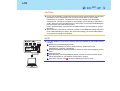
Removing USB Devices
CAUTION
z Do not remove a USB device while your computer is in the standby or hibernation
mode.
z Save important data and close each application.
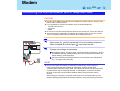
1
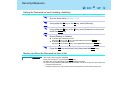
Disable the device function.
(This step is not necessary when the USB device has been removed after the
computer is turned off, if the
icon is not displayed, or if the USB device that is
going to be disconnected is not displayed in step A.)
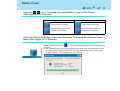
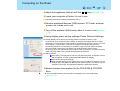
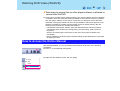
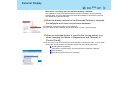
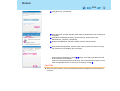
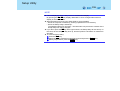
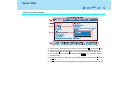
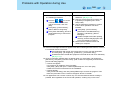
A Double-click the
icon on the notification area and click the USB device,
then click [Stop].
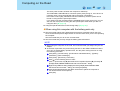
B Click [OK] on the [Stop a Hardware device] screen.
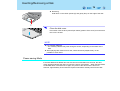
2
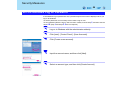
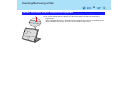
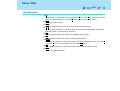
Remove the USB device.
When Using an External Mouse
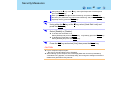
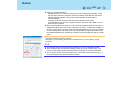
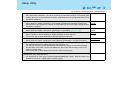
Before installing an external mouse driver, first uninstall the Touch Pad driver. In this case,
you will be unable to use the Touch Pad scroll function.
CAUTION
z Before uninstalling the driver, save important data and close each application.
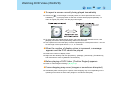
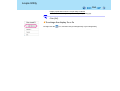
1
Click the
icon on the notification area, and then click [Exit].