1
77 SUPPLY RULES: PRESTIGE PINTS & PURCHASING UNITS
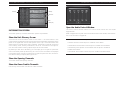
Purchasing Ground or Air Units
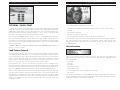
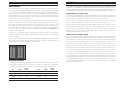
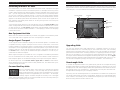
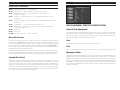
The class buttons, in a column down the left side of the screen, display the unit types
available in a particular class in the Selection panel. For example, left-clicking on the
infantry button displays five different types of infantry available at this period in the
war — you can only purchase units that were in use at the time. The currently selected unit has a pale blue rectangle around it, and the unit type’s statistics appear
below. Once a unit has been paid for by left-clicking on the Purchase button, the unit
appears in the Roster panel above the Selection panel. Arrows at the upper left of
both Selection and Roster panels allow for scrolling through more units if they are
available to be viewed.
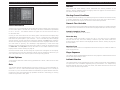
There are two toggle switches in the top left-hand corner, the Land/Air and Naval toggle
switch changes the left-hand column of class buttons below it between land units or
air and naval units. The Axis and Allies toggle switch changes between selecting troops
for one side or the other in Battle Generator — while playing a scenario or campaign
it does not function.
SUPPLY RULES: UPGRADING UNITS 78
Core units are further divided by whether they are naval or land units. This distinction prevents limits on core units from interfering in a land scenario where no naval
units take part, or a naval scenario that does not feature an amphibious assault.
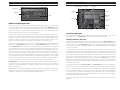
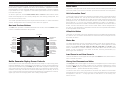
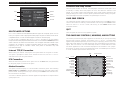
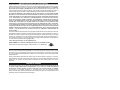
Land / Air & Sea Toggle
Scroll Arrows
Roster
Available Upgrade
Types
Available Transport
Upgrade
Unit Classes
New Equipment Available
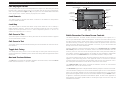
When new units become available for purchase, they appear in the selection panel.
This is the ideal time to upgrade core units if the prestige is available.
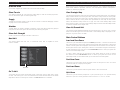
Assign Organic Transport
To the right of the Unit Statistics display, are three smaller panels. If a selected unit
is capable of having “organic” transport such as a truck or half-track, icons for the
transport appear in the top panel which is double height to accommodate two types
of transport. The unit type itself appears in the second panel. To purchase a unit with
transport, left-click on the type of transport desired in the panel, and left-click on
the Purchase button. Clicking on the selected transport de-selects it in order to purchase that unit without transport.
When organic transport is purchased for a unit, it appears in the bottom panel when
the unit is selected from the roster panel, and the unit’s statistics when mounted in
that transport appear in the Statistics Display, to the right of the regular statistics.
On the far right-side, are the Purchase, Disband, Upgrade, Next and Previous screen buttons.
Above these buttons is the cost of the currently selected unit, and above that is your
current prestige point total.
Core and Auxiliary Units
During a campaign game, units under your command are divided
into “core” and “auxiliary.” Core units stay with you from battle to
battle, unless destroyed. Auxiliary units are assigned to you in each
campaign scenario to supplement your core forces — for example,
aircraft units and artillery support are often assigned as auxiliary units. The toggle
switch determines when a new unit is to be purchased as core or auxiliary when you
have both types of openings in your roster.
Unit / Transport
Toggle
Unit Information
Upgrade Costs
Upgrading Units
You can only upgrade units when deploying for a campaign scenario or during a
scenario when a unit is in a friendly city (or, in the case of air units, over a friendly
airfield) with no adjacent enemy units. Select the unit to be upgraded in the Roster
panel of the Purchase screen. If adding transport or upgrading to another unit type,
left-click on the vehicle or unit you desire and the blue selection box appears. Leftclick again and the selection box disappears disabling that choice. Click on the Upgrade
button to upgrade. Upgrading costs prestige points and expends that unit’s turn. You
can remove a transport by simply clicking on it to de-select it, thus removing it.
Overstrength Units
A unit with an experience level of 1 or greater (a full gold star or 100 experience) may
be made overstrength by adding elite replacements when it is already at 10 or more
strength points. Each time the player takes elite replacements under these conditions
the strength of the unit increases by 1. Experienced units may also be made overstrength before the beginning of a campaign scenario.
Improving units to overstrength status is a combination of numbers and quality that
can smash some enemy units with a single attack. Building up to overstrength takes
time, however, and artillery and air bombardment against you have the annoying
effect of cutting these units back down to size.