1
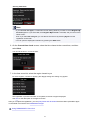
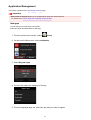
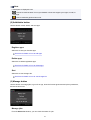
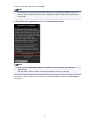
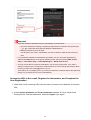
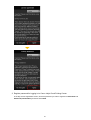
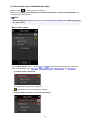
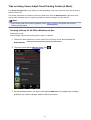
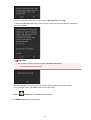
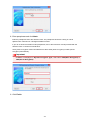
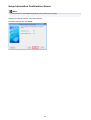
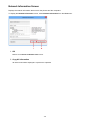
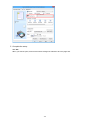
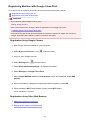
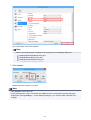
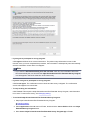
<Privacy statement>
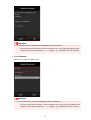
Note
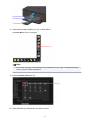
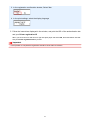
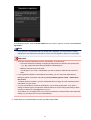
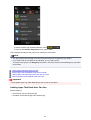
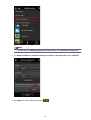
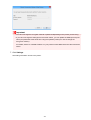
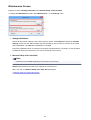
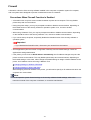
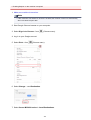
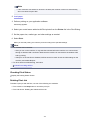
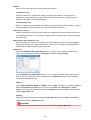
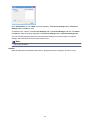
• If you select Do not agree, a confirmation screen asking whether you want to cancel Register My
account appears. If you select Yes, then Register My account is canceled, and you return to the
Home screen.
Even if you select Do not agree, you can still use this service by selecting Agree from the
registration screen later.
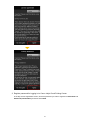
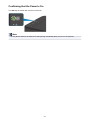
• You can print the displayed information by pressing the Start button.
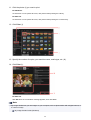
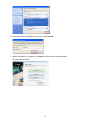
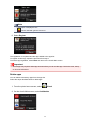
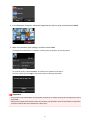
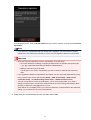
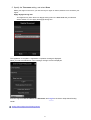
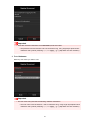
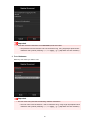
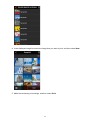
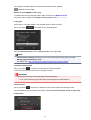
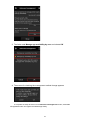
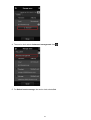
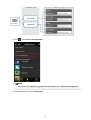
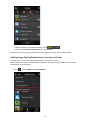
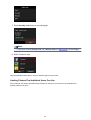
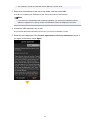
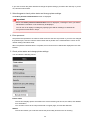
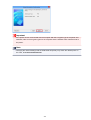
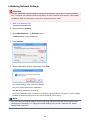
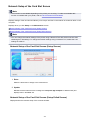
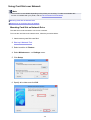
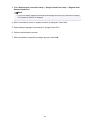
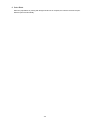
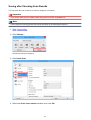
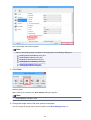
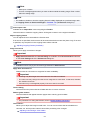
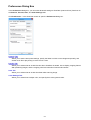
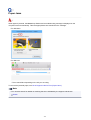
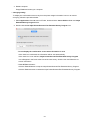
6. On the Current time check screen, select the time closest to the current time, and then
select Next
You can set the time in 10-minute units.
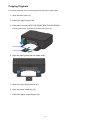
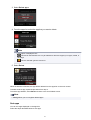
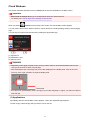
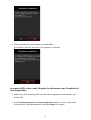
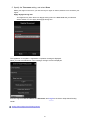
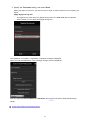
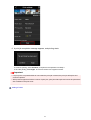
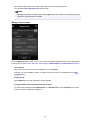
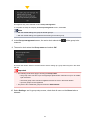
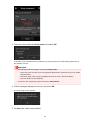
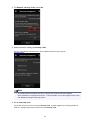
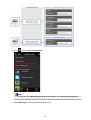
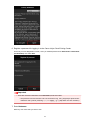
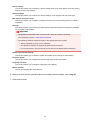
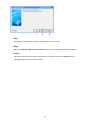
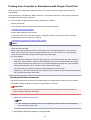
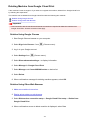
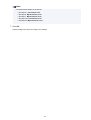
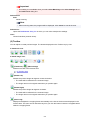
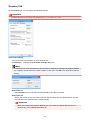
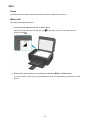
7. In the time zones list, select the region closest to you
For some regions, a screen for applying the daylight saving time setting may appear.
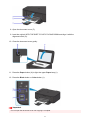
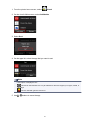
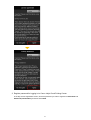
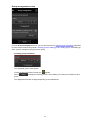
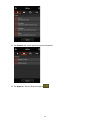
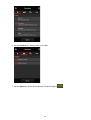
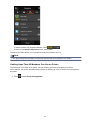
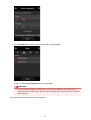
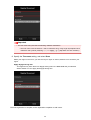
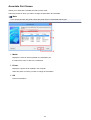
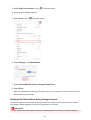
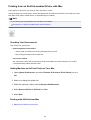
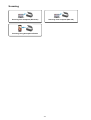
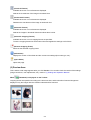
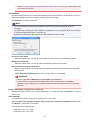
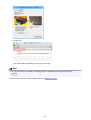
The registration of printer information is completed, and a list of apps is displayed.
See here for the description of the apps list screen.
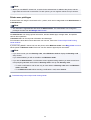
After you complete the registration, you can print photos and documents that have been uploaded to apps
on the linked cloud service and add/delete/sort apps.
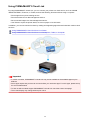
Using PIXMA/MAXIFY Cloud Link
54