1
PaperCut - Payment Gateway Module - PayPal Website Payments Standard - Quick Start Guide
v2013-12-16
3 PayPal Configuration
1. Log into your PayPal merchant account site.
2. Navigate to My Account -> Profile (click) -> Instant Payment Notification
Preferences -> Choose IPN Settings .
3. In the Notification URL field enter:
http://papercut.myorg.edu/rpc/gateway/paypal-wps
Where papercut.myorg.edu is the external hostname of your PaperCut server.
If using a non-standard port like 9191, then you can enter the port in the IPN URL like
the following:
http://papercut.myorg.edu:9191/rpc/gateway/paypal-wps
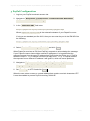
4. Select Receive IPN messages (Enabled) and click Save
When PaperCut receives an IPN from PayPal it responds to acknowledge the message.
If your PaperCut server has multiple external IP addresses, it is important that the
response be sent from the same IP address that PayPal sent the IPN to (e.g. if PayPal
sends the IPN to 1.1.1.2 it should not receive a reply from 1.1.1.3). If PayPal receives
the response from a different IP address it will ignore it, which will cause problems.
5. Navigate to My Account -> Profile -> My Selling Tools -> PayPal button
language settings (Under More selling tools) -> More Options
6. Set Encoding to UTF-8 and click Save .
When the user enters a name or a street address that contains non-latin characters UTF8 must be enabled to prevent PayPal returning "INVALID"
Copyright © 2011 PaperCut Software International Pty. Ltd., All Rights Reserved
4 of 7