1
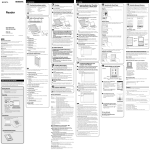
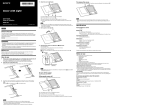
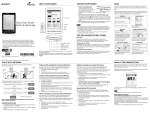
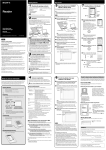
What You Can Do with Sony Reader Thank you for purchasing this Sony Portable Reader System PRS-500. Read through this Quick Start Guide to prepare Sony Reader for use. Once initial preparation is complete, you can transfer contents from your computer to Sony Reader to take anywhere you wish. Getting Started Read this manual for initial preparation. • Charge Sony Reader. • Install CONNECT Reader to your computer. Getting Started 1 Checking the package contents Sony Reader comes installed with a built-in rechargeable battery. • Sony Reader (with Soft cover) (1) • AC power cord (1) • AC power adapter (1) • USB cable (1) • CD-ROM* (1) - CONNECT Reader software - Operation Guide (PDF) - Sample contents 4 It is recommended that you perform customer registration by registering your contact information, which enables Sony to send you information of technical support, software updates, etc. ID* will be provided after registration. * ID is your “master key” to log into various Sony group web sites using a single ID and password. * Do not attempt to play this CD-ROM in an audio CD player. Importing Download BBeB Books from the CONNECT Store on your computer. CONNECT Store*1 2 System requirements The following systems are required to use CONNECT Reader. Charging First, charge the Sony Reader battery by connecting the supplied AC power adapter and AC power cord, as battery power may not be sufficient immediately after purchase. The Charge indicator lights up in red while charging, and goes off when charging is complete. Contents (book/audio/ picture files, etc.)*2 Portable Reader System © 2006 Sony Corporation Printed in Japan 2-674-363-01(1) About the serial number The serial number provided for this unit is required for customer registration. The number is on a label on the back of the unit. Do not remove the label. Owner’s Record The model and serial numbers are located on the back of the unit. Record them in the space provided below. Refer to these numbers in the spaces whenever you call upon your Sony dealer regarding this product. Model No. ___________________________ Serial No. ___________________________ All other system names and product names appearing in this document are generally the registered trademarks or trademarks of their respective manufacturers. Further, the trademark ™ and registered trademark ® symbols are not indicated throughout this document. Program ©2006 Sony Corporation Documentation ©2006 Sony Corporation Charge indicator AC power adapter Notes • Do not use an AC power adapter other than the supplied one. • Connect the AC power adapter to an easily accessible AC outlet. Should you notice an abnormality in the AC power adapter, disconnect it from the AC outlet. The contents of each book pre-installed on this product are copyrighted works, edited with the cooperation of the publisher and editor hereto mentioned. Copyright laws prohibit copying the data of this product or the contents of this manual (illustrations, related documents, etc.) in whole or in part without the permission of the copyright holder. Additionally, use of the data of this product or the contents of this manual is not allowed without Sony’s permission except for personal use. • SONY and the SONY logo are trademarks of Sony Corporation. • BBeB, BBeB Book, and their logos are trademarks of Sony Corporation. • is trademark of Sony Corporation. • CONNECT Reader and the CONNECT Reader logo are trademarks or registered trademarks of Sony Corporation. • “Memory Stick,” “Memory Stick Duo,” “Memory Stick PRO,” “MagicGate Memory Stick,” and their logos are trademarks of Sony Corporation. • Bitstream is a registered trademark, and Dutch, Font Fusion, and Swiss are trademarks, of Bitstream Inc. • Microsoft, Windows, Windows NT, and Windows Media are trademarks or registered trademarks of Microsoft Corporation in the United States and/or other countries. • Adobe, Adobe Reader and Adobe PDF are trademarks or registered trademarks of Adobe Systems Incorporated in the United States and/or other countries. • MPEG Layer-3 audio coding technology and patents licensed from Fraunhofer IIS and Thomson. To AC outlet Transfer contents from your computer to Sony Reader using CONNECT Reader. On Copyrights Hint • Sony Reader can also be charged via USB connection to your computer. Reading/Playing/Viewing Enjoy the contents on Sony Reader. OS Microsoft Windows XP Home Edition, Windows XP Professional, Windows XP Media Center Edition, Windows XP Media Center Edition 2004, Windows XP Media Center Edition 2005 CPU 800MHz Celeron class processor or better RAM 128 MB or more Free space on hard disc 20 MB or more Depending on the amount of contents, more space may be required. Monitor High Color or more, 1024 × 768 dots or more (True Color, 1280 × 1024 dots, or more recommended) To DC IN jack *1 Online e-Book store *2 Contents that you already have can also be transferred. For details on type of contents compatible with Sony Reader, refer to the Operation Guide (PDF). Transferring Click “Access to customer registration web site (http:// www.sony.com/productregistration)” to perform customer registration. • Quick Start Guide (this manual) (1) Quick Start Guide PRS-500 Customer registration 3 Installing CONNECT Reader Turn on the computer and start Windows. Insert the supplied CD-ROM into your computer’s drive. Install Wizard screen appears. Follow the on-screen instructions to install. If the installation is not successful, refer to “When installation is not successful - Q&A.” To start CONNECT Reader CD-ROM drive, USB port, pointing device such as mouse or track pad • Internet connection (broadband recommended) is also required on your computer. • This software is not supported by the following environments: - An operating system other than those included above - Personally built computer or operating system - Upgraded manufacturer-installed operating system - Multi-boot environment - Multi-monitor environment - Macintosh When installation is not successful - Q&A Q1 Does your computer meet system requirements? A1 Check that your computer meets the system requirements listed above. Q2 Were you logged on as an “Administrator,” and did you close all running software programs before beginning the installation? Log on as an administrator and connect to the Internet with your computer. Other devices Click the Start menu, then select “All programs” – “CONNECT Reader” – “CONNECT Reader.” A2 Log on as “Administrator.” Close all running software programs, including background programs such as virus-protection software. Q3 The set-up program does not start automatically. A3 If the set-up program does not start automatically when you insert the CD-ROM, click “Start” on the Windows taskbar, click “My Computer,” and then double-click the optical disc drive icon to start the program. Q4 Is the progress bar in the installation window moving, and the access lamp of the CD drive flashing? A4 When the bar is moving and the lamp is flashing, the installation is still in progress. Please wait for the installation to finish. If the solutions listed here do not resolve the issue, refer to “Support” on the reverse side of the sheet. Hint • For the latest information on CONNECT Reader and to download any software updates, visit the web site: http://www.sony.com/reader Continued overleaf Read to learn about advanced features How to Use 5 Importing BBeB books from the CONNECT Store to CONNECT Reader You can download BBeB Books from the online e-Book store “CONNECT Store” to your computer. Hint • The following explains how to import/transfer/read BBeB Books. For details on contents other than BBeB Books also supported by Sony Reader, refer to the Operation Guide (PDF). 6 7 Reading BBeB Books on Sony Reader Click “Library” in the Source view, then click Browsing the Operation Guide on your computer > < (List view). The View area is switched to the List view and all the contents in Library are listed. SIZE List view Number Library Turn on Sony Reader, then connect it to your computer using the USB cable. ENT < > Slide POWER switch. Operation Guide (PDF) Contains instructions for advanced features of Sony Reader and troubleshooting information. Check that CONNECT Reader is running and that Sony Reader is connected to your computer using the USB cable. “Sony Reader” appears in the Source view of CONNECT Reader. Note • To download BBeB Books, you need to prepare an Internetaccessible environment on your computer. Transferring BBeB Books from your computer to Sony Reader Included with Sony Reader are this Quick Start Guide and the PDFformat Operation Guide. Additionally, after installing the supplied CONNECT Reader, you can refer to the Help within CONNECT Reader. MENU In the Home menu, press ENT up () or down () to select “Books,” then press down on ENT. The Book list appears. Hint • To view the Operation Guide, you should have installed either Adobe Reader 5.0 or later. Adobe Reader can be downloaded for free from the Internet. The PDF file of the Operation Guide is stored on the supplied CD-ROM. Click the Start menu in the bottom left of the Desktop, then select “All programs” – “CONNECT Reader” – “PRS-500 Operation Guide” to start Adobe Acrobat Reader and open the Operation Guide. For details on how to use the Adobe Acrobat Reader, refer to the Adobe Acrobat Reader Help. Browsing the Operation Guide using Sony Reader To USB Connector USB cable Hint • When you first connect Sony Reader to your computer, the date and time setting of Sony Reader is automatically synchronized to your computer clock. Click the Start menu, then select “All programs” – “CONNECT Reader” – “CONNECT Reader” to start CONNECT Reader. Click “CONNECT Store” in the Source view of CONNECT Reader. The CONNECT Store page appears. Hints • When you click “Books,” “Audio” or “Pictures” in the Source view, their respective contents can be displayed. • When you click (Thumbnail view), contents can be displayed as thumbnails. Select the content you want to transfer from the list. To select multiple contents, click the contents while holding down the Ctrl key. Hint • You can easily select a desired item by pressing the same number button as indicated on the number tab. Drag the content from the list to “Sony Reader” in the Source view. Number tabs PDF Link Press ENT up () or down () to select the desired book from the list, then press down on ENT. SIZE button The Option menu appears. The content is transferred to Sony Reader. The PDF file of the Operation Guide is transferred to Sony Reader. From the Home menu, select “Books” – “Operation Guide” from the Book list. Hints • A mark on this Guide indicates a link. Press / to select the desired link, then press ENT to jump to the linked page. • To zoom in a page, press SIZE. CONNECT Reader Help Sony Reader Follow the instructions in the store to register Sony Reader and CONNECT Reader. Press ENT up () or down () to select how to open the book, then press down on ENT. Contains instructions for CONNECT Reader operations. Click “Help” − “CONNECT Reader Help” Registration is required only on the first visit to the CONNECT store. Note • The above registration is necessary to purchase (download) and read BBeB Books on CONNECT Reader or Sony Reader, as copyright protection is employed on BBeB Books. Follow the instructions in the store to purchase (download). Downloaded BBeB Books are automatically imported to “Library” in the Source view of CONNECT Reader. Library Downloaded content Source view Hint • BBeB Books can be read on CONNECT Reader using your computer. For details on CONNECT Reader operations, refer to the CONNECT Reader Help. Notes • Do not disconnect the USB cable from Sony Reader while data is being transferred. • Do not leave Sony Reader connected for extended periods to a notebook computer that is not connected to AC power, because Sony Reader may discharge the computer’s battery. • If the computer enters a power saving mode, such as the system suspend, sleep or hibernation while Sony Reader is connected to the computer directly, the Sony Reader battery is not charged. Instead, Sony Reader continues to draw power from the battery, discharging it. On transferring via a memory card • To transfer BBeB Books to a memory card on Sony Reader, insert the memory card in Sony Reader, then follow the above steps (except drag and drop the content on “Memory Stick on Sony Reader/SD Card on Sony Reader” in step 4). For details, refer to “Transferring contents via a memory card” in the Operation Guide. • With a memory card slot on your computer or a memory card reader, you can also transfer contents directly to the memory card and then insert it in Sony Reader. If a memory card is inserted in your computer or a memory card reader, the memory card icon appears in the Source view. Follow the above steps (except drag and drop the content on “Memory Stick on PC/SD Card on PC/Memory Card on PC” in step 4) to transfer to a memory card. Support Press > to proceed to the next page. To return to the previous page, press <. or If you encounter an issue, try the following. • If you cannot install CONNECT Reader Refer to “When installation is not successful – Q&A” in this manual. • For other issues Refer to “Troubleshooting” in the Operation Guide. If the issue persists Press SIZE if you want to zoom in the page. The page can be magnified in 3 steps. To restore the original scale, press SIZE repeatedly. Visit the support site (http://www.sony.com/readersupport). If the issue still persists To close the book Press MENU. Contact Sony Portable Reader System Support Center. Phone number : 1-866-962-7669 For details, refer to “Other Information” in the Operation Guide.