1
1
Introduction
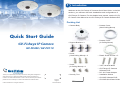
Welcome to the GV-Fisheye IP Camera Quick Start Guide. In the following
sections, you will learn the basic installations and configurations of
GV-Fisheye IP Camera. For the detailed user manual, see the GV-Fisheye
IP Camera User Manual on the GV-Fisheye IP Camera Software DVD.
Packing List
• Camera Body
• Camera Cover
(Hard-Ceiling Mount)
Quick Start Guide
GV-Fisheye IP Camera
• Support Bracket x 3
• Camera Cover
(In-Ceiling Mount)
• Screw
(Hard Ceiling Mount) x 3
• Plastic Screw Anchor x 3
• Screw
(In-Ceiling Mount) x 3
• 3-Pin Terminal Block
GV-FE420 / GV-FE110
• GV-Fisheye IP Camera
Software DVD
• DC 12V Power Adaptor
• Security Torx
Thank you for purchasing GV-Fisheye IP Camera. This guide is designed to
assist the new user in getting immediate results from the GV-Fisheye IP
Camera. For advanced information on how to use the GV-Fisheye IP Camera,
please refer to GV-Fisheye IP Camera User's Manual on Software DVD.
© 2010 GeoVision Inc. All rights reserved.
• Installation Sticker
• GV-NVR Software DVD
2010/12
English
FE110420-QA-A
• GV-NVR Quick Start Guide
2
Hardware Installation
The GV-Fisheye IP Camera is designed to be mounted on the ceiling, wall or
ground. There are two ways to mount the camera on the ceiling, Hard
Ceiling Mount and In-Ceiling Mount. Make sure the ceiling has enough
strength to support the fisheye camera.
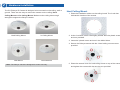
Hard Ceiling Mount
In-Ceiling Mount
Hard Ceiling Mount
1. Place the installation sticker on the ceiling board. The 3 red dots
indicate the location of the screws.
2. At the 3 red dots, drill a hole slightly smaller than the plastic screw
anchors provided.
3. Insert the 3 plastic screw anchors in the drilled holes.
4. Secure the fisheye camera with the 3 hard ceiling mount screws
provided.
Wall Mount
Ground Mount
Note: The fisheye camera is designed for indoor use only.
5. Place the camera cover for hard ceiling mount on top of the camera
and tighten the screws with the security torx provided.
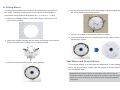
In-Ceiling Mount
In-Ceiling Mount allows the GV-Fisheye IP Camera to be mounted into
the ceiling, revealing a small portion of the camera. In-Ceiling Mount
4. On the back side, make sure the black plastic clips are slightly above
the ceiling board and pointing outward.
requires the ceiling board to be between 0.5 – 3.0 cm (0.2 – 1.18 in).
1. Place the installation sticker on the ceiling board, and cut the circle
part out of the ceiling.
5. From the front side of the camera, tighten the screws.
2. Align the 3 support brackets with the holes on the back of the camera
and secure using the in-ceiling mount screws provided.
3. Place the fisheye camera into the ceiling opening.
6. Place the camera cover for in-ceiling mount on top of the camera and
tighten the 3 screws.
Wall Mount and Ground Mount
To mount the camera on a wall, follow the instructions in Hard Ceiling
Mount. For ground mount, simply place the camera on a flat surface such
as a conference table.
Hint: Mount the fisheye camera in the middle of the wall to have an
excellent overview. Or ensure the camera is focused on the most important
areas of the room as directly as possible to have the desired detailed
recognition.
3
4
Connecting the Power Cables
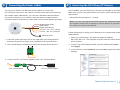
You can use a Power over Ethernet (PoE) adaptor to connect the
Accessing the GV-Fisheye IP Camera
the network cable. Alternatively, you can use a standard network cable to
Once installed, your GV-Fisheye IP Camera is accessible on a network.
Make sure your PC has good network connection, and meet this system
requirement:
connect the camera to your network, and then follow the steps below to
• Microsoft Internet Explorer 7.x or later
GV-Fisheye IP Camera on the network, and the power will be provided over
connect to power using the 5-pin data cable and the power adaptor provided.
Digital Output (Red)
GND (Black)
Digital Input (Brown)
AC 24V+ / DC 12V+ (Yellow)
AC 24V- / DC 12V- (Orange)
Ethernet (PoE)
1. Insert the yellow wire to the pin on the right-side of the terminal block
and the orange wire to the pin on the left-side of the terminal block.
2. Use a small flat-tip screwdriver to secure the screws above the pins.
Note: If you are using Microsoft Internet Explorer 8.0, additional settings
are required. Please refer to Settings for Internet Explorer 8, Appendix A,
GV-Fisheye IP Camera User Manual.
Follow these steps to assign an IP address for the camera and access the
Web interface:
1. Open your web browser, and type the default IP address:
http://192.168.0.10. The computer must be under the same network
as the camera.
2. In both Login and Password fields, type the default value admin.
Click Apply.
3. In the left menu, select Network and then LAN to begin the network
settings.
3. Connect the DC 12V Power Adaptor to the 3-Pin Terminal Block.
3-Pin Terminal Block
DC 12V Power Adaptor
Continued on the reverse
5
The Web Interface
4. Select Static IP address. Type IP Address, Subnet Mask,
Router/Gateway, Primary DNS and Secondary DNS in the Configure
connection parameters section.
10
9
5. Click Apply. The camera is now accessible by entering the assigned
IP address on Internet Explorer 7.x or later.
8
6. To enable the updating of images in Microsoft Internet Explorer, you
must set your browser to allow ActiveX Controls and perform a
one-time installation of GeoVision’s ActiveX component onto your
computer.
IMPORTANT:
•
Dynamic IP Address and PPPoE should only be enabled if you know which
IP address the camera will get from the DHCP server or ISP. Otherwise, you
must use the Dynamic DNS service to obtain a domain name linked to the
camera’s changing IP address first.
•
If Dynamic IP Address and PPPoE is enabled and you cannot access the
camera, you may have to reset it to the factory default settings and then
perform the network settings again. Refer to section 7 to see how to restore
to factory default settings.
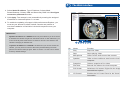
1 2 3 4
5 6 7
No.
Name
Function
1
Play
Plays live video.
2
Stop
Stops playing video.
3
Microphone
Listens to the audio around the camera.
4
Speaker
Talks to the surveillance area from the local
computer.
5
Snapshot
Takes a snapshot of live video.
6
File Save
Records live video to the local computer.
7
Full Screen
Switches to full screen. Right-click the image to
see additional options.
8.
I/O Control
Enables the I/O Control Panel or the Visual
Automation.
No.
9
•
Name
Function
Show System
Brings up these functions: Alarm Notify, Video
Menu
and Audio Configuration, Remote Config,
Show Camera Name and Image Enhance.
10
Control Panel
GV-FE420: Align the white circle with the edge of the camera image.
You can eliminate the darker areas toward the edge of the image by
making the white circle smaller, but the field of view will be slightly
reduced.
Displays the camera information, video
settings, audio data rate, I/O device status,
images captured upon alarm, and GPS location
of the camera. Also allows you to adjust image
quality and install the program from the hard
drive.
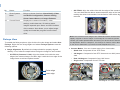
Fisheye View
To enable the fisheye options, right-click the live view image and select Geo
Fisheye. Right-click the image again and select Fisheye Option to see the
following options.
● Image Alignment: By default, the image should be properly aligned
already. If not, follow the steps below to align the image for each model:
•
GV-FE110 (firmware V1.06): Align the dotted circle with the outer
edge of the camera image, and then align it with the inner edge of the
image frame to achieve optimal results.
Note: The circular source image of GV-FE420 should be centered and
slightly cropped on all four edges. If the image is not centered, please
contact your sales representative and send your device back to GeoVision
for adjustment. Refer to Chapter 3, GV-Fisheye IP Camera User's Manual
to see how to determine if your device needs adjustment or not.
● Camera Modes: You can choose among four view modes.
•
Quad view: Composed of four PTZ views.
•
360 degree: Composed of two PTZ views and one 360º panoramic
view.
•
Dual 180 degree: Composed of two 180º views.
•
Single view: Composed of one PTZ view.
Outer edge
Inner edge
Quad view: 4 PTZ views
360 degree: 2 PTZ & 1 360º views
6
Upgrading System Firmware
GeoVision will periodically release updated firmware on the website. To load
the new firmware into the GV-Fisheye IP Camera, read the important notes
and then follow the instructions below.
IMPORTANT:
Dual 180 degree: 2 180º views
Single view: 1 PTZ view
Note: When wall mount is selected for Camera Position, only one 180º view will
be displayed.
● Camera Position: Select Ceiling, Wall or Ground according to
where the camera is mounted.
● Adjust AutoPan Speed At Top-Left Channel: Select low, medium,
or high speed to enable Auto Pan for one PTZ view at the rotation
speed of your choice. This option applies to Quad view, 360 degree
and Single view.
● Zoom: Select Zoom In or Zoom Out and then click on the image.
● Show Source Video At Top-Right Channel: Shows the circular
source image in the top-right quadrant when Quad view is selected.
● Fisheye Settings: The following settings are available.
•
Frame Rate Control: You can set the frame rate of the live view.
•
Screen Ratio Setting: Select a ratio that best fits the display ratio
of your computer.
You can drag and drop the PTZ view or 180º view to adjust the viewing
angle.
1 While the firmware is being updated,
A. the power supply must not be interrupted, and
B. do not unplug the Ethernet cable if the cable is the source of
power supply (Power over Ethernet or PoE supported).
2. Do not turn the power off for 10 minutes after the firmware is
updated.
3. If you use the IP Device Utility for firmware upgrade, the computer
used to upgrade firmware must be under the same network of the
camera.
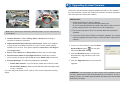
1. In the Live View window, click the Show
System Menu button
on the right
and select Remote Config.
2. Click the Browser button to locate the
firmware file (.img) saved at your local
computer.
3. Click the Upgrade button to process the
upgrade.
WARNING: The interruption of power supply during updating causes
not only update failures but also damages to your camera. In this case,
please contact your sales representative and send your device back to
GeoVision for repair.
7
Restoring to Factory Default Settings
You can restore the camera to factory default settings using the Web
interface or directly on the camera.
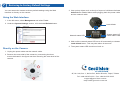
3. Use a pointy object such as the tip of a pen to hold down the Load
default button labeled below while plugging back the power cable
and the network cable.
Using the Web Interface:
1. In the left menu, select Management and select Tools.
2. Under the System Settings section, click the Load Default button.
Load default
Network status LED
System status LED
Power status LED
4. Wait until the network status LED turns off momentarily to release the
Load default button. This may take about 40 seconds.
5. The system status LED should turn back on.
Directly on the Camera:
1. Unplug the power cable and the network cable.
2. Remove the outer shell of the camera by unscrewing the three
screws indicated in the figure and then removing the outer shell of the
camera.
9F, No. 246, Sec. 1, Neihu Rd., Neihu District, Taipei, Taiwan
Tel: +886-2-8797-8376 Fax: +886-2-8797-8335
[email protected]
http://www.geovision.com.tw