1
WaveCube User Manual
17/03/04
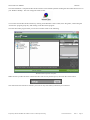
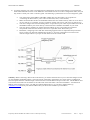
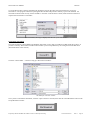
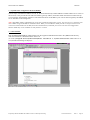
The following window will then be displayed listing any WaveCubes it has found:
The Scan window showing a single WaveCube detected on the LAN
If the Scan window does not list any WaveCube addresses then you will need to double-check your network connections
and contact your Network Administrator, however there are a number of technical reasons why the Scan function will not
find a WaveCube on your network even if it has been connected correctly. For example:
1) Your network (or PC) has a “firewall” installed that is blocking access to the WaveCube. The firewall will need
to be configured to allow communication between your PC and the WaveCube.
2) The Scan function scans the local IP address range of 192.168.0.1 to 192.168.254.254. If you need to
configure the WaveCube for an IP outside of this range you will need to use one of the alternative methods
described at the end of this document. Once you have set the WaveCube’s IP, however, you can then manually
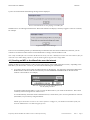
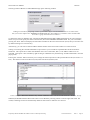
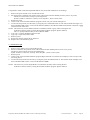
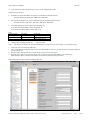
specify the location of the device by typing the IP and PORT into the ADDRESS and PORT fields in the
WaveCube software’s main window (not the Scan window):
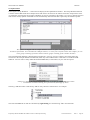
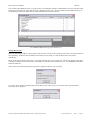
You can manually specify the location of a WaveCube
by filling in the Address and Port fields in the main window
3) You may be trying to communicate with a WaveCube over an Internet connection. The Scan function cannot scan
the Internet, but you can manually specify an Internet address and PORT number using the method described in
point 2 above.
Note: New WaveCubes are pre-set to a factory default IP address of 0.0.0.0 which means it will be automatically
assigned an IP address by your network’s DHCP server. However, it is recommended that you specify a fixed address if
possible.
Prepared by Michael Waddell and Vladimir Voroncov. Edited by Peter Zeug.
Document G/03156
Issue 2
Page 3