1
8
DeskPack Advanced
8.3.2 Adding objects as Mark
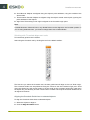
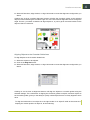
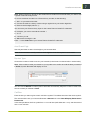
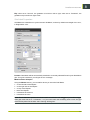
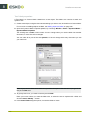
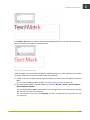
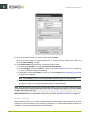
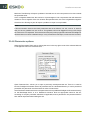
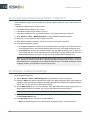
You can add existing objects as a Mark to your set.
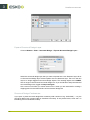
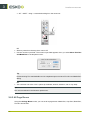
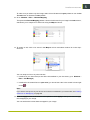
1. Select the object you want to use as a mark
2.
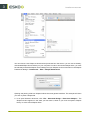
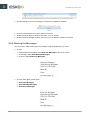
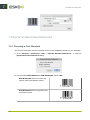
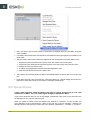
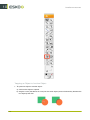
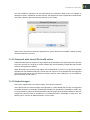
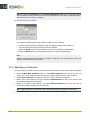
Click the Add Selected Art as Mark button
fly-out menu.
. or select Add Selected Art as Mark from the
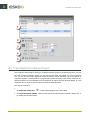
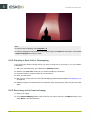
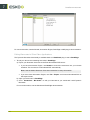
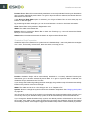
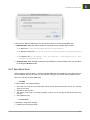
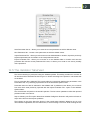
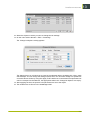
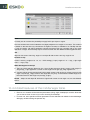
The new Mark will appear in the Dynamic Marks palette. You can change its properties in the
Dynamic Marks Properties palette. See Dynamic Mark Properties on page 190
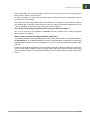
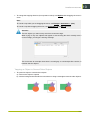
Note: If you select multiple objects, these objects will be grouped and added as one single mark
in your set.
Note: You can not create a Mark from any linked image.
8.4 Dynamic Mark Properties
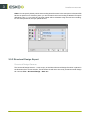
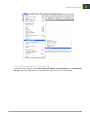
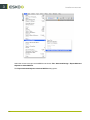
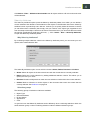
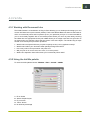
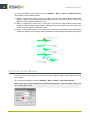
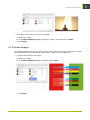
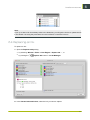
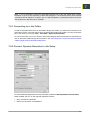
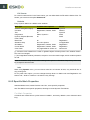
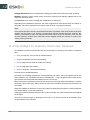
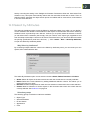
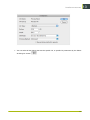
You can open the Dynamic Mark Properties by choosing Window > Esko > Dynamic Marks >
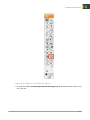
Dynamic Mark Properties or by choosing Open Properties Palette from the flyout menu of the
Dynamic Marks palette.
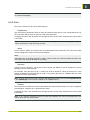
8.4.1 Position
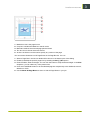
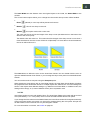
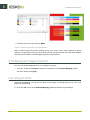
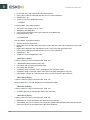
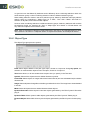
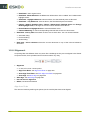
The position of a Mark is based on 3 settings:
Attach to
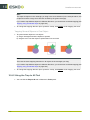
The position of the Mark can be based on
• Any page box: Media Box, Crop Box, Bleed Box, Trim Box or Art Box
190