1
Display menu
Available menu options may vary depending on the input sources, functions and settings. Menu
options that are not available will become grayed out. And keys that are not available will be
disabled and the corresponding OSD icons will disappear. For models without certain
functions, their settings and related items will not appear on the menu.
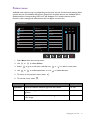
Mode: Standard
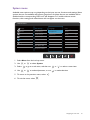
Display
Auto Adjustment
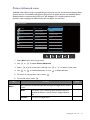
Picture
Auto Pivot
Picture Advanced
Input
Audio
H. Position
System
V. Position
Ergonomics
Pixel Clock
50
Phase
1. Select Menu from the hot key menu.
2. Use
3. Select
4. Use
or
to select Display.
to go to a sub menu, and then use
or
to make adjustments, or use
5. To return to the previous menu, select
6. To exit the menu, select
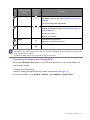
Item
Auto Adjustment
or
to select a menu item.
to make selection.
.
.
Function
Range
Optimizes and adjusts the screen settings
automatically for you.
Not applicable to a digital input signal.
Auto Pivot
Sets to rotate the OSD menu with the monitor.
• ON
• OFF
Make sure the Display Pilot is launched. See Rotating the
monitor on page 15 for more information.
Navigating the main menu
29