1
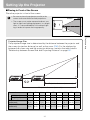
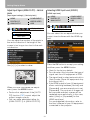
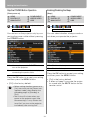
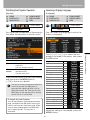
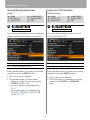
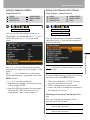
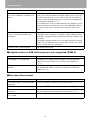
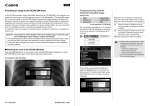
Relationship between Aspect and Screen Aspect
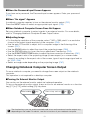
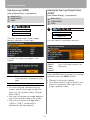
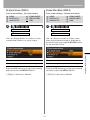
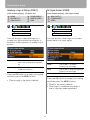
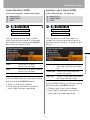
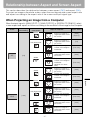
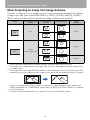
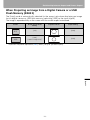
When Projecting an Image from Image Software
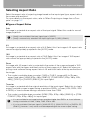
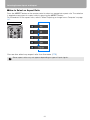
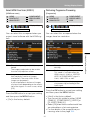
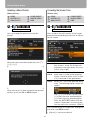
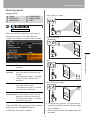
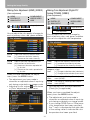
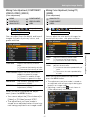
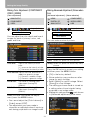
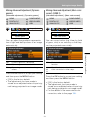
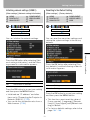
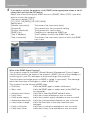
To project an image such as an image shot by a TV set, commercially available DVD software,
or video camcorder (input signal [HDMI (SX80 II)], [VIDEO], [S-VIDEO (SX80 II)], [COMPONENT]), select an aspect ratio according to the image software format as follows.
Screen
Screen Aspect Ratio
Setting
4:3
[4:3]
Image Software
Format
4:3
Projection Result
Aspect
Setting
[Auto]*1
16:9
4:3
16:9
[Auto]*2
[16:9]
[16:9 D. image shift]*4
16:9
16:9
[Zoom]*3
4:3
*1
*2
*3
*4
[Auto] cannot be selected for the aspect setting if the input signal type is [VIDEO].
If an image from image software with aspect ratio of 16:9 is not projected correctly, select [16:9]
as screen aspect.
If you project the 16:9 image with black borders at top and bottom such as in the terrestrial movie
broadcasting, you can project the 16:9 image fully on the screen by selecting [Zoom] in [Aspect].
[Zoom] is available when [16:9] or [16:9 D. image shift] is selected for the screen aspect and
[HDMI (480p)(SX80 II)], [COMPONENT (480p, 480i)], [VIDEO] or [S-VIDEO (SX80 II)] is selected
for the input signal.
To perform keystone adjustment (P60), select [4:3] or [16:9] for [Screen aspect].
148