1
Using the Mouse
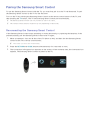
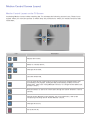
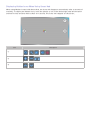
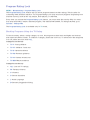
Once a USB or Bluetooth mouse is connected to the TV, a pointer appears on the TV's screen. You can
use this pointer to control the TV in the same way you use a pointer on a computer.
●● Selecting and Running an Item
Left-click using the mouse.
●● Showing Tools Buttons
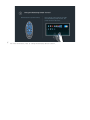
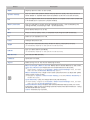
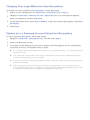
Right-clicking displays the Tools buttons on the screen so that you can easily use the TV's
functions.
"" The Tools buttons may vary depending on the function your are using.
●● Scrolling the TV Menu or Screen
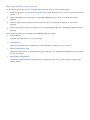
Move the mouse wheel up or down. This scrolls the TV menu or screen up/down.
●● Exiting the TV Menu or Feature
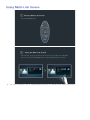
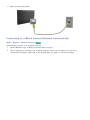
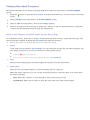
Click the X button. This closes the menu.
"" The X button appears on the TV menu when a mouse is being used. Left-clicking once while using a
feature displays the X button on the current screen.
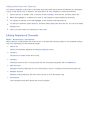
Changing Mice
Try Now
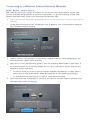
Select System > Device Manager > Mouse Settings > Select Mouse. Designate which mouse to use.
"" Only one mouse can be used at a time.
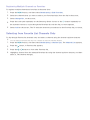
Changing Mouse Buttons and Pointer Speed
Try Now
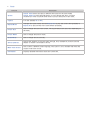
Select System > Device Manager > Mouse Settings > Mouse Options. The following options are
available:
●● Primary Button
Choose which button (left or right) to use to select and run items.
●● Pointer Speed
Adjust the movement speed of the pointer that appears on the screen.