1
45600
1
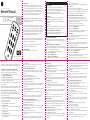
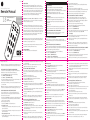
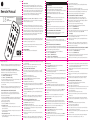
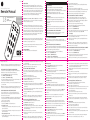
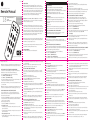
Wireless Lighting Control
Remote Manual
18
• Individual Z-Wave devices
• Groups
• Lighting scenes
2
INTRODUCTION
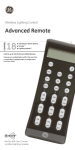
Thank you for purchasing the GE SmartHome™ Remote. Your home control
network can include up to 232 Z-Wave enabled devices. This remote allows you
to control up to 18 individual Z-Wave devices with one easy-to-use, compact unit.
You can also set up and control up to 18 groups of lights as well as 18 scenes for
task or mood lighting. Each group can include up to 232 Z-Wave devices and
each scene can include up to 32 Z-Wave devices. Lights can be included in
multiple groups. Scenes can include lights from different groups.
Battery Use And Safety
• Use only fresh batteries of the required size and recommended type.
• Do not mix old and new batteries or different types of batteries.
• If you do not plan to use the remote for an extended period, remove the batteries.
They can leak chemicals that can destroy electronic parts.
• Dispose of old batteries promptly and properly. Do not burn or bury them.
Groups can include
up to 232 devices
Please note: The terms “Device”, “Node” and “Light” all refer to an individual
Scenes can include
up to 32 devices
Z-Wave enabled device in your home control network and are interchangeable
within the context of these instructions.
Add a node, group or scene can also be referred to as include a node, group
or scene. Remove a node, group or scene can also be referred to as Exclude a node,
group or scene.
In order to control the lights, they must be Z-wave enabled and you must first add
them to your home network. To add a device to your home network without assigning
it to a specific number key, perform the following steps:
1. Press and hold SETUP until both the red and green LEDs blink twice.
2. Press ADD once. (Red LED blinks once)
3. Press LIGHT once. (Red LED blinks once)
4. Press LIGHT again. (Green LED blinks rapidly)
5. Press the button on the device so that it sends its information to the remote and
Compatible with all Z-WAVE products.
DELETING A DEVICE (LIGHT / NODE) FROM YOUR NETWORK
To reset a device to its factory default, you must delete it from the network. To
delete the device from your network, perform the following steps:
1. Press and hold SETUP until both the red and green LEDs blink twice.
2. Press DELETE once. (Red LED blinks once)
3. Press LIGHT once. (Green LED blinks rapidly)
4. Press and release the button on the device so that it sends its information to the
remote and receives information from the remote.
5. When the green LED blinks twice, you have successfully deleted the device from
your home network.
NOTE: If the red LED emits one long, steady blink, you have pressed an invalid key or the device
has not been successfully deleted from your home network. Repeat steps 1-5 if this occurs.
CONTROLLING INDIVIDUAL LIGHTS (DEVICES / NODES)
You can control a light to turn on or off, or change its brightness level. The
operation of a specific device varies by product. Refer to the manual for that
device to learn its specific operation.
1. Press and release the LIGHT key to put the remote into “Individual Light Control”
mode. (Red LED blinks once) The remote will stay in this mode until either the
Group or Scene mode is activated.
2. Select the light you want to control.
(Press and release SHIFT to control lights 10 through 18.)
Turning a Light On or Off
• To turn a light on, press and release the ON key for less than one second. The
green LED will blink once.
• To turn a light off, press and release the OFF key for less than one second. The
green LED will blink once.
Setting a Light’s Brightness Level
• To make a light brighter, press and hold the ON key for more than one second.
(Green LED blinks rapidly)
NOTE: If the red LED emits one long, steady blink the remote has not successfully
communicated with the device. Repeat steps 1-2 if this occurs.
SETTING UP AND CONTROLLING A GROUP
You can create a collection of devices (lights / nodes) that you can control as a
group. You can set up a maximum of 18 groups. Each group can contain up to
232 devices.
Adding a Device (Light / Node) to a Group
To add a device to a group, perform the following steps:
1. Press and hold SETUP until both the red and green LEDs blink twice.
2. Press ADD once. (Red LED blinks once)
3. Press GROUP once. (Red LED blinks once)
4. Press a digit (1-9) for the group you wish to add the device to. Press SHIFT and
the digit (1-9) if you are adding a devices to groups 10 through 18. (Green LED
blinks rapidly)
5. Press the button on the device so that it sends its information to the remote and
receives information from the remote.
6. When the green LED blinks twice, you have successfully added the device to
your group.
NOTE: If the red LED emits one long, steady blink, you have pressed an invalid key or the
device has not been successfully added to your group. Repeat steps 1-6 if this occurs.
Removing a Device (Light / Node) from a Group
1. Press and hold SETUP until both the red and green LEDs blink twice.
2. Press REMOVE once. (Red LED blinks once)
3. Press GROUP once. (Red LED blinks once)
4. Press a digit (1-9) for the group you wish to remove the device from. Press SHIFT
and the digit (1-9) if you are removing a device from groups 10 through 18.
(Green LED blinks rapidly)
5. Press the button on the device you wish to remove.
6. When the green LED blinks twice, you have successfully removed the device
from your group.
NOTE: If the red LED emits one long, steady blink, you have pressed an invalid key or the
device has not been successfully removed from your group. Repeat steps 1-6 if this occurs.
NOTE: If the red LED emits one long, steady blink, you have pressed an invalid key or the
device has not been successfully added to your remote. Please make sure the remote is
within two feet of the device and try again.
ADDING A DEVICE (NODE / LIGHT) TO THE NETWORK
INSTALLING BATTERIES
Three “AAA” Alkaline batteries (not included) are required.
NOTE: If the red LED emits one long, steady blink, you have pressed an invalid key or the device
has not been successfully removed from your remote control. Repeat steps 1-5 if this occurs.
You can add a maximum of 18 lights to your remote so that they can be
controlled individually. Adding a device to your remote also adds it to your
network. If the device number you are trying to add is already associated with
another device, the previous information is lost.
To add a device to your remote, perform the following steps:
1. Press and hold SETUP until both the red and green LEDs blink twice.
2. Press ADD once. (Red LED blinks once)
3. Press LIGHT once. (Red LED blinks once)
4. Press a digit (1-9) for the device location you wish to add. Press SHIFT and the
digit (1-9) if you are adding devices 10 through 18. (Green LED
blinks rapidly)
5. Press the button on the device so that it sends its information to the remote
and receives information from the remote.
6. When the green LED blinks twice, you have successfully added the device to
your remote control.
NOTES ON NETWORK MANAGEMENT:
For best results, please read and perform all the remaining instructions before
using the remote. Keep this guide for future reference.
• To dim the light, press and hold the OFF key for more than one second. (Green
LED blinks rapidly)
ADDING A LIGHT (DEVICE / NODE) TO YOUR REMOTE
NOT FOR USE WITH MEDICAL OR LIFE SUPPORT EQUIPMENT
Z-Wave enabled devices should never be used to supply power to, or control
the On/Off status of medical and/or life support equipment
NOTE: This product can be operated in one Z-Wave network with Z-Wave certified devices
from other manufacturers and/or other applications. The different listening nodes within
the network can act as repeaters regardless of vendor.
5
receives information from the remote.
6. When the green LED blinks twice, you have successfully added the device to
your home network.
7. The device can now be added to Groups and/or Scenes.
NOTE: If the red LED emits one long, steady blink, you have pressed an invalid key
or the device has not been successfully added to your home network. Please
make sure the remote is within two feet of the device and try again.
To Install Batteries:
1. Open the battery compartment cover (located on the back of the remote).
2. Note the + and - polarity symbols inside the battery compartment.
3. Insert the batteries, making sure their polarity matches the symbols in the
compartment.
4. Replace the cover.
NOTE: When the red LED blinks 5 times after a key press, you must replace the
batteries. The remote retains all its user settings while replacing the batteries.
If this remote is used as the primary controller, you must use it to create your
control network. You can use multiple remote controls with your Z-Wave lighting
control network, however, only one remote will act as the primary controller. The
primary controller must be used to add or delete devices (lights / nodes) from your
network. All other remotes are considered secondary and can be used to create
groups and/or scenes and control your lighting however secondary remotes
cannot add or delete devices from your control network.
4 from your remote control.
3
CAUTION
6
REMOVING AN INDIVIDUAL DEVICE (LIGHT / NODE) FROM YOUR REMOTE
1. Press and hold SETUP until both the red and green LEDs blink twice.
2. Press REMOVE once. (Red LED blinks once)
3. Press LIGHT once. (Red LED blinks once)
4. Press a digit (1-9) for the device location you wish to remove. Press SHIFT and
the digit (1-9) if you are removing devices 10 through 18.
5. When the green LED blinks twice, you have successfully removed the device
7
Deleting a Group
1. Press and hold SETUP until both the red and green LEDs blink twice.
2. Press DELETE once. (Red LED blinks once)
3. Press GROUP once. (Red LED blinks once)
4. Press a digit (1-9) for the group you wish to delete. Press Shift and the digit (1-9)
if you are deleting groups 10 through 18.
5. When the green LED blinks twice, you have successfully deleted the group from
your home network.
NOTE: If the red LED emits one long, steady blink, you have pressed an invalid key or the group
has not been successfully removed from your home network. Repeat steps 1-5 if this occurs.
Controlling a Group
To control a Group, perform the following steps:
1. Press GROUP once to put the remote into “GROUP Control” mode. (Red LED
blinks once) The remote will stay in this mode until either the Light or Scene
mode is activated.
2. Press the digit key for the group you wish to control (1-9). Press SHIFT and the
digit (1-9) if you are controlling groups 10 through 18. The green LED will
blink once.
NOTE: If the red LED emits one long, steady blink, the remote has not successfully
communicated with the devices in the group. Repeat steps 1-2 if this occurs.
SETTING UP SCENES
A scene is a single device or group of devices that can be preset to turn to a
previously specified setting (for example, brightness level). Scenes are ideal for
task or mood lighting. You can set up a maximum of 18 scenes, containing up to
32 devices per scene. Scenes can include lights from different groups.
Adding a Light (Device / Node) to a Scene
1. Press and hold SETUP until both the red and green LEDs blink twice.
2. Press ADD once. (Red LED blinks once)
3. Press SCENE once. (Red LED blinks once)
4. Press a digit (1-9) for the scene you wish to add the device to. Press SHIFT and
the digit (1-9) if you are adding devices to scenes 10 through 18. (Green LED
blinks rapidly)
5. Press the button on the light you are adding. (Green LED pauses briefly, blinks
once and then resumes blinking rapidly, indicating that the remote is pending
the setup of the bright/dim setting on the device.)
6. Adjust the brightness level on the device within 30 seconds (refer to the manual
for the device)
7. Press SCENE. The green LED stops blinking.
8. When the green LED blinks twice, you have successfully added the device to a
scene.
NOTE: If the red LED emits one long, steady blink, you have pressed an invalid key or the
device has not been successfully added to the scene. Repeat steps 1-7 if this occurs.
Removing a Light (Device / Node) from a Scene
1. Press and hold SETUP until both the red and green LEDs blink twice.
2. Press REMOVE once. (Red LED blinks once)
3. Press SCENE once. (Red LED blinks once)
4. Press a digit (1-9) for the scene you wish to remove the device from. Press SHIFT
and the digit (1-9) if you are removing devices from scenes 10 through 18.
(Green LED blinks rapidly)
5. Press the button on the device that you wish to remove.
6. When the green LED blinks twice, you have successfully removed the device
from the scene.
NOTE: If the red LED emits one long, steady blink, you have pressed an invalid key or the
device has not been successfully removed from the scene. Repeat steps 1-6 if this occurs.
Deleting a Scene
1. Press and hold SETUP until both the red and green LEDs blink twice.
2. Press DELETE once. (Red LED blinks once)
3. Press SCENE once. (Red LED blinks once)
4. Press a digit (1-9) for the scene you wish to delete. Press SHIFT and the digit
(1-9) if you are deleting scenes 10 through 18.
5. When the green LED blinks twice, you have successfully deleted the scene from
your home network.
NOTE: If the red LED emits one long, steady blink, you have pressed an invalid key or the
scene has not been successfully deleted. Repeat steps 1-5 if this occurs