1
5
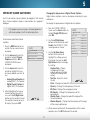
Resetting the TV Settings
Restoring the TV to Factory Default Settings
To reset the TV’s picture and audio settings:
All of the on-screen menu settings can be reset to the factory defaults.
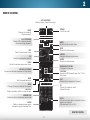
1. Press the MENU button on the remote. The on-screen menu
is displayed.
If you restore the TV to the factory default settings, all
changes you have made to the settings will be lost!
This includes any V.I.A. Plus Apps that you have added
and any changes you have made to the settings for
those apps.
2. Use the Arrow buttons on the remote to highlight System
and press OK. The System menu is displayed.
3. Highlight Reset & Admin and press OK. The Reset & Admin
menu is displayed.
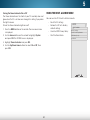
To restore the TV to its factory default settings:
4. Highlight Reset TV Settings and press OK. The TV displays,
“Select Reset to restore video and audio settings to the
factory defaults. This will erase any custom settings.”
1. Press the MENU button on the remote. The on-screen menu
is displayed.
2. Use the Arrow buttons on the remote to highlight System
and press OK. The System menu is displayed.
5. Highlight Yes and press OK.
6. Press the EXIT button on the remote.
3. Highlight Reset & Admin and press OK. The Reset & Admin
menu is displayed.
4. Highlight Reset TV to Factory Defaults and press OK.
Resetting the TV settings will reset Audio and Video
settings only.
5. Enter your parental control passcode. If you have not yet set
up a parental passcode, enter the default, 0000.
The TV displays, “Select Reset to restore all TV settings to factory
defaults and clear all account information.”
6. Highlight Reset and press OK.
7. Wait for the TV to turn off. The TV will turn back on shortly
afterward and the Setup App will begin.
41