1
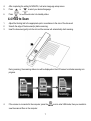
Note: Once the battery is fully charged while the scanner is off, battery indicator short time and will turn off automatically. will display on LCD screen for a 4.2 Inserting a microSD Memory Card (not included) Note: Memory cards may be hot after use. Be cautious when removing memory cards from the unit. To operate the scanner, you must insert a microSD card (not supplied) to record and store your pictures. To insert the microSD memory card: 1. Turn OFF the scanner. 2. Insert the microSD card into the microSD card slot (with metal side facing upwards). Gently press in until the card is clicked in and latched. 4.3 Turn on/off the Scanner Turn on/off the scanner by pressing and holding . Note: If the scanner is turned on for the first time or the scanner is reset, it will enter Date & Time/Language setup mode. Once the Date & Time/ Language setting is completed, scanner will enter into standby mode. By default, Auto-off feature is set to 3 minutes. If the Auto-off feature is set at "3 Min" (refer to section 4.7), the scanner will automatically turn off if scanning action is not detected within 3 minutes. To set Date & Time/Language: 1. Press to jump to next setting option: YEAR MONTH DATE HOUR MINUTE. When setting up the value for MINUTE, press to switch to the previous setting option until it reaches the YEAR option. 2. Press 3. Press or to set the figure corresponding to each setting. to confirm and move to next setting. 6