1
6-6. DEVICE Setup
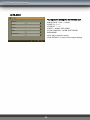
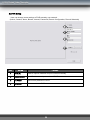
1) CLEAR HDD
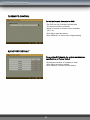
The Menu to erase /clear the HDD.
•Displays starting time and the ending time of the
currently saved data on HDD.
•After pressing the ‘START’ button, account, and
password of DVR, an input window pop up.
•Then, after inputting the number, the HDD
changes to the CLEAR Status.
•OVERWRITE : When HDD is full, the DVR
automatically overwrites from the beginning of
HDD.
•Click OK to SAVE and EXIT or CANCEL to EXIT.
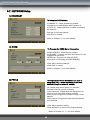
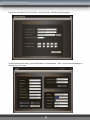
2) CD/DVD BACKUP
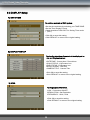
How to Backup via CD/DVD-RW.
•Review the Display Start & End time of total
recorded data on HDD which is displayed at the top
screen.
•Input the date/time of data you wish to backup and
click the SELECT button to check total backup data
file size.
•If total backup data size is bigger than CD/DVD
storage, the End time will be determined
automatically.
•Click START to start backup.
How to Backup via USB.
3) USB BACKUP
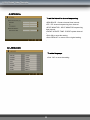
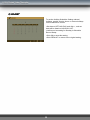
•Review the Display Start & End time of total
recorded data on HDD which is displayed at the top
screen.
•Input the date/time of data you wish to backup and
click the SELECT button to check total backup data
file size.
•If total backup data size is bigger than USB storage
device , the End time will be determined
automatically.
• the Backup data file size is adjustable to USB
storage size.
•Click START to start backup.
38