1
Refs. 593101, 593102
EN
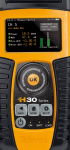
CATV Meter / Analyzer
Instruction Manual
w w w. t e l e v e s . c o m
Index
Safety requirements ...................................................................................... Overview ...................................................................................................... Key Features ................................................................................................ General specifications .................................................................................. Technical specifications ............................................................................... Description of equipment components . ...................................................... Connectors and controls . ......................................................................... Keyboard ................................................................................................... Power Supply ............................................................................................... Product Operation . ...................................................................................... Channel info ............................................................................................... System scan . ............................................................................................ Tilt . ............................................................................................................. Spectrum . ................................................................................................. Constellation ............................................................................................. CTB & CSO ............................................................................................... Voltmeter & Hum ....................................................................................... Equalizer . .................................................................................................. Learning plan . ............................................................................................ Ingress Scan . ............................................................................................ Speed Test ................................................................................................ Service Info ............................................................................................... Setup ......................................................................................................... Ethernet Features ......................................................................................... Network setup ............................................................................................. Firmware update ......................................................................................... Remote Control ......................................................................................... Maintenance . ............................................................................................... Technical support .......................................................................................... Warranty ....................................................................................................... 4
5
5
6
7
8
8
8
9
10
10
10
11
12
13
13
14
15
15
16
17
17
18
19
19
19
20
23
23
24
ENGLISH
EN
H30 - CATV Meter / Analyzer
4
Safety requirements
Product inspection
- Inspect the equipment for shipping damage.
Should any damage be discovered, immediately
file a claim with the carrier.
Read and Follow All Instructions
- All the safety and operating instructions should
be read prior to and followed while operating
this product.
Cleaning
- Follow the cleaning instructions contained in
the Maintenance section of this manual.
Attachments
- Do not use attachments that are not approved
by the product manufacturer.
Water and Moisture
- This product is weather resistant but is not
submersible.
Power Sources
- This product should be operated only from the
type of power source specified.
Grounding or Polarization
- Do not bypass or defeat electrical plug
polarization or grounding. Doing so will violate
the warranty and may pose a risk of fire or
electrocution.
Wire Protection
- Ensure all connected wiring is routed correctly
to avoid damage including pinching, excessive
bends, or compression.
lectrical Supply, Grounding, and Surge
E
Protection
- Ensure that all local or national electrical codes
are followed.
Power Lines
- Always use caution and avoid operating this
or any connected equipment near uninsulated
power lines or any other hazards.
S
ervicing
- There are no user serviceable parts except the
battery. Do not attempt to service this product or
remove covers other than the battery cover. Refer
all servicing to qualified service personnel. Follow
the instructions in this manual when replacing the
battery.
H
eat
- The product should be situated away from heat
sources such as radiators, heat registers, stoves, or
other products (including amplifiers) that produce
heat.
5
Overview
Introducing the H30.
New from Televes, a go-to meter designed with the
needs of a Cable TV operator in mind.
The H30 is a light weight, rugged unit, packed with
all the features needed to install and troubleshoot
a television system using QAM digital modulation
as well as NTSC analog signals.
This handy little unit is even inexpensive enough to
leave in your headend and use its unique in its class
remote measurement and control capabilities to
provide long term monitoring or to troubleshoot
those hard to find, intermittent problems.
Available for the first time in such a portable and
affordable package, its real time digital processing
engine gives the installers the lab-precision
measurements needed in today’s fulfilment
environment.
Key Features
U
ser friendly, handheld QAM meter.
R
emote measurements and control in an
affordable package.
C
omplete
portfolio
of
Analog/Digital
measurements with easy-to-read pass/fail
indicators.
Q
uick and easy to use interface with features
such as Channel measurements, System Scans,
Tilt Function, Constellation Diagram, Spectrum
Analyzer, Voltmeter, Hum, Service Identification
(option 593210), Datalogger, and more.
R
ugged, light weight, fully automatic, fast, and
accurate.
A
utomatic
updates.
through-the-cloud
software
1
00% automatic ITU-T J.83 Annex A/B/C
parameter detection and measurement with no
setup needed.
1
GHz spectrum range with selectable span.
P
ASS/FAIL Indicators: Icons indicate if a
measurement is good, bad, or in the warning
zone for quick and easy status checks. Reduce
installer entry errors and improve decision
making.
C
ontrol your H30 remotely and make
measurements from any internet connected
device. Ideal for extended signal tests over
time in headends and broadband distribution
networks. Leave your H30 connected to your
headend or anywhere in your plant and control
the unit and measure signals and quality
parameters remotely. Once finished, export the
results to your computer using the included
Remote Application software.
EN
H30 - CATV Meter / Analyzer
6
General Specification
Display
2.8” TFT 400 x 240 full color
Weight
1.12 lb (510 g)
Dimensions
6.9 x 3.9 x 2 in / 175 x 100 x 52 mm (H x W x D)
AC Adaptor
Input: 100-240V~ 50-60Hz
Output: 12VDC, 2A
Battery
LiIon smart battery (7.2VDC, 2300mAh)
Operating Time
> 5 hours
Operating Temperature
23ºF to 104ºF (-5ºC to 45ºC)
Storage Temperature
-4ºF to 158ºF (-20ºC to 70ºC)
Humidity
5% to 95% non-condensing
Ruggedness
Survives 1 m (3 ft) drop to concrete on all sides
Interfaces
USB 2.0, RJ45 10/100-T Ethernet interface for Remote Control,
Measurements, Datalog Retrieval and Automatic Software Updates
Storage
400 MB (internal) for measurements
Power up time
< 10 seconds
7
Technical Specifications
Analog Measurements
Frequency
Range
5 MHz to 1002 MHz
Level measurement -30 to +60 dBmV
Resolution
50 kHz
V/A
up to 30 dB
Tuning
Frequency or channel
C/N
up to 45 dB
Accuracy
±2 dB
Resolution
0.1 dB
Input Impedance
75Ω F-type connector
CSO/CTB
Spectrum Analyzer
Span
2.5, 6.25, 12.5, 25, 62.5, 125, 250,
500 MHz and Full Scale
5 and 10 dB/div
Automatic and
manual reference
level
Reverse Path Ingress Scan Channel Plans
Factory channel
plans
Standard CATV, Return, HRC, IRC,
Broadcast, CCIR
Custom channel
plans (learning
plan)
Up to 16 channel plans
System Scan
Range
Selectable 5 to 42MHz, 5 to
68MHz, and 5 to 85MHz
Channels
Up to 100 channels (analog and/
or digital)
Mode
Peak, Average, Min, and Realtime
Measurements
Level bar representation and C/N
BER/MER of the selected channel Digital Measurements
Tilt
Demodulation
ITU-T J.83 Annex A/B/C standard Support
16, 32, 64, 128 and 256 QAM,
QPSK
Symbol Rate
2 to 6.9 MS/sec
Q.A.L. Technology
(QAM Auto Lock)
Automatic detection of signal
characteristics and modulation
parameters
DFE filter
On / Off
Power
-30 to +60 dBmV
C/N
Up to 45 dB
MER
Up to 40 dB
Accuracy
±2 dB
Resolution
0.1 dB
Pre-BER and PostBER (Annex B)
1.0E-3 to 1.0E-8
BER (Annex A/C)
1.0E-3 to 1.0E-8
Download and
upload Speed
16, 32, 64, 128 and 256 QAM Ping times
Constellation
Display
Channels
Selectable markers
Pass/Fail Indicators
Factory profiles
Trunk, Tap, End of line, Ground
Block, Modem Setup
Custom profiles
up to 10 profiles Voltmeter
Range
9V to 150V Accuracy
±1%
Hum
Range
2 to 5% Accuracy
±1% Speed Test
Zoom Capability
Service Info
Channel Equalizer
Channel
parameters
Graphical
representation Specifications are subject to change without notice.
Up to 100 channels (analog and/
or digital) Option 593211
Up to 20Mbps
Option 593210
NIT, PAT, TSID, CBRT
Service parameters SID, VID, AID, bitrate, encode type
EN
H30 - CATV Meter / Analyzer
8
Description of equipment
components
Keyboard
Connectors and controls
1. External power connector (12VDC).
1.
evice On/Off button: To turn the
D
equipment off, press and hold for
approximately 3 seconds.
2.
ack button: Return to the previous
B
menu or close a parameter entry window.
3.
Home button: Return to the main menu.
4.
otating selector: Used to scroll through
R
options.
5.
OK Button: To confirm selection.
6.
etup button: Parameter window for the
S
current function.
2. LCD display.
3. Keyboard and LED indicators
4. RF F-connector (see options below).
5. Reset.
6. Ethernet connector.
F-connector options
7. L
ED Load: Indicates if the equipment is
powering an external load.
8. L
ED Charging Battery: Indicates if the battery
is charging.
9. L
ED Power ON:
equipment is on.
Illuminated
when
the
9
Power supply
A DC adapter is provided to power and charge the
meter. Plug the adapter into a properly grounded
electrical supply and the power connector on the
side of the unit.
From a fully discharged state, a full charge takes
approximately 8 hours and a 3 hour charge will
provide approximately a 75% charge.
The charge management system will detect
various conditions preventing charging, such as a
battery that is over a safe temperature.
Battery Recommendations
To maximize battery life:
Avoid fully discharging the battery.
T he battery should always be charged with the
battery pack attached to the device and using
the supplied DC adapter or applying a constant
voltage within the specified range (12-15VDC).
When external power is supplied, the battery
management system automatically controls the
charging process.
A battery icon indicates the charge status of the
battery.
When the battery is fully charged, the battery icon
is completely filled. As the battery discharges, the
amount the icon is filled decreases in steps.
The icon shows 5 states representing the
approximate battery charge:
- Battery charge less than 5%.
- Battery charge between 5% and 25%.
- Battery charge between 25% and 50%.
- Battery charge between 50% and 75%.
- Battery charge greater than 75%.
F or long term storage, keep the unit at room
temperature, or about 25º C. Start with a charged
battery and re-charge the battery every 2 to 3
months.
EN
H30 - CATV Meter / Analyzer
10
Product operation
1. Channel Info
Analog and digital channels are very different in
terms of signal content and power distribution
and thus require the advanced SLM techniques
provided in the Televes H30.
In analog mode, video and audio levels, V/A and
Carrier to Noise (C/N) are measured.
In digital mode it´s Power, C/N, Pre-BER and
Post-BER.
- Tuning: Channel, Frequency
- A/D: Auto, Analog, Digital
- Parameters:
Bandwidth: Auto, 6 MHz, 7MHz, 8MHz
Symbol Rate: Auto, 6111, 5156, Other
1.1. Main window
Constellation: Auto, 4QAM, 16QAM,
32QAM, 64QAM, 128QAM, 256QAM
Below is a capture of a Channel Info window with a
brief explanation of its features.
Standard: ITU J.83-A, J.83-B, J.83-C
DFE: OFF, ON.
Channel
Change using
Frequency
Channel
plan
- Save datalog:
Saves
the
current
measurements. You can see the datalogs
using the remote control application.
2. System Scan
This function scans the selected channel plan and
detects every existing analog and digital channel
in real time to determine the overall frequency
response of the system.
List of measurements
with pass/fail indicators
Bar graph of main
measurement.
Color according to
checkmarks
The scan measurement leverages the location
based thresholds to clearly show whether or
not signal levels comply with the cable system’s
specifications with their green, yellow and red bars.
This gives an easy-to-understand real-time view of
the system, including the BER and MER values of
the selected channel.
2.1. Main window
1.2. Setup
Press
to change the Channel Info options.
Below is a capture of a System Scan window with a
brief explanation of its features:
11
Channel
Change
using
Frequency
Channel
plan
Measurements
of the selected
channel
with pass/fail
indicators
3. Tilt
Any number of analog, digital or DOCSIS channels
can be measured using the tilt measurement,
and you can even select which carriers are your
reference points to determine the tilt between any
of the channels included in the measurement.
The Tilt measurement leverages the location based
thresholds to clearly show whether or not signal
levels comply with the cable system’s specifications
with their green, yellow and red bars.
3.1. Main window
Bar graph representing all the found channels.
Color according to checkmarks
Below is a capture of a Tilt window with a brief
explanation of its features:
Selected channels
Change using
Channel
plan
Tilt measurement
between the
selected channels
2.2. Setup
Press
to change the System Scan options.
- Ref. Level: Select the reference level of the
bar graph.
- Filter channels: Level, None
User can choose to filter the channels that
don´t meet a minimum level.
- Plan: FCC STD, FCC RETURN, FCC IRC, FCC
HRC, FCC OFFAIR, CCIR, Custom plans.
- Save datalog: Saves the current scan
measurements. You can see the datalogs
using the remote control application.
Bar graph representing all the channels.
Color according to checkmarks
3.2. Setup
Press
to change the Tilt options.
EN
H30 - CATV Meter / Analyzer
12
Selected channel
Change using
Span
User can change it using
(+) or
- Ref. Level: Select the reference level of the
bar graph.
- Filter channels: Level, None
User can choose to filter the channels that
don´t comply a minimum level.
- Plan: FCC STD, FCC RETURN, FCC IRC, FCC
HRC, FCC OFFAIR, CCIR, Custom plans.
- Save datalog: Saves the current scan
measurements. You can see the datalogs
using the remote control application.
List of
measurements
with pass/fail
indicators
(-)
Reference level
(Auto)
4.2. Setup
4. Spectrum
Press
to change Spectrum options.
Real-time processing speeds ensure capture of any
fast, intermittent plant impairments.
Due to the accuracy and level of detail provided
by this spectrum analyzer, the H30 is the ideal tool
for identifying and locating noise, interference,
ingress and other waveforms that may be affecting
cable services quality.
4.1. Main window
Below is a capture of a Spectrum window with a
brief explanation of its features:
- Span: 2.5MHz, 6.25MHz, 12.5MHz, 25MHz,
62.5MHz, 125MHz, 250MHz, 500MHz, Full.
S et the span of the spectrum. To easily change
the span, use the OK Button to decrease the
span and the Back Button to increase the
span.
- dB/div: 5 dB/div, 10 dB/div
- Tuning: Channel, Frequency
- A/D: Auto, Analog, Digital.
- Save datalog: Saves the current scan
measurements. You can see the datalogs
using the remote control application.
13
5. Constellation
Digital video often does not show signal
impairment until it is too late due to the small
margin between acceptable quality and failure.
EN
Constellation diagrams are an indispensable tool
to help detect the presence of noise, phase jitter,
interference, and gain compression, all of which
impact overall signal quality and thus reduce
Modulation Error Ratio (MER).
Ideally, each of the symbols in a constellation
diagram should display a clean dot indicating a
perfect QAM signal.
The H30’s real time constellation, allows the
installer to assess the size and shape of the build
up of dots indicative of problems which contribute
to bit errors leading to service disruption
5.1. Main window
Below is a capture of a Constellation window with
a brief explanation of its features:
Selected channel
Change using
- Zoom: OFF, 1st, 2nd, 3rd, 4th.
S elect a quadrant of the constellation to be
represented for more detailed view. Select
Zoom OFF for the full constellation.
- Parameters:
Bandwidth: Auto, 6 MHz, 7MHz, 8MHz
Symbol Rate: Auto, 6111, 5156, Other
Constellation: Auto, 4QAM, 16QAM,
32QAM, 64QAM, 128QAM, 256QAM
Standard: ITU J.83-A, J.83-B, J.83-C
DFE: OFF, ON.
- Tuning: Channel, Frequency
- Save datalog: Saves the current scan
measurements. You can see the datalogs
using the remote control application.
Modulation
6. CTB & CSO
Cable TV networks are generally located in densely
populated areas or extend over large geographical
regions. This makes cascading large numbers of
amplifiers a frequent necessity that can be the
cause of quality of service to drop below minimum
acceptable levels.
List of measurements
with pass/fail indicators
Constellation
diagram
5.2. Setup
Press
to change Constellation options.
Composite second order (CSO) and composite
triple beat (CTB) are commonly used quality
parameters that can be measured with the H30
to ensure the best possible quality video for
customers receiving analog signals.
In order to get an accurate measurement of CTB
and CSO, the meter must be tuned to an analog
channel with unmodulated video and audio
carriers. Many operators will choose to leave an
unmodulated channel on the system to allow for
H30 - CATV Meter / Analyzer
14
selected channel. This allows setting these
frequencies in kHz from the video carrier.
this measurement at any time without affecting
customers.
6.1. Main window
- Save datalog: Saves the current scan
measurements. You can see the datalogs
using the remote control application.
Below is a capture of a CTB & CSO window with a
brief explanation of its features:
Selected channel
Change using
7. Voltmeter & Hum
Channel plan
H30 measures the voltage present at the RF input.
The HUM measurement indicates the variation
in percentage of the video carrier amplitude of
the TV signal. This will help you diagnose those
ground and power interference problems that
may result from a defective power supply or faulty/
overloaded power inserters.
7.1. Main window
Below is a capture of a Voltmeter & Hum window
with a brief explanation of its features:
List of measurements
with pass/fail indicators
Bar graphs of
the CTB and CSO
measurements.
Color according to
checkmarks
Selected channel
Change using
Channel plan
6.2. Setup
Press
to change CTB & CSO options.
List of measurements
with pass/fail indicators
- Tuning: Channel, Frequency.
- CSO offsets: The CSO measure is carried
out in different frequencies (at a variable
range from the video carrier) within the
Bar graph of the HUM
measurement.
Color according to
checkmarks
7.2. Setup
Press
to change Voltmeter & Hum options.
15
8.2. Setup
Press
to change Equalizer options.
EN
- Tuning: Channel, Frequency.
- Save datalog: Saves the current scan
measurements. You can see the datalogs
using the remote control application.
8. Equalizer
Displays a bar chart representing the equalizer
coefficients needed to correct the phase and
amplitude distortions in the QAM signal.
This feature helps identify impedance mismatches, echos, and micro-reflections.
- Parameters: Auto, 6 MHz, 7MHz, 8MHz.
Bandwidth: Auto, 6 MHz, 7MHz, 8MHz
Symbol Rate: Auto, 6111, 5156, Other
Constellation: Auto, 4QAM, 16QAM,
32QAM, 64QAM, 128QAM, 256QAM
Standard: ITU J.83-A, J.83-B, J.83-C
DFE: OFF, ON
- Tuning: Channel, Frequency
- Save datalog: Saves the current scan
measurements. You can see the datalogs
using the remote control application.
8.1. Main window
Below is a capture of an Equalizer window with a
brief explanation of its features:
Selected channel
Change using
Modulation
List of
measurements
with pass/fail
indicators
9. Learning plan
Analyzes the input signal to the meter and
automatically detects all channels.
This feature automatically identifies the channels
as either analog or digital and performs
measurements on each.
A bar graph is displayed with the height
representing the power for digital channels and the
level of the video carrier for the analog channels.
The measurements made for analog channels are
video carrier level and V/A. For digital channels the
measurements are power and C/N.
The analog channels will have an extra, smaller
white bar indicating the level of the audio carrier.
Bar graph of the equalizer coefficients
H30 - CATV Meter / Analyzer
16
9.1. Main window
Selected frequency
Change using
Below is a capture of a Learning Plan window with
a brief explanation of its features:
Selected channel
Change using
Bar graph representing
found channels
Color according to
checkmarks
Level of the
selected
frequency
List of measurements
with pass/fail indicators
Yellow mark:
indicates
the selected
frequency in
the spectrum
Indicates that the
scan is finished.
Press
to save
the plan
Blue graph:
max-hold
White graph:
real-time
Green graph:
min-hold
Red line:
indicates
the current
maximun
level
10.2. Setup
Press
to change Ingress Scan options.
10. Ingress Scan
Help identify reverse path problems before your
customers are affected.
Poorly shielded coaxial cable and faulty
terminations are important sources of ingress
noise which can easily add up in the return due to
the large number of subscriber-generated signals
that are sent back to the headend.
The combined and amplified interference is often
responsible for service disruption, so having a
good reverse path ingress scan tool is a must.
10.1. Main window
Below is a capture of an Ingress Scan window with
a brief explanation of its features:
- Ingress frequencies: 5-47 MHz, 5-68 MHz,
5-85 MHz.
Select the span of the graph.
17
12. Service Info 11. S
peed Test (Option 593210)
(Option 593211)
Allows you to check your basic network
performance parameters so you don’t need to get
your laptop out.
This function attempts to connect to the server
(the server is selected automatically by the H30
by location), checks the DHCP protocol and the
connection to the Internet.
If it is all right, the H30 makes a ping to the server
and shows the delay times.
Finally, the H30 makes a download and upload
speed test.
The H30’s Service Info feature will tell you what
program content is on that QAM channel.
In addition to the short description of the service,
you’ll get the important parameters including the
NIT (Network Information Table), PAT (Program
Association Table), TSID (Transport Stream Id) and
CBRT (Channel Bit Rate) for the channel. And for
each individual service you’ll get the SID and the
VID (Video Id)/AID (Audio Id), encode type and
bit rate for both the audio and video, all of which
greatly help when trouble shooting your encoder
configuration.
To start a new test, prees OK button.
12.1. Main window
11.1. Main window
Below is a capture of a Speed Test window with a
brief explanation of its features:
Public IP
Link
check
Ping
delay
Selected channel
Change using
ISP
DHCP
check
IP
Download and
upload speed
Below is a capture of a Service Info window with a
brief explanation of its features:
MPEG channel info
Internet
check
Server
name
List of services of the channel, with the bit
rate of each one and the icon that indicates
the type of service.
Select with
and
.
EN
H30 - CATV Meter / Analyzer
18
testing locations.
Once a service is selected, it will be displayed the
information for that service:
- Plan: FCC STD, FCC RETURN, FCC IRC, FCC
HRC, FCC OFFAIR, CCIR, and customers plans
saved using Learning Plan.
Video info
- Network:
IP: Auto, Manual
Network Info: IP, Gateway, DNS
MPEG audio info
Change audio service using
IP Auto, sets the IP, default gateway and
DNS automatically. Results are shown in
Network info section.
Man. IP.
hen Manual IP is selected, the user
W
must set the IP.
Man. GW.
hen Manual IP is selected, the user
W
must set the gateway.
Man. DNS.
hen Manual IP is selected, the user
W
must set the DNS.
- Time and Date:
Set current time (hour and minutes) and
date (day of the month, month and year)
13. Setup
Change main configuration settings:
- Language: English, Español.
- Units: dBµV, dBmV, dBm
- Quality profiles: Trunk, Tap, End Line,
Ground.
Different thresholds are available for different
- Update firmware: ON, OFF
When ON, every time the H30 is connected
to the internet, it will allow the user to
update the firmware if a new version is
available.
19
Ethernet Features
Set the network parameters in the H30 to use the
Ethernet port.
EN
1. Network setup
To configure Internet access, select the function
“Setup” from the main menu.
2. Firmware update
Following are details to update the firmware of
your H30.
Important:
- You need to have a connection to the internet.
- Configure your network parameters (see section
1.- Network setup).
- Then, select the “Network” option and then the
“Setup” menu.
- IP selection can be Auto or Manual. If you choose “Manual”, you must set the IP
address, gateway, and DNS in the Man. items:
- If you choose Auto, you can see the IP that the
H30 chose automatically in the “Network Info”
menu:
1.- Connect the H30 to the external power supply
using the source provided with the meter.
Connect the H30 to the Internet.
2.- In the main menu, select the fuction “Setup”.
Then, select “Update firmware”.
H30 - CATV Meter / Analyzer
20
3.- Press OK and the select “On”. Press OK again to
select the On option.
4.- Turn the meter off by pressing the “Device On/
Off” button for some seconds.
3. Remote Control
Allows remote use of the H30 with your web
browser.
5.- The meter will connect to our server, download
the new firmware and install it in your H30. This
process will take around five minutes.
Important:
- You need to have a connection to the internet.
- Your web browser must support HTML5.
- Google Chrome or Safari is recommended.
- Open your browser in your PC or in your tablet.
- Configure your network parameters (see section
1.- Network setup).
6.- When the installation is complete, press the OK
button to reboot the meter.
Note: When your H30 connects to the server to
update the firmware, it checks in our database if you
have purchased any of the available options. If so,
they will be activated automatically with the update.
To run the remote control application, you
must copy the IP in the web browser bar and
automatically will appear the main window of the
application.
21
- Spectrum
IP Auto
Sets the H30 in Spectrum mode and shows the
current Spectrum main window:
EN
Select other channel
from the plan
Go back to the
main window
IP Manual
The following functions are available in the remote
control application:
- Log Out
Log out the current session from the H30.
- Channel Info
Sets the H30 in Channel Info mode and shows the
current Channel Info main window:
Select other channel
from the plan
Go back to the
main window
- Datalogs
In this section you can see all the measures saved
in your H30 with the “Save Datalog” feature.
List of Datalogs
Go back to the
main window
H30 - CATV Meter / Analyzer
22
User can add a description for each datalog. Press
“Edit” button of the selected Datalog.
Two views: Table view
and Icon view
Back to the list of
Datalogs
Enter the description and
press “Change”
Filter results with
quality indicators
Table view
There are two views for the list of channels: Table
view and Icons View.
User can also delete a log from the list by pressing
“Del” button.
Above is shown the Table View, and below the
Icons View.
Press “Delete” to confirm
Icons view
Selecting a Datalog shows a list of all the channels
of the selected datalog with its corresponding
measurements and pass/fail indicators:
23
Maintenance
Technical support
Always disconnect the unit before cleaning. Use
only a mild solution of detergent and water applied
with a soft damp cloth. Dry thoroughly before use.
For any questions, contact Technical Support at
www.televes-usa.com.
Do not use aromatic hydrocarbons or chlorinated
solvents. These products may damage the unit.
Before contacting Technical Support for repair,
read the manual to ensure proper use and attempt
to RESET the unit to clear any problems.
Do not use alcohol or alcohol based products
on the front panel, especially the display. These
products may damage the unit.
Repair service
Do not return the unit without first contacting
Televes Technical Support.
If the unit needs to be returned, Televes will
arrange for free shipping. The unit will need to be
appropriately packed for shipping.
In compliance with IATA Regulations, when using
our shipping service follow these instructions:
Label the package.
T he equipment should fit as snugly as
possible in the box. It is recommended to use
the original packing materials.
Attach the precaution label to the package.
Lithium ion battery
DO NOT LOAD OR TRANSPORT
PACKAGE IF DAMAGED
Failure to comply with these shipping requirements
may result in the shipping agent rejecting the
package.
EN
H30 - CATV Meter / Analyzer
24
Warranty
A) Televes warrants, only to the original Purchaser,
all Products be free from any defect in materials
or workmanship for a period of one (1) year,
six (6) months for the battery, from the date of
original purchase, unless otherwise specified.
(B) Televes shall, free of charge and in its sole
discretion, either repair, replace with a new or
factory reconditioned equivalent, or refund
the purchase price of the Product(s), that has
been determined by Televes to be defective in
material or workmanship, subject to the limits
of this warranty.
(C) This warranty excludes any inoperability
resulting from:
(I) use or installation that is not in strict
compliance with the written instructions
and specifications;
(II) any modification or alteration performed
by any third party not authorized in writing
by Televes;
(III) service or repair performed by any third
party not authorized in writing by Televes;
(IV) misuse, abuse, intentional harm, or lack of
reasonable care;
(V) fire, ice, snow, rain, wind, water, volcano,
excessive heat or cold, lightning, flood,
power surge, earthquake, or any other acts
of God;
(VI) war, crime, strike, riot, electro-magnetic
pulse, or any other acts beyond the control
of Televes;
(VII) shipping.
(D) All claims under the terms of this warranty must
be made in writing, by the original Purchaser,
within fourteen (14) days of the defect being
known to the Purchaser. Such claims shall be
accompanied by a description of any material
facts related to the claimed defect and the
invoice or other proof of original purchase date
and price. If Televes so requests, the Purchaser
shall, at Purchaser’s expense, deliver the
claimed Product(s) to Televes, within 14 days of
the date of the return authorization. Under no
circumstances shall the Product(s) be returned
to Televes without a return authorization.
(E) Any refund to the Purchaser, shall be limited to
the purchase price of the Product(s), excluding
any applicable taxes, duties, freight costs,
removal costs, installation costs, or any other
charges incident to the purchase of the product.
(F) Any damage caused by shipper shall be claimed
with the shipper in accordance with the
shipper’s policies and procedures.
(G) Televes shall in no event and under no
circumstances be liable or responsible for any
consequential, indirect, incidental, punitive,
direct or special damages based upon breach of
warranty, breach of contract, negligence, strict
tort liability or otherwise or any other legal
theory, arising directly or indirectly from the
sale, use, installation or failure of any product
acquired by Purchaser from Televes.
(H) This limited warranty extends to the original
Purchaser and cannot be assigned or
transferred to any other party without the
prior express written permission of Televes,
which permission Televes may withhold for any
reason or for no reason at all.
(I) T eleves will not assume any liabilities for any
other warranties, whether statutory, express or
implied, made by any other person.
(J) Televes reserves the right to modify or
discontinue this warranty at Televes’ sole
discretion without notification. No other
warrantees are expressed or implied.
25
EN
H30 - CATV Meter / Analyzer
26
27
EN
televes.com
593101_593102_003_EN






![View User`s Manual [US] - Acoustic Amplification](http://vs1.manualzilla.com/store/data/005687953_1-09ed6117760df16c9056fa1c8c49b775-150x150.png)