1
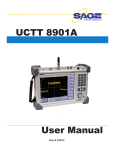
UCTT 8901A
User Manual
Rev A 3/2010
Sage Instruments • UCTT User Manual Rev A 3/2010 •Page
1

Contents
1. Getting Started.................................................... 3
1.1 Quick Start Process...................................... 3
1.2 Unpacking.................................................... 3
2. Physical Properties ........................................... 4
2.1 Front Panel................................................... 4
2.1.1 Power Button......................................... 4
2.1.2 Keypad and Selection Wheel................ 5
2.2 Connector Panel........................................... 6
2.3 Flip-out Stand............................................... 7
2.4 Battery Pack................................................. 7
2.4.1 Battery Calibration................................. 7
2.4.2 Battery Removal.................................... 7
2.4.3 Battery Installation................................. 8
3. UCTT Menu Scheme and Navagation................ 9
4. System Configuration Menus . ..........................11
4.1 System Mode..............................................11
4.2 General Menu..............................................11
4.2.1 Set Time and Date................................11
4.2.2 Managing User Configurations.............11
4.2.3 Remote Control Menu......................... 12
4.2.4 IP Configuration................................... 12
4.2.5 UCTT Remote Commands.................. 13
4.3 File Menu . ................................................. 15
4.3.1 Exporting Files..................................... 15
4.3.2 Deleting Files....................................... 15
4.3.3 Upgrading Software............................. 15
4.3.4 Exporting System Logs....................... 16
4.4 Instrument Options Menu........................... 16
5. UCTT Environmental Specifications................. 17
6. UCTT Warranty................................................. 18
Sage Instruments • UCTT User Manual Rev A 3/2010 •Page 2

Quick Start Guide
These links provide a quick overview of the
UCTT operation and menus. This information allows most users to start running tests
on the UCTT with a minimum of reading.
Step 1: Descriptions of User Controls
Step 2: Menus and Screen Navigation
Topics of Interest
User Control Description
Menu System Overview
Battery Replacement
Managing Options
Remote Control Commands
System Admin Menus
Upgrading Software
1. Getting Started
Introduction
The UCTT is a powerful multi-functional test instrument containing
a comprehensive set of measurement resources for the cellular
industry. While the UCTT combines several complex instruments
into one package, the menu and user interface has a simple
consistency that allows intuitive operation for most users familiar
with cellular testing and maintenance practices. The following
section highlights the portions of the manual that should be
reviewed to get started testing with the UCTT.
1.1 Quick Start Process
The material required to get up and testing with the UCTT is listed
below. The other remaining sections of the manual describe the
menus and general system maintenance in more detail.
User Control Section:
An overview of the front panel controls and their functions.
Menus and Screen Navigation Section:
Describes the common menu scheme that is used by the UCTT.
1.2 Unpacking
When your new UCTT test instrument arrives from the factory, the
shipping box should contain the following components:
Packing List
• SAGE UCTT 8901A Cellular Test Unit
• Power Cord
• Charger/Power Supply
• Calibration Cord
• SAGE UCTT User Manual, supplied on CD in printable PDF
format.
Remove the components from the shipping carton and inspect
contents. Notify SAGE Instruments immediately of any damage.
���������
��������
���
���������
���
���������
���
���������
���
�����
���
Sage Instruments • UCTT User Manual Rev A 3/2010 •Page 3

2. Physical Properties
Introduction
The UCTT is packaged in a ruggedized
case providing a powerful and compact
test solution that can withstand
the harsh environments encountered in
the field. This section describes the front
panel display and controls, test connector
panel and battery packs.
2.1 Front Panel
The UCTT front panel is shown in Figure
2.1. The front panel consists of a 10.4 inch
SVGA touch screen display. To the right of
the display are the keypad, selection wheel
and power button. These controls along with
the touch screen allow the user to configure
the test menus and perform measurements.
Figure 2.1 UCTT Front Panel
2.1.1 Power Button
The power button is located in the lower right corner of the front panel. The power is toggled on
or off by holding the power button for a second or longer.
The power button also functions as a charge indicator, displaying the status of the battery
charge. The table below shows the different states for this indicator.
Battery Charge/Power Indicator States
Charge Indicator
Battery Charge
UUCT Power State
External Power
Green
Full
On
Yes
Blinking Green
Medium
On
Yes
Blinking Amber
Low
On
Yes
Green
Full
On
No
Green
Medium
On
No
Amber
Low
On
No
Amber
Full
Off
Yes
Amber
Medium
Off
Yes
Blinking Amber
Low
Off
Yes
Medium charge level is 88 to 18 percent of full charge.
Low charge level is below 18 percent of full charge.
Blinking Red indicates a battery or charging malfunction. If this occurs turn off the unit, remove
and reinstall the battery(s) and power up the unit again. If the battery status indicator continues
to blink red contact Sage for assistance.
Sage Instruments • UCTT User Manual Rev A 3/2010 •Page 4

2.1.2 Keypad and Selection Wheel
The keypad and selection wheel are shown in Figure 2.2. The
numeric keys are used to enter values into the menus. Some of
the numeric keys also have alternate functions. These can be
accessed by pressing the blue shift key then the desired alternate function key. The menu bar on the LCD screen will display
the word Shift, when the shift key has been pressed and alternate
functions can be selected. The alternate functions available are
Save, Recall and Prt Sc.
The Save function is used to save a snapshot of the results for the
currently running test. When the Save key is pressed, the UCTT
will prompt the user for a file name and user comment for the results. These results can be displayed along with the file name and
comment as an overlay for other tests, or the results file can be
exported for analysis. The results file contains test data points in a
CSV (Comma Separated Value) format.
The Recall key can be used during a test to recall a stored result
overlay. When the Recall button is pressed the UCTT will prompt
the user to select among the stored result files. For information on
exporting test results to an external system see the Exporting Files
section of the manual.
The Prt Sc key is used to take a screen capture image of the LCD
display. When the Prt Sc key is pressed, the UCTT will prompt the
user for a file name for the screen capture. The screen capture
files are stored in the PNG (Portable Network Graphics) format.
For information on exporting screen capture files see the Exporting Files section of the manual.
The Esc key is located to the right of the blue shift key. It is used
to escape or clear text or numeric entry fields.
The Back key is used to clear text or numeric entries a character
at a time, and to back out of a menu.
The Mode button is circled in Figure 2.2. It is used to switch between different instrument modes. This button is of central importance in the menu scheme of the UCTT. Refer to the Menu and
Navigation section for more information on the Mode button and
the UCTT menu scheme.
To the right of the Mode button is the Up and Down arrow buttons.
These navigation buttons are used to move up or down through a
list of menu items, or to increment or decrement a currently selected menu value.
The Enter button to the right of the Up and Down buttons is used
to confirm an entry or to select an item from a list.
Below the Mode button is the Selection Wheel control. This multifunction control combines the functions of the Up, Down and Enter
buttons. When navigating a list of items, rotating the knob clockwise moves the highlight down the list, counter clockwise rotation
moves the highlight up the list. When performing numeric entries,
rotating the knob clockwise increases the value, while counter
clockwise rotation decreases the value. Pushing the knob will confirm the entry or select the highlighted item on a list.
Figure 2.2 UCTT Keypad and Controls
Sage Instruments • UCTT User Manual Rev A 3/2010 •Page 5

2.2 Connector Panel
The Connector Panel is pictured below along with a description of each connector.
1
2
3
4
5
6
7
8
9
10 11 12
1. Power Connector - used to connect the external supply/battery charger to the UCTT. Warning, only
use the Sage provided charger/power adapter. Using other adapters may pose a hazard to the user or
may damage the UCTT.
2. USB Type A Connector - used to attach memory storage devices for retrieving test result, log or
screen capture files from the UCTT. For more information on exporting files from the UCTT see the
Exporting Files section of the manual. This USB connector may also be used to upgrade the system
software. For more information on upgrading the system software see the Upgrading Software section
of the manual.
3. Accessory Connector - Used for attaching external adapters, applications include audio headset connection, and VGA output for an external monitor or projector. Contact the factory for availability.
4. USB Type B Connector - Used for connecting a computer to the UCTT.
5. External Reference Connector - Used as an external timing reference for UCTT measurements.
6. Even Second Connector - Used to supply the even second clock reference signal used for long duration measurements.
7. 10/100 Base T Connector - Ethernet connection for remote control.
8. RF In Connector - 50 Ohm Female Type N connector for receiving RF signals.
9. RF Out Connector - 50 Ohm Female Type N connector for transmitting RF signals.
10. PCM 1 Connector - RJ-45 connector used to connect to a DS-1 level PCM signal to the UCTT
11. GPS Antenna Connector - Used to connect a GPS antenna to provide an accurate external timing
reference for UCTT measurements.
12. PCM 2 Connector - RJ-45 connector used to connect to a DS-1 level PCM signal to the UCTT
Sage Instruments • UCTT User Manual Rev A 3/2010 •Page 6

2.3 Flip-out Stand
Figure 2.3 shows the stand that flips out of the rear of the unit
and allows the UCTT to sit at a comfortable viewing angle while
sitting on a desktop or other horizontal surface.
2.4 Battery Pack
The UCTT contains rechargeable battery packs. The standard
unit comes with one battery pack, an additional battery pack can
be purchased and installed in the unit to provide longer operating life. Battery life varies depending upon operating conditions;
however typical battery life in Spectrum Analyzer mode is approximately 2 hours and 45 minutes for one battery pack. The
batteries are hot swapable and can be replaced while the unit is
powered up. Note that external power should be connected to
the UCTT if all batteries are to be removed while the
unit is powered up.
The battery status indicators are circled in the
General menu pictured in Figure 2.4. The upper
indicator in the menu bar displays a graphical representation of the remaining charge in the battery.
This battery status indicator is present in all UCTT
menus. The Battery Status text boxes, circled in
the lower portion of the menu, display the percentage of battery charge remaining in each battery. If
no battery is installed, the battery status message
is “Not Detected”.
Figure 2.3 Flip-Out Stand
2.4.1 Battery Calibration
The UCTT battery packs have advanced charge
detection circuitry that accurately predicts the
percentage of battery charge remaining. Battery charge capacity can change as the battery
Figure 2.4 General Menu - Battery Status Indicators
ages or is subjected to unusual usage patterns.
In order to maintain accuracy, the battery packs
must be periodically re-calibrated. The UCTT will
indicate a need for battery calibration by displaying the (Calibration Required) message in the Battery Status text box circled in
Figure 2.4. For more information on the General menu refer to
the System Mode section of the manual. When the Calibration
Required message is displayed, the battery pack(s) are recalibrated by first allowing the battery(s) to fully discharge. This can
be accomplished by leaving the unit on under battery power till
the battery(s) are fully discharged, and the UCTT powers itself
off. Then connect the charger to the UCTT and charge the batteries until they are full, this completes the battery calibration
procedure.
2.4.2 Battery Removal
The battery packs are located on the left side of the unit. There
are lower and upper battery compartments. The following procedure describes assessing the upper battery compartment. The
Figure 2.5 Removing Corner Protector
Sage Instruments • UCTT User Manual Rev A 3/2010 •Page 7

lower battery compartment is accessed in a similar manner.
The batteries are accessed by first removing the rubber corner
protector as shown in Figure 2.5.
The battery compartment door is pictured in Figure 2.6. The
door is opened by moving the circled tab in the direction of the
arrow while pulling the door open.
Once the battery compartment is opened, grasp the tab on the
end of the battery and withdraw the battery pack as shown in
Figure 2.7.
2.4.3 Battery Installation
The battery packs are installed by sliding them into the battery compartment as shown in Figure 2.7. Each battery pack
has a slot on one side that should face down toward the bottom of the UCTT. Press the battery firmly into the UCTT battery
compartment to engage the connector between the battery and
the UCTT. Then close the battery cover and replace the rubber
corner protector.
Figure 2.6 Opening Battery cover
Figure 2.7 Removing/Inserting Battery
Sage Instruments • UCTT User Manual Rev A 3/2010 •Page 8

3. UCTT Menu Scheme and Navagation
3.1 Test Mode Selection
The UCTT combines the functionality of several conventional test sets ie Spectrum Analyzer, Fault Locator, Bert
Analyzer etc. into one package. The menus for controlling all this functionality are organized by instrument
type, these are referred to as instrument “modes”. Figure 3.1 shows the Mode Selection dialog box containing
a list of the different instrument modes. The Mode dialog
box is accessed by pressing the mode button on the
UCTT front panel, this is the circled button in Figure 3.2.
The Mode selection Dialog is the main or root menu for
the UCTT. The Mode button can be pressed at any time
to bring up the Mode selection dialog. Note that any test
that is running will be terminated when the instrument
mode is changed. Once a mode is selected, the menus
associated with the test application are displayed and
the user can configure and run tests. For example, Figure 3.3 shows the menus that are associated with the
Spectrum Analyzer mode. These menus allow the user
to configure the spectrum analyzers frequency, amplitude and bandwidth parameters as well as specifying
reference marker locations on the results graph.
In addition to test modes, the UCTT has a mode named
System. The System mode menus are used to perform
system administration tasks. Refer to the System Mode
section of the manual for more details on the System
menus.
Figure 3.1 Mode Selection Dialog
Figure 3.2 Mode Button
���������
��������
���
���������
���
���������
���
���������
���
�����
���
Figure 3.3 Spectrum Analizer Menus
Sage Instruments • UCTT User Manual Rev A 3/2010 •Page 9

3.2 Menu Description
The UCTT uses a common menu format for
all its test and configuration menus. Figure
3.4 shows the Spectrum Analyzer menu with
circled items of interest. The circled menu
bar at the top of the menu displays the following information from left to right, current
instrument mode, time and date, battery
condition and current menu name. Note that
the Instrument Mode and Menu name are
useful indicators when navigating the UCTT
menus.
The soft keys along the bottom of the display
are for selecting among the menus for the
selected test mode. In Figure 3.4 the instrument mode is Spectrum Analyzer, so the
soft keys are labeled Frequency, Amplitude,
Bandwidth and Marker which match the
Spectrum Analyzer menus. When a menu is
selected, the corresponding soft key is highlighted to show it is active.
Menu Bar
Menu SoftKeys
Menu
Selection Keys
Figure 3.4 Typical UCTT Menu Layout
Each menu includes soft keys that appear
along the right side of the screen as shown
in Figure 3.4. These buttons are generally
used to enter values or other configuration
information into the test menu, or to back out
of the current menu.
Sage Instruments • UCTT User Manual Rev A 3/2010 •Page 10

4. System Configuration Menus
4.1 System Mode
The System Mode is used to perform system administration and
general configuration of the UCTT. These tasks include managing
results, log and configuration files, setting Time and Date, managing purchased options, software and setting up Remote Control.
Pressing the mode button and selecting the System item from the
instrument mode list pictured in Figure 4.1 will place the UCTT in
the System Mode, and display the General Menu.
In the System mode, the menu selection soft keys are labeled
General, File and Options. These correspond to the different configuration menus available. The Calibration soft key is for factory
use and does not have an associated menu.
4.2 General Menu
The General menu is the default menu displayed when the System mode is entered. This menu allows setting Time and Date,
checking GPS receiver state, managing user configuration files
and initiating remote control. The General menu is shown in
Figure 4.2. From the System mode, this menu can be selected by
pressing the lower left soft key labeled General.
Figure 4.1 System Mode Selection
4.2.1 Set Time and Date
The Set Time and Set Date buttons are located in the General
menu. These buttons are circled in Figure 4.2. Pressing the Set
Time or Date button will bring up dialog boxes for
setting the time and date for the UCTT. The system
time and date are used to timestamp log and result
files.
4.2.2 Managing User Configurations
The UCTT can store and load user configurations.
This allows the user to save and recall test parameters and system configuration information. Saved
user configuration files can be recalled to configure
the system for a given test scenario. The Cfg: Save,
Cfg: Save As and Cfg: Load softkeys for managing
user configuration files are located along the right
side of the General menu shown in Figure 4.2. The
currently selected configuration file appears in the
Configuration text box in the General System menu
to the left of the circled Set Time and Set Date buttons shown in Figure 4.2.
The Cfg: Save As soft key is used to create a new
configuration file. When this soft key is pressed, a
file name dialog box is presented to allow the user
Figure 4.2 General Menu
Sage Instruments • UCTT User Manual Rev A 3/2010 •Page 11

to enter the file name for the configuration file. The current system
configuration will be stored in this file.
The Cfg: Save soft key is used to update the currently selected
configuration file. Any configuration changes will be written into the
file displayed in the Configuration text box of the General System
menu.
The Cfg: Load soft key is used to select and load a new configuration file into the UCTT. When the Cfg: Load soft key is pressed,
the user is presented with a dialog box containing a list of stored
configurations as shown in Figure 4.3. Move the highlight to the
desired configuration file and press the OK button to load the configuration. The newly selected configuration file name will appear
in the Configuration text box in the General menu.
Figure 4.3 User Configuration Selection
4.2.3 Remote Control Menu
The Remote Control Menu allows the user to
remotely control the UCTT via an ethernet connection. The local keyboard/touchscreen display
cannot be used while in the remote control mode.
To initiate a remote control session, first ensure
that the UCTT is connected to the ethernet network via its 10/100BaseT connector.
Pressing the Remote Control soft key in the upper
right corner of the General menu will bring up the
remote control menu shown in Figure 4.4. The IP
Address assigned to the UCTT will be displayed in
the window circled in Figure 4.4. The Transcript
window below the IP Address displays the received commands and responses.
Using a remote computer with network connectivity to the UCTT, Telnet to the UCTT IP address
to initiate a test session. Upon connecting to the
UCTT, the user will receive the following prompt
at the remote computer:
Figure 4.4 Remote Control Menu
Sage 96X Command Language version 9.11.10
Welcome to the Sage Instruments Telnet Service on VGXtest
>
The Prev Screen soft key is used to exit the
remote control menu, if this key is pressed while
a remote session is active, the session will be terminated. The File or Option Soft Keys can also be
used to exit the remote menu and session.
4.2.4 IP Configuration
The IP interface used for remote control of the
UCTT can be configured by the user. The IP configuration menu is selected by pressing the Cfg IP
Address Soft Key found in the upper right corner
of the Remote Control menu shown in Figure 4.4.
The IP Configuration Menu is shown in Figure 4.5.
Sage Instruments • UCTT User Manual Rev A 3/2010 •Page 12

Figure 4.5 IP Configuration Menu
The IP configuration values can be changed by tapping on the desired value. When a parameter is tapped,
a text or numeric entry dialog box will be presented for data entry. The Network Name parameter is used to
identify the UCTT in the network.
The UCTT can be assigned a static or dynamic IP address. Checking the Obtain an IP Address Automatically via DHCP check box will cause the UCTT to have a dynamic IP address. In this case the address is
assigned by the DHCP server on the network.
If the Obtain IP Address check box is not checked, a static IP address can be manually specified in the
Manual IP Address section of the IP configuration menu shown in Figure 4.5.
4.2.5 UCTT Remote Commands
UCTT remote control commands can be entered at the > prompt. The following is a list of valid commands.
Entering the help command at the prompt will bring up a list of valid commands. Entering help followed by a
command will display the help for the selected command.
Administrative Commands:
cal exit
help
temp
version
For Sage Factory use only
Exits the command interpreter and closes associated network resources
Allows all users to access help on the various built-in commands
Displays the radio temperatures
Displays the command interpreter version
Test Commands:
idle
rfsa
sgen
tune
Controls the current radio Tx & Rx status
Detects the highest amplitude signal in the specified frequency span
Controls the radio Transmitter
Tunes the radio (Tx/Rx)
The following text describes each command in detail. Note that the command parameters show the proper units, IE Mhz
or Hz, in parenthesis after the parameter description. Command parameters enclosed in square brackets are optional
parameters. Default values will be used if these parameters are omitted. No spaces or tabs are allowed in parameters.
idle
The idle command is used to turn off the radio transmitter or receiver. The idle command should be issued before using
the transmitter or receiver. This ensures that the transmitter or receiver is placed in a known state before measurements
are made.
idle [-tx] [-rx]
This command defaults to turning off both the receiver & transmitter. The flags can be used to turn off just the current
receiver task or the current transmitter task.
[-tx]
Idle Tx Only (Optional)
[-rx]
Idle Rx Only (Optional)
No spaces or tabs allowed in parameters.
rfsa
The rfsa command is used to request a radio measurement. The radio must be configured using the tune
command before issuing the rfsa command. The rfsa command will return a frequency and level measurement corresponding to the highest amplitude peak detected in the requested frequency span. Additionally,
the -sp option will cause the command to return multiple measurements over the specified frequency span.
This test is a single-shot, it runs, retrieves the data, then unregisters itself.
Sage Instruments • UCTT User Manual Rev A 3/2010 •Page 13

Results Bandwidth (rbw) cannot be specified manually if span is less than 5 MHz.
rfsa [-w] [-rbw] [-nav] [-sp] Span
. Use the ‘tune’ command for
tuning...
[-w] Window Type: 0=Uniform 1=KAISER (default) 2=HANNING 3=HAMMING 4=GAUSS (Optional) 0 to
4
[-rbw] Results BW (default=auto) (Optional) 100 to 50000
[-nav] # Avg (default=1) (Optional) 1 to 1000
[-sp]
Return Spectrum Data (Optional)
Span (Hz): 10000-640000000, 10kHz-640Mhz
No spaces or tabs allowed in parameters.
sgen
The sgen command causes the radio transmitter to generate a single frequency signal. The command parameters specify
the level and frequency of the generated signal.
sgen [-rsvd1] Center_Frequency Level.
[-rsvd1] Reserved: CAL Only! 12 bit DAC Value: 0-4095
Center_Frequency (MHz): 700 to 2200, 700-1000 Mhz, 1.6-2.2 GHz Level (dB): 0 to -60 No spaces or tabs allowed in parameters.
tune
The tune command sets the center frequency of the radio receiver. This command must be issued before the
rfsa command can be sent. The individual attenuator settings are derived from the desired level. The preamp
will be off unless the flag is specified.
tune [-p] [-rsvd1] [-rsvd2] Center_Frequency Attenuation
[-p]
Preamp On (default off) (Optional)
[-rsvd1] Reserved: CAL Only! 2 * IF1 Atten (dB): 0-31 (Optional) 0 to 31
[-rsvd2] Reserved: CAL Only! ATTN_Names value (Optional) 0 to 9
Center_Frequency (Hz): 698000000-2700000000, 700-1000 Mhz, 1.6-2.2 GHz Attenuation (dB): 0-61 No spaces or tabs allowed in parameters.
Sage Instruments • UCTT User Manual Rev A 3/2010 •Page 14

4.3 File Menu
The File menu is used to export various types of
files from the UCTT, manage options and upgrade
system software. An external thumb drive attached
to the USB-A connector of the UCTT is used to
transfer files and upgrade software. Exportable
files include screen captures, Data and Log files.
In the System mode, the File menu is selected by
pressing the File Menu key shown circled in Figure 4.6. The File System menu is shown in Figure
4.7. The two radio buttons circled in Figure 4.7
allow the user to switch between viewing Screen
Capture files or Data/Log files stored in the UCTT. Below the list of files is a text box displaying the
status of the external thumb drive. If no thumb
drive is connected, the status displays “Not Present”.
4.3.1 Exporting Files
Figure 4.6 File Menu Softkey
Screen Captures or Data/Log files can be exported from the UCTT by highlighting the desired file
and pressing the Copy to Ext soft key located in the
upper right corner of the File System menu shown in
Figure 4.7. This action will cause the selected file to
be copied to the external thumb drive.
4.3.2 Deleting Files
The Delete Local soft key is located below the
Copy to Ext soft key in the upper right of the File
System sub menu in Figure 4.7. This soft key is
used to delete Screen Captures or Data/Log files
from the UCTT’s memory. To delete a file, highlight
the desired file and press the Delete Local soft key.
4.3.3 Upgrading Software
The UCTT system software can be field upgraded.
The upgrade files are first loaded onto a USB
thumb drive. The thumb drive is then inserted into
the USB-A connector of the UCTT. Pressing the
Upgrade soft key circled in figure 4.7 will cause
the UCTT to initiate the software upgrade process
using the upgrade files stored on the thumb drive.
Once the Upgrade soft key is pressed, the upgrade
process will proceed automatically.
Figure 4.7 File Menu
Sage Instruments • UCTT User Manual Rev A 3/2010 •Page 15

4.3.4 Exporting System Logs
The UCTT maintains several error and event
log files. If the UCTT malfunctions, these logs
can be exported to facilitate trouble shooting
and diagnostic activities. To export the UCTT
log files, first insert a USB thumb drive into the
USB-A connector of the UCTT. From the File
menu pictured in Figure 4.8, press the Copy
Syslogs soft key circled in the menu to copy
the UCTT log files to the USB thumb drive.
4.4 Instrument Options Menu
The UCTT has software option activation
keys that control the availability of the different measurement features such as spectrum
analysis, DS1 BERT, Distance to Fault etc,
These options can be viewed and managed
via the Option menu. Pressing the Option key
circled in Figure 4.9 will bring up the Option
menu shown in Figure 4.10. The checked options correspond to options that are currently
available. Unchecked options can be enabled
by obtaining an activation key for the desired
option from Sage. Pressing the Activate Key
softkey circled in Figure 4.10 will bring up the
Activate Options dialog box. The alphanumeric
activation key obtained from Sage is then entered into the dialog box to activate the desired
option.
Figure 4.8 Upgrade Software Softkey
Figure 4.9 UCTT Option Menu Softkey
Figure 4.10 UCTT Option Menu
Sage Instruments • UCTT User Manual Rev A 3/2010 •Page 16

5. UCTT Environmental Specifications
The UCTT is designed per MIL-STD-810-F, to be operated in harsh environments
including temperature extremes, rain or immersion in liquid and shock or vibration.
The following details the environmental conditions for operating the UCTT.
Operating Conditions:
• Temperature Range -10C (14F) to 55C (130 F)
• Humidity 85%
• Altitude 5000 Meters
Storage Temperature Range -51C (-60F) to 71C (160 F)
Sage Instruments • UCTT User Manual Rev A 3/2010 •Page 17

6. UCTT Warranty
Product Warranty
Sage Instruments products are warranted to be free from defects in materials or
workmanship for a period of one year from the date of shipment. Sage Instruments
further warrants that each product will execute its software programming instructions.
During the one year warranty period, Sage will, at its option and expense, either repair or
replace products which prove to be defective.
Limitation Of Warranty
This warranty does not cover repairs for damages from accident, misuse (including
modification to or addition of software), tampering, improper maintenance, repair by
anyone not authorized by Sage Instruments, or shipment in unapproved packaging. Out ofwarranty repairs performed by Sage Instruments are billed to the customer. Sage
Instruments does not warrant that the operation of its products will be continuous or error
free.
Exclusive Remedies
The remedies provided in this warranty are available exclusively to the original buyer of
the Sage Instruments product. Sage Instruments is not liable for consequential damages
or damages to any party other than the original buyer. Sage Instruments specifically
disclaims any implied warranty of merchantability or fitness for a particular purpose. No
other warranty is expressed or implied.
Repaired Products Warranty
Sage Instruments products that are repaired during the initial one year warranty period by
Sage Instruments or its authorized representative are further warranted for a period of 90
days from the date of shipment from the repair facility. All out-of-warranty repairs
performed by Sage Instruments are warranted for a period of 90 days.
Shipping Instructions
To exercise the Sage Instruments warranty, contact a Sage Instruments customer
service representative and obtain a returned material authorization number RNA. Include
a detailed description of the problem and the conditions and circumstances under which
the symptoms occurred. Ship the product in its original packaging, or in packaging
approved by Sage Instruments. If unapproved packaging is used, this warranty is void.
Shipping charges, duties, and taxes must be prepaid. Return shipping to the customer is
paid by Sage Instruments.
Sage Instruments • UCTT User Manual Rev A 3/2010 •Page 18