1
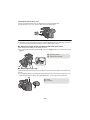
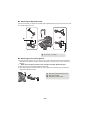
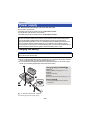
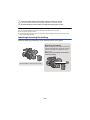
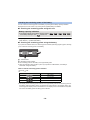
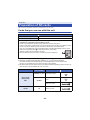
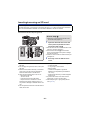
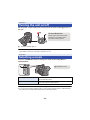
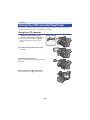
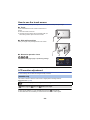
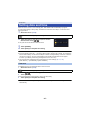
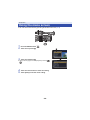
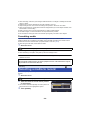
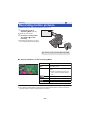
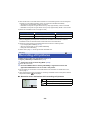
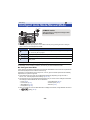
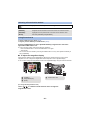
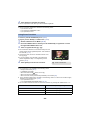
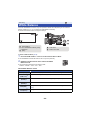
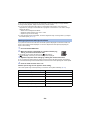
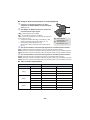
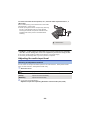
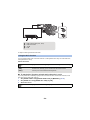
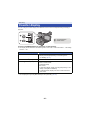
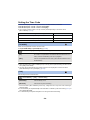
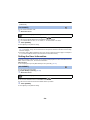
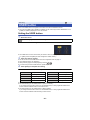
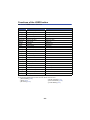
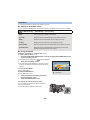
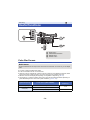
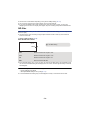
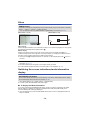
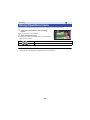
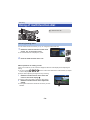
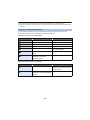
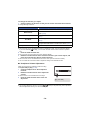
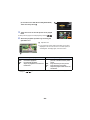
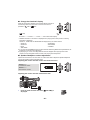
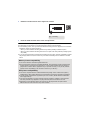
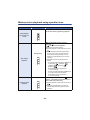
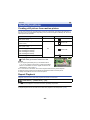
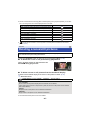
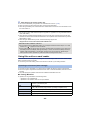
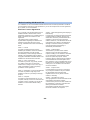
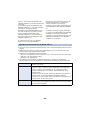
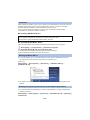
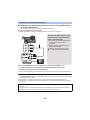
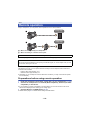
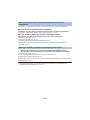
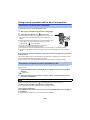
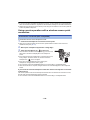
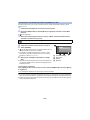
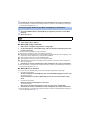
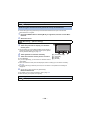
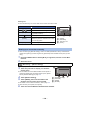
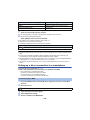
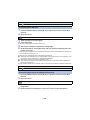
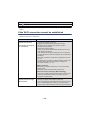
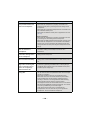
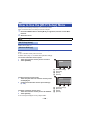
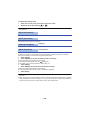
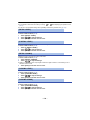
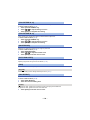
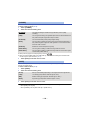
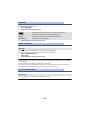
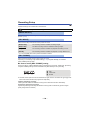
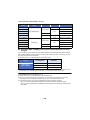
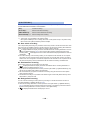
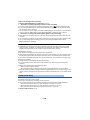
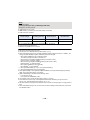
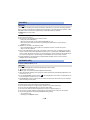
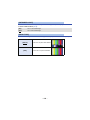
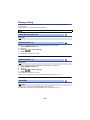
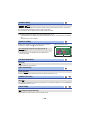
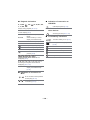
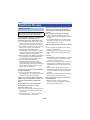
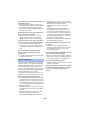
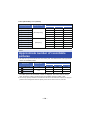
Connecting to a wireless access point ≥ Register [Wi-Fi] to a USER button. (l 61) Check if the wireless access point you are using is compatible with WPS j If the wireless access point is compatible with WPS: Proceed to the following Connecting with WPS j If the wireless access point is not compatible with WPS: [Searching for wireless access points to set up a connection] (l 123) Connecting with WPS 1 2 Press the USER button to which [Wi-Fi] is registered, and turn on the Wi-Fi function. Select the menu. MENU : [Wi-Fi Setup] # [Wireless Settings] ≥ Touch [OK]. 3 Touch the part with no display of a wireless access point. ≥ For information on how to delete wireless access points or change the display order of wireless access points, please refer to [Wireless Settings] on page 129. 4 Touch [WPS Connection]. 5 Set the wireless access point to waiting for WPS. A B C D [Wireless Settings] [RETURN] [Delete] [ENTER] ≥ For further details, please read the operating instructions for the wireless access point. ≥ A message is displayed when the connection is complete. ≥ A message is displayed when the connection attempt fails. Touch [EXIT], and set the connection again. Enter a PIN code to set the Wi-Fi connection 1 Touch [PIN code] in Step 5. 2 Touch the wireless access point to be connected. ≥ If you touch [Refresh], you can search for wireless access points again. 3 4 Touch [ENTER]. Enter the PIN code displayed on this unit screen into the wireless access point. ≥ For further details, please read the operating instructions for the wireless access point. 5 Touch [NEXT]. ≥ A message is displayed when the connection is complete. ≥ A message is displayed when the connection attempt fails. Touch [EXIT], and set the connection again. - 122 -