1
Editing Audio Tracks
19
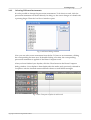
When you move the mouse to the left or to the right, the clip moves forward or
backward in an audio track. By moving the mouse up or down, you move the sound clip
from one track to another. When you release the left mouse button, the track is fixed at
the selected position.
!
5.3.2
Please note the Snap feature settings in the Master section which are useful
when moving.
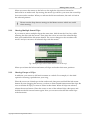
Moving Multiple Sound Clips
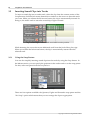
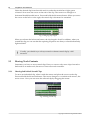
If you want to move multiple clips at the same time, hold down the CTRL key while
selecting the files with the mouse. Then place the cursor on one of the selected clips,
then press and hold the left mouse button. The cursor changes to the crosshair with
arrows and you can move all selected clips with the mouse.
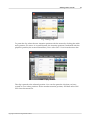
Fig.: Multiple clips selected (two audio tracks at the top)
When you release the left mouse button, all clips are fixed at their new positions.
5.3.3
Moving Groups of Clips
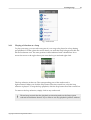
In addition, you can move full track contents as a whole. For example, it’s the ideal
option for inserting a prelude into your song.
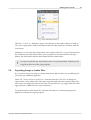
Place the cursor on a blank spot in the audio track, then press and hold the left mouse
button. By now dragging the mouse, you draw a white-dotted frame around the clips. Be
sure to include all clips you want to select in that frame. When all clips are selected,
release the mouse button. Place the cursor on one of the selected clips, then press and
hold down the left mouse button again. Now you can move the selected sound clips
with the mouse.
Copyright © 2008 Acon Digital Media GmbH