1
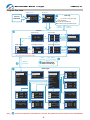
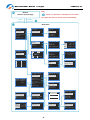
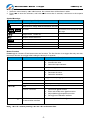
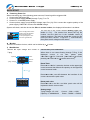
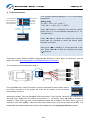
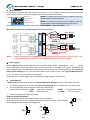
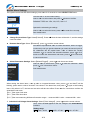
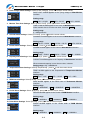
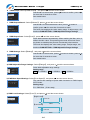
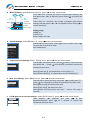
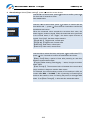
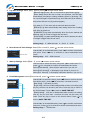
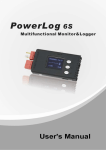
Multifunctional Monitor & Logger PowerLog 6S Menu Operation: 1. Select the menu items by <▲> /<▼> buttons, the selected item will be shown in white. 2. Press < > to enter the submenu, and hold < >for more than 3 seconds, it will return to the superior menu. Symbol Meanings: Display Symbols The meaning of the Symbols Note nS total voltage of the pack n:0-6, the cell count ▣V the maximum voltage difference between the cells mmM:ss or hhH:mm the timer ss: second, mm: minute, hh: hour dd: days orddD:hh ⊙/○ Single choice Do/Do not /□ Multiple choice Do/Do not T_OVER LOW OVER DIFF Time over alarm Lower MIN. limit alarm Over MAX. limit alarm Difference limit alarm Button Function PowerLog has 3 buttons. Each button owns two functions. The first function is to trigger after only one click; the second function is to trigger after holding the button for 3 seconds. Press button Condition Button Function Description <▲> Click 1. 2. 3. Hold for 3 seconds Enter alarm type select menu Click 1. 2. 3. Hold for 3 seconds Trigger Start/Stop logging function Click Confirmation Hold for 3 seconds Enter system setting menu <▼> < > <▲>+<▼> <▲>+<▼>+< > Turn up the menu item Increase the value Select the input character Turn down the menu item Decrease the value Delete the character Click Hold for 3 seconds 1. 2. 3. 4. Reset timer @watt monitor Enter cells mode menu @cells monitor Adjust blades @ temperature monitor Save @ user calibration interface Hold for 3 seconds on watt monitor Interface Current zero point calibration @watt monitor Note:<▲>+<▼> means pressing <▲> and <▼> at the same time. -7-