1
1.
2.
3.
4.
5.
6.
7.
Data root shows the full pathway to the appropriate data subdirectories.
Click the Central Data button to insert the default central ADAS
pathway to the correct data type – ADF01 in this case. Note that each
type of data is stored according to its ADAS data format (adf number).
Click the User Data button to insert the pathway to your own data.
Note that your data must be held in a similar file structure to central
ADAS, but with your identifier replacing the first adas, to use this
facility.
The Data root can be edited directly. Click the Edit Path Name button
first to permit editing.
Available sub-directories are shown in the large file display window.
There are a large number of these, stored by donor which is usually
neutral but not necessarily so (eg. qcx#h0). The individual members are
identified by the subdirectory name, a code and then fully ionised
receiver (eg. qcx#h0_old#c6.dat). The data sets generally contain nlresolved cross-section data but n-resolved and nlm-resolved are
handled. Resolution levels must not be mixed in datasets. The codes
distinguish different sources.The first letter o or the code old has been
used to indicate that the data has been produced from JET compilations
which originally had parametrised l-distribution of cross-sections. The
nl-resolved data with such code has been reconstituted from them. Data
of code old is the preferred JET data. Other sources codes include ory
(old Ryufuku), ool (old Olson), ofr (old Fritsch) and omo (old
molecular orbital). There are new data such as kvi.
Click on a name to select it. The selected name appears in the smaller
selection window above the file display window. Then its subdirectories in turn are displayed in the file display window. Ultimately
the individual datafiles are presented for selection. Datafiles all have
the termination .dat.
Once a data file is selected, the set of buttons at the bottom of the main
window become active.
Clicking on the Browse Comments button displays any information
stored with the selected datafile. It is important to use this facility to
find out what is broadly available in the dataset. The possibility of
browsing the comments appears in the subsequent main window also.
Clicking the Done button moves you forward to the next window.
Clicking the Cancel button takes you back to the previous window
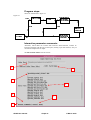
The processing options window has the appearance shown below
1. An arbitrary title may be given for the case being processed. For
information the full pathway to the dataset being analysed is also
shown. The button Browse Comments again allows display of the
information field section at the foot of the selected dataset, if it exists.
2. The output data extracted from the datafile, a ‘charge exchange crosssection’, may be fitted with a polynomial. This is as a function of
relative collision energy per atomic mass unit (eV/amu). Clicking the
Fit Polynomial button activates this. The accuracy of the fitting
required may be specified in the editable box. The value in the box is
editable only if the Fit Polynomial button is active
3. Your settings of collision velocity/energy (output) are shown in the
display window. The velocity/energy values at which the charge
exchange coefficients are stored in the datafile (input) are also shown
for information. The program recovers the output velocities/energies
you used when last executing the program.
4. Pressing the Default Velocity/Energy values button inserts a default set
of velocities/energies equal to the input velocities/energies
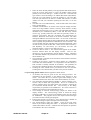
5. The Velocity/Energy values are editable. Click on the Edit Table
button if you wish to change the values. A ‘drop-down’ window, the
ADAS Table Editor window: It follows the same pattern of operation
as described in the 18nov-94 bulletin.
ADAS User manual
Chap4-01
17 March 2003