1
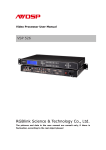
VISIONPRO Operation Manual Safety precaution For your safety, please read the following text carefully Power Source This product is intended to operate from a power source between 100~230 volts. Do not use high voltage power sources. This can overload the unit and cause a fire. Do not use a DC power source. Check the source carefully when setting the unit up on a ship or other place where DC is used. Placement Set the unit up on an even surface away from direct sunlight, high temperatures, high humidity, and excessive vibration. These conditions can damage the cabinet and other components, thereby shortening the unit’s service life. Do not place heavy items on the unit. AC Mains lead Protection Ensure the AC mains lead is connected correctly and not damaged. Poor connection and lead damage can cause fire or electric shock. Do not pull, bend, or place heavy items on the lead. Grasp the plug firmly when unplugging the lead. Pulling the AC mains lead can cause electric shock. Do not handle the plug with wet hands. This can cause electric shock. Foreign Matter Do not let metal objects fall inside the unit. This can cause electric shock or malfunction. Do not let liquids get into the unit. This can cause electric shock or malfunction. If this occurs, immediately disconnect the unit from the power supply and contact your dealer. Do not spray insecticides onto or into the unit. They contain flammable gases which can ignite if sprayed into the unit. Service Do not attempt to repair this unit by yourself. If indicators fail to light, smoke appears, or any other problem that is not covered in these instructions occurs, disconnect the AC mains lead and contact your dealer or an authorized service centre. Electric shock or damage to the unit can occur if the unit is repaired, disassembled or reconstructed by unqualified persons. Extend operating life by disconnecting the unit from the power source if it is not to be used for a long time. Grounding the Product and Use the Correct Fuse This product is grounded through the grounding conductor of the power cord. Use only the power cord and connector specified for your product. Use only a power cord that is in good condition. To avoid fire hazard, use only the identical type fuse, voltage rating, and Current rating characteristics. Refer fuse replacement to qualified service personnel. VisionPRO Operation Manual Page 2 Connection VisionPRO provides a professional converter platform from Video to PC, and PC to PC. Also scaling and sending device for VuePix LED displays. The VisionPRO accepts six universal inputs: RGBHV/RGBS/RGB, Component video (STD or HDTV), S-Video, Composite (3 inputs), SD SDI/HD SDI and DVI-I. VisionPRO Operation Manual Page 3 Setup 1. Control Interface 2. Reference BNC, used to lock to reference input Can also be used as a composite input A is Composite 1 C is Composite 2 B is Composite 3 3. Composite BNC, Used to input composite signal PAL, NTSC, SECAM 4. 5. S-Video DIN 4, used to input S-VIDEO signal PAL, NTSC, SECAM SDI BNC, used to support SD/HD SDI input, Max resolution 1080p30 (Some models do not support this input) VisionPRO Operation Manual Page 4 6. 7-9. DVI-I, used to support DVI input Max resolution 1600x1200x60Hz R/Pr G/Y B/Pb BNC, used to support SD/HD progressive input, Max resolution 720p60 10. DB-15, used to support Analogue RGB input Max resolution 1600x1200x60Hz 11. DB-15, output analogue RGB Max resolution 2048x1536x60Hz 12. Sending Card port. Connect to LED Screen via cat5 cable VisionPRO Operation Manual Page 5 13. DVI-I, DVI Output Max resolution 1600x1200x60Hz 14. Switch and power input. It must use IEC-3 power plug. Appliance must always be ground to avoid electric shock. VisionPRO Operation Manual Page 6 Front Panel CV1:Composite 1 CV2:Compostie 2 CV3 : Composite 3 SVID:SVideo SDI : SDI (HD/SD compatible) YPbPr : RGB component VGA : Analogue RGB DVI : DVI Output : Output format selection Menu : Main menu OK : OK ESC : push to esc from current menu UP : Up navigation DOWN: Down navigation Scale: scale zoom crop scale mode ACP: Save current configuration VisionPRO Operation Manual Page 7 Main Menu Function Push menu to go into system setting options: Push OK to go into Wizard mode. User can go to Output Setting menu to check what is the current output format, and use UP/DOWN to go to different output format setting items, push OK to enter User can ask device to work in Single mode or Dual channel mode by select UP/DOWN and OK to enter. Use to select different input by UP/DOWN items or use CV1 to DVI buttons to go into their quick menu. This is the last menu for Wizard mode, user can decide image size and coordinate. There are also some options inside main menu, could be operate by Up / Down operate when go back to the first Wizard menu. With Down operation go from first Wizard menu to Advance menu, user can customize video alpha values with PORT enable first. VisionPRO Operation Manual Page 8 When ESC from Advance menu, and can go to Language item with Down push. User can check OK to select Chinese or English menu display with Up / Down. Default menu language after factory reset is English. ESC from language option and push Down to Serial number. User can reset to factory default through selecting Factory Reset function. Pushing ACP button to save configuration Settings VisionPRO Operation Manual Page 9 Troubleshooting 1、No output on target display 1) Check output configuration of video source, take DVD player check whether interlace or progressive output, composite and S-Video input just support interlace format. 2) Check whether input channel configuration is ok. Example: The composite interface should be connected to the composite interface of video source. 3) Check output connection is OK. 4) Check target display does not go to power down mode or destroied. 5)Check output resolution of the VisionPRO is supported by the target display. 2、No image with VGA input 1)Check the VGA input is working. 2) Check whether VGA input mode is Selected. 3、No image with DVI input 1) Check whether DVI graphic card is outputting Video, some Video cards need to set to work in dual output mode. 2) Check whether DVI output resolution is support by VisionPRO. 3) Check whether DVI input mode is selected VisionPRO 4) Check the connection from VisionPRO to computer is secure. 4、No image with component input 1) Check the connection from VisionPRO to Component device is secure 2) Check whether component video source is working. 5、Can’t save 1) Push ACP button after configuration. VisionPRO Operation Manual Page 10 Guide step by step: 1 2 3 4 5 adjust 6 7 adjust 8 Connect all the cables securely, and switch on the power. Press OK button to confirm the resolution. Select Input type (CV1 CV2 CV3 SVID) from the front panel. Press OK button to confirm you will get into the scale settings Press OK to get into the Hsize setting, using up and down buttons to the value, and then push ok to go out hsize option Press down button to get into the vsize setting Press OK to get into the Vsize setting, using up and down buttons to the value, and then push ok to go out Vsize option Press ACP button to save all configuration settings VisionPRO Operation Manual Page 11