1
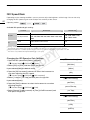
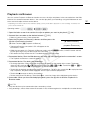
ISO Speed/Gain
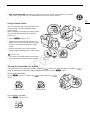
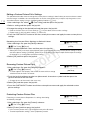
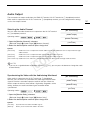
Adjusting the ISO/Gain Value
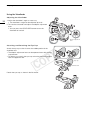
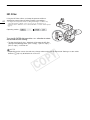
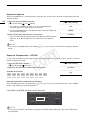
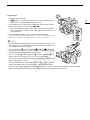
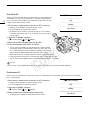
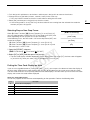
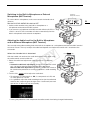
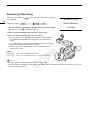
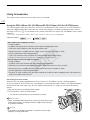
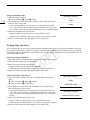
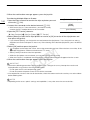
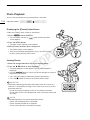
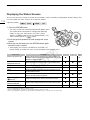
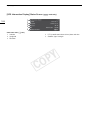
1 Press the ISO/GAIN button.
• The current ISO speed/gain value will be highlighted in
orange.
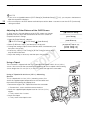
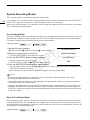
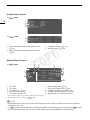
2 Push the joystick up/down to select the desired ISO
speed or gain value and then press the joystick.
• The selected ISO speed/gain value will be set and the display
will return to normal.
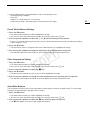
• You can also adjust the ISO speed/gain value using only the
joystick (A 56).
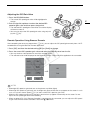
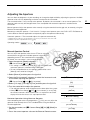
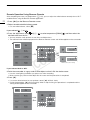
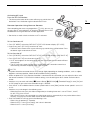
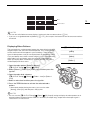
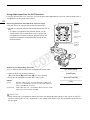
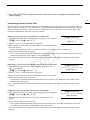
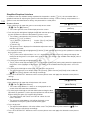
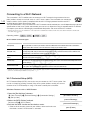
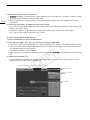
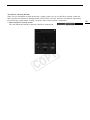
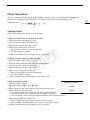
Remote Operation Using Browser Remote
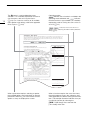
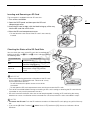
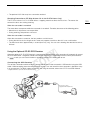
After completing the necessary preparations (A 153), you can adjust the ISO speed/gain remotely from a Wi-Fienabled device using the Browser Remote application.
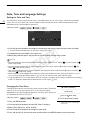
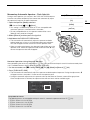
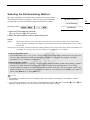
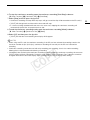
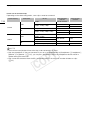
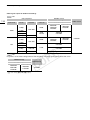
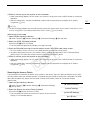
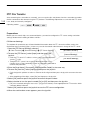
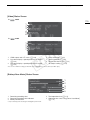
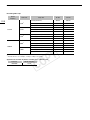
1 Press [ISO] and then the desired setting ([ISO] or [Gain]) to change.
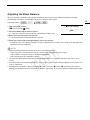
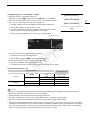
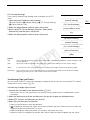
2 Press the current ISO speed or gain value and select the desired value from the list.
Y
P
O
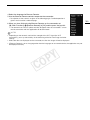
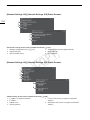
• You may need to scroll up/down to see all the available values.
• The selected value will be displayed on the Browser Remote screen and will be applied on the camcorder.
C
•
•
•
•
NOTES
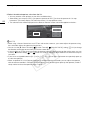
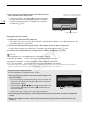
When high ISO speeds or gain levels are set, the picture may flicker slightly.
When high ISO speeds or gain levels are set, bright red, green or blue dots may appear on the screen. In such
case, use a faster shutter speed (A 57) or select a lower ISO speed or gain value.
When the ISO speed or gain level is changed, some noise may appear momentarily on the screen. Do not
adjust the ISO speed/gain level while recording.
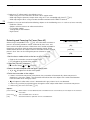
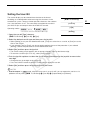
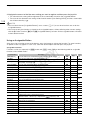
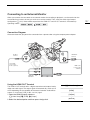
When an optional RC-V100 Remote Controller is connected to the camcorder, you can adjust the ISO speed
or gain value with the remote controller's ISO/GAIN Í/Î buttons.
61