1
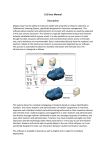
Anti-‐theft Software Manual Description This software uses unique MAC address of the device for identification. When a theft is notified to the service center, through Magnus Gyan’s remote management agent, the device can be blocked once connected to the internet. This allows administrators to keep close tabs on the devices at all times and protect students from theft. It a student loses their device, this software also allows adminstrators to pinpoint its location within meters. This complete control over the device makes it useless for anyone outside of the CPE program. Reformatting/wiping the device is ineffective against this mechanism as the software is preinstalled and therefore cannot be removed. Should the device be locked when the tablet is reset, immediately upon connecting to the internet, the device is locked again rendering it useless. There is no way to disable the locking mechanism except through the administrator controlled browser. Magnus Gyan is able to establish the necessary network infrastructure through a cloud to implement this anti-‐theft platform and can easily instruct CPE employees on how to use it. The software is very intuitive and simple to use…all the administrator needs is each devices mac address, which is documented with the production of each E90T tablet for easy and automated insertion into the platform. This same system allows administrators to permit device usage to various users, and the entire system is covered under warrantee for 3 years. Anti-theft software usage: 1. Access the URL on your browser: http://115.112.250.137:1005/ 2. Login using the credentials: Username: admin Password: 123456 3. On the “Administrar Dispositivos” tab, Enter the name and MacId of the device which needs to be locked in the respective fields on the website and click “Save Data”. (MacId can be got using Settings à WiFi à Press Menu à Advancedà MAC address) 4. Now, go to ‘Devices for locking/unlocking’ tab and against the device name which needs to be blocked, click on ‘Block’. The device will be blocked and user will not be able to use it until it is ‘Unblocked’ from the website. 5. To locate a device, click on ‘Locate the device’ present against the device name (the tablet can be blocked or unblocked). This button is also located on the “Devices for locking/unlocking” tab. The location of the device will then be shown on a map. The user can zoom in and out to see in more detail where the device is located. The software is accurate to within a few meters. 6. To factory reset the E90T when it is locked, follow this procedure: A. hit the reset button to turn the device off. B. Press and hold the power button and the volume up button at the same time for 20 seconds C. When an Android logo with a blue circling atom appears, you should release the buttons D. The system recovery process will start and delete all information stored on the tablet. The tablet will be restored to its original factory settings.